


A GPU can hit its power limit even when everything is working as expected. The real question is whether that limit is holding back clock speed and FPS or simply showing normal power management.
You can find out by checking GPU power, clock speed, temperature, GPU usage, and FPS during the same workload. These readings can show whether you should raise the power limit, lower it for less heat and noise, or leave the default setting alone.
How to Tell If Your GPU Is Power-Limited
Do not change the power limit just because your GPU uses a lot of power.
Check what happens when the GPU is under a heavy load. You want to see if it reaches its power ceiling while clock speed or FPS stops improving.
Check GPU Power and Power Limit
Start the game, benchmark, or application where you notice the performance problem.
Open your GPU monitoring or tuning software and watch:
- GPU power
- GPU power limit
- GPU clock speed
- GPU temperature
- GPU usage
- FPS
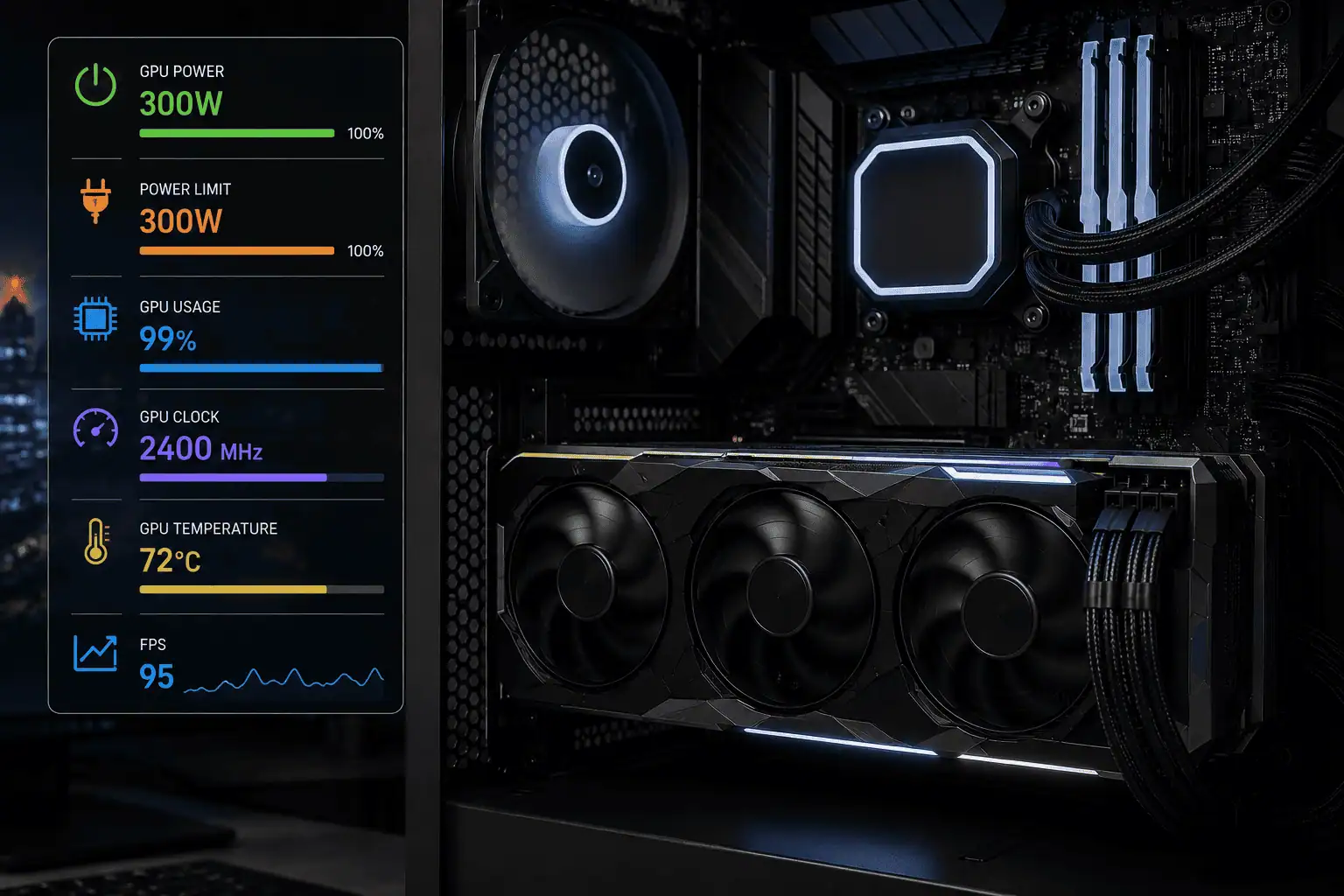
If GPU power stays close to the power limit while GPU usage is also high, power may be limiting the card.
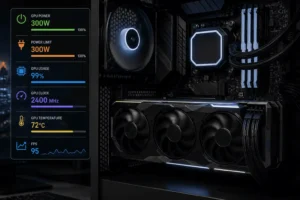
For example, a GPU with a 300W power limit that stays near 300W during a demanding game needs a closer check.
If the same GPU uses only 240W, raising the power limit is unlikely to fix the problem.
Watch GPU Clock Speed
Clock speed gives you another useful clue.
A power limit may be the cause if:
- GPU usage stays near 100%
- Power draw stays close to the limit
- Temperature is under control
- Clock speed stops increasing
- FPS stops improving
This pattern does not prove that power is the only limit. It does show that testing the power setting is worthwhile.
Check GPU Temperature
Temperature can also limit GPU clock speed.
If the GPU is close to its power limit and running very hot, do not assume power is the main problem.
A lower GPU temperature may allow the card to hold a higher clock without changing the power limit.
Check power, temperature, and clock speed together before making a change.
Check GPU Usage and FPS
GPU usage can help you find a CPU limit.
If GPU usage is low because the game is CPU-limited, raising the GPU power limit may have little effect. Check CPU usage and individual CPU core or thread load rather than relying only on total CPU usage.
For example, a game can be CPU-limited even when total CPU usage does not look very high. If GPU usage is close to 100%, power is near the limit, and clock speed is being held back, the GPU power limit becomes a stronger suspect.
Power Limit Does Not Mean PSU Problem
A GPU power-limit reading does not mean your PSU is too weak. The GPU can reach its own programmed power ceiling even when the PC has a properly sized PSU.
Test the Same Workload Before and After
Use the same game scene or benchmark for each test.
Keep your graphics settings and other system settings the same.
Record:
- Average FPS
- GPU power
- GPU clock speed
- GPU temperature
- GPU usage
If raising the power limit increases clock speed and FPS, the original limit was likely restricting performance.
If FPS barely changes, another limit may be responsible.

Does Increasing the GPU Power Limit Increase FPS?
It can, but there is no fixed FPS gain.
If your GPU is already hitting its power limit during a demanding workload, a higher limit may give it more room to maintain higher clock speeds.
That can improve FPS.
However, increasing the power limit does not automatically make the GPU faster.
You may see little or no change if the GPU is limited by:
- CPU performance
- Temperature
- Game settings
- Frame-rate caps
- Voltage
- Memory performance
- Another GPU control limit
This is why you should test the GPU first instead of simply raising the limit.
Why Increasing the Limit May Do Nothing
Suppose your GPU has a 300W power limit but uses only 250W during your game.
Increasing the limit to 320W does not give the GPU a reason to use the extra power. It was already below its limit.
The same applies when the CPU is limiting the game. The GPU can have plenty of power headroom and still produce the same FPS.
A higher power limit helps most when power is actually the active limit.
How to Change GPU Power Limit
The available control depends on the GPU, firmware, driver, and tuning software.
Some desktop graphics cards allow power-limit changes. Others provide only a small adjustment range or no manual control.
Laptop GPUs can have tighter limits because the laptop manufacturer controls the power and cooling system.
How to Increase GPU Power Limit
If your GPU supports manual adjustment, open compatible GPU tuning software and find the power limit or power target control.
Increase it by a small amount.
Then run the same game or benchmark again.
Watch:
- GPU power
- GPU clock speed
- GPU temperature
- FPS
- System stability
If the GPU holds a higher clock and produces more FPS, the original power limit may have been restricting performance.
If there is almost no change, return to the previous setting and check for another limit.
How to Lower GPU Power Limit
Lowering the power limit can help if your main problem is heat, fan noise, or high power use.
Reduce the setting by a small amount and test your normal workload again.
A lower limit may reduce:
- Power consumption
- GPU temperature
- Fan activity
- Fan noise
The trade-off can be lower clock speed and FPS.
The performance loss depends on the GPU and the workload. Some workloads lose very little performance after a moderate power reduction.
Why Some GPUs Cannot Change the Power Limit
You may find that the power-limit control is missing, locked, or limited to a small range.
Common reasons include:
- GPU firmware
- GPU model
- Laptop design
- Manufacturer settings
- Driver support
- Tuning software support
Two graphics cards using the same GPU chip can have different power-limit controls.
Do not assume that every version of a GPU has the same adjustment range.
Should You Increase or Lower Your GPU Power Limit?

The best setting depends on the problem you want to solve.
Increase the Power Limit If Performance Is Power-Limited
Raise the limit when your GPU repeatedly reaches its current power ceiling during a demanding workload.
This is most useful when temperature is under control and the CPU is not limiting performance.
You may get higher clock speeds and better FPS.
Lower the Power Limit If Heat or Noise Is the Problem
Lower the limit if you want to reduce GPU heat, fan noise, or power use.
This can be useful for:
- Quieter gaming
- Lower temperatures
- Lower power use
- Better performance per watt
You may lose some FPS, but the loss can be small in some workloads.
Leave the Default Limit If the GPU Is Working Well
If your GPU is not reaching its power limit and you have no heat, noise, or power-use problem, there may be little reason to change it.
The default setting is a good choice when the GPU already gives you the performance you want.
Is It Safe to Increase the GPU Power Limit?
Increasing the power limit within the range supported by your GPU and tuning software is a normal GPU tuning feature.
Higher power can also mean higher temperature and more fan noise, so test the GPU after changing the setting.
After changing the setting, check:
- GPU temperature
- GPU clock speed
- FPS
- System stability
- Fan speed
Do not try to bypass hardware or firmware limits to force a higher power setting.
A higher limit is useful only when the extra power improves your workload.
GPU Power Limit vs Power Draw
Power limit and power draw are different readings.
Power limit is the allowed ceiling.
Power draw is the amount of power the GPU is using at that moment.
For example:
- Power limit: 300W
- Current power draw: 260W
The GPU is using 260W, so it has 40W of room before reaching the listed limit.
Power draw changes with the workload.
A game menu may use little power, while a demanding game scene can push the GPU much closer to its limit.
Check power during the workload that causes your performance problem.
GPU Power Limit vs TGP, TBP, TDP, and Power Target
These terms can appear together in GPU specifications and tuning software, but they do not all mean the same thing.
TGP
TGP means Total Graphics Power. It is a graphics-card power rating used by manufacturers.
TBP
TBP means Total Board Power. It generally refers to power used by the graphics board rather than just the GPU chip.
TDP
TDP is a thermal design specification. It should not be treated as the same thing as current GPU power draw or the maximum power limit.
Power Target
Power target is used by some GPU software and vendors for the power ceiling or target used by the GPU’s power-management system.
The exact meaning of these terms can vary by manufacturer and product.
GPU Power Limit and Undervolting
Power limiting and undervolting use different controls.
A power limit sets a ceiling for power use.
Undervolting reduces the voltage used by the GPU at a given operating point.
Both can reduce power use and heat. They can also be used together on supported hardware.
If your main goal is lower temperature or power use, lowering the power limit may be enough.
If you want to keep more performance while reducing voltage and power, undervolting may be another option.
The result depends on the GPU, workload, voltage curve, and cooling.
GPU Power Limit and PSU Requirements
GPU power limit and PSU wattage are different things.
The GPU power limit controls how much power the graphics card can use.
PSU sizing covers the complete PC.
That includes:
- GPU
- CPU
- Motherboard
- RAM
- Storage
- Fans
- Other connected hardware
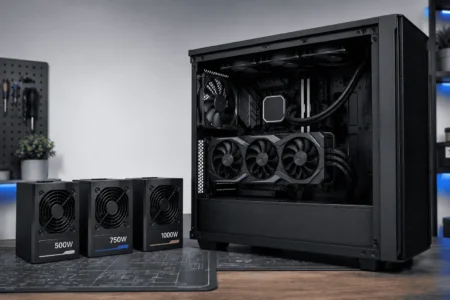
Lowering the GPU power limit does not mean you should automatically choose a smaller PSU.
The PSU still needs enough capacity for the complete system and its normal power needs.
What Is the Best GPU Power Limit?
There is no single power-limit setting that is best for every GPU.
Use the default setting if your GPU already gives you the performance, temperature, and noise levels you want.
Increase it when testing shows that power is holding back performance.
Lower it when reducing heat, noise, or power use matters more than maximum FPS.
Test the setting with your normal workload and keep it only if the change gives you a useful result. Extra power is not helpful if it produces little or no performance gain.
Conclusion
If your GPU is hitting its power limit, do not increase it blindly. Check power draw, clock speed, temperature, GPU usage, and FPS during the workload that causes the problem. If power is holding back the GPU, a higher limit may improve performance. If heat, noise, or power use is the concern, a lower limit may be better. If the GPU is not power-limited, keeping the default setting is usually the better choice.
FAQs
Can a low GPU power limit cause FPS drops?
Yes. If the GPU reaches a low power ceiling during a demanding workload, it may reduce clock speed and performance.
Does GPU power limit affect GPU lifespan?
Changing the power limit within the supported range does not automatically damage the GPU. Higher power can produce more heat, so temperature and cooling still matter.
Can GPU power limit cause stuttering?
It can contribute to performance drops in some cases, but stuttering can also come from the CPU, drivers, game engine, storage, memory, or other hardware.
Does GPU power limit affect idle power?
Changing the maximum power limit usually has little effect on idle power. Idle power is mainly controlled by the GPU’s low-power operating states.
Can you change the power limit on a laptop GPU?
Some laptops allow GPU power controls, while others lock them through firmware, drivers, or the laptop’s power and cooling design.
Does GPU power limit affect VRAM speed?
The power limit does not directly increase VRAM speed. It controls the power available to the GPU and can indirectly affect overall GPU behavior during demanding workloads.