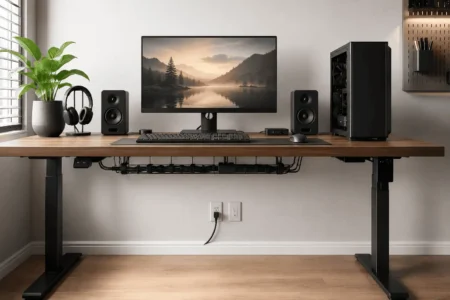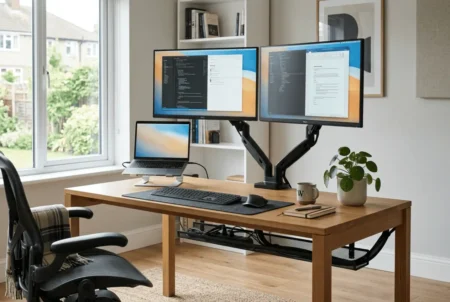
A standing desk can improve comfort and productivity, but it can also create a frustrating problem: cable clutter. As the desk moves up and down, monitor cables, power cords, and charging wires can become tangled, stretched, or difficult to manage. Even a clean desk setup can start to look messy when cables are left hanging underneath. A J channel cable raceway offers a simple way to organize those cables, keep them accessible, and reduce visible clutter.
This guide explains how J channel raceways work, where to install them, and how to use them effectively on a standing desk.
J Channel Cable Raceway vs Cable Tray
Both J channel raceways and cable trays help organize cables, but they serve different purposes. A J channel is best if you want easy cable access and a cleaner look, making it a popular choice for standing desks and home office setups.
A cable tray offers more space for large power adapters and heavy cable bundles. If your desk has multiple monitors or many connected devices, using a J channel for cable routing and a cable tray for power bricks can create a more organized setup.
What Is a J Channel Cable Raceway?
A J channel cable raceway is an open cable management channel that mounts under a desk.
Its shape looks like the letter “J”. The open side allows you to place cables inside without removing the entire cover.
Unlike closed raceways, a J channel gives quick access to cables. This makes it useful for standing desks where cables may need adjustments over time.
Most J channels are made from plastic or metal. Some use screws for mounting, while others use strong adhesive strips.
A J channel raceway is just one part of effective desk cable management. Choosing the right cable routing methods for your entire workspace makes future upgrades and maintenance much easier.
Why Standing Desks Need Better Cable Management
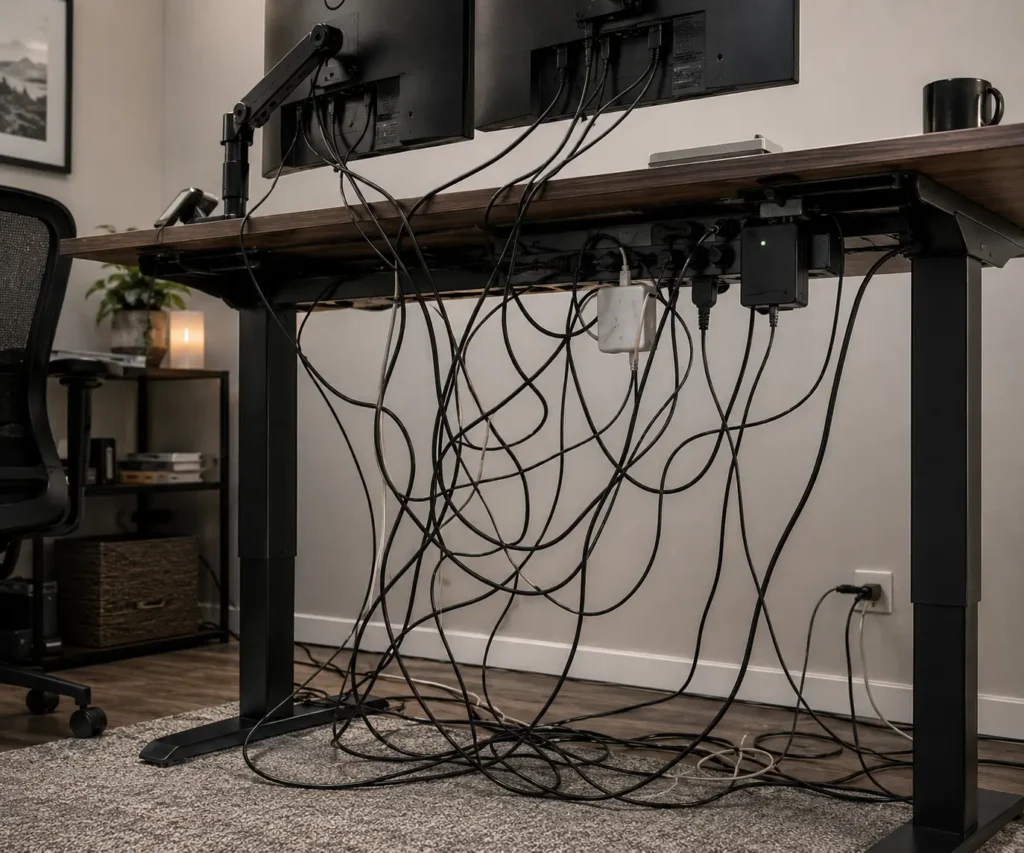
Cable management is important for every desk. It becomes even more important when the desk moves.
When a standing desk changes height, cables must move with it. If the cables are too tight, they can pull on monitors, docking stations, or power strips.
Poor cable routing can also cause:
- Hanging wires
- Cable tangles
- Snagged cords
- Stress on connectors
- An untidy workspace
A cable raceway helps keep everything organized in one place.
Benefits of Using a J Channel on a Standing Desk
Cleaner Appearance
Loose cables can make even an expensive setup look messy.
A J channel hides cables under the desktop and keeps them out of sight.
Keeping cables out of sight is also one of the easiest ways to achieve a minimalist desk setup with a cleaner overall appearance.
Easier Access
Unlike fully enclosed raceways, J channels remain open.
You can add or remove cables without taking apart the entire system.
Better Cable Organization
Power cables, monitor cables, and USB cords can all follow the same path.
This reduces cable clutter and makes future upgrades easier.
Works Well With Adjustable Desks
The open design makes it simple to manage cable slack for height adjustments.
Types of J Channel Cable Raceways
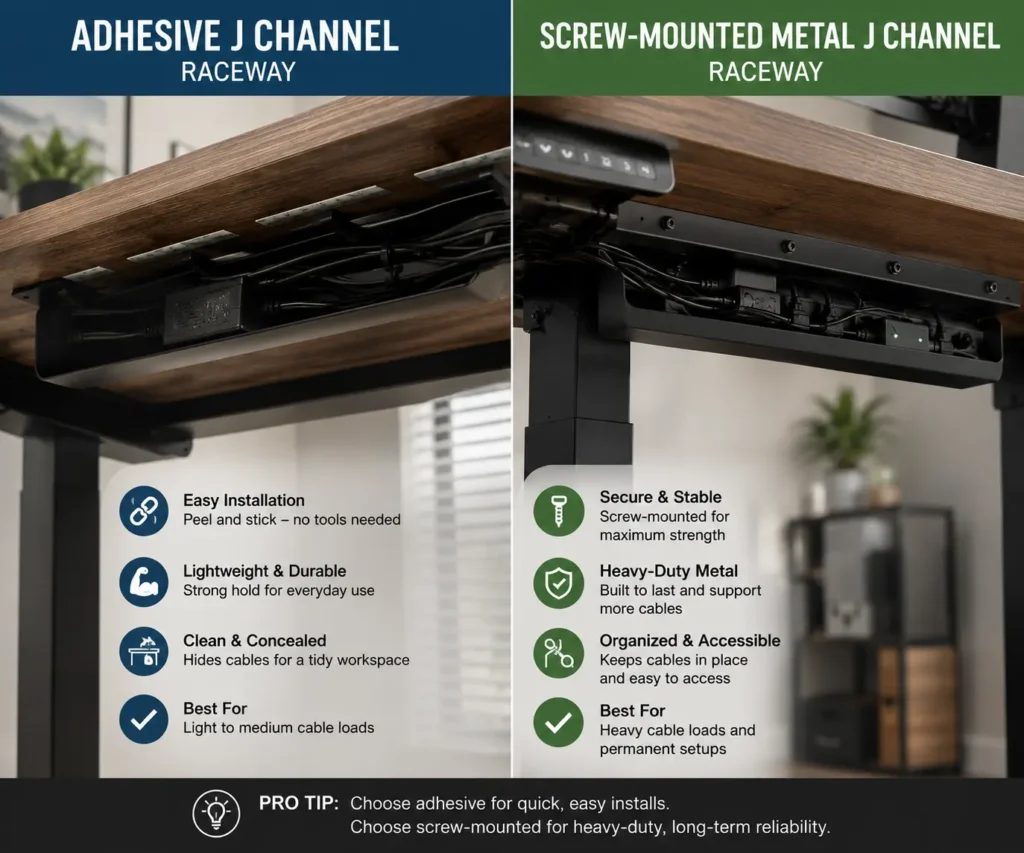
Not all J channel raceways are the same. Choosing the right type can make installation easier and improve long-term reliability.
Adhesive J Channels
Adhesive models stick directly to the underside of a desk. They are easy to install and do not require drilling.
They work best for:
- Home offices
- Rental spaces
- Lightweight cable bundles
However, low-quality adhesive may weaken over time, especially in warm environments.
Screw-Mounted J Channels
Screw-mounted raceways attach directly to the desk using screws.
They work best for:
- Heavy cable bundles
- Multi-monitor setups
- Permanent workstations
These raceways usually provide a stronger and more secure installation.
Metal vs Plastic J Channels
Plastic raceways are lightweight and affordable. They are suitable for most home office setups.
Metal raceways are stronger and often support heavier cable loads. They are commonly used in larger workstations and professional office environments.
Where Should You Mount a J Channel on a Standing Desk?
Placement matters.
The wrong location can make cable management harder.
Rear Edge Installation
Many users mount the raceway near the back edge of the desk.
This keeps cables close to monitors and monitor arms.
It also helps hide wires from normal viewing angles.
Center Mounting
Some setups work better with a raceway mounted closer to the center.
This location is useful when multiple devices connect to a docking station.
Full Width Installation
A long raceway running across most of the desk can hold many cables.
This works well for dual-monitor and gaming setups.
Partial Installation
Smaller workstations may only need a short section.
This keeps the installation simple while still reducing cable clutter.
Best Cable Route for a Standing Desk
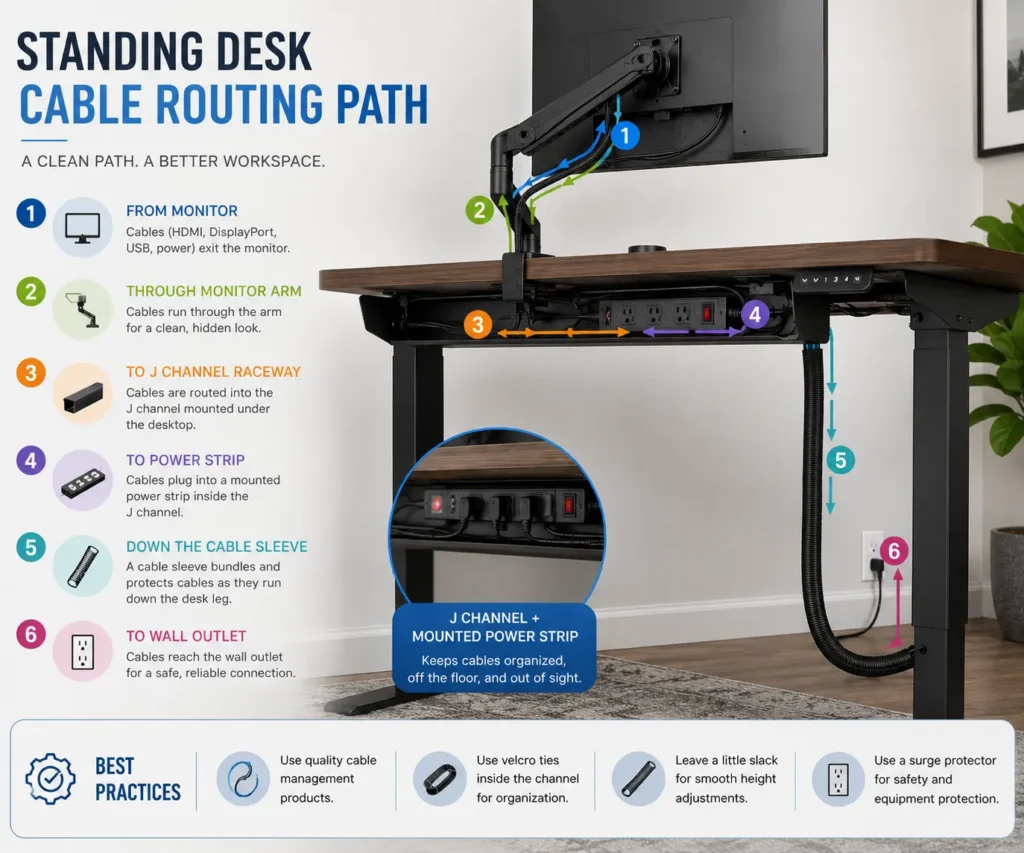
A cable raceway works best when it is part of a complete cable management system.
A simple cable path often looks like this:
Monitor and accessories
↓
Monitor arm or cable clips
↓
J channel raceway
↓
Mounted power strip
↓
Cable spine or cable sleeve
↓
Wall outlet
This layout helps keep cables organized while allowing the desk to move freely.
Try to keep most cables inside a single route. This reduces cable clutter and makes troubleshooting easier later.
When possible, separate power cables from data cables. This creates a cleaner layout and helps with organization.
How to Install a J Channel Cable Raceway
Step 1: Plan Your Cable Route
Before mounting anything, identify where cables will travel.
Look at:
- Monitor cables
- Power cords
- USB cables
- Ethernet cables
Try to create one main route under the desk.
Step 2: Mount the Power Strip
Many people make the mistake of managing cables before placing the power strip.
Mount the power strip first.
This creates a central point for cable organization.
Step 3: Position the Raceway
Hold the raceway under the desk and test different locations.
Make sure cables can reach it comfortably.
Step 4: Install the Raceway
Follow the manufacturer’s mounting method.
Some raceways use adhesive.
Others use screws.
Step 5: Insert the Cables
Place cables inside the channel.
Group similar cables together when possible.
Step 6: Test Desk Movement
Raise and lower the desk several times.
Watch how the cables move.
Make adjustments before finishing the setup.
A Simple Standing Desk Cable Management Workflow
Step 1: Install Monitors and Accessories
Set up monitors, monitor arms, speakers, and docking stations first.
Step 2: Mount the Power Strip
Choose a location that keeps cables close to the center of the desk.
Step 3: Plan Cable Routes
Identify where each cable will travel before securing anything.
Step 4: Install the J Channel Raceway
Mount the raceway where it can collect most of the cables.
Step 5: Secure Cable Slack
Leave enough cable length for the desk to move between sitting and standing positions.
Step 6: Test Full Desk Movement
Raise and lower the desk several times. Check for cable tension, snags, or stretched cords.
How Much Cable Slack Does a Standing Desk Need?
This is one of the most overlooked parts of cable management.
Cable slack is the extra cable length left available for movement.
Without enough slack, cables can become stretched when the desk rises.
Without proper slack, you may notice:
- Loose connections
- Cable damage
- Monitor issues
- Charging interruptions
A good rule is to raise the desk to its highest position and check every cable.
Each cable should still move freely.
If a cable becomes tight, add more slack.
Real Standing Desk Setup Examples
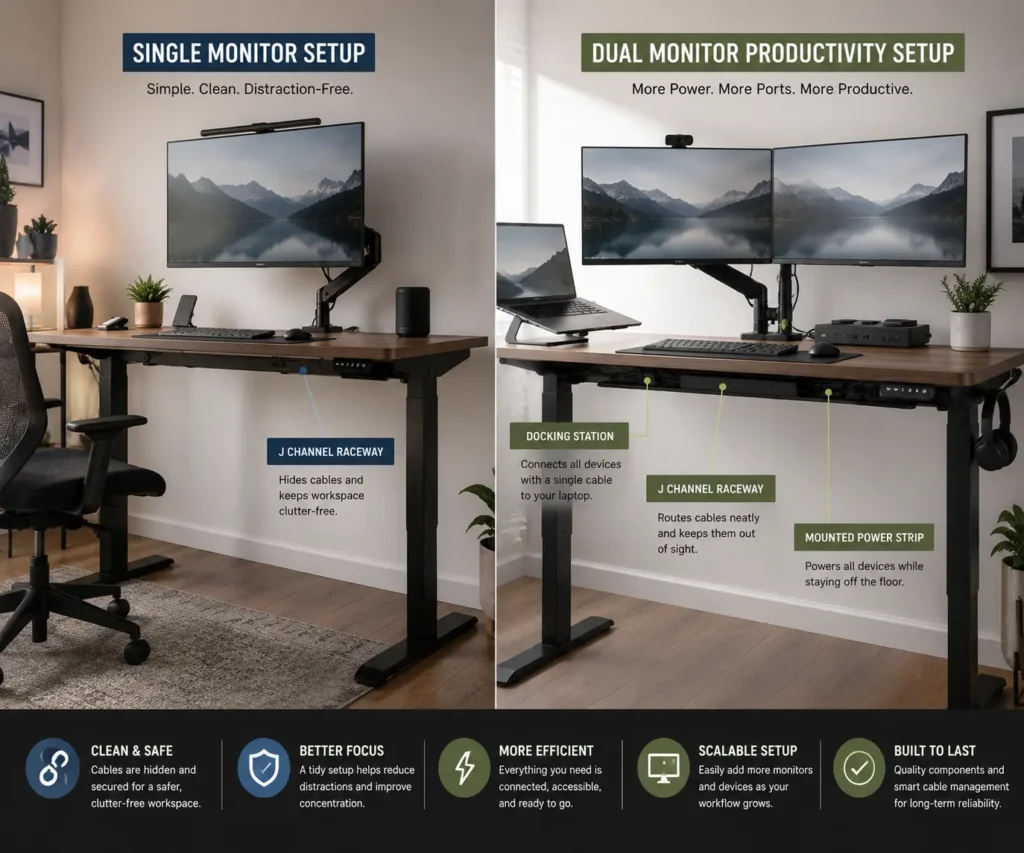
Single-Monitor Home Office Setup
A simple setup may include:
- One monitor
- One laptop
- One charging cable
A small J channel is usually enough to keep cables organized.
Dual-Monitor Productivity Setup
This setup often includes:
- Two monitors
- Docking station
- Keyboard and mouse
- Laptop charger
A longer raceway helps collect cables into one clean path.
Gaming Standing Desk Setup
Gaming setups often create the most cable clutter.
They may include:
- Multiple monitors
- Gaming PC
- Speakers
- Webcam
- Microphone
- RGB accessories
If your setup includes desktop speakers, hiding speaker wires can help create a cleaner workspace by reducing visible cable clutter.
In these cases, many users combine a J channel raceway with cable sleeves, cable clips, and a cable tray for better organization.
Managing Dual-Monitor and Triple-Monitor Setups
Monitor setups create more cable clutter than most people expect.
Each monitor may require:
- Power cable
- HDMI cable
- DisplayPort cable
- USB cable
A common mistake is focusing only on visible cables. In many dual-monitor standing desk setups, the largest source of clutter is usually the monitor power adapters and excess cable length hidden under the desk.
A dual-monitor setup can easily create eight or more cables.
A J channel helps collect these cables into one organized path.
For larger setups, consider using cable clips and Velcro ties together with the raceway.
How Many Cables Can a J Channel Hold?
Common J channel raceways come in several widths.
The table below shows the sizes most often used for standing desk cable management.
The right raceway size depends on how many cables and accessories your setup includes.
A small raceway may support a basic workstation.
A larger raceway can support:
- Multiple monitors
- Docking stations
- Speakers
- Gaming accessories
- Charging devices
Avoid overfilling the channel.
Too many cables can make future maintenance difficult.
Power Brick Management
Power adapters are often the largest source of cable clutter under a standing desk.
Monitor power supplies, laptop chargers, and docking station adapters can take up more space than the cables themselves.
USB hubs can also become a source of cable clutter, so following good USB hub cable management practices helps keep connected devices organized.
Small power bricks may fit inside larger J channels. However, larger adapters often work better in an under-desk cable tray.
If your setup includes several power adapters, mount the power strip first and then decide whether the adapters should be placed inside the raceway or stored separately.
Keeping power bricks off the floor helps create a cleaner setup and reduces cable tangles.
You can also use pegboards for PC peripheral organization to move accessories off the desk and free up even more workspace.
J Channel vs Cable Tray for Standing Desks
Both products help manage cables.
However, they serve slightly different purposes.
A J channel is often better for users who want quick cable access.
A cable tray usually offers more storage space.
J channels are often:
- Smaller
- Easier to access
- Less noticeable
Cable trays are often:
- Larger
- Better for power bricks
- Better for heavy cable bundles
For many home office setups, a J channel provides enough cable management without adding bulk under the desk.
Common Mistakes When Using a J Channel Raceway
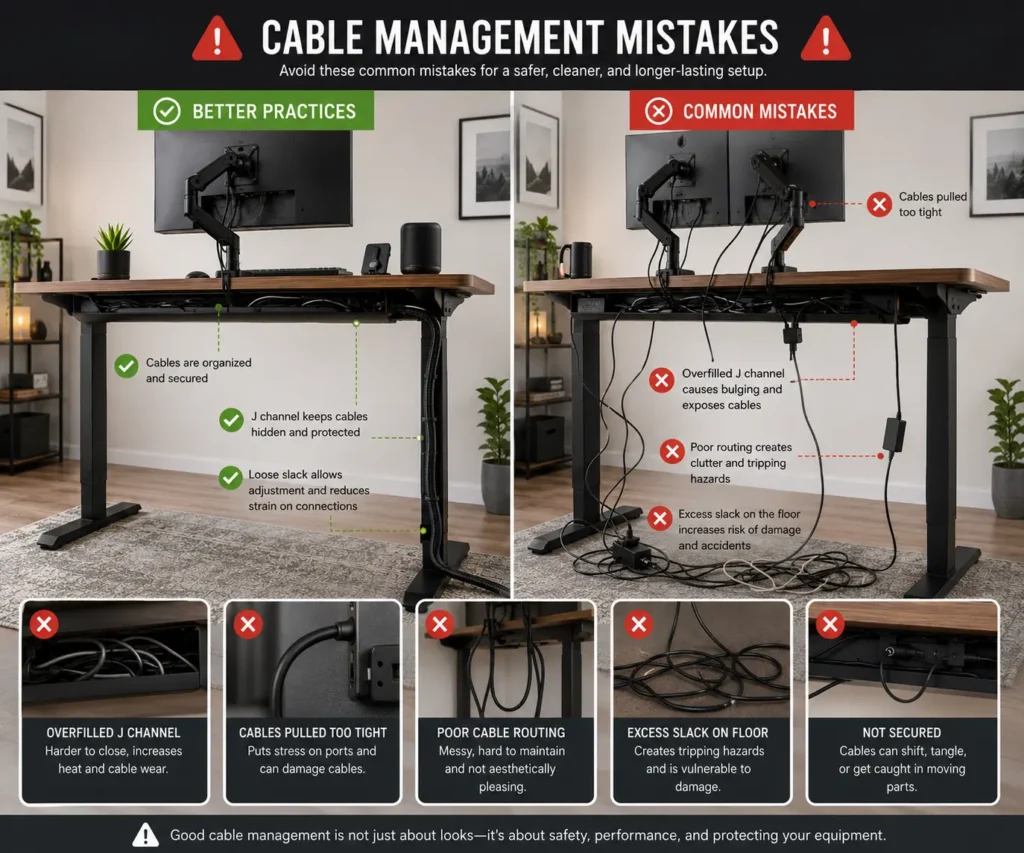
Overfilling the Raceway
Too many cables reduce airflow and make troubleshooting harder.
Not Leaving Enough Slack
Standing desks need room for movement.
Always test the desk at different heights.
Using Weak Adhesive
Cheap adhesive can fail over time.
Ignoring Future Upgrades
Many users install a raceway that is already full.
Leave extra space for future devices.
Poor Placement
A badly placed raceway may create longer cable runs and additional clutter.
Plan the layout before installation.
Routing Cables Too Tightly
A common mistake is routing cables tightly along lifting columns or desk frames.
This often creates tension when the desk reaches its highest position.
Best Accessories to Use With J Channel Raceways
Velcro Cable Ties
Velcro ties help bundle cables without damaging them.
They are easy to remove and reuse.
Cable Clips
Cable clips keep individual cables in place.
They’re also useful for keeping keyboard and mouse cables neatly routed along the back edge of the desk.
Under-Desk Power Strips
Mounting the power strip under the desk reduces visible wires.
Cable Sleeves
Cable sleeves group several cables into one bundle.
They create a cleaner appearance between the desk and floor.
Signs Your Standing Desk Needs Better Cable Management
Your setup may benefit from better cable management if you notice:
- Cables hanging below the desk
- Wires touching the floor
- Cable tangles behind monitors
- Cords becoming tight when raising the desk
- Power adapters sitting on the floor
- Difficulty adding new devices
- Too many cables from everyday peripherals.
In some setups, replacing frequently used wired accessories with wireless peripherals can reduce the number of desk cables that need to be managed.
Fixing these issues early can help protect cables and create a cleaner workspace.
Conclusion
A J channel cable raceway is a simple way to improve standing desk cable management. It helps keep cables organized, reduces visible clutter, and makes it easier to manage wires as the desk moves between sitting and standing positions. When combined with proper cable routing and enough cable slack, it can create a cleaner, more functional workspace that is easier to maintain over time.
FAQs
Can you install a J channel cable raceway on a glass standing desk?
Most J channel raceways should not be screwed into a glass desk. A strong adhesive model may work if the desk manufacturer allows it, but always check the desk’s installation guidelines before mounting anything.
Can a J channel cable raceway be removed without damaging the desk?
It depends on the mounting method. Screw-mounted raceways leave small holes, while adhesive models may leave residue that usually can be cleaned with an adhesive remover or isopropyl alcohol.
Should monitor power adapters go inside a J channel raceway?
Small power adapters may fit inside larger J channel raceways, but larger power bricks are usually better stored in an under-desk cable tray to avoid overcrowding the raceway.
How do you clean a J channel cable raceway?
Remove dust with a soft cloth or compressed air and check occasionally for loose cables or damaged cable ties. Regular cleaning helps keep cables organized and makes future changes easier.
Can a J channel cable raceway be reused on another desk?
Yes. Screw-mounted raceways can usually be removed and reinstalled if they remain in good condition. Some adhesive models can also be reused, but they often require new adhesive strips for a secure installation.