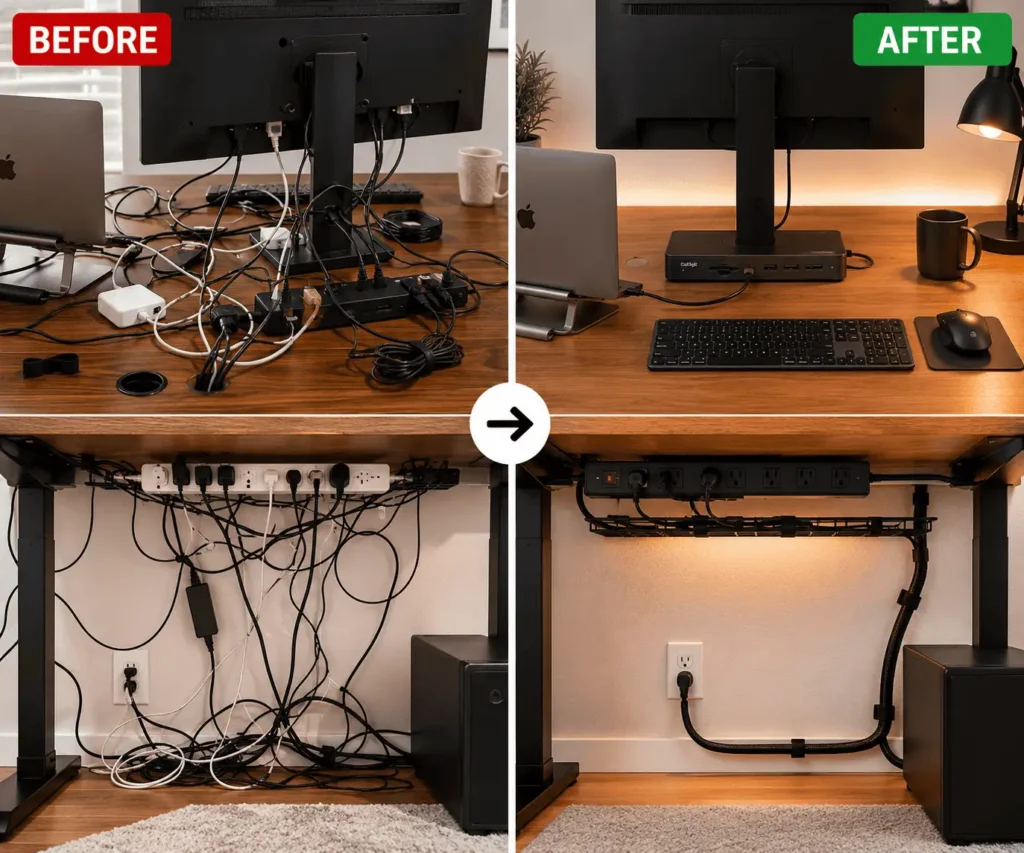
A laptop docking station can help you connect a monitor, keyboard, mouse, and other devices through a single hub. However, on a small desk, all those connections can quickly turn into cable clutter and take up valuable workspace.
The good news is that you do not need a larger desk to fix the problem. With better cable routing, smart dock placement, and a few simple cable management tools, you can organize laptop docking station cables, reduce clutter, and create a cleaner, more functional workspace. This is especially helpful for remote workers, students, and anyone using a laptop as their main computer on a compact desk.
Why Docking Station Cables Become Messy on Small Desks
A docking station helps connect multiple devices, but it can also create cable clutter on a small desk.
With limited space, even a few cables can make the workspace feel crowded.
Limited Workspace Leaves Little Room for Error
Small desks have less room to hide cables.
When cables run across the desk, they can interfere with work and make the setup look messy.
Docking Stations Increase Cable Density
A typical docking station may connect a monitor, keyboard, mouse, Ethernet cable, charger, and other devices.
Without a clear routing plan, these cables can quickly build up around the dock and create clutter.
Organizing a docking station is one part of effective desk cable management. A planned cable route across your workspace makes maintenance and future upgrades much easier.
Audit Your Docking Station Setup Before Organizing
Before organizing cables, take a quick look at your current setup.
Identify every cable connected to the docking station and remove any that are no longer needed.
Next, decide which cables need to stay accessible, such as phone chargers or USB devices.
If you connect several accessories through one hub, proper USB hub cable management can make those frequently used cables easier to organize and access.
This simple audit helps reduce clutter and makes cable management much easier.
Map Your Cable Routes Before Making Changes
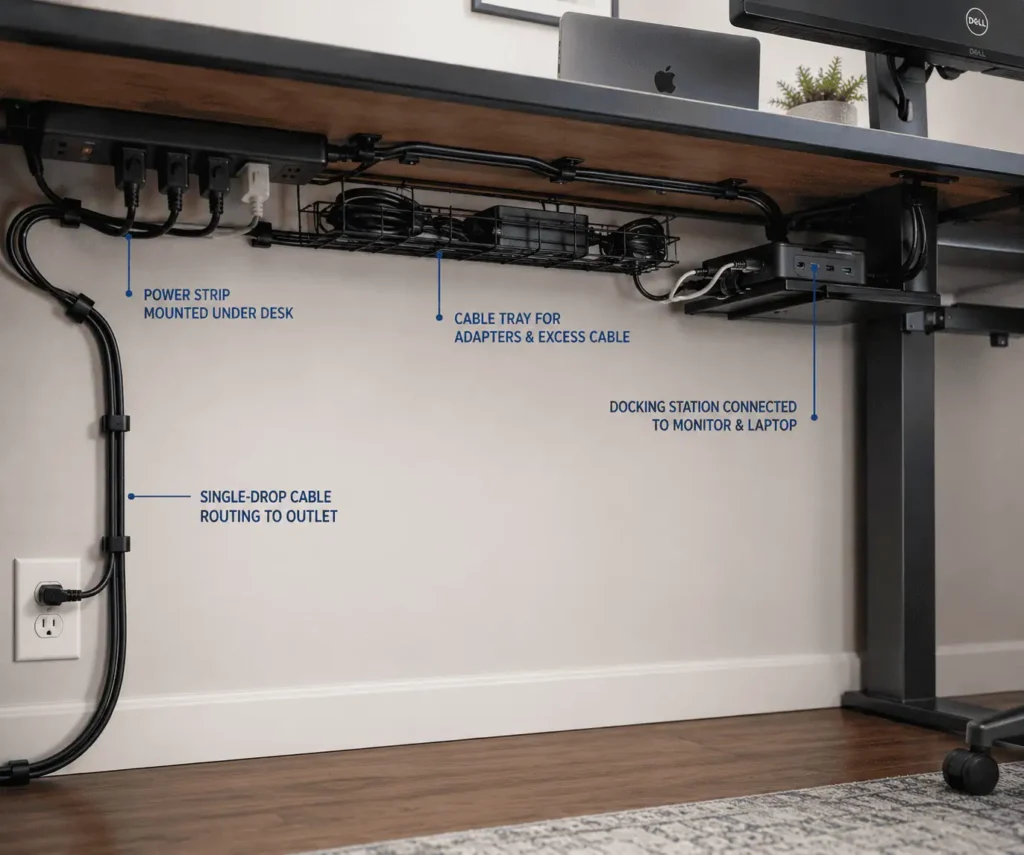
One of the biggest mistakes people make is organizing cables without planning their routes.
A better approach is to create a simple cable map first.
This helps prevent future clutter and makes maintenance easier.
Create Simple Cable Routes
Group cables by purpose before organizing them.
Keep power cables together, route data cables along the same path, and place frequently used charging cables where they are easy to reach.
Switching to wireless peripherals where practical can also reduce the number of data cables that need to be routed across your desk.
This reduces cable crossings and makes the setup easier to manage.
Planning your keyboard and mouse cable routing at the same time helps keep frequently used cables accessible without crossing other cable paths.
Use the Single-Drop Method
The cleanest desk setups often use a single-drop cable route.
Instead of running multiple cables to the floor, route them through one organized path.
The typical flow looks like this:
Wall Outlet → Power Strip → Docking Station → Connected Devices
This method reduces visible cables and makes troubleshooting much easier.
Plan Around Device Locations
Before attaching cable clips or installing cable trays, decide where each device will sit.
Think about:
- Laptop position
- Docking station location
- Monitor placement
- Power strip location
- Charging area
Good placement naturally reduces cable clutter.
Poor placement forces cables to cross the desk and creates problems that organizers alone cannot fix.
By the end of this planning stage, you should know exactly where every cable starts, where it ends, and which route it will follow. This makes the actual organization process much easier and helps create a cleaner docking station setup that stays organized over time.
Choose the Best Docking Station Location on a Small Desk
The location of your docking station affects how clean your desk looks. Even the best cable organizers cannot fix a poor layout.
Many people place the dock wherever there is free space. This often creates long cable runs and visible clutter. Instead, choose a location that reduces cable travel and keeps important ports accessible.
Place the Dock Behind the Monitor
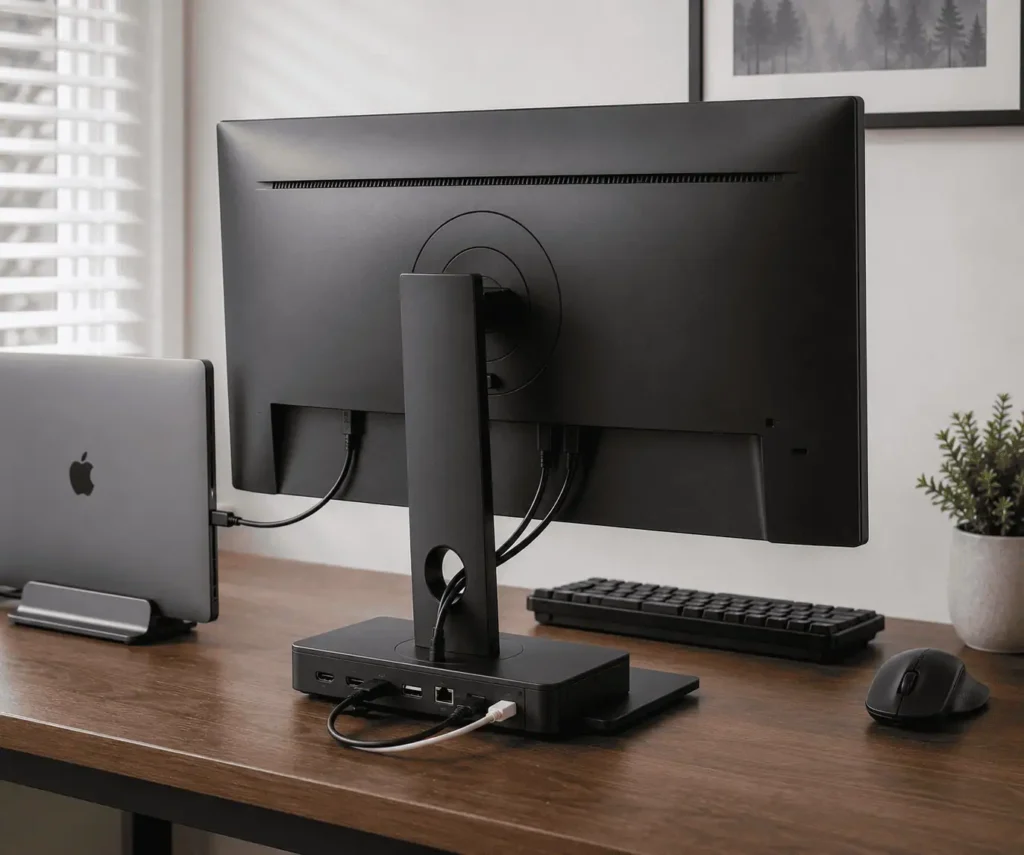
For many small desk setups, the space behind the monitor is one of the best locations.
This position offers several advantages:
- Keeps the dock out of sight
- Shortens monitor cable runs
- Reduces desktop clutter
- Creates a central connection point
If your monitor stand leaves enough room, the dock can sit directly behind it. This helps hide HDMI, DisplayPort, and USB-C cables naturally.
Use a Monitor Riser to Hide the Dock
A monitor riser creates extra storage space underneath the screen.
This area works well for:
- USB-C docks
- Thunderbolt docks
- Small USB hubs
- Power adapters
The dock stays easy to reach while remaining hidden from view.
This setup also helps create a cleaner desk surface because cables can enter and leave the dock without crossing your workspace.
Consider Under-Desk Dock Mounting
Some docking stations can be mounted underneath the desk using brackets or adhesive mounts.
Benefits include:
- More desktop space
- Fewer visible cables
- Better cable containment
However, this approach works best when you rarely need to access dock ports.
If you frequently connect USB drives, SD cards, or external storage devices, keeping the dock on the desktop may be more practical.
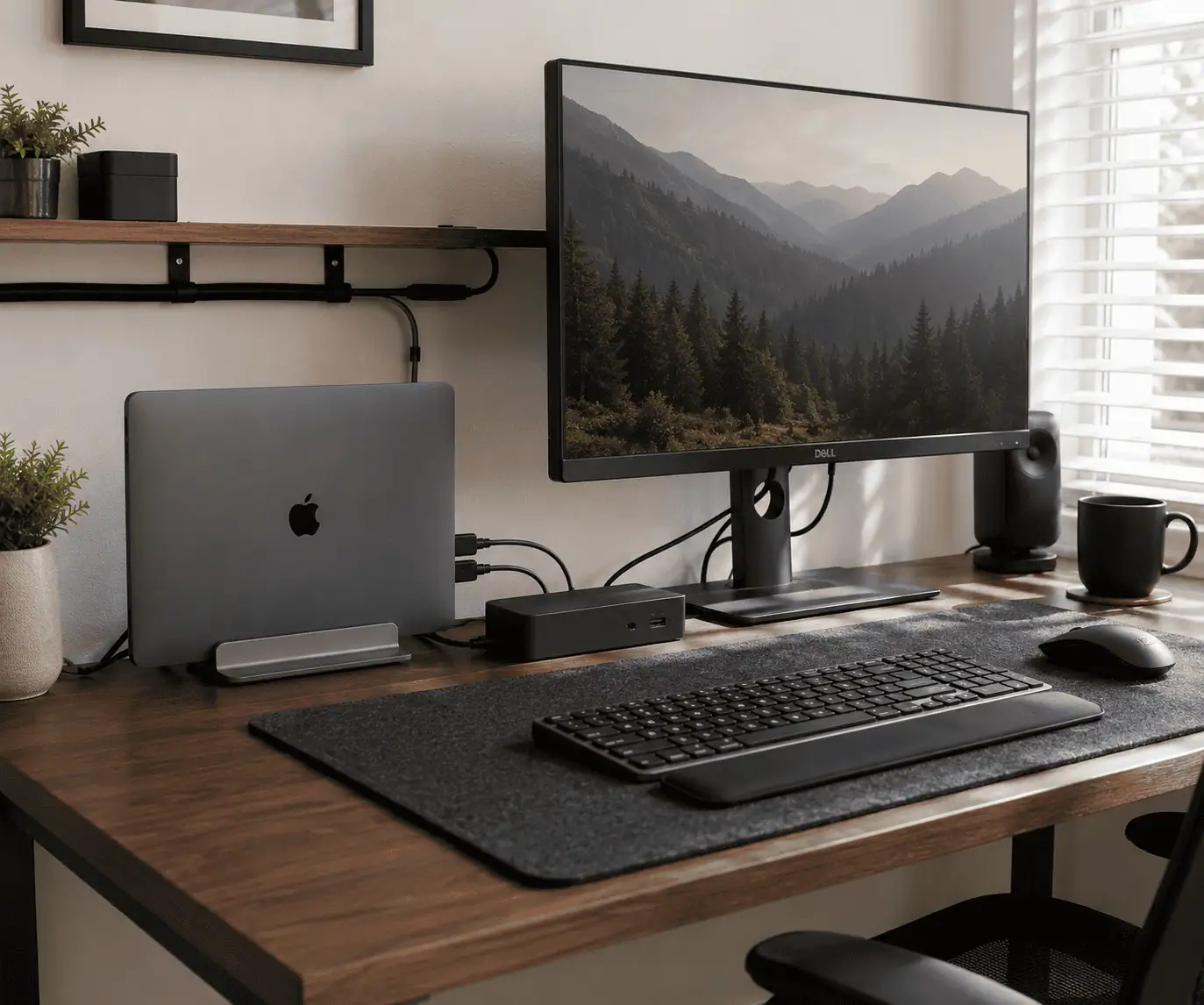
Use Vertical Dock Placement When Possible
Some modern docking stations support vertical positioning.
A vertical dock:
- Uses less desk space
- Improves airflow
- Reduces cable spread
- Makes routing easier
For very small desks, a vertical setup can free valuable workspace while keeping cables organized.
Avoid Common Dock Placement Mistakes
Certain dock locations almost always create cable problems.
Avoid placing the dock:
- In the center of the desk
- Far away from the monitor
- Next to daily work areas
- Directly in mouse movement zones
These positions force cables to cross the workspace and create clutter.
The best docking station location is usually the one that keeps cables close to the desk’s rear edge while maintaining easy access when needed.
Tools That Make Docking Station Cable Management Easier
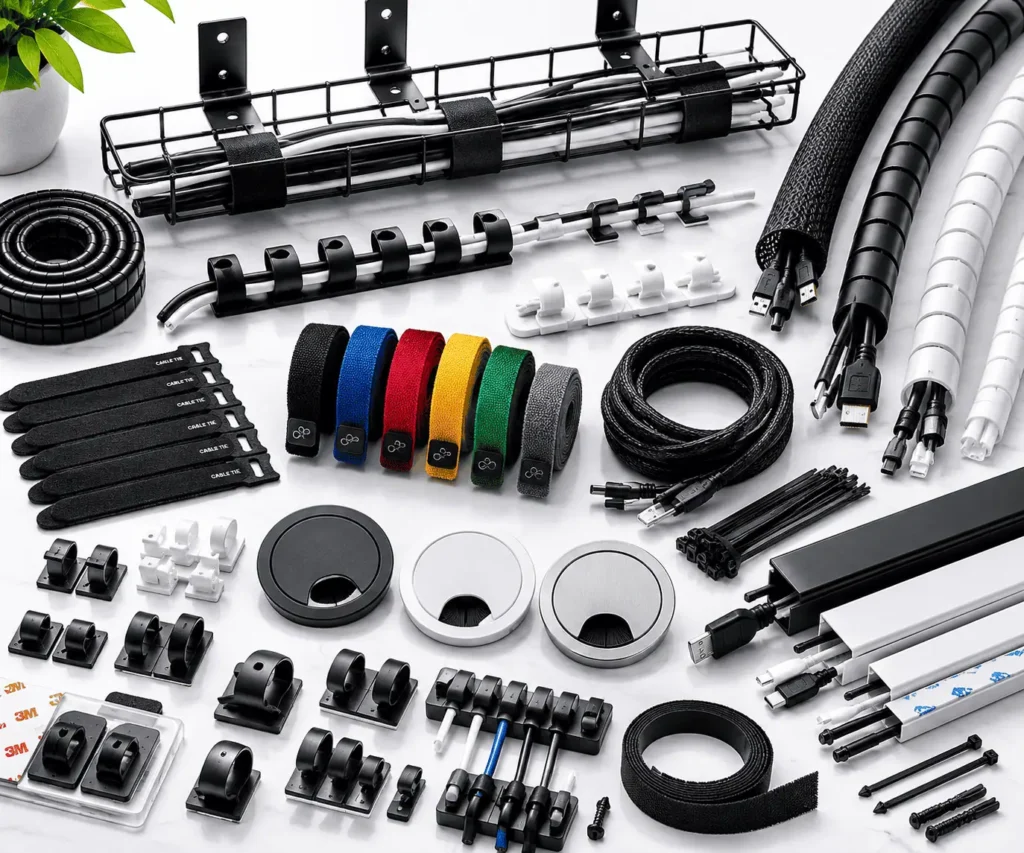
The right cable management tools can help keep your docking station setup organized. You do not need every tool. A few simple options are often enough.
Cable Clips
Cable clips hold individual cables in place. They work well for USB-C cables, charging cables, and Ethernet cables. They also help keep frequently used cables within reach.
Cable Sleeves
Cable sleeves group multiple cables into one bundle. They are useful for monitor cables, dock cables, and other wires that follow the same route.
Velcro Cable Ties
Velcro cable ties help organize cable bundles and excess cable length. They are reusable and easier to adjust than zip ties.
Under-Desk Cable Trays
Cable trays store power strips, power adapters, and extra cable length under the desk. This helps free up valuable desk space.
Cable Raceways
Cable raceways hide cables along desk edges or walls. They create cleaner cable routes and reduce visible clutter.
For standing desks, a J channel cable raceway is a practical option because it keeps cables accessible while reducing visible clutter beneath the desktop.
Surface raceways also work well for hiding speaker wires that run behind a desk or along a wall while keeping them protected and out of sight.
Desk Grommets
Desk grommets allow cables to pass through the desktop instead of across it. This helps create a cleaner and more organized setup.
Cable Boxes
Cable boxes hide power strips and bulky adapters. They are a good option when under-desk mounting is not available.
Step-by-Step Guide to Organizing Docking Station Cables
1. Disconnect and Sort Cables
Unplug the docking station and connected devices. Remove unused cables and group the remaining cables by function.
2. Place Devices
Position the laptop, docking station, monitor, and power strip where you want them to stay. This helps prevent cable rerouting later.
3. Route Power Cables
Route power cables together along the rear edge or under the desk. Keep them separate from data cables when possible.
4. Route Data Cables
Connect USB-C, Thunderbolt, HDMI, DisplayPort, and Ethernet cables. Follow the shortest practical path to reduce clutter.
5. Secure and Test
Use cable clips, Velcro ties, or cable sleeves to secure cables. Then test charging, displays, internet, and connected devices.
How to Manage Extra Cable Length Around a Dock
Even a well-organized desk can look messy if cables are too long.
Many laptop docking station setups use cables that are much longer than necessary.
These extra inches often end up coiled behind the monitor, stuffed under the desk, or hanging off the edge of the workstation.
Managing cable length properly can make a bigger difference than buying more cable organizers.
Best Small Desk Layouts
These layouts work well for home offices, study desks, and hybrid workspaces where desk space is limited.
Laptop and Monitor Setup
Place the monitor in the center and the docking station behind it.
Keep the laptop beside the monitor or on a laptop stand.
This layout shortens cable runs and keeps the desk surface clear.
Dual Monitor Setup
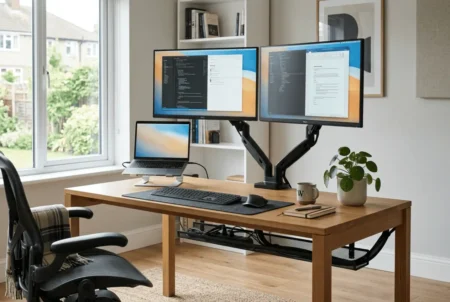
Place the docking station between both monitors whenever possible.
Route display cables together and keep power cables separate.
This helps reduce cable clutter and makes the setup easier to manage.
Standing Desk Setup
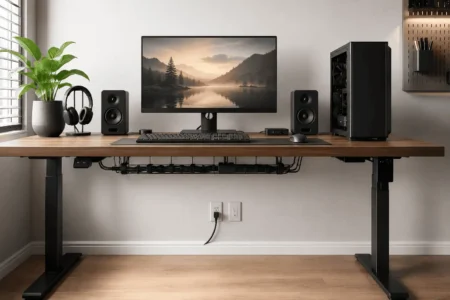
Use an under-desk cable tray to hold cables and power adapters.
Leave enough slack for desk movement and route cables through a flexible cable spine.
This helps keep cables organized as the desk moves up and down.
A complete standing desk cable management plan also helps prevent cables from stretching, snagging, or hanging below the desk during movement.
Creating a Single-Cable Laptop Setup
One of the biggest benefits of a docking station is the ability to create a single-cable workstation.
Instead of connecting several cables every time you sit down, you connect only one cable to the laptop while everything else remains connected to the dock.
A single-cable setup is useful for people who connect and disconnect their laptop throughout the day.
It helps reduce cable clutter and makes the workspace easier to use.
What Is a Single-Cable Setup?
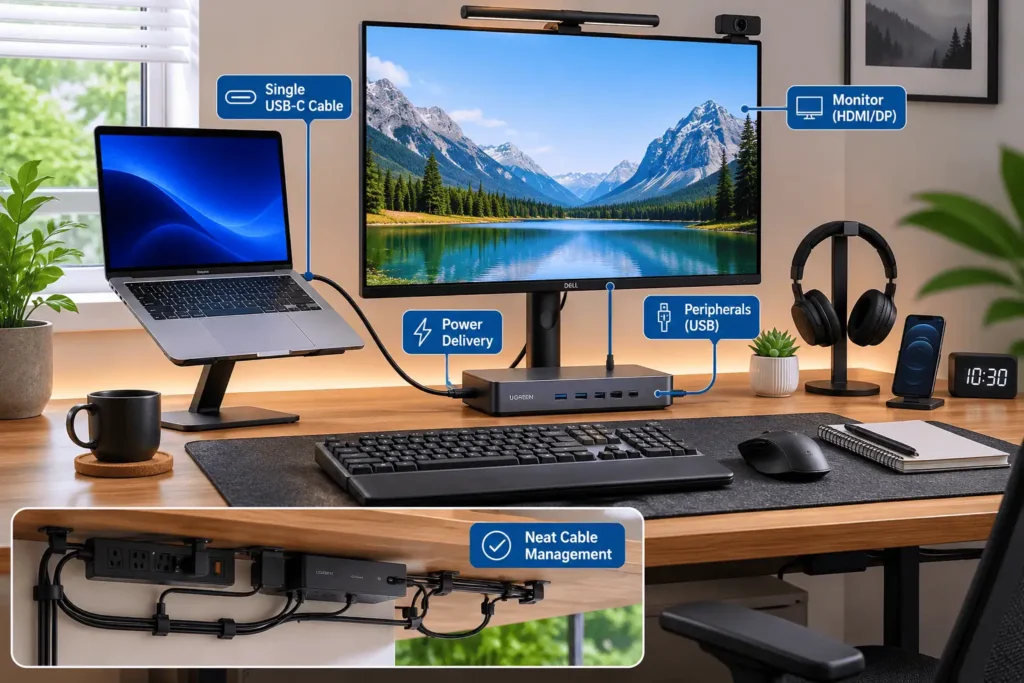
A single-cable setup uses one connection between the laptop and docking station.
Through that cable, the laptop can receive:
- Power
- Video output
- Data connections
- Internet access
This greatly reduces desktop clutter.
Choose the Right Dock
Most users can organize their desk with either a USB-C dock or a Thunderbolt dock.
Both allow you to connect monitors, accessories, internet, and charging through a single connection.
A USB-C dock works well for everyday setups.
A Thunderbolt dock may support more displays and faster devices.
No matter which dock you use, the goal is the same: reduce cable clutter and create a cleaner workspace.
Docking Station Cable Management for Dual Monitors
Dual monitor setups add more cables, so keeping them organized is important.
Bundle HDMI, DisplayPort, or USB-C display cables together and route them along the same path whenever possible.
As you add more displays, proper multi-monitor cable management helps keep display, power, and peripheral cables organized without creating unnecessary clutter.
If you use monitor arms, take advantage of their built-in cable channels to hide display and power cables.
This creates a cleaner setup and helps reduce visible cable clutter on a small desk.
Common Docking Station Cable Management Mistakes
Many cable management problems come from small mistakes that build up over time.
Even if you use cable trays, cable sleeves, and cable clips, the setup can still become messy if the basics are ignored.
Knowing what to avoid can help keep your desk organized for much longer.
Using Cables That Are Too Long
One of the most common mistakes is using cables that are much longer than needed.
Extra cable length often creates:
- Large cable loops
- Tangled bundles
- Crowded cable trays
Whenever possible, choose cables that match the distance between devices.
This reduces clutter and makes routing easier.
Placing the Dock in the Wrong Location
The docking station should support your cable routes, not work against them.
A poorly placed dock often causes:
- Crossed cables
- Visible wires
- Longer cable runs
If cables must travel across the desk to reach the dock, consider moving the dock closer to the monitor or rear edge of the desk.
Mixing Power and Data Cables Everywhere
Power cables and data cables often end up in one large bundle.
While this may look organized at first, it can make troubleshooting difficult later.
A better approach is to create separate routes:
- One route for power
- One route for data
This makes upgrades and maintenance much easier.
Overfilling Cable Trays
Cable trays help hide clutter, but they have limits.
When too many cables are packed into a tray, you may experience:
- Tangled bundles
- Difficult cable access
- Poor airflow
Leave enough room for future changes and avoid forcing every cable into the same space.
Ignoring Dock Ventilation
Many powered docking stations generate heat during normal operation, especially when charging a laptop and running multiple displays.
When docks are buried under cables or enclosed inside tight spaces, airflow can become restricted.
Always leave enough space around the dock for proper ventilation.
Conclusion
Organizing laptop docking station cables on a small desk starts with a simple plan. Remove unused cables, route power and data cables separately, and place the docking station where cable runs stay short. Use cable clips, sleeves, or trays only where they add value. With the right layout and a few cable management habits, you can reduce clutter, free up desk space, and create a cleaner, more efficient workspace that is easier to use every day. You do not need a bigger desk or expensive accessories to create a cleaner setup.
FAQs
Where should a docking station be placed on a small desk?
Place it behind the monitor, under a monitor riser, or near the rear edge of the desk to reduce cable clutter.
Should a docking station sit on top of the desk or underneath it?
A desktop dock offers easier access, while an under-desk mount saves space and hides cables.
How do I hide docking station cables without blocking ports?
Use cable trays, raceways, or sleeves for permanent cables while keeping frequently used ports accessible.
How do I reduce cable clutter with dual monitors?
Keep the dock close to the monitors, bundle display cables, and route power cables separately.
Can a docking station help create a one-cable laptop setup?
Yes. Many USB-C and Thunderbolt docks support power, displays, internet, and accessories through a single cable.