


A messy desk can make work and gaming more frustrating. Power cords, monitor cables, USB-C cables, charging wires, and peripheral cables quickly pile up, making your workspace look cluttered and harder to clean, upgrade, or use.
The good news is that you don’t need expensive accessories or a complete desk makeover. With a simple desk cable management plan, you can organize cables, reduce visual clutter, and build a workspace that’s easier to use whether you have a gaming setup, home office, laptop, or desktop PC.
What Is Desk Cable Management?
Desk cable management means organizing cables so they stay secure, easy to reach, and out of sight. A good setup also protects cables from damage and makes adding new devices much easier.
It doesn’t matter if you use a desktop PC, laptop, gaming setup, or home office. The goal is to create a workspace that’s easier to use while keeping cables organized without making them difficult to access.
Why It Matters
Cable clutter creates more than a messy desk. It can also make everyday tasks more frustrating.
A good cable management system helps you:
- Reduce visible cable clutter.
- Make cleaning easier.
- Keep cables away from chair wheels and feet.
- Find the right cable faster.
- Leave space for future upgrades.
Instead of hiding every cable, focus on giving each cable a clear path.
Why Good Cable Management Starts With a Plan
Buying cable management products without a plan often creates more work. Taking a few minutes to organize your desk layout first helps you choose the right accessories and avoid unnecessary clutter.
Plan Your Setup Before Buying Accessories
Before buying anything, decide where these items will go:
- Monitor
- PC or laptop
- Power strip
- Chargers
- Other desk accessories
Then plan how each cable will reach its destination.
Choose Only the Accessories You Need
You don’t need every cable management product on the market. Start with the accessories that solve a specific problem.
Common options include:
- Cable clips for individual cables.
- Velcro straps for cable bundles.
- Cable sleeves for grouping multiple cables.
- Under-desk cable trays for power strips and adapters.
Adding accessories only where they’re needed usually creates a cleaner result than using too many products.
Separate Power Cables From Data Cables
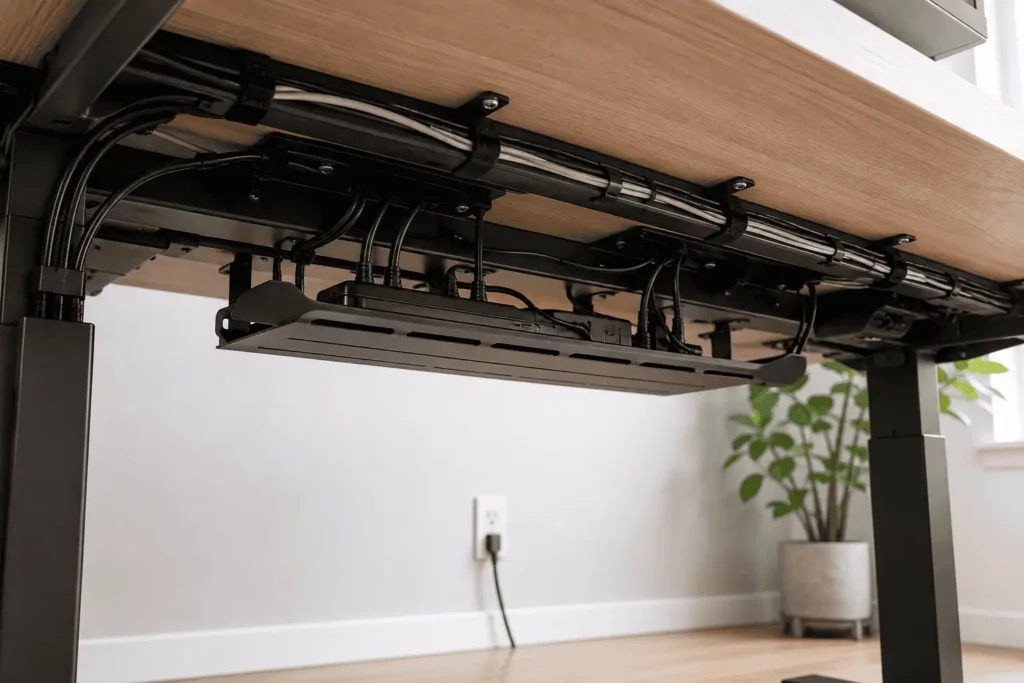
Power cords usually stay in one place. USB-C, HDMI, DisplayPort, and Ethernet cables connect directly to your devices and may change more often.
Keeping these cable groups separate makes it easier to:
- Replace a device.
- Add another monitor.
- Upgrade your setup.
- Find the right cable quickly.
A little planning now can save a lot of time later.
| Desk Setup | Main Cable Challenge | Recommended Approach |
|---|---|---|
| Standing Desk | Cables move as the desk changes height. | Leave enough slack and secure cables underneath the desk. |
| Multi-Monitor Desk | Multiple display and power cables. | Bundle display cables together and follow one routing path. |
| Minimalist Desk | Visible cable clutter. | Keep only essential devices on the desk and hide excess cables. |
Cable Management for Different Desk Setups
Different desk setups create different cable management challenges. A standing desk needs cables that move freely, while a multi-monitor setup adds more display cables to organize. Even a minimalist desk requires some planning to reduce visual clutter.
Choosing the right approach for your desk layout helps create a workspace that’s easier to use, clean, and upgrade.
Standing Desk Cable Management
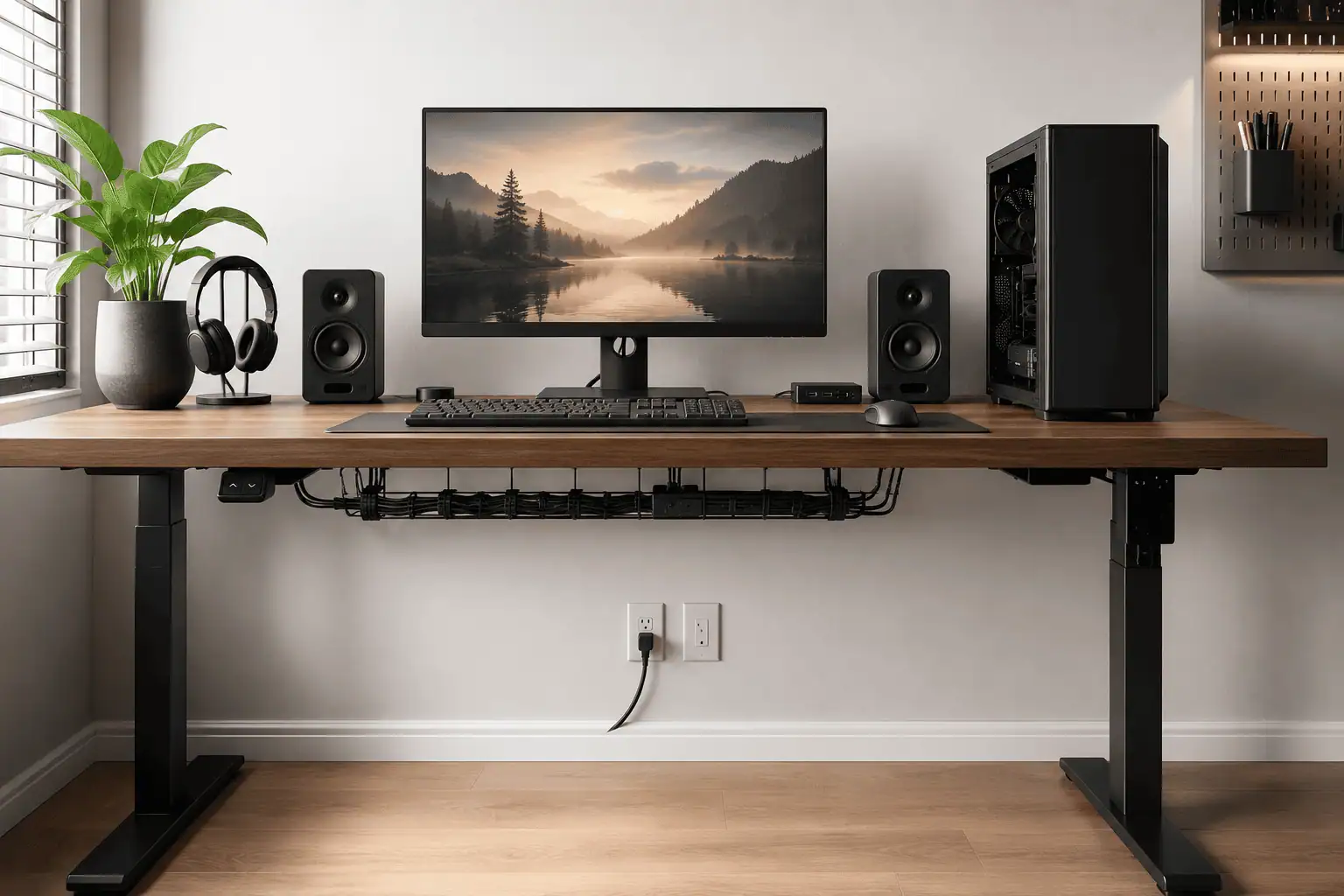
A standing desk needs more cable planning than a fixed desk. Every time the desk moves, the cables move with it. Without enough slack, they can pull on your monitor, PC, or power strip.
A good standing desk cable management setup allows cables to move safely with the desk while staying organized. The right cable routing also helps prevent stretching, tangling, and unnecessary strain on connected devices.
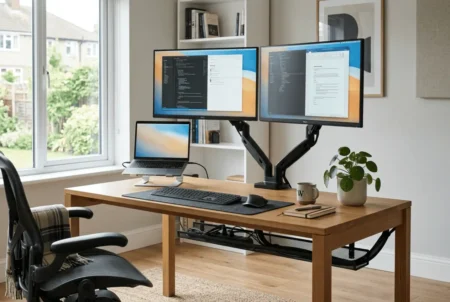
Multi-Monitor Cable Management
Each monitor usually adds a power cable and a display cable. As you add more screens, these cables can quickly become difficult to manage if they follow different paths.
A well-planned multi-monitor cable management setup keeps display cables grouped together. This creates a cleaner workspace and makes it easier to identify, replace, or add monitors as your setup grows.
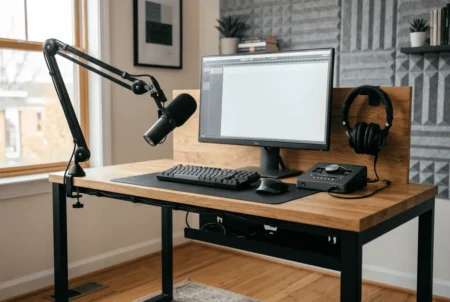
Minimalist Desk Setup Cable Management
A minimalist desk isn’t about hiding every cable. It’s about reducing visual clutter while keeping your workspace practical for everyday use.
Good minimalist desk setup cable management ideas focus on keeping only the devices you need on your desk and giving every cable a clear route. Small changes often make a bigger difference than adding more accessories.
Cable Management for Common Desk Devices
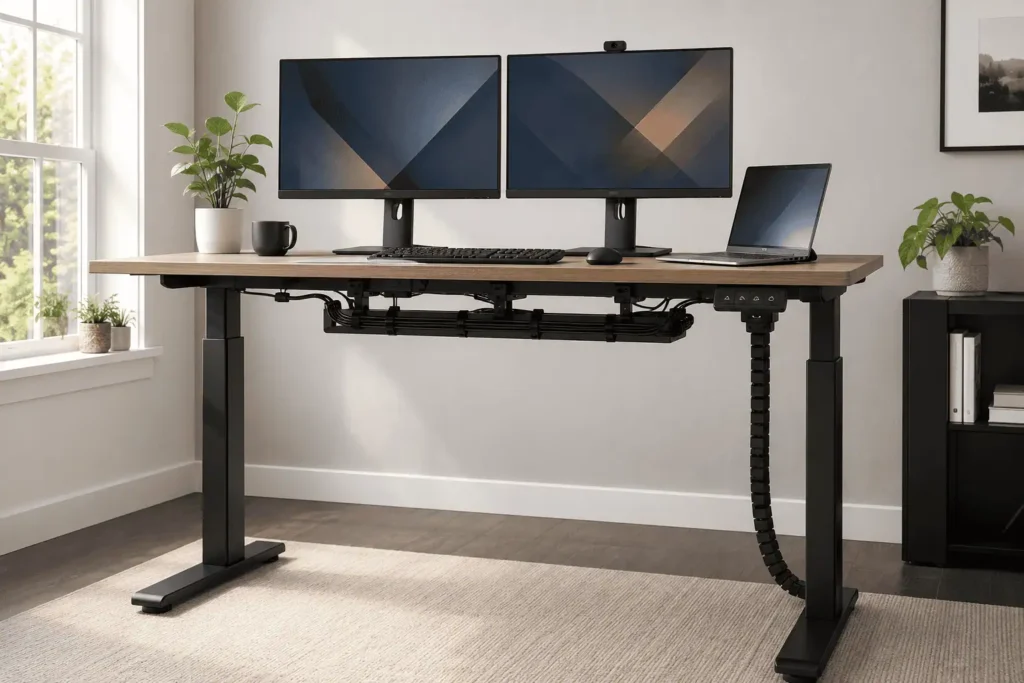
Some desk devices create more cable clutter than others. USB hubs, docking stations, keyboards, mice, and speakers often have multiple cables connected in a small space.
Organizing these cables by device makes your desk easier to use and helps you upgrade or rearrange your setup without creating a mess.
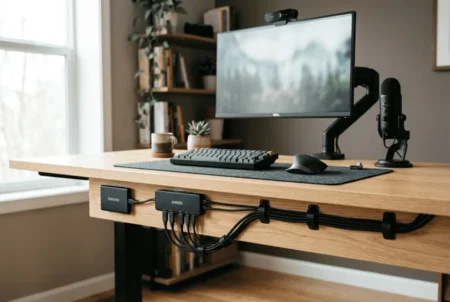
USB Hub Cable Management
A USB hub keeps keyboards, mice, webcams, microphones, and storage devices connected in one place. While it’s convenient, it can also become the busiest area on your desk if cables are left unmanaged.
Good USB hub cable management keeps connected cables organised and prevents one small area from becoming crowded. It also makes plugging in or removing devices much easier.
Laptop Docking Station Cable Management
A docking station connects your laptop to monitors, USB devices, storage drives, and other accessories through a single cable. As more devices are added, the cables around the dock can quickly become difficult to organise.
A well-planned laptop docking station cable management setup keeps related cables together and makes it easier to connect, disconnect, or upgrade your workstation.
Keyboard and Mouse Cable Routing
Your keyboard and mouse are the devices you use the most. Loose cables can drag across the desk, catch on the edge, or make an otherwise tidy setup look messy.
Proper keyboard and mouse cable routing keeps these cables secure while allowing comfortable typing and smooth mouse movement. Even small routing changes can make your workspace feel cleaner and more organised.
Speaker Wire Management
Speaker cables are often longer than other desk cables because they need to reach both sides of your monitor. If they’re left exposed, they can become one of the most noticeable parts of your setup.
Proper speaker wire management keeps audio cables out of sight while allowing you to place your speakers where they sound best. It helps create a cleaner desk without affecting your listening experience.
Cable Management Accessories That Make Organization Easier
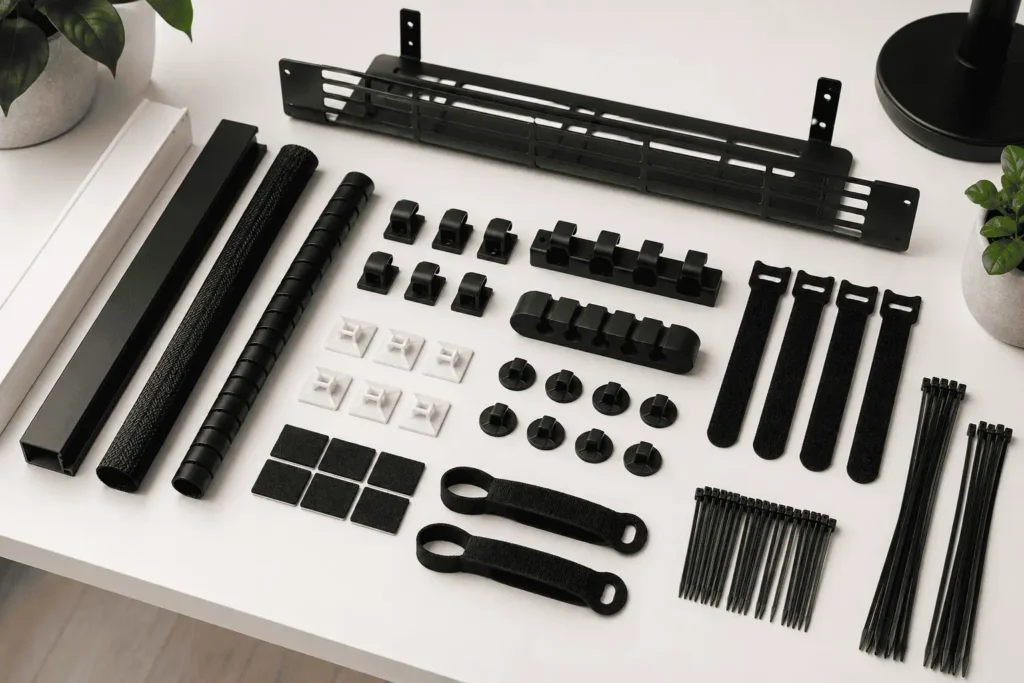
The right accessories can make cable management much easier, but you don’t need to buy everything at once. Choosing products that match your desk layout and the number of cables you have often gives better results than using too many accessories.
Start with the basics, then add more solutions only if your setup needs them.
J Channel Cable Raceway
Some cable management products hide cables completely, but they can also make future changes difficult. If you often add or remove devices, you’ll want a solution that’s easy to access.
A J channel cable raceway keeps cables neatly tucked under the desk while leaving them easy to reach. This makes it simple to add, remove, or rearrange cables without taking everything apart.
Pegboards for PC Peripheral Organization
Cable management isn’t only about organizing wires. Accessories like headphones, game controllers, webcams, and external drives can also make your desk feel crowded.
A pegboard for PC peripheral organization moves these items off your desk while keeping them within easy reach. Giving accessories a dedicated place also helps keep connected cables organised and your workspace looking cleaner.
Cable Management Ideas for a Cleaner Workspace
You don’t always need to replace your equipment to improve the look of your desk. A few simple changes to cable routing and desk organization can make your setup feel much cleaner.
Create a Wireless Look With Wired Peripherals
Many people like the clean appearance of a wireless desk setup but still prefer the reliability of wired keyboards and mice. Fortunately, you don’t have to replace working devices to achieve a similar look.
With better cable routing, wired peripherals can look wireless by hiding their cables behind or beneath the desk. This creates a cleaner workspace while keeping the performance and reliability of wired equipment.
Keep Your Desk Organized as Your Setup Changes
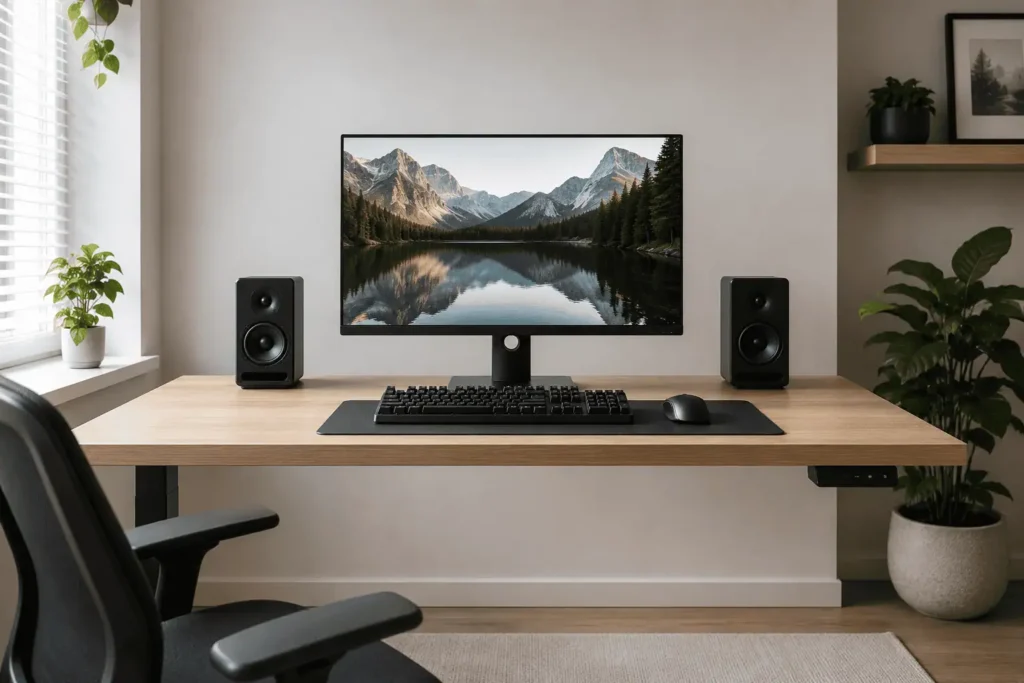
Your desk setup will change over time as you add new monitors, speakers, chargers, or other accessories. Checking your cable routing every few months helps prevent clutter from building up again.
Removing unused cables, replacing damaged cable ties, and adjusting cable routes when needed keeps your workspace organised without starting from scratch.
Conclusion
Good desk cable management starts with a simple plan, not more accessories. Once every cable has a clear route, your workspace becomes easier to use, clean, and upgrade. As your setup grows, you can build on these basics and choose the cable management solution that fits your workspace and the devices you use every day.