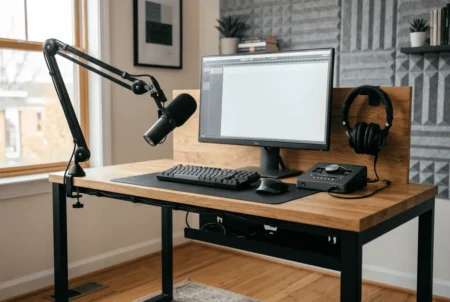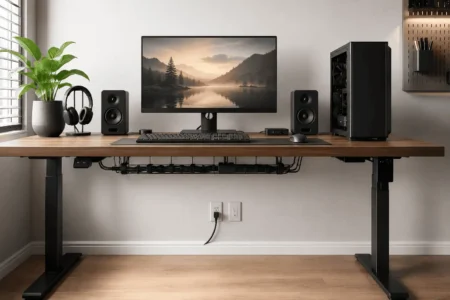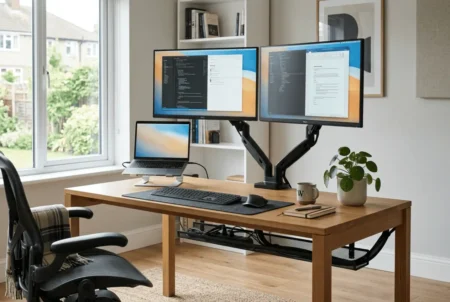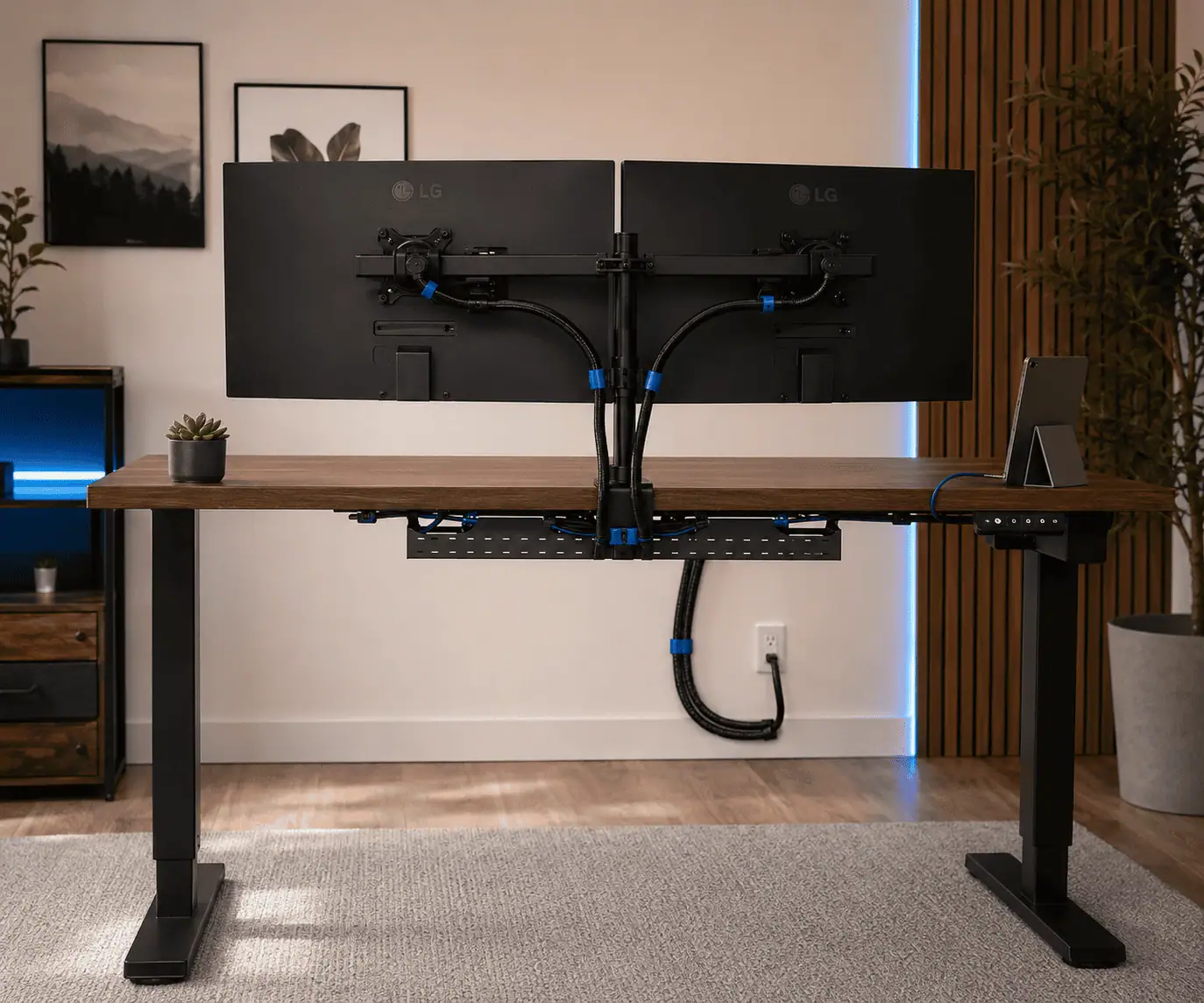
A standing desk can improve comfort and productivity, but it also introduces a problem many people do not expect. As the desk moves between sitting and standing heights, cables can become tight, tangled, drag on the floor, or catch on the desk frame if they are not managed correctly.
The best ways to organize standing desk cables for movement focus on more than hiding wires. Using proper cable routing, enough cable slack, and accessories like cable trays, cable sleeves, and cable spines helps protect your devices, prevent cable damage, and keep your height-adjustable desk clean, safe, and easy to use every day.
Why Standing Desk Cable Management Is Different From a Regular Desk
A traditional desk stays in one position all day. After you organize the cables, they usually remain still.
A standing desk is different because it moves up and down many times every day. Each height adjustment puts stress on your cables.
A cable that is too short can become tight as the desk rises. Over time, continuous tension can place stress on both the cable connector and the device port.
At the same time, a cable that is too long can create large loops that drag on the floor, touch your legs, or become caught in the desk frame.
Proper standing desk cable management creates a planned cable path that allows safe movement from the lowest sitting position to the highest standing position.
Standing desk cable management is one part of effective desk cable management. Following a planned cable route creates a cleaner, safer, and easier-to-maintain workspace.
A well-organized setup should provide:
- Smooth desk movement at every height.
- Enough cable slack for full height adjustment.
- Less stress on cables and connectors.
- Easy access for future upgrades or troubleshooting.
- A cleaner and safer workspace.
Understand the Three Cable Zones of a Standing Desk
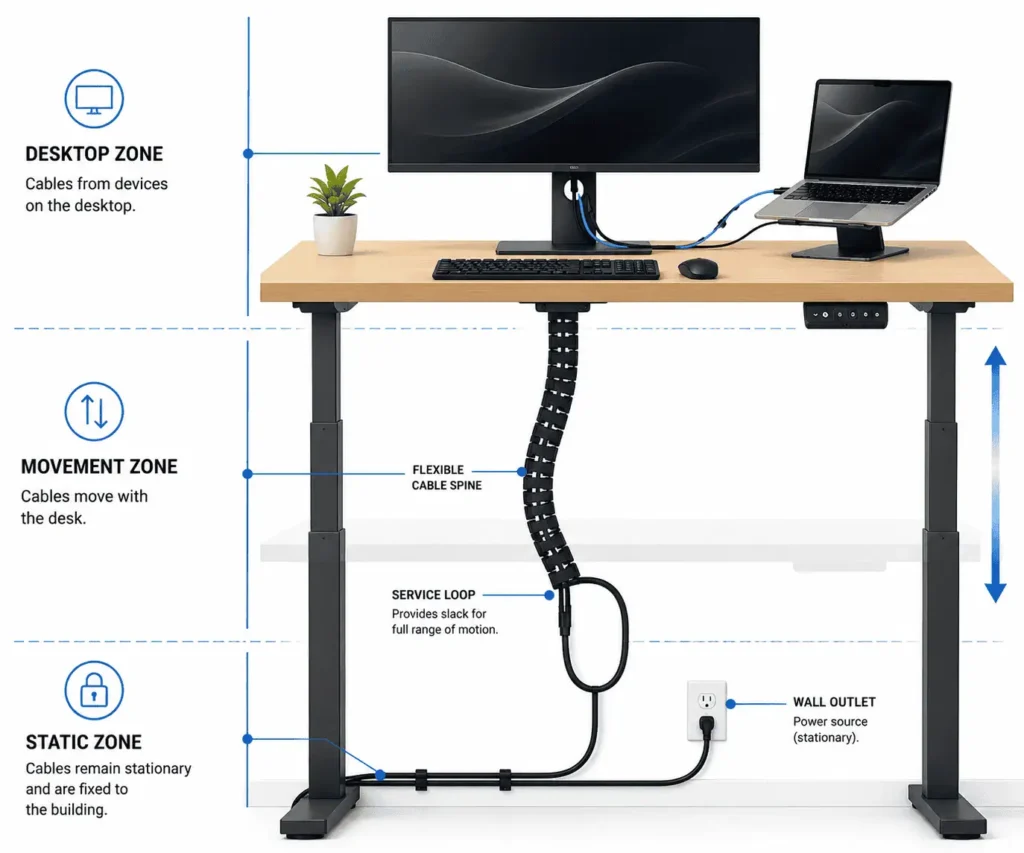
Before attaching cable management accessories, it helps to understand how cables move around your workspace.
Desktop Zone
The desktop zone includes everything that moves together with your standing desk.
Examples include:
- Monitor
- Laptop
- Keyboard
- Mouse
- Webcam
- Speakers
- Charging devices
These cables should stay organized using monitor arm channels, cable clips, and cable sleeves.
A J channel cable raceway can also help collect these cables into one clean path beneath the desk while keeping them easy to access.
Movement Zone
The movement zone is the most important area for standing desk cables.
This section sits between the moving desktop and the fixed floor area. The cables here expand and contract every time you raise or lower the desk.
This area needs proper cable slack, a gentle service loop, and a cable spine to prevent unnecessary tension and cable damage.
Static Zone
The static zone is the part of your cable setup that does not move.
It includes the wall outlet, floor-level cable routing, and the final cable section that stays in one place.
The goal is to keep this area neat and prevent cables from creating a tripping hazard.
Before You Start: Plan Your Standing Desk Cable Layout
Many cable management problems happen because users install cable accessories before creating a plan.
Spending a few minutes checking your setup can save time and prevent future problems.
Perform a Complete Cable Audit
Start by checking every cable connected to your desk.
Group the cables by their purpose.
Power cables: Monitor power cords, laptop chargers, desktop PC power cables, and power strip connections.
Data cables: HDMI cables, DisplayPort cables, USB cables, Ethernet cables, and other connection cables.
Peripheral cables: Keyboard cables, mouse cables, webcams, microphones, and other desk accessories.
Remove damaged cables or wires you no longer use. Fewer cables make your standing desk setup easier to organize and maintain.
Measure Your Desk’s Full Height Range
Many people skip this step, but it is one of the most important parts of organizing cables for a moving desk.
Move your standing desk to its lowest position. Then raise it to its highest position.
Watch how each cable moves during the complete height adjustment.
Ask yourself:
- Does any cable become tight?
- Does any cable rub against the desk frame?
- Does any cable hang too close to the floor?
- Does every cable have enough room to move safely?
Finding these problems before installing cable trays, clips, or sleeves will save you from changing your entire cable setup later.
Check How Cables Behave at Different Desk Heights
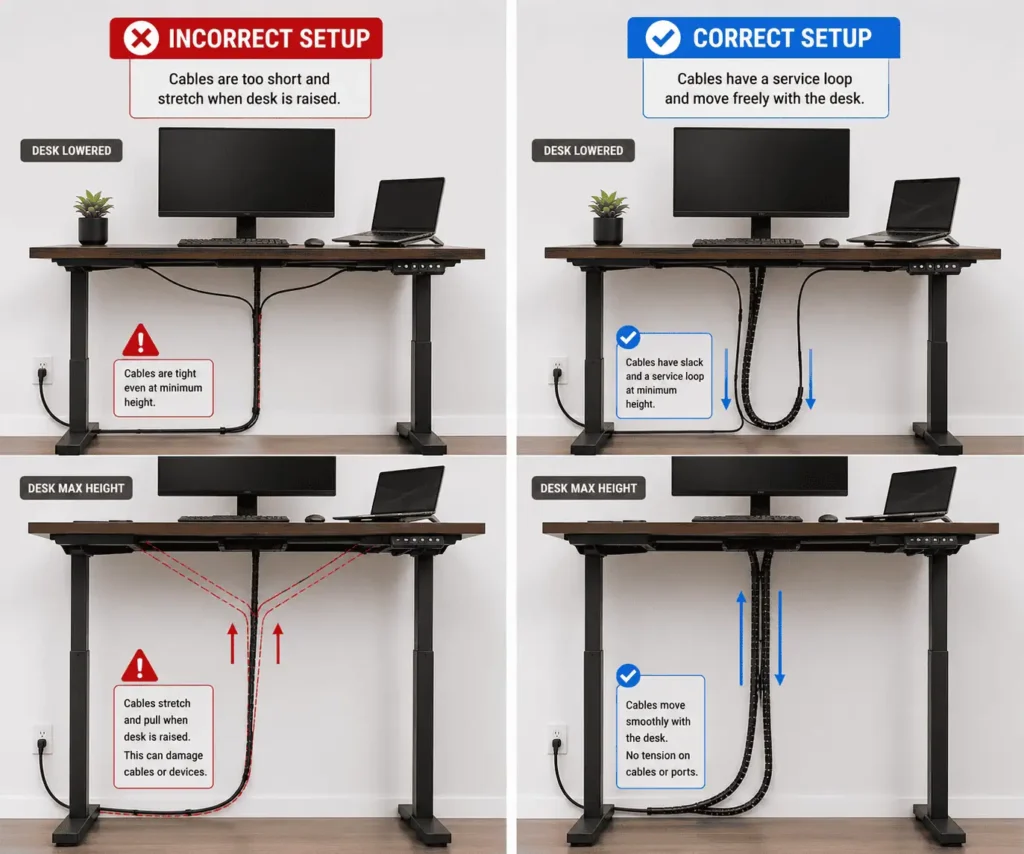
A cable setup may look perfect at one height but fail when the desk moves.
Check your cables at three important positions.
Sitting position: Cables should not pile up on the floor or press against the desk frame.
Middle position: The service loop should move naturally without twisting or becoming tangled.
Maximum standing height: No cable should become tight or pull against a connector.
This simple test helps you find cable problems before they cause damage.
Choose the Correct Cable Length
The right cable length plays an important role in safe standing desk cable management.
A short cable can create tension when the desk rises. A cable that is too long can create unnecessary loops that catch your legs or chair wheels.
Choose cables that comfortably reach the maximum desk height while leaving a small amount of extra length.
Do not keep moving cables perfectly straight. Instead, create a gentle U-shaped loop called a service loop or cable slack.
This allows the cable to expand and contract naturally as your standing desk changes height.
The Ideal Cable Routing Path for a Moving Standing Desk
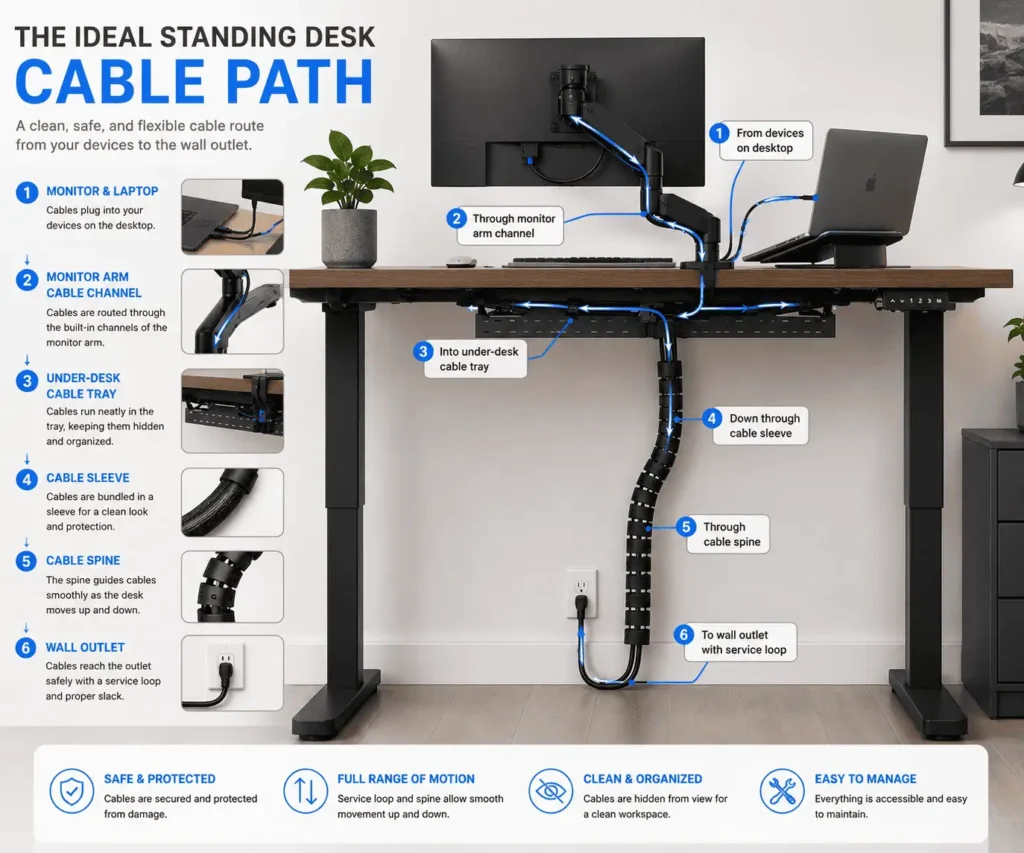
One common mistake is running every cable directly from the device to the wall outlet.
This creates long hanging wires that move freely whenever the desk changes height. Over time, these cables can twist, pull, or become damaged.
A better cable route looks like this:
Device → Monitor Arm → Under-Desk Cable Tray → Cable Sleeve or Cable Spine → Wall Outlet
Each part of this route has a specific job.
The monitor arm keeps display and power cables organized.
The under-desk cable tray holds power strips, power adapters, docking stations, and extra cable length.
Cable sleeves group several wires together and reduce tangles.
A cable spine controls the moving section between the desk and the floor so the cables travel safely during height adjustment.
Following this structured cable path creates a cleaner, safer, and more reliable standing desk setup.
Practical Methods to Organize Standing Desk Cables
Now that you have planned your cable route, it is time to install the right cable management solutions.
The goal is not simply to hide wires. A good setup should allow your standing desk cables to move safely whenever you change the desk height.
Install an Under-Desk Cable Tray
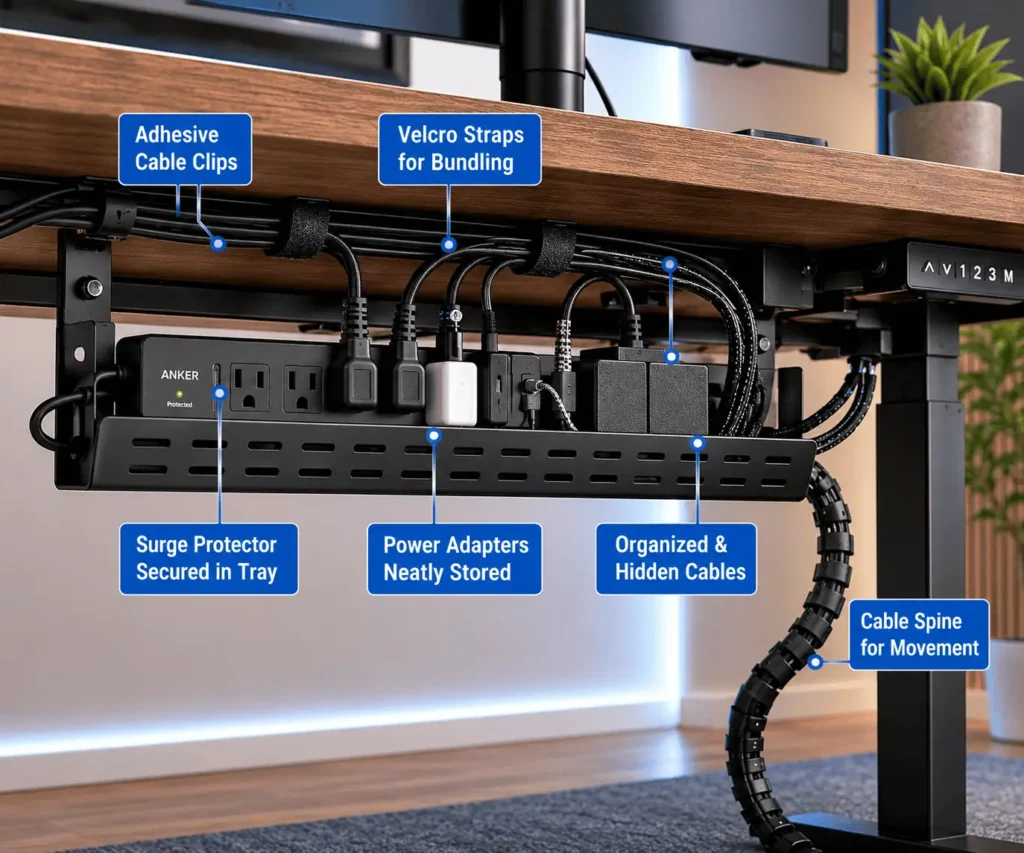
An under-desk cable tray is one of the most important tools for standing desk cable management.
It creates a dedicated space for:
- Power strips
- Surge protectors
- Power adapters
- Docking stations
- Extra cable length
Keeping these components underneath the desktop allows them to move together with the standing desk.
As a result, fewer cables need to travel between your desk and the wall outlet.
Choose a strong cable tray that can support the weight of power bricks and other accessories. Leave enough room around larger adapters to allow proper airflow and prevent heat buildup.
Mount the Power Strip Under the Desk
Leaving a power strip on the floor is a common cable management mistake.
When the desk rises, every connected device cable must travel farther toward the floor.
A better solution is to mount the power strip underneath the desktop. This turns the underside of your desk into a central power hub.
Your monitor, laptop, speakers, and other accessories move together with the desk.
Only one main power cable needs to travel from the desk to the wall outlet.
If multiple USB devices connect through one hub, proper USB hub cable management can reduce cable clutter and keep connected devices better organized.
For better results:
- Mount the power strip near the back of the desk.
- Secure it properly so it cannot move or fall.
- Avoid blocking ventilation openings.
- Keep the cable route away from moving desk parts.
Use Cable Sleeves and Velcro Straps
Loose cables can twist, tangle, and create an untidy workspace.
Cable sleeves combine several cables into a single, organized bundle. They work well for HDMI cables, DisplayPort cables, USB cables, Ethernet cables, and charging cables.
Reusable Velcro straps are usually a better choice than permanent zip ties because they allow easy upgrades and cable changes.
Avoid tightening cable bundles too much because cables need some freedom to move as the desk changes height.
Also, avoid placing too many heavy cables inside one sleeve. Thick power cords and large adapters can pull the bundle downward. Heavy items should remain supported inside a cable tray whenever possible.
Add a Cable Spine for the Floor Connection
The connection between your standing desk and the floor experiences the most movement.
A cable spine creates a controlled path for the cables that travel between the desktop and the wall outlet.
As the desk moves up and down, the cable spine bends and adjusts with the movement.
A cable spine helps:
- Prevent cables from dragging on the floor.
- Keep cables away from your legs and chair wheels.
- Reduce the chance of cables getting caught.
- Make the entire setup look cleaner.
For desks that are adjusted many times every day, a cable spine is one of the most useful cable management accessories.
Use Cable Clips and Raceways for Better Cable Routing
Cable clips hold individual cables in the correct position.
They are useful for:
- Phone charging cables
- Keyboard cables
- Mouse cables
- Webcam cables
Planning your keyboard and mouse cable routing separately can keep frequently used cables tidy while allowing easy movement across the desktop.
Cable raceways hide wires inside a protective channel and create a cleaner cable route.
Place clips and raceways away from lifting columns, crossbars, and other moving parts.
If you use adhesive cable clips, check them regularly because they may loosen over time due to heat, dust, or repeated desk movement.
Route Cables Through Monitor Arms
Monitor cables are often the most noticeable wires on a desk.
A monitor arm with built-in cable channels keeps display and power cables hidden while allowing the monitor to move freely.
Route HDMI, DisplayPort, and monitor power cables through the monitor arm whenever possible.
This is especially important for multi-monitor setups, where proper cable routing helps keep display and power cables organized during desk movement.
Leave a small service loop near the moving joints of the monitor arm. This allows the monitor to tilt, rotate, and adjust without putting stress on the cables.
For dual-monitor or triple-monitor setups, label each cable at both ends to make future upgrades easier.
If you have multiple devices, a proper cable labeling system can make troubleshooting and replacing cables much faster.
Use a Docking Station to Reduce Cable Clutter
Modern workstations often include many connected devices.
A laptop setup may require:
- A charger
- External monitors
- USB devices
- Ethernet connections
- Audio accessories
A docking station combines several connections into one central location.
For example, a single USB-C or Thunderbolt cable can connect your laptop to multiple devices.
Good docking station cable organization helps keep connected devices tidy and makes future upgrades or troubleshooting much easier.
Placing the docking station inside an under-desk cable tray can reduce visible cables and create a cleaner workspace.
Reduce Cables With Wireless Accessories
Sometimes the best cable management solution is to remove unnecessary cables.
Consider using:
- A wireless keyboard
- A wireless mouse
- Wireless headphones
- Wireless speakers
These devices reduce desktop cable clutter and make cable routing easier.
Choosing the right wireless peripherals can further simplify your workspace while reducing the number of cables that need to be managed.
However, important connections such as monitors, desktop computers, and power cables still require proper cable management.
Keep Cables Away From the Desk Lifting Mechanism
The moving parts of a standing desk can damage cables that are routed incorrectly.
Even if your desk includes an anti-collision system, it may not prevent every cable-related problem.
Keep your cables away from:
- Lifting columns
- Crossbars
- Hinges
- Moving frame components
After routing your cables, move the desk through its full height range and make sure nothing catches, stretches, or rubs against the frame.
Cable Management Solutions for Different Standing Desk Setups
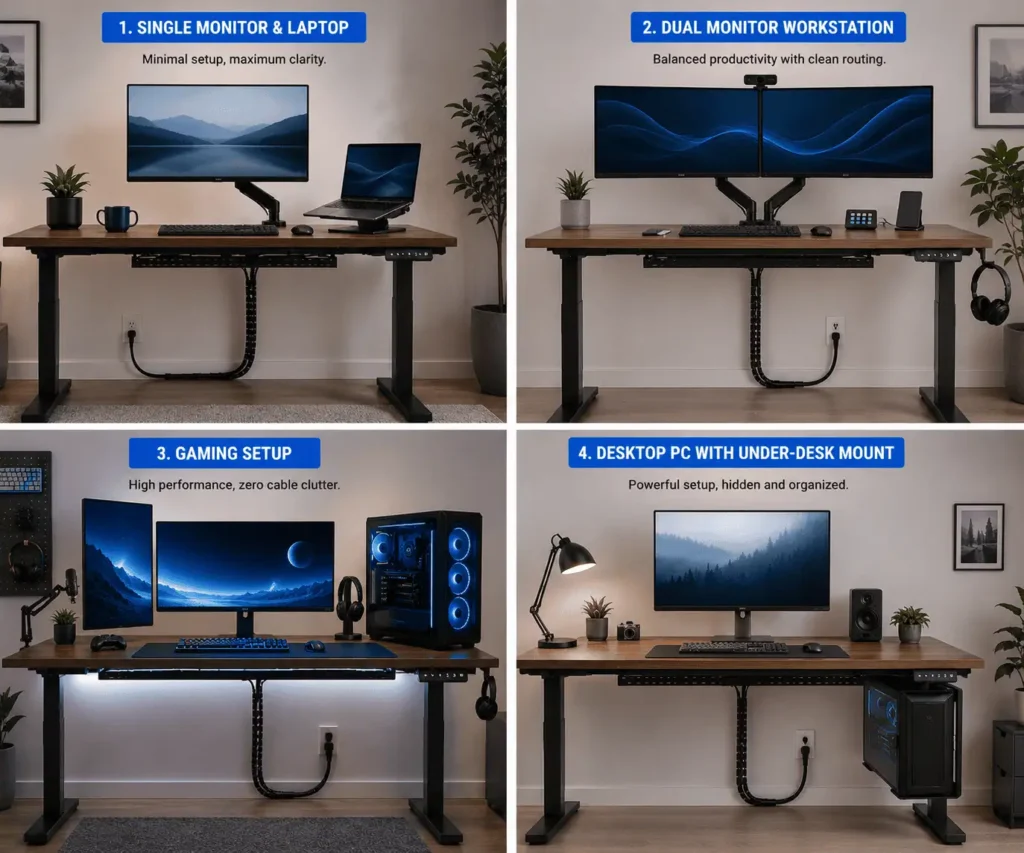
Every workspace has different cable management needs. The right approach depends on the number of devices, accessories, and cables connected to your desk.
Single Monitor and Laptop Setup
A simple standing desk setup usually has fewer cables and is easier to manage.
For a cleaner setup:
- Place the laptop charger and monitor power adapter inside an under-desk cable tray.
- Route monitor cables through the monitor arm channels.
- Use cable clips to keep frequently used charging cables within reach.
- Use a docking station to reduce the number of cables on your desktop.
This creates a clean workspace while allowing the desk to move freely.
These simple cable management habits also make it easier to create a minimalist desk setup with fewer visible cables and less desktop clutter.
Dual-Monitor Workspace
A dual-monitor setup creates more cables because each display requires a power cable and a display cable.
For better organization:
- Use monitor arms with built-in cable channels.
- Group display cables together using cable sleeves.
- Keep power adapters secured inside the cable tray.
- Leave enough slack where the monitor arms move or rotate.
A planned cable route makes future monitor upgrades much easier.
Gaming and Multi-Device Setup
Gaming desks and advanced workstations usually have the highest number of cables.
These setups may include:
- Multiple monitors
- Gaming keyboard and mouse
- Microphone
- Webcam
- Speakers
- Streaming lights
- Charging cables
If your setup includes desktop speakers, hiding speaker wires can make the workspace look cleaner while reducing visible cable clutter.
To keep everything organized:
- Group cables that follow the same route.
- Use larger cable trays for multiple power adapters.
- Leave enough cable slack for movement.
- Keep frequently changed cables easy to access.
This helps you maintain a clean setup without making future changes difficult.
Desktop PC on the Floor vs Under-Desk PC Mount
A desktop computer placed on the floor requires longer cables to reach a moving standing desk.
Monitor cables, USB cables, and other connections need enough length to move safely as the desk changes height.
An under-desk PC mount can be a cleaner option because the computer moves together with the desk.
This reduces long cable runs and lowers the risk of cables pulling out of their ports.
How to Test Your Standing Desk Cable Setup
A cable setup can look neat when the desk is lowered but create problems when the desk moves.
After finishing your cable organization, test your desk through its full range of motion.
Follow this checklist:
- Raise the desk to its highest position.
- Lower the desk to its lowest position.
- Stop at different middle heights.
- Check for cables becoming tight.
- Look for cables rubbing against the desk frame.
- Make sure the cable spine moves freely.
- Confirm that power adapters remain secure.
Repeat this test several times.
Your standing desk should move smoothly without any cable pulling, twisting, or catching.
Common Standing Desk Cable Management Mistakes and Better Solutions
Many cable problems happen because of small installation mistakes.
Use this guide to avoid common issues.
Troubleshooting Common Standing Desk Cable Problems
Even a well-organized setup may need small adjustments over time.
Cables Become Tight When the Desk Rises
This usually means the cable does not have enough slack.
Increase the service loop or replace the cable with a longer one if necessary.
Cables Touch Your Legs or Chair Wheels
This happens when cables hang too low.
Move the cable route toward the back of the desk and secure it using cable clips, sleeves, or a cable spine.
Monitor Disconnects or Flickers During Movement
A display cable may be stretched or bent too tightly.
Check the HDMI or DisplayPort cable route, add more slack near moving sections, and replace damaged cables if needed.
Power Adapters Move Inside the Cable Tray
Large power bricks can shift when the desk moves.
Secure them using straps or use a cable tray that provides better support.
How Often Should You Maintain Your Standing Desk Cable Setup
Cable management is not a one-time task. Your workspace may change as you add new devices or rearrange your desk.
Inspect your cables every few weeks.
During maintenance:
- Check cables for cuts, fraying, or visible damage.
- Make sure cable clips and mounting points are still secure.
- Check adhesive cable clips for loosening over time.
- Remove dust from cable trays and power strips.
- Confirm that cable slack is still sufficient after adding new devices.
- Update your cable labels when your setup changes.
If you regularly add new devices, organizing them on a pegboard can make cable maintenance easier while keeping your workspace organized.
Regular maintenance keeps your standing desk cable system safe, reliable, and easy to manage.
Conclusion
Organizing standing desk cables is about creating a cable system that moves safely with your desk. By planning your cable routing, leaving enough cable slack, and using the right cable management accessories, you can reduce clutter, protect your equipment, and prevent common cable problems. A well-organized setup is easier to maintain, safer to use, and ready for future upgrades.
FAQs
Can I use the same cable management accessories on any standing desk?
Most cable trays, cable sleeves, and cable clips work with different standing desks, but always check your desk’s frame design and mounting options before installing accessories.
How often should I inspect standing desk cables?
Inspect your cables every few weeks or whenever you add new devices to make sure they still have enough slack and are not rubbing against moving parts.
Should monitor power cables and display cables be routed together?
Yes, they can be routed together through monitor arm channels or cable sleeves, but avoid pulling them tightly so the monitor can still tilt and adjust freely.
Is it better to leave extra cable length or use shorter cables?
Choose cables that comfortably reach your desk’s maximum height with a small amount of extra slack. Excessively long cables can create clutter, while cables that are too short may become strained during movement.
Can a standing desk cable setup be upgraded later?
Yes. Using reusable Velcro straps, cable trays, and cable clips makes it much easier to add monitors, docking stations, or other accessories without rebuilding the entire cable setup.