





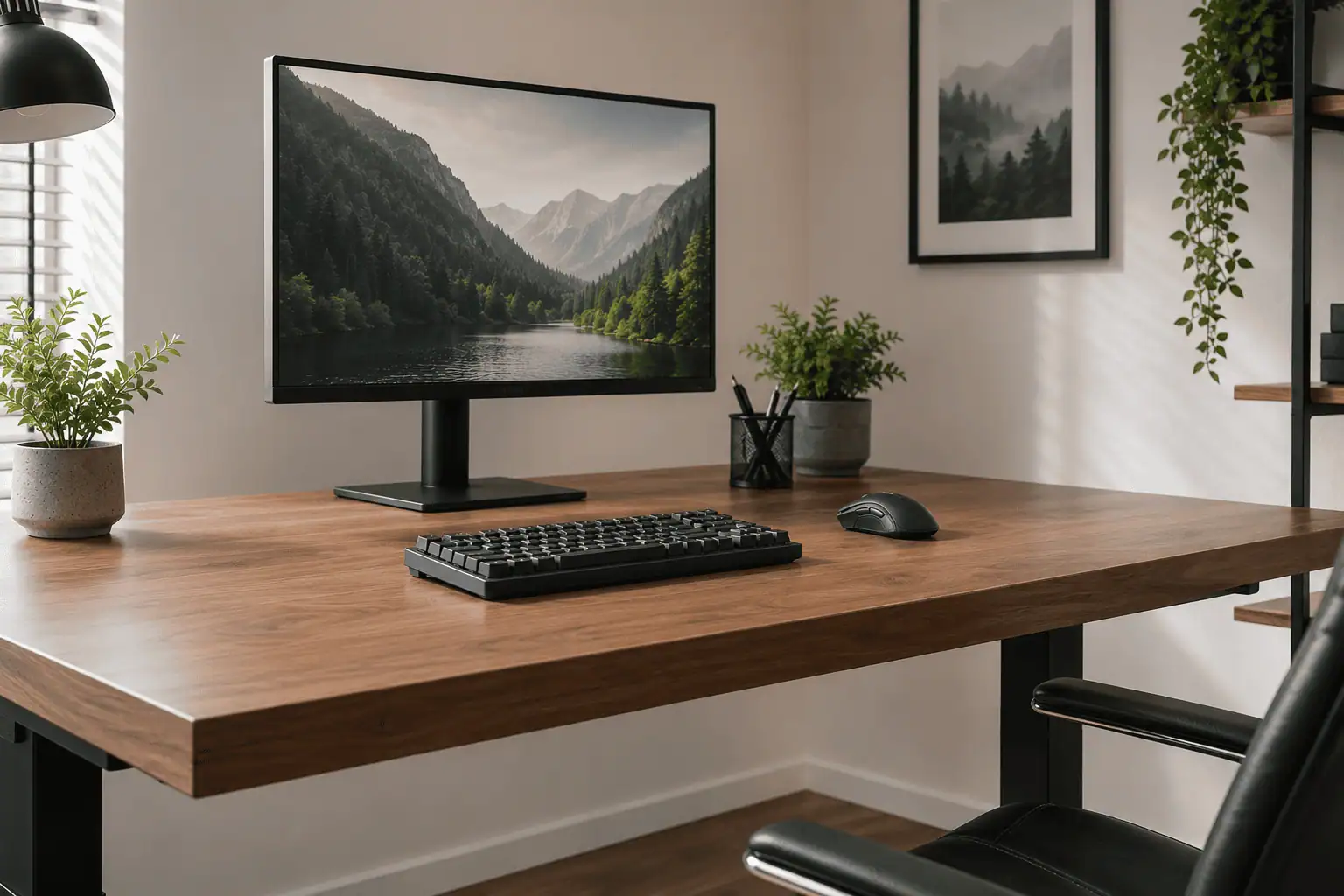
A messy keyboard and mouse cable can make even a great desk setup look cluttered. Many people think the only way to get a clean workspace is to buy wireless peripherals, but that is not necessary. With a few simple cable management techniques, you can hide most visible cables while keeping your wired keyboard and wired mouse.
This guide shows you how to create a wireless look for wired peripherals using cable clips, cable sleeves, reusable Velcro straps, and other practical cable management accessories. Whether you use your computer for work, gaming, or study, these steps will help you build a cleaner and more organized desk.
What Does a Wireless Look Mean for Wired Peripherals?
Many people think a wireless look means using Bluetooth or wireless devices. That is only one way to get a clean setup.
A wireless look for wired peripherals means your cables are hidden so well that your desk looks almost cable-free. Your keyboard and mouse are still wired, but the cables are hard to see from your normal sitting position.
This setup keeps your workspace clean without changing the way your devices work.
Creating a wireless-looking setup is one part of effective desk cable management. Thoughtful cable routing throughout your workspace reduces visible clutter while keeping wired devices easy to use.
A wireless-looking desk usually has these features:
- No loose cables across the desktop.
- Keyboard cable routed behind the desk.
- Mouse cable hidden along the desk edge.
- Extra cable length stored underneath the desk.
- Cable clips or sleeves keeping everything together.
- Only the keyboard, mouse, and monitor are easy to see.
Many gaming setups and minimalist workspaces use this method because it gives the desk a premium appearance while keeping the speed and reliability of wired devices.
Why People Want a Wireless Look
There are several reasons why people hide their cables instead of buying wireless peripherals.
A cleaner workspace
Visible cables make even an expensive setup look messy. Hidden cables help your desk look simple and organized.
Better focus
A clutter-free desk has fewer distractions. Many people find it easier to work or study when their workspace looks neat.
Save money
Wireless keyboards and mice can cost much more than wired models. Good cable management costs far less and gives a similar visual result.
Keep wired performance
Many gamers and professionals still prefer wired peripherals because they offer a stable connection and never need charging.
Why Keep Wired Peripherals Instead of Switching to Wireless?
Many people ask if they should replace their wired keyboard and mouse with wireless models. The answer depends on your needs.
If your current peripherals work well, you may not need to replace them at all.
With good cable management, you can enjoy a clean desk while keeping the benefits of wired devices.
Reliable Connection
Wired peripherals stay connected through a cable. You do not have to worry about signal drops, pairing problems, or wireless interference.
This makes them a trusted choice for gaming, office work, and everyday use.
No Batteries to Charge
Wireless devices need batteries or regular charging.
Wired peripherals are always ready to use. You simply plug them in and start working.
Lower Cost
Many wired keyboards and mice cost less than similar wireless models.
Instead of spending money on new devices, you can improve your setup with simple cable management accessories like cable clips, reusable Velcro straps, or cable sleeves.
Can Wired Peripherals Really Look Wireless?
Yes. The goal is not to remove every cable but to keep them out of sight during normal use.
By routing keyboard and mouse cables under the desk and using cable clips, cable sleeves, and other cable management accessories, you can create a setup that looks almost wireless.
When the cables are hidden properly, the keyboard, mouse, and monitor become the main focus, giving your desk a cleaner and more organized appearance.
Before You Start: Plan Your Cable Route
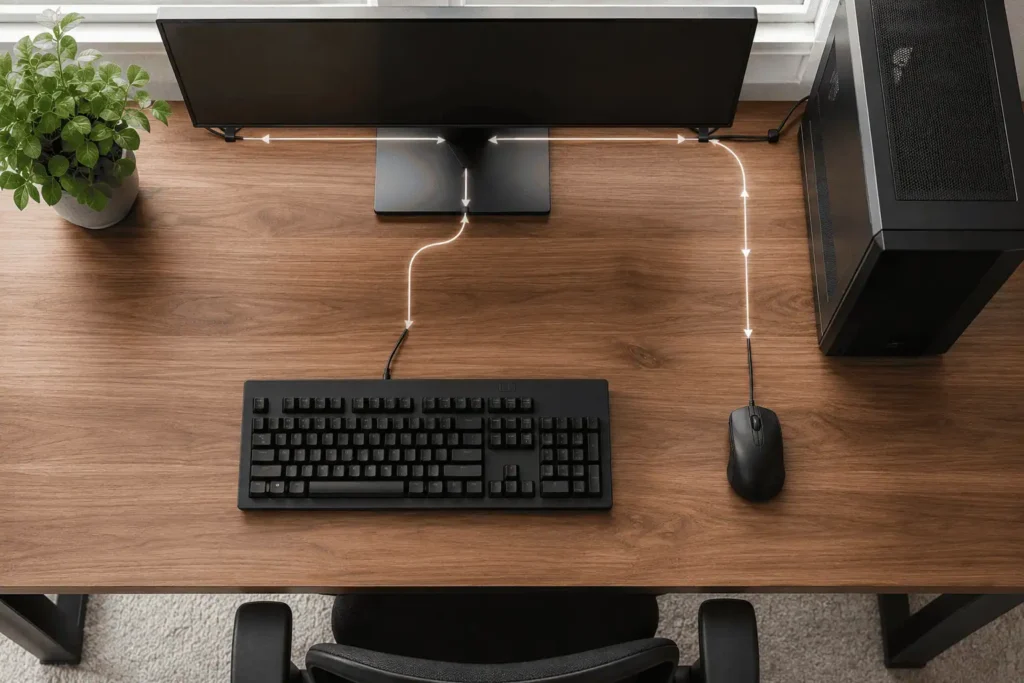
One of the biggest mistakes people make is hiding cables without making a plan first.
A few minutes of planning can save a lot of time later.
Before attaching any cable clips or cable sleeves, sit in your normal working position and look at your desk.
Ask yourself these simple questions:
- Where does the keyboard cable leave the desk?
- Where does the mouse cable travel?
- Where is the nearest edge of the desk?
- Can both cables follow the same path?
- Where will the extra cable length be stored?
Your goal is to make each cable travel the shortest and least visible path.
In most setups, the best route is:
Keyboard → Back edge of the desk → Under the desk → PC or USB hub
Mouse → Back edge of the desk → Under the desk → PC or USB hub
Planning this route first makes the rest of the cable management process much easier.
It also helps create the clean wireless look you want.
Follow the Shortest Path
A shorter cable path usually means fewer visible cables.
Guide the keyboard and mouse cables to the nearest edge of the desk before routing them underneath.
Keep All Cables Together
Whenever possible, let several cables follow the same route.
Bundled cables are easier to hide and much easier to maintain.
Avoid Crossing Cables
Crossing cables create clutter and make future changes more difficult.
Instead, guide each cable in one clear direction.
Think About Future Changes
Leave enough room to replace your keyboard, mouse, or monitor without removing every cable clip.
A flexible cable management system is easier to maintain over time.
Once you have planned your cable route, gather the tools you need before you begin installing anything.
Cable Management Tools You’ll Need
You only need a few basic accessories to create a wireless look for wired peripherals. Most of these tools are affordable and easy to use.
- Adhesive cable clips: Hold cables neatly along the edge or underside of your desk.
- Reusable Velcro straps: Bundle extra cable length without damaging the cables.
- Cable sleeves: Group several cables into one clean bundle.
- Under-desk cable tray: Hide extra cables, USB hubs, and power adapters below the desk.
- Cable ties: Keep cable bundles organized. Reusable ties make future changes easier.
- USB hub (optional): Reduce visible cable length by connecting peripherals closer to your desk.
If you are on a budget, start with cable clips and reusable Velcro straps. You can always add more cable management accessories later as your setup grows.
How to Create a Wireless Look for Wired Peripherals
Now it is time to hide the cables. Follow these steps in order. Each one helps your desk look cleaner and more organized.
Step 1: Route Keyboard and Mouse Cables Along the Shortest Path
Guide the keyboard and mouse cables to the nearest back or side edge of your desk instead of letting them cross the desktop. Once they reach the edge, secure them underneath the desk. A shorter cable path keeps your workspace cleaner and reduces visible cable clutter.
The same routing principles used for keyboard and mouse cable routing also help create a cleaner wireless-looking desk.
Tip
Place your keyboard and mouse slightly closer to the back of the desk if it feels comfortable. This leaves less cable visible.
Step 2: Secure Cables with Adhesive Cable Clips
Attach adhesive cable clips under the back edge of your desk and snap the cables into place. This keeps them straight and prevents them from moving while you work or play.
Best Practice
Leave a small amount of slack near each peripheral so the cables do not pull when you move your keyboard or mouse.
Step 3: Hide Extra Cable Length Under the Desk
If your cables are longer than needed, coil the extra length into a loose loop and secure it with a reusable Velcro strap. Mount the loop underneath the desk to keep it out of sight and reduce desktop clutter.
Step 4: Use a Cable Sleeve
Place your keyboard and mouse cables inside a cable sleeve if they follow the same route. This combines several cables into one neat bundle and gives your desk a cleaner appearance.
Good Places to Use Cable Sleeves
Cable sleeves work best where several cables follow the same route.
- Behind the monitor
- Under the desk
- Along a desk leg
- Near the PC case
Step 5: Install an Under-Desk Cable Tray
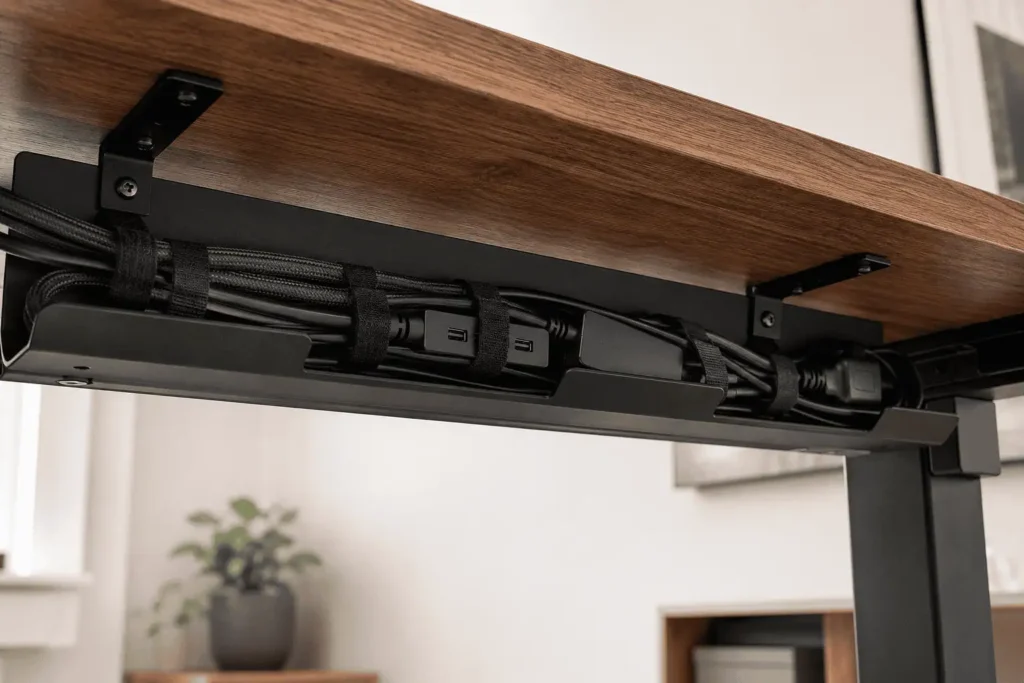
Mount a cable tray underneath the back of your desk to store extra cable length, USB hubs, and power adapters. This keeps the desktop clear while making future cable changes easier.
Step 6: Mount a USB Hub Under the Desk
Install a USB hub underneath your desk so your keyboard and mouse connect using shorter cables. Only one cable then runs from the hub to the computer, creating a much cleaner setup.
If you also use a laptop dock, good docking station cable organization helps keep charging, display, and USB cables grouped together.
Good USB hub cable management keeps connected peripherals organized while reducing the number of cables running across your desk.
Step 7: Route Cables Behind the Monitor Arm
Use your monitor arm’s built-in cable channels to hide keyboard, mouse, and monitor cables together. Otherwise, secure the cables with reusable Velcro straps for a similar result.
If your setup uses two or more displays, proper multi-monitor cable management helps keep display and peripheral cables organized without creating unnecessary clutter.
Step 8: Hide the Keyboard Cable Exit
Route the keyboard cable toward the nearest back edge of the desk as soon as it leaves the keyboard. If your keyboard has built-in cable routing channels, choose the exit that keeps the cable least visible.
Step 9: Keep the Mouse Cable Out of Sight
Guide the mouse cable toward the back corner of the desk and secure it with cable clips. Leave only enough cable for comfortable movement.
For Gaming Setups
A mouse bungee can lift the cable off the desk and reduce drag while keeping most of the cable hidden.
Step 10: Match Cable Accessories to Your Desk
Choose cable clips, sleeves, and other accessories that match your desk color. Matching accessories blend into the desk and help create a cleaner, more professional-looking setup.
A J channel cable raceway is another useful option when you want quick access to cables while keeping them hidden.
Create a Wireless Look on Different Desk Types
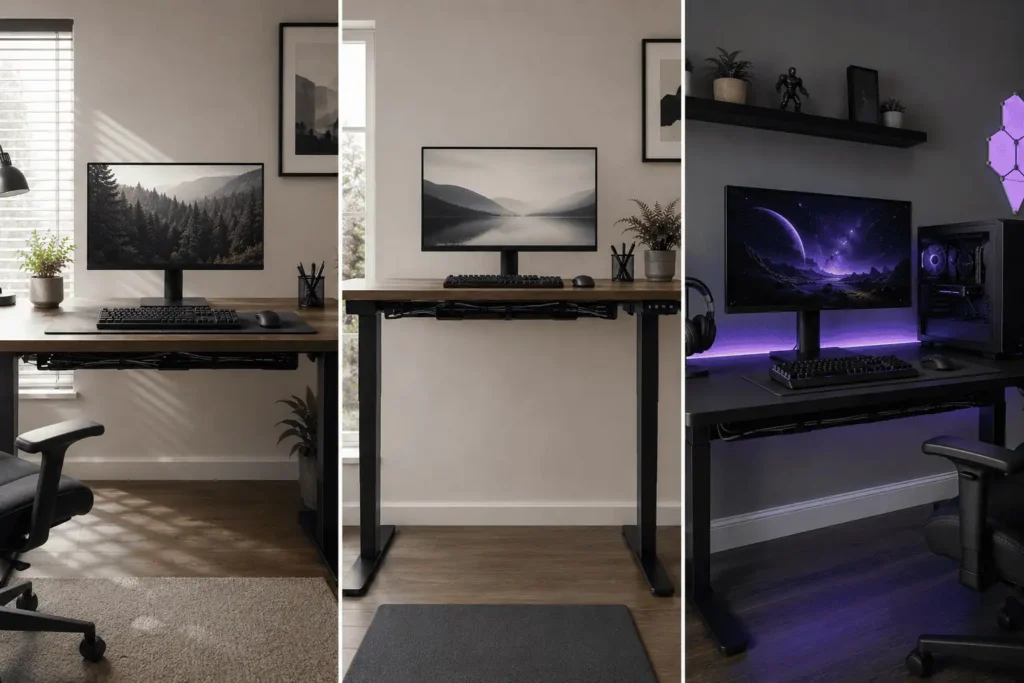
Every desk is different.
The best cable route depends on your workspace.
Wooden Desk
A wooden desk works well with adhesive cable clips and under-desk cable trays.
These accessories stick firmly to smooth wooden surfaces.
Glass Desk
Avoid placing too many adhesive clips where they can be seen through the glass.
Instead, hide cables along the metal frame or desk legs.
Standing Desk
Standing desks move up and down.
Leave enough cable length for the full range of movement.
Secure the cables with flexible sleeves instead of tight cable ties.
For adjustable desks, proper standing desk cable management prevents cables from stretching or snagging during movement.
This prevents cables from stretching while the desk moves.
Corner Desk
Use the inside corner to hide cable bundles.
This area is naturally hidden from view and works well for cable trays or USB hubs.
Gaming Desk
Many gaming desks already include cable holes or built-in trays.
Use these features before adding extra accessories.
They often provide the shortest cable route.
Small Details That Make a Big Difference
Many people focus only on hiding cables.
A truly clean setup also depends on small details.
Center Your Peripherals
Keep your monitor, keyboard, and mouse lined up.
This shortens cable paths and creates a balanced workspace.
Remove Unused Cables
If you regularly swap accessories, organizing them on a pegboard can free up desk space and reduce cable clutter.
Old charging cables and unused USB cables create unnecessary clutter.
Remove anything you no longer use.
Clean Behind the Desk
Dust builds up around cables over time.
Cleaning behind the desk helps your setup stay fresh and makes cable management easier to maintain.
Check Your Setup from Normal Sitting Height
After you finish, sit in your chair.
Look at your desk the way you normally use it.
If you can still see several cables, adjust the routing until they disappear from your view.
This final check often makes the biggest difference.
Before and After: What Results Should You Expect?
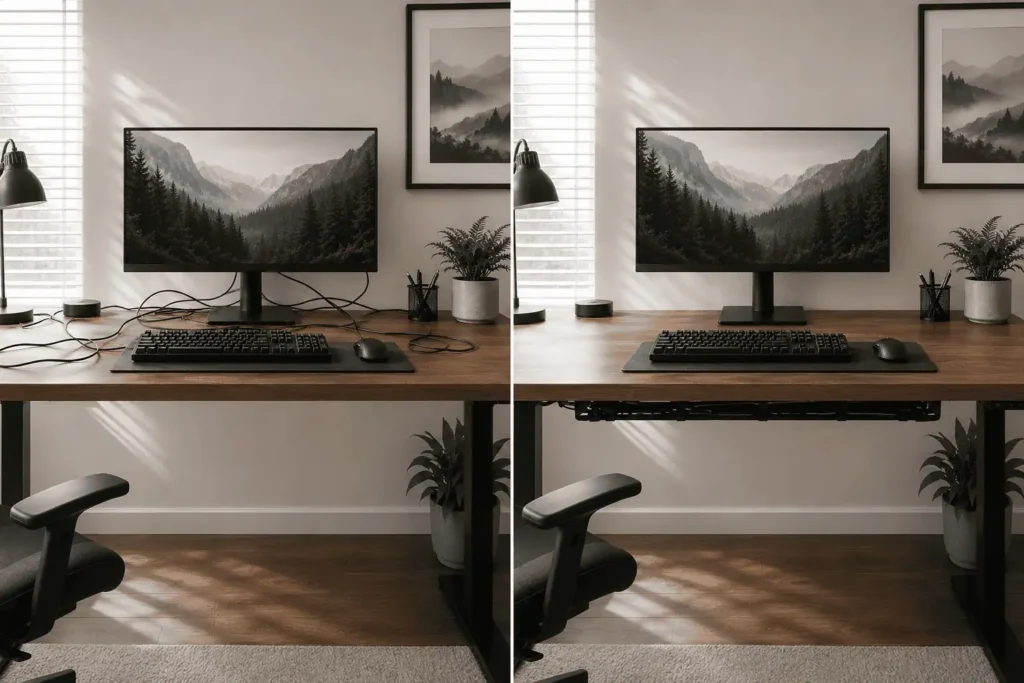
After organizing your cables, your desk should look cleaner and less cluttered.
Most keyboard and mouse cables will stay out of sight, giving your setup a more organized and wireless-looking appearance.
You should also have more free space on your desk, and cleaning around your workspace will become easier.
Take a photo before you begin and another after you finish.
Comparing the two is an easy way to see how much your setup has improved.
Budget vs. Premium Ways to Create a Wireless Look
You do not need to spend a lot of money to create a wireless look for wired peripherals. Start with the basics and upgrade your setup only if you need to.
Budget Setup (Under $20)
If you have a small budget, buy these items first:
- Adhesive cable clips
- Reusable Velcro straps
- Cable sleeves
These accessories hide most visible cables and provide the biggest improvement for the lowest cost.
Premium Setup (Up to $100)
If you want an even cleaner setup, add:
- Under-desk cable tray
- USB hub
- Cable raceway
- Monitor arm with cable management
These upgrades hide more cables and make your desk easier to organize and maintain over time.
Common Mistakes That Ruin a Wireless-Looking Desk
Even good cable management can fail if you make a few common mistakes.
Here are the ones to avoid.
Using Cables That Are Too Long
Long cables leave extra loops behind your monitor or under your desk.
If possible, choose cables that match the distance between your peripherals and your computer.
Less extra cable means less clutter.
Pulling Cables Too Tight
A tight cable may look neat at first.
However, it can pull on your keyboard or mouse while you use them.
Always leave a little slack.
This helps your peripherals move naturally.
Mixing Different Cable Routes
Running every cable in a different direction makes the setup look messy.
Instead, guide cables along one main path.
This creates a cleaner and more organized appearance.
Ignoring the Underside of the Desk
Many people clean the desktop but forget the cables underneath.
If the cables under your desk are tangled, they will become harder to manage later.
Take a few extra minutes to organize this area.
Adding Too Many Accessories
More accessories do not always mean better cable management.
Too many clips or cable ties can make future changes difficult.
Use only the accessories you need.
How to Keep Your Setup Looking Clean
A clean setup needs a little care from time to time.
The good news is that it only takes a few minutes.
Every month:
- Check that cable clips are still secure.
- Tighten loose Velcro straps.
- Remove dust behind the desk.
- Replace damaged cable sleeves if needed.
- Remove any unused cables.
These small tasks help your workspace stay organized all year.
What Real Users Prefer
Many people like the clean look of wireless devices, but they still choose wired peripherals because they are reliable and always ready to use.
With good cable management, you can keep the benefits of a wired keyboard and mouse while giving your desk a neat, wireless-looking appearance.
This lets you improve the look of your workspace without replacing the peripherals you already own.
Conclusion
Creating a wireless look for wired peripherals is easier than many people think. By routing cables carefully and using simple cable management accessories, you can keep your desk clean without replacing your wired keyboard or mouse. Start with the cables that are most visible, then improve the rest of your setup over time. A few small changes can make your workspace look more organized while keeping the reliability and convenience of your existing wired peripherals.
FAQs
Can I create a wireless look without drilling holes in my desk?
Yes. Adhesive cable clips, cable sleeves, and reusable Velcro straps let you hide cables without drilling or making permanent changes.
How long does it take to organize keyboard and mouse cables?
Most desk setups can be organized in 20 to 40 minutes, depending on the number of cables and accessories you use.
Which cable should I hide first?
Start with the keyboard and mouse cables because they are usually the most visible. Hiding these first gives your desk a cleaner appearance right away.
Can I use the same cable management accessories for a laptop setup?
Yes. Cable clips, sleeves, Velcro straps, and cable trays work well for both desktop computers and laptop docking stations.
Do I need to redo my cable management every time I change a peripheral?
No. If you leave a little slack and use reusable cable ties or Velcro straps, you can replace most peripherals without rebuilding your entire setup.

1 Comment
Very informative content