


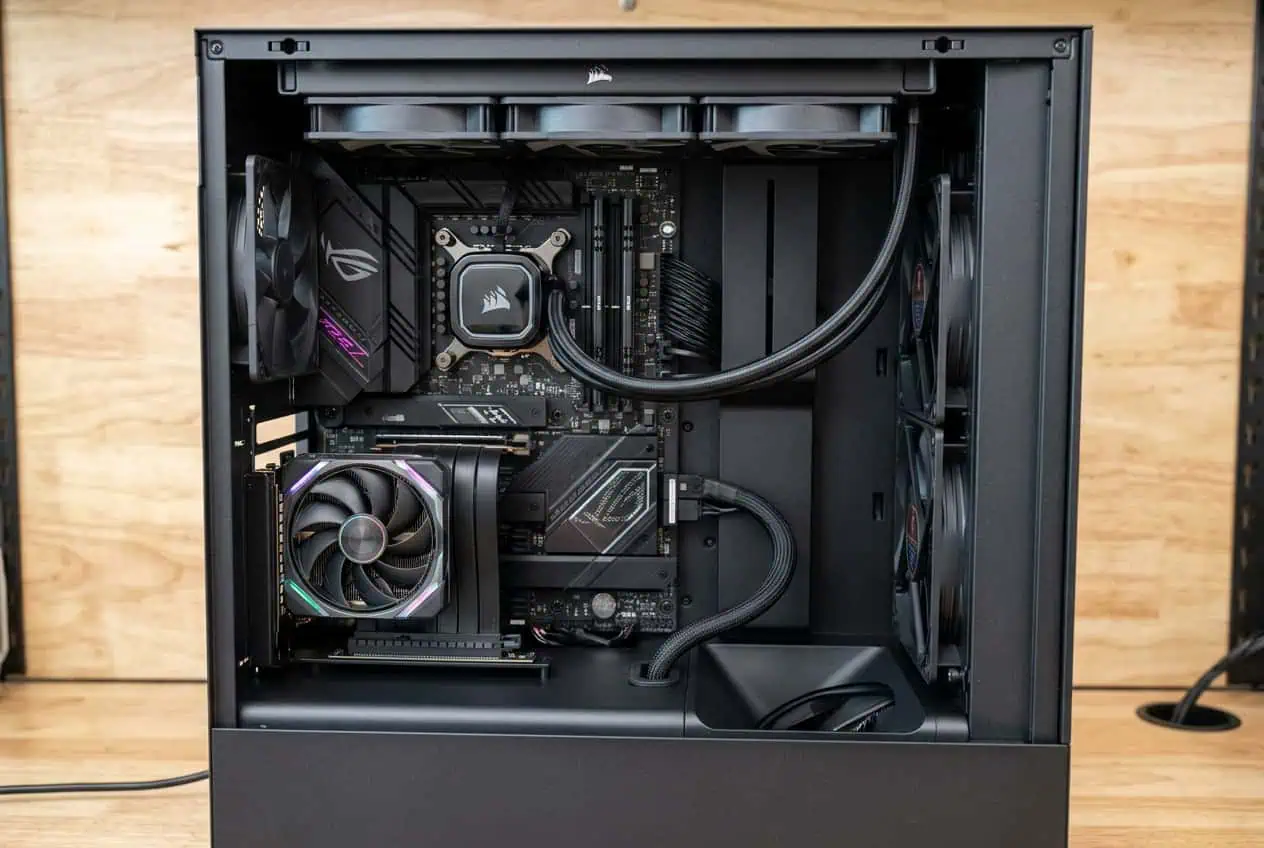
A vertically mounted GPU can make a PC look clean, but the cables can become harder to route. The GPU power cable and PCIe riser cable may sit close to the side panel, fans, and other parts.
You can keep the build neat without forcing the cables into tight bends. The goal is simple: give each cable a short, safe path, keep the GPU fans clear, and leave enough space around the connectors.
Plan the Cable Route Before Mounting the GPU
Start with the GPU power connector and work backward toward the PSU. Look for the nearest cable-routing opening behind the motherboard tray.
Next, plan the path for the PCIe riser cable. It should reach the motherboard PCIe slot without a sharp fold or strong pull.
Before you secure anything, check these areas:
- GPU power connector
- PCIe riser cable
- GPU fans
- Side panel
- Motherboard tray
- PSU shroud
- Cable-routing holes
Do a test fit first. This lets you find a clean cable path before the vertical GPU blocks access to the cables.
Check the Vertical GPU Mount
Before routing the cables, make sure the vertical GPU bracket fits your case and graphics card.
Check the bracket instructions for GPU thickness, PCIe slot position, riser compatibility, and side-panel clearance. Different vertical GPU mounts can leave different amounts of space around the card.
Check GPU and Side-Panel Clearance
A vertically mounted GPU can sit close to the side panel, especially in a compact case.
Keep thick GPU power cables and large cable bundles out of the space between the GPU and panel. Check the area around the GPU fans as well.
Temporarily install the side panel before securing the final cable route. If the panel pushes against a cable, move the cable farther back or use another routing opening.
Route the GPU Power Cable

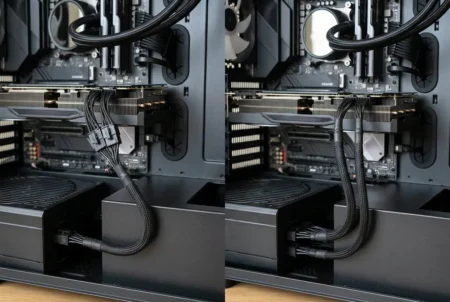
The GPU power cable needs a clean path from the PSU to the graphics card. Avoid making a large loop in front of the GPU.
A simple route is:
PSU → cable channel → routing hole → GPU power connector
Keep most of the cable behind the motherboard tray. Bring it out near the GPU instead of running the full cable across the visible part of the case.
Use the correct GPU power cable for your PSU. For modular power supplies, do not mix cables from different PSU models unless the manufacturer confirms that they are compatible.
Keep the GPU Power Connector Area Free
Do not force the GPU power cable into a sharp bend near the connector.
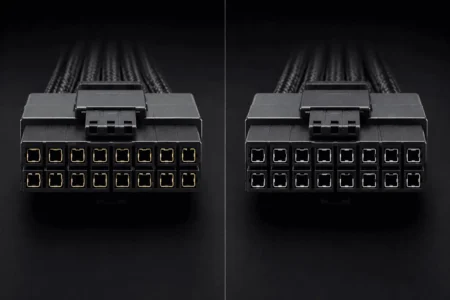
The cable should enter the connector without strong side pressure. This is especially useful with newer GPU connectors such as 12VHPWR and 12V-2×6.
Make sure the connector is fully seated and avoid using a cable tie to pull the cable to one side.
Hide Excess GPU Power Cable
Keep extra cable behind the motherboard tray or inside the PSU shroud when possible.
Avoid placing a large cable bundle directly beside the vertical GPU. It can make the side-panel gap smaller and can also block part of the GPU fan intake area.
If the cable is much longer than needed, use the case’s built-in cable channels to keep the extra length out of sight.
Test the Side Panel Before Final Routing
Do not wait until the end to check the side panel.
Temporarily route the GPU power cable and place the side panel on the case. Check whether the panel pushes the cable toward the GPU.
If it does, move the cable farther back or use another routing opening. Then secure the final route.
Route the PCIe Riser Cable
A PCIe riser cable connects the vertically mounted GPU to the motherboard. It needs a clean path because it often runs through a tight area of the case.
Start at the motherboard PCIe slot and follow the shortest practical route to the GPU.
Do not hide the riser cable by folding it into a tight shape. A clean route is better than a hidden route that puts stress on the cable.
Check the Riser Cable Length and Compatibility
Check the PCIe riser cable before routing it. Make sure its PCIe generation and connector type are suitable for your motherboard, GPU, and vertical GPU mount.
The riser should be long enough to connect the motherboard PCIe slot to the GPU without pulling on either connector. Avoid using extra cable length to create a large loop inside the case.
Also check the connector orientation. A riser with the wrong connector direction can force an awkward bend or make cable routing harder.
Give the Riser Cable a Smooth Path
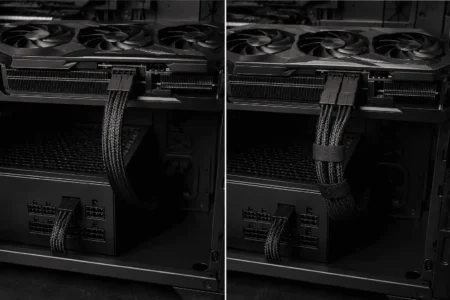
Route the PCIe riser cable along the shortest practical path between the motherboard and GPU.
Avoid sharp folds, pinched sections, and strong bends. Let the cable follow the case frame or available cable-routing space instead of forcing it into a tight shape.
Keep the cable supported along its route, but leave enough movement near the connectors so the cable does not pull on the motherboard or GPU.
Keep the Riser Cable Away From GPU Fans
The riser cable should not hang in front of the GPU fans.
Route the cable along the side or rear of the case. Secure it at a few points so it stays in place.
Do not pull it tight just to keep it away from the fans. The goal is to keep the fan intake area open without putting tension on the riser.
Keep Cables Clear of the GPU Fans
The GPU fan area should stay open.
Check for the GPU power cable, PCIe riser cable, fan wires, and RGB cables that may enter the fan path.
Move loose cables behind the motherboard tray or along the case frame. Use clips or Velcro straps to stop them from moving back toward the fans.
Pay special attention to large graphics cards. Their fan area can take up much of the available space inside a case.
A clean cable route should support airflow rather than cross the GPU intake area.
Route DisplayPort and HDMI Cables
Connect the DisplayPort or HDMI cables after the vertically mounted GPU is securely positioned.
Route each cable through the nearest practical opening without pulling sideways on the GPU ports. Keep extra cable behind the case or along the desk instead of leaving a large loop beside the GPU.
Make sure the display cables do not press against the side panel or interfere with the GPU fans.
Secure Cables Without Creating Tension
Use the case cable channels, cable clips, and Velcro straps to hold the cables in place.
Secure the cables at several points along the route instead of pulling one cable tight from end to end.
Cable ties can also work, but do not tighten them enough to crush the cable or pull a connector sideways.
Keep the GPU power cable and PCIe riser cable supported without putting constant tension on either connection.
Common Vertical GPU Cable Management Mistakes
Bending the GPU Power Cable Near the Connector
Avoid forcing a sharp bend near the GPU power connector. Let the cable leave the connector naturally without strong side pressure.
Letting the Riser Cable Hang Near the Fans
Keep the PCIe riser cable away from the GPU fan intake. Secure it along the case frame or another safe routing point.
Stuffing Extra Cable Beside the GPU
Do not place a large bundle between the GPU and side panel. Store extra cable behind the motherboard tray or near the PSU shroud when possible.
Closing the Side Panel Against the Cable
If the side panel presses against a cable, change the cable route. Do not use the panel to force the cable into position.
Pulling the Riser Cable Too Tight
Leave enough length for the riser to connect without strong tension. A shorter-looking route is not better if it pulls on the connectors.
Check Your Cable Routing After Installation
Once the vertical GPU is mounted, inspect the complete cable path.
Make sure the GPU power connector is fully seated and the cable leaves the connector without strong pressure. Check that the PCIe riser cable is not pinched, folded sharply, or pulled tight.
Look around the GPU fans for loose power, riser, fan, or RGB cables. Make sure the display cables also have enough room to leave the GPU without putting pressure on the ports.
Close the side panel carefully. If it pushes against a cable or needs force to close, reopen it and change the route.
Finally, look through the case from the front and side. The best vertical GPU cable setup keeps the visible cable path short while storing most of the extra cable behind the motherboard tray or PSU shroud.
- Route the GPU power cable through the shortest practical path.
- Keep the PCIe riser cable smooth and away from the GPU fans.
- Leave enough space around GPU power and display connectors.
- Keep thick cable bundles away from the side panel.
- Use cable clips or Velcro straps without pulling cables tight.
- Check the side panel before securing the final cable route.
Conclusion
Good cable management keeps a vertically mounted GPU clean and safe. Route the GPU power cable and PCIe riser cable through short, practical paths, keep them away from the GPU fans, and avoid sharp bends or connector pressure. Check the side-panel clearance before securing the cables. With the extra cable stored behind the motherboard tray or PSU shroud, your PC can stay neat without restricting airflow or putting stress on the connections.
FAQs
Can a vertical GPU affect cable management?
Yes. A vertical GPU can change the available space for GPU power cables, display cables, and the PCIe riser cable. The case and mounting bracket also affect the available routing space.
Can I use any PCIe riser cable for a vertical GPU?
No. Check the riser cable type and PCIe generation against your motherboard, GPU, and vertical GPU mount. The connector layout and cable length also need to fit your case.
Does a vertical GPU need a special power cable?
Not always. The GPU still needs the correct power connection for that graphics card and PSU. The main difference is that the vertical position can make cable routing and connector clearance harder.
Can I mount a GPU vertically without a riser cable?
Usually, a vertical GPU mount uses a PCIe riser cable to connect the graphics card to the motherboard. The exact setup depends on the case and mounting system.
How much space should be left between a vertical GPU and the side panel?
There is no single clearance number for every case and GPU. Follow the case and GPU mounting requirements, and make sure the panel does not press against the GPU, power cable, or fans.
Can a vertical GPU block airflow?
It can, depending on the case, GPU thickness, and distance from the side panel. Keep the GPU fan intake area clear and avoid placing large cable bundles in front of the fans.