Keyboard and mouse cables can quickly make a desk look messy. They can create cable drag, get caught on your chair, pull on USB ports, and take up valuable desk space. Even a clean setup can look cluttered when cables are left loose across the desktop.
The good news is that you can fix the problem with a few simple cable management tools and better cable routing. This guide shows how to route keyboard and mouse cables on desks with or without cable grommets, helping you reduce clutter and create a cleaner, more organized workspace.
What You’ll Need
Most desks can be organized with a few simple tools.
Gather these items before you begin:
- Adhesive cable clips
- Reusable Velcro cable ties
- Cable sleeve (optional)
- Under-desk cable tray (optional)
- Cable bungee for wired gaming mice (optional)
A desk grommet is a small opening in the desktop that lets cables pass underneath while keeping them hidden.
If your desk already has one, you can use it to hide the keyboard and mouse cables more easily. If your desk does not have a cable grommet, do not worry.
This guide also explains how to route cables without drilling holes.
Step 1: Plan the Cable Route
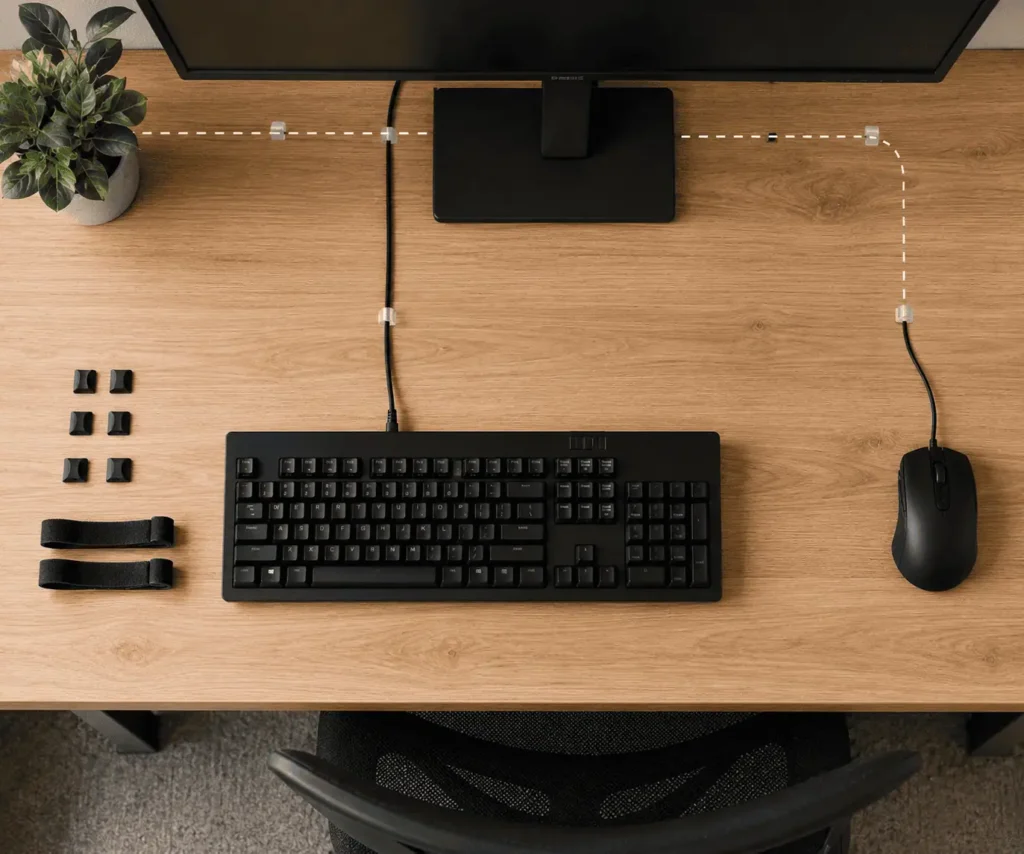
Good cable management starts with a simple plan.
Do not attach cable clips or bundle cables until you know exactly where each cable will go.
Spending a few extra minutes now can save time later.
Keyboard and mouse cable routing is one part of effective desk cable management, where planning cable routes for every device creates a cleaner and easier-to-maintain workspace.
Place Your Devices First
Put your keyboard, mouse, monitor, computer, or laptop where you want them.
Storing accessories on a pegboard for PC peripheral organization also helps keep your desktop clear before routing cables.
If you use more than one display, a multi-monitor cable management guide can help organize the extra display and power cables.
If your keyboard and mouse connect through one hub, proper USB hub cable management keeps those connections easier to organize.
Next, decide where each cable will travel.
Avoid moving your devices after routing the cables because this may force you to redo the entire cable path.
Check the Cable Length
Make sure each cable can comfortably reach your computer or USB hub.
If your peripherals connect through a dock, good docking station cable organization also helps keep cable routes short and organized.
If the cable is too short, do not stretch it across the desk. Move your computer closer or choose a shorter cable route.
If the cable is too long, keep the extra length underneath the desk. Bundle it with reusable Velcro cable ties instead of wrapping it into tight loops. Tight bends can weaken the cable over time.
Choose the Best Cable Path
For most desks, the best cable path is the shortest one that keeps the cables hidden and protected.
Planning simple cable routes is one of the easiest ways to create a minimalist desk setup with less visible clutter.
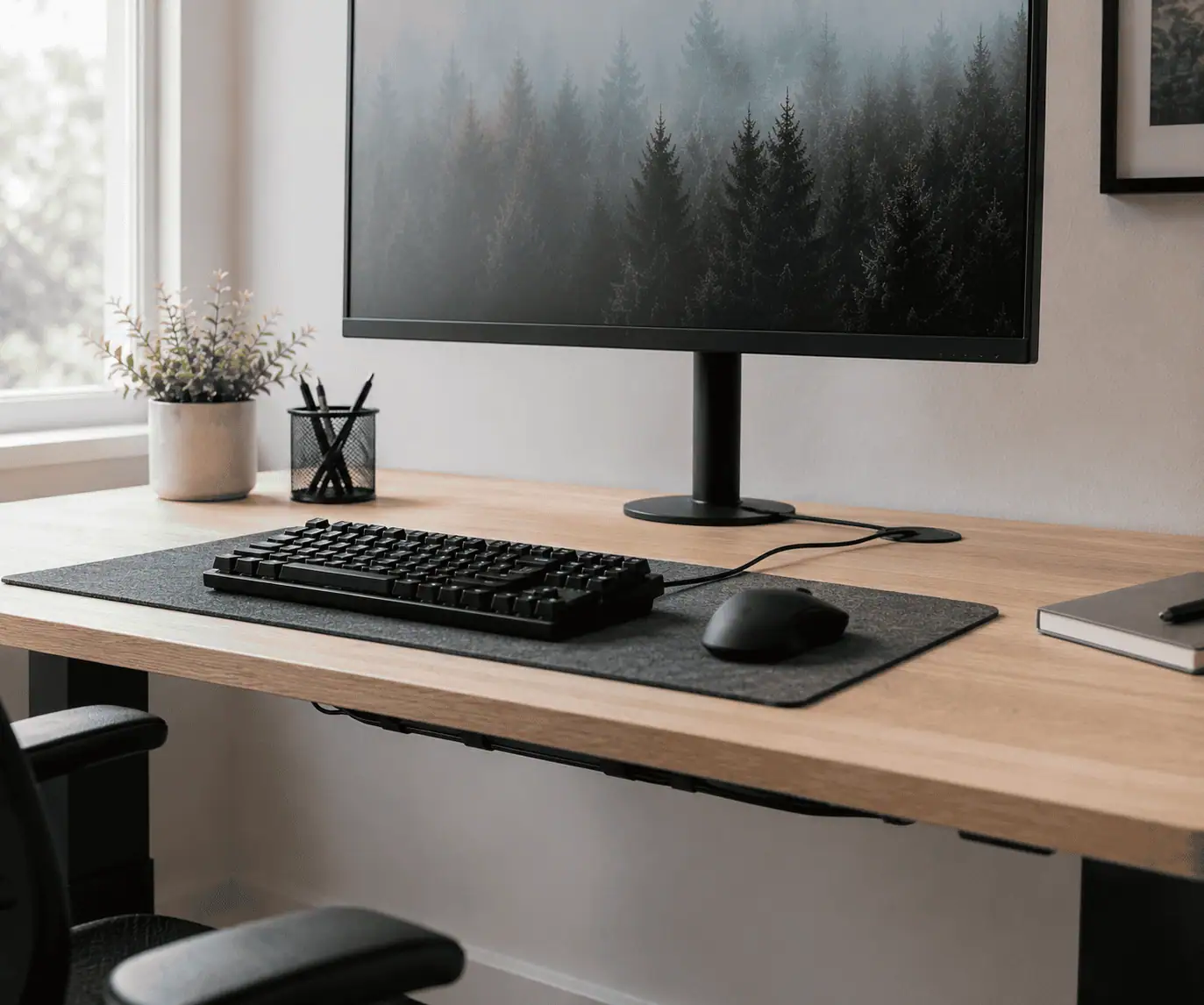
Route the keyboard and mouse cables toward the back edge of the desk. If your desk has a cable grommet, guide both cables through the opening before routing them underneath.
Avoid placing cables where your hands, legs, or chair can catch them.
Before moving to the next step, ask yourself:
- Is this the shortest cable route?
- Will the cables stay hidden during normal use?
- Can I reach them later if I replace my keyboard or mouse?
- Is there enough slack for comfortable movement?
If the answer is yes, you are ready to start routing the cables.
Step 2: Route the Keyboard Cable
A keyboard usually stays in one position, so its cable is easier to organize than a mouse cable.
The goal is to hide the cable while leaving enough movement to adjust the keyboard when needed.
Route the Cable to the Back of the Desk
Start by guiding the keyboard cable toward the rear edge of the desktop.
If your desk has a cable grommet behind the keyboard, pass the cable through it.
If there is no cable hole, continue routing the cable to the back edge before taking it underneath the desk.
This keeps most of the cable out of sight.
Secure the Cable Under the Desk
Use adhesive cable clips to hold the cable underneath the desk.
Place the clips a few inches apart so the cable follows a smooth path.
Do not pull the cable tightly between the clips.
A little movement is better than putting pressure on the USB connector.
Leave a Small Service Loop
Leave a small amount of extra cable between the keyboard and the first cable clip.
This small loop is called a service loop.
It allows you to slide the keyboard forward for cleaning or make small adjustments without pulling on the cable.
A service loop also helps protect the USB connector from unnecessary strain.
Store Extra Cable Neatly
If your keyboard cable is longer than you need, bundle the extra length with reusable Velcro cable ties.
Store the bundled cable underneath the desk or inside an under-desk cable tray if you have one.
Avoid leaving extra cable on top of the desk because it creates clutter.
Leave a little extra room in your cable bundle so you can replace your keyboard or mouse without rerouting every cable.
Test the Keyboard
Before securing the final cable clips, move the keyboard slightly in every direction.
The cable should move freely without becoming tight.
If you feel resistance, adjust the service loop before finishing the installation.
Step 3: Route the Mouse Cable
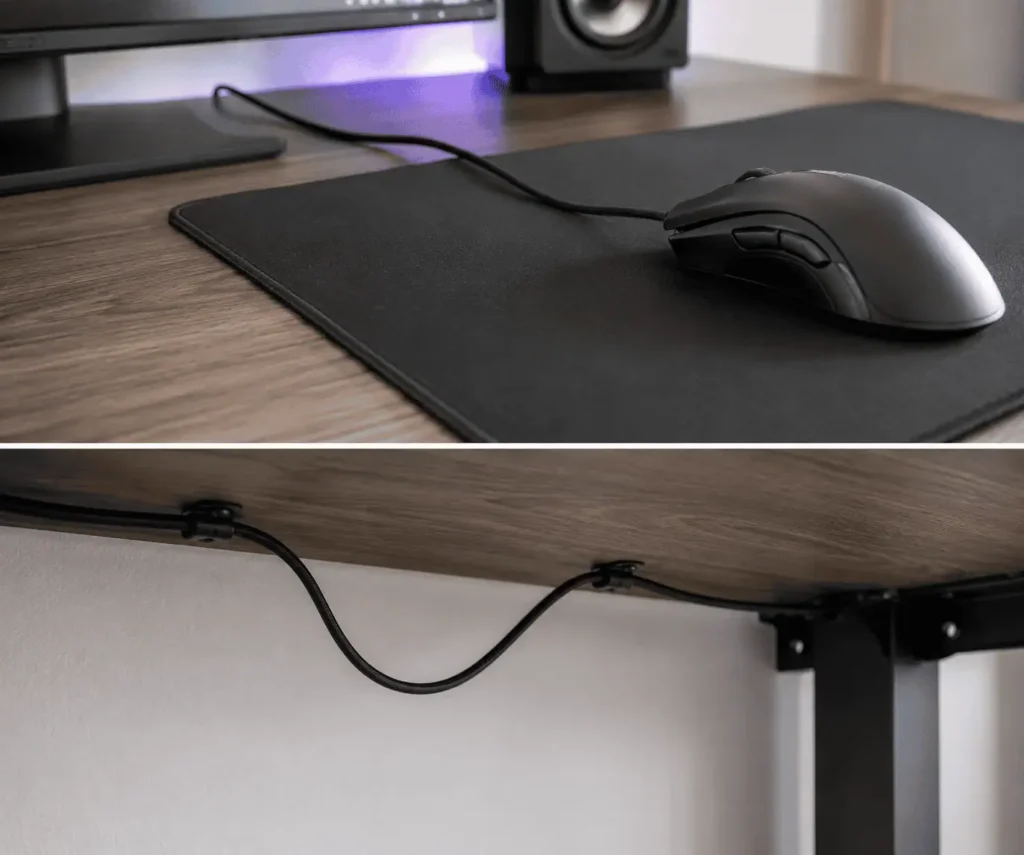
Unlike a keyboard, a mouse moves constantly, so its cable needs more freedom to prevent drag.
If the cable is routed the wrong way, it can pull against the mouse or drag across the mouse pad while you work or play games.
The goal is to keep the cable out of the way while allowing smooth movement across the mouse pad.
Leave Enough Slack for Movement
Start by placing the mouse where you normally use it.
Next, leave a small amount of cable between the mouse and the first cable clip.
This extra length gives the mouse enough freedom to move without pulling on the USB connector.
Do not leave too much cable on the desk because it can catch under the mouse.
Route the Cable Away From the Mouse Pad
Guide the cable toward the back edge of the desk instead of across the mouse pad.
This simple change helps prevent cable drag and keeps the work area clear.
If possible, secure the cable underneath the desk with adhesive cable clips once it reaches the rear edge.
Use a Cable Bungee for Wired Gaming Mice
If you use a wired gaming mouse, a cable bungee is worth considering.
A cable bungee holds the cable slightly above the desk so it does not rub against the surface while you move the mouse.
It is optional, but many gamers use a cable bungee to reduce cable drag and keep mouse movements smooth during fast-paced games.
Test Mouse Movement
Move the mouse across the entire mouse pad before securing every cable clip.
Check that:
- The cable does not become tight.
- The cable does not drag across the mouse pad.
- The mouse moves freely in every direction.
If needed, move the first cable clip slightly farther back or leave a little more slack.
Step 4: Route Cables Based on Your Desk Type
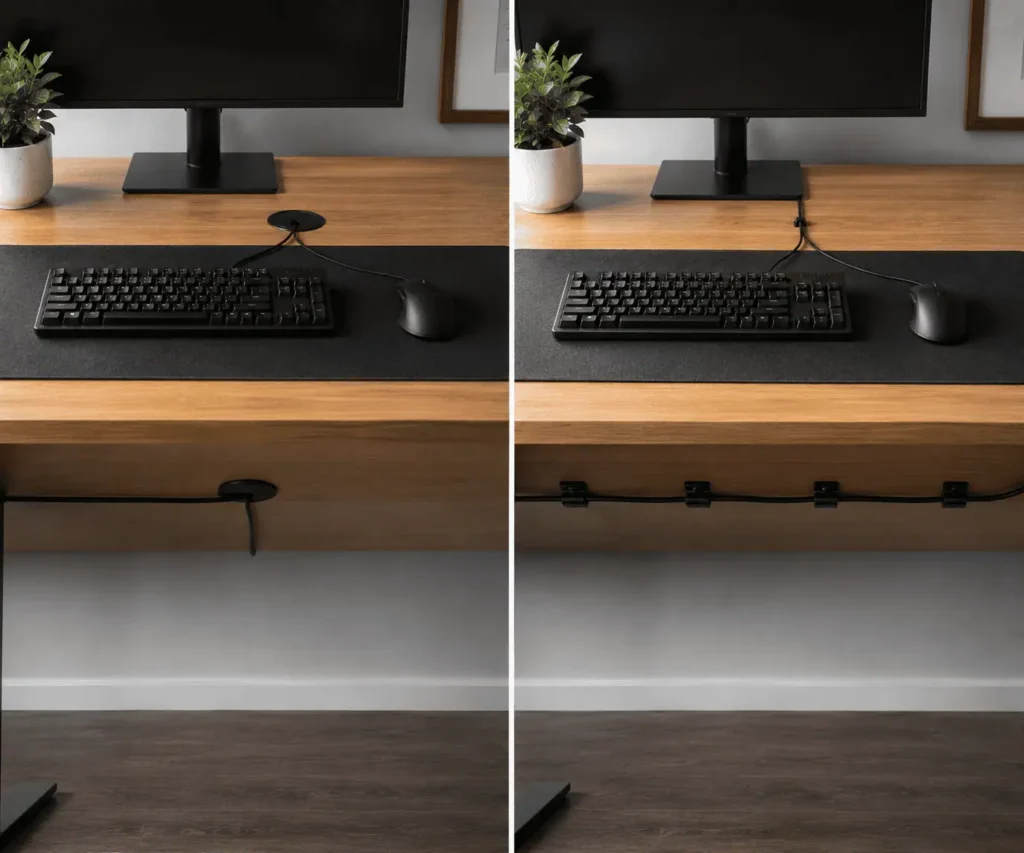
The best cable route depends on how your desk is built.
Here are the easiest methods for the most common desk designs.
Desk With a Cable Grommet
A cable grommet gives your cables a direct path under the desk.
Route both the keyboard and mouse cables through the grommet, then secure them underneath with cable clips.
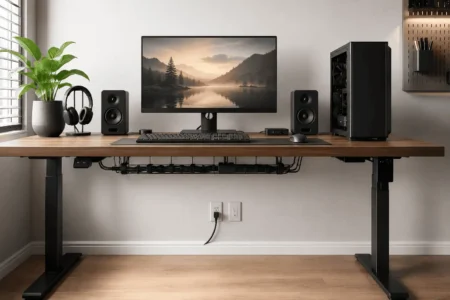
Store any extra cable inside a cable tray or bundle it neatly with reusable Velcro ties.
This is usually the cleanest cable routing method.
Desk Without a Cable Grommet
Many desks do not have cable holes.
That is perfectly fine.
Guide both cables toward the rear edge of the desk and secure them underneath using adhesive cable clips.
This method hides most of the cables without changing the desk.
Standing Desk
Standing desks move up and down, so the cables need extra room.
A dedicated standing desk cable management guide explains how to leave enough slack while keeping cables protected during movement.
Leave a little more slack than you would on a fixed desk.
After routing the cables, raise and lower the desk a few times to make sure nothing pulls or catches.
Step 5: Route Cables Without Drilling Holes
Many people do not want to drill holes in their desk.
The good news is that you do not have to.
Use Adhesive Cable Clips
Adhesive cable clips are one of the easiest cable management solutions.
Stick the clips underneath the desk and guide the keyboard and mouse cables along your planned route.
For longer cable runs, a J channel cable raceway can hide the cables while keeping them easy to access later.
Before installing the clips, clean the surface so the adhesive sticks properly.
Bundle Extra Cable With Velcro Ties
Extra cable can quickly create clutter.
Instead of leaving it hanging under the desk, gather the extra length into loose loops and secure it with reusable Velcro cable ties.
This keeps the cable organized and makes future changes much easier.
Use an Under-Desk Cable Tray
If your setup has several cables, an under-desk cable tray can help keep everything in one place.
The tray hides extra cable, keeps it off the floor, and makes the underside of the desk look much cleaner.
For a simple keyboard and mouse setup, a cable tray is optional. However, it becomes more useful if you also have monitor, speaker wire management, or charging cables.
Step 6: Should You Drill a Desk Grommet?
Some people drill a cable hole into their desk to create a cleaner cable path.
While this can work well, it is not the right choice for every setup.
When Drilling Makes Sense
Adding a desk grommet may be a good option if:
- You own the desk.
- You plan to keep the same setup for a long time.
- You want the cleanest cable route possible.
A grommet allows the keyboard and mouse cables to disappear under the desk almost immediately.
When You Should Skip Drilling
Drilling is usually not necessary if:
- You rent your home.
- Your desk is new or expensive.
- Adhesive cable clips already solve the problem.
Most people can achieve excellent cable management without making permanent changes to the desk.
Step 7: Check Your Cable Route
Before you finish, take a few minutes to test your setup.
A cable route may look neat, but it also needs to work well during daily use.
Check these points before securing the final cable clips:
- Move the keyboard forward and backward.
- Move the mouse across the entire mouse pad.
- Make sure neither cable becomes tight.
- Check that the cables stay away from your legs and chair.
- Confirm that no cable rubs against sharp desk edges.
- Make sure chair wheels or moving desk parts cannot pinch or damage the cables over time.
If something feels wrong, adjust the cable path now. It is much easier to fix a small problem before every cable clip is secured.
Common Mistakes to Avoid
A few simple mistakes can make cable management less effective.
Avoid these problems for a cleaner and safer setup.
Pulling the Cables Too Tight
A tight cable puts pressure on the USB connector every time you move your keyboard or mouse.
Always leave a small service loop so the cable can move naturally.
Leaving Too Much Cable on the Desk
Extra cable on the desktop creates clutter and can get in the way while you work.
Store the extra length underneath the desk using Velcro cable ties or an under-desk cable tray.
Routing Cables Through Busy Areas
Do not run cables where your chair, feet, or hands can catch them.
Choose a route along the rear edge of the desk whenever possible.
Securing the Cables Too Early
Test your setup before fixing every cable clip in place.
This gives you a chance to make small adjustments without removing everything.
Troubleshooting Common Problems
Even after routing your cables, you may notice small issues.
Most are easy to fix.
The Mouse Cable Still Drags
Move the first cable clip slightly farther from the mouse or leave a little more slack.
If you use a wired gaming mouse, adding a cable bungee can also help.
The Keyboard Cable Feels Tight
Check that the service loop is large enough.
If the cable is still too short, move the computer or USB hub closer to the keyboard instead of stretching the cable.
Cable Feels Too Short
Sometimes the cable reaches the computer but leaves very little room to move the keyboard or mouse.
Instead of stretching the cable, move the computer or USB hub closer to the desk. If that is not possible, use a high-quality USB extension cable designed for data transfer.
Cable Clips Keep Falling Off
Dust and dirt can stop adhesive clips from sticking properly.
Clean the underside of the desk before installing new clips.
Press each clip firmly for several seconds before adding the cable.
The Underside of the Desk Still Looks Messy
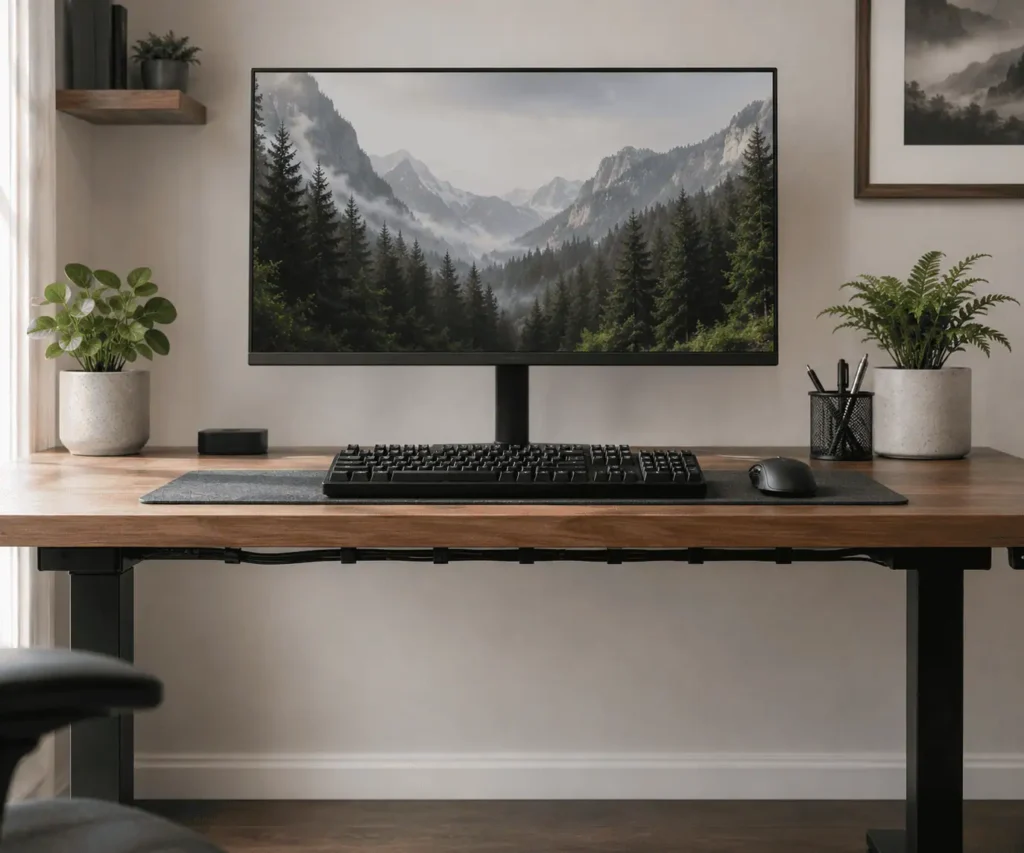
Bundle extra cable with reusable Velcro ties.
If you have several devices connected to your desk, consider adding an under-desk cable tray to keep everything together.
Conclusion
Routing keyboard and mouse cables through your desk is a simple way to create a cleaner and more organized workspace. By planning the cable path, securing cables underneath the desk, and leaving enough slack for comfortable movement, you can reduce clutter and protect your cables from unnecessary wear. If you want even fewer cables to manage, switching to wireless peripherals can simplify your setup even further. With a few practical changes, you can build a desk that is easier to use, easier to maintain, and ready for future upgrades.
FAQs
Can routing cables improve the lifespan of my keyboard and mouse?
Yes. Proper cable routing reduces strain on the connectors and helps prevent unnecessary bending, pulling, and wear during daily use.
Should keyboard and mouse cables run behind or under the desk?
Under the desk is usually the better option because it keeps the cables hidden, reduces clutter, and lowers the chance of snagging them.
Can I route keyboard and mouse cables through the same cable sleeve?
Yes. Once both cables are underneath the desk, you can place them in the same cable sleeve as long as they are not pulled too tightly and remain easy to access.
What should I do if my keyboard or mouse cable is damaged?
Replace the damaged cable if possible. Continuing to use a frayed or damaged cable may lead to connection problems or further damage.
Can I route keyboard and mouse cables on a glass desk?
Yes. Since you should not drill into a glass desk, use adhesive cable clips underneath the desk or along the rear edge to guide the cables safely.