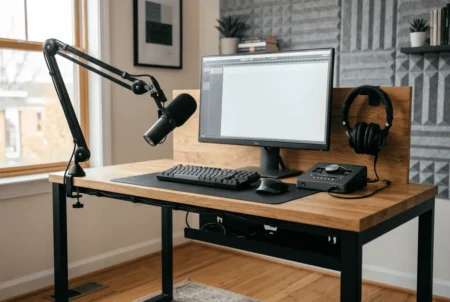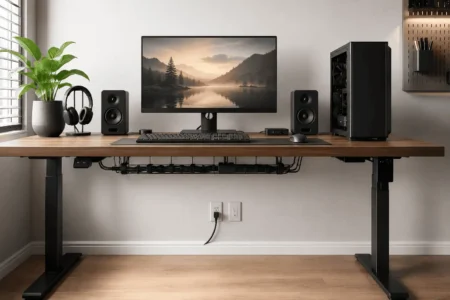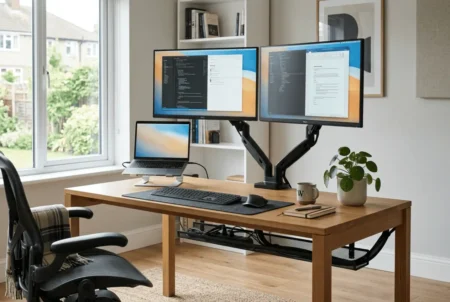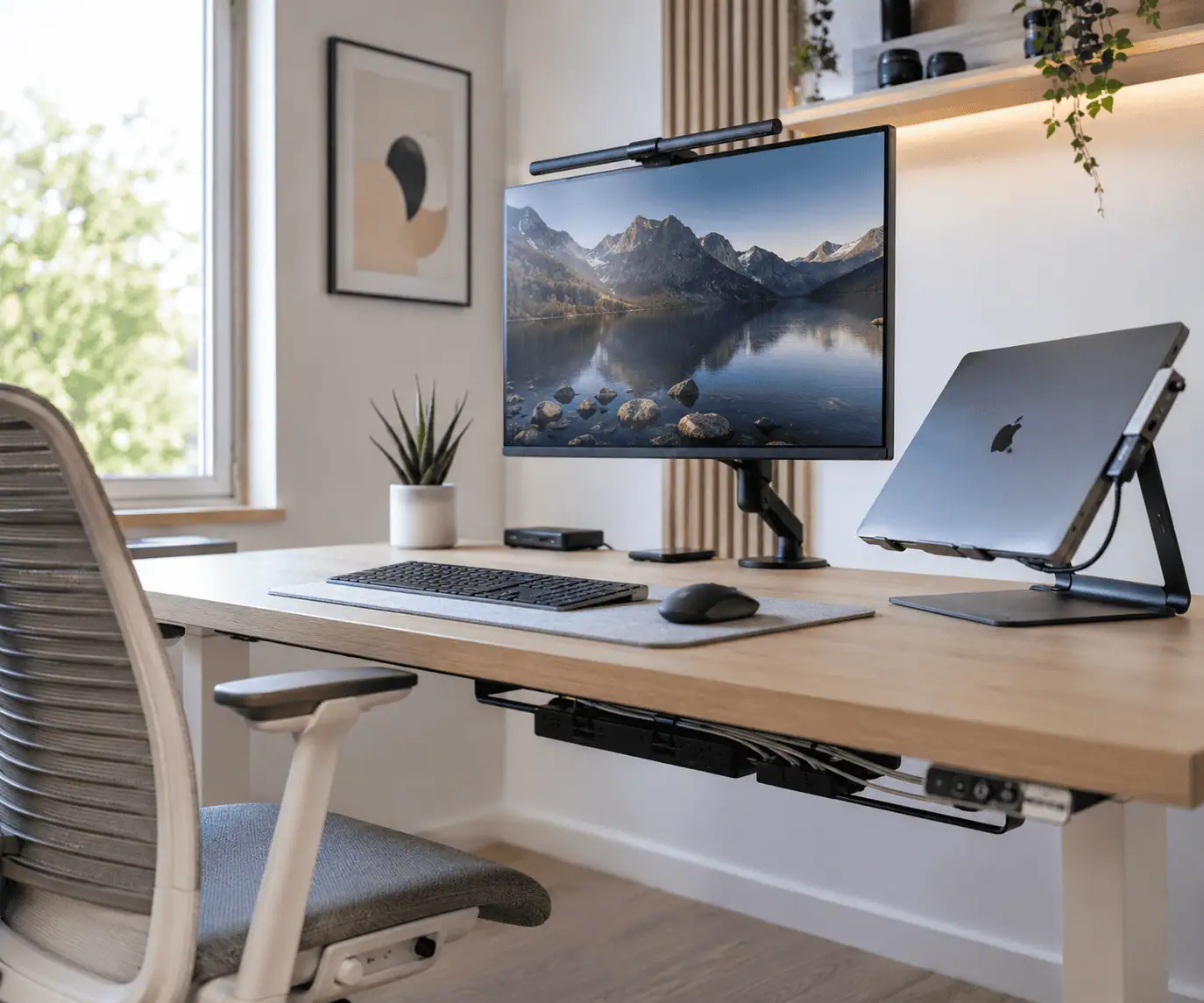
If your desk looks clean until you notice the tangled cables underneath, you are not alone. Monitor cables, phone chargers, power strips, and USB wires can quickly make even a simple workspace look messy. The good news is that you do not need an expensive desk or lots of accessories to fix the problem.
These minimalist desk setup cable management ideas will help you reduce cable clutter, organize your workspace, and create a cleaner desk with simple, practical solutions. Whether you work from home, study, create content, or play games, you will learn easy ways to hide cables, choose the right organizers, and keep your setup neat over time.
What Is a Minimalist Desk Setup?
A minimalist desk setup is a workspace where every item has a purpose.
Instead of filling the desk with extra accessories, only the things you use every day remain within easy reach.
This does not mean your desk has to be empty. It means removing clutter so you have more space to work comfortably.
Cable management plays a big role in creating this clean look.
Even an expensive desk can appear untidy when cables hang from the back or collect under the desk.
A minimalist workspace starts with effective desk cable management. Planning cable routes for every device helps create a cleaner workspace that’s easier to maintain as your setup grows.
A well-organized minimalist setup usually has these features.
Fewer Visible Cables
The goal is to reduce visual clutter, not hide every single cable.
Some cables, such as a laptop charger or phone charger, may need to stay within reach.
The rest should be routed behind the monitor, under the desk, or along the back edge where they are less noticeable.
A Clean Work Surface
Leave enough open space for your daily work.
A desk with fewer items feels larger, looks more organized, and is easier to clean.
Before buying new cable organizers, remove anything you no longer use. Old chargers, damaged cables, and unused accessories often create more clutter than people realize.
Smart Cable Routing
Instead of letting cables travel in different directions, guide them along one main path.
For example, monitor cables can travel together behind the monitor before running into an under-desk cable tray.
Charging cables can follow another route along the side of the desk.
Simple cable routes make your setup easier to manage and easier to upgrade later.
Accessories That Match Your Desk
Small details help create a cleaner look.
If you have a white desk, white cable sleeves and white cable clips blend into the background.
For black desks, black accessories usually look best.
Wood desks often look cleaner with neutral-colored or fabric cable sleeves that match the natural finish.
Matching your accessories to your desk helps the cable management disappear instead of becoming another distraction.
Plan Before You Organize Cables
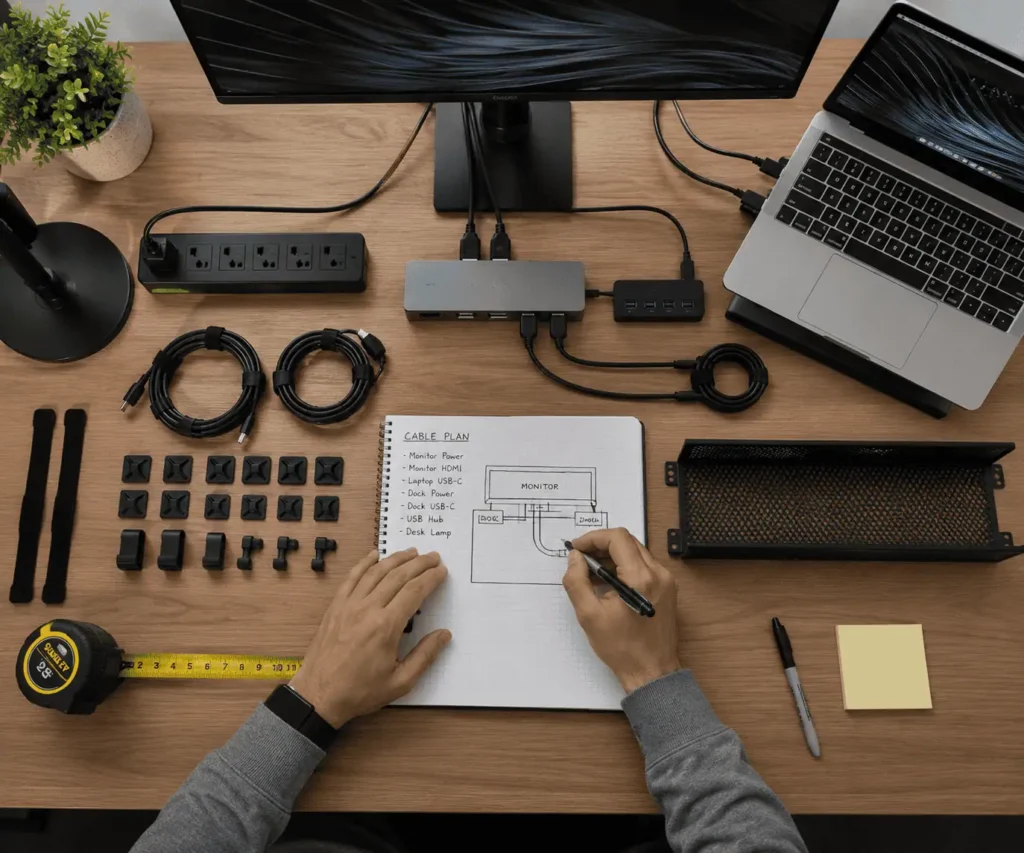
One mistake many people make is buying cable organizers before they understand what their setup actually needs.
A better approach is to spend a few minutes planning your workspace first.
Look at every device on your desk and ask yourself a few simple questions.
- Which devices do I use every day?
- Which cables are no longer needed?
- Which cables need to stay easy to reach?
- Where is the nearest power outlet?
- Will I add another monitor or other devices later?
Many people discover they can remove several cables before buying any cable management products.
Next, decide where your main devices will sit.
Start with the largest items, such as your monitor, desktop computer, or laptop.
Then decide where your docking station, power strip, USB hub, and charging station should go.
Finally, plan the route for each cable.
Try to keep cables moving in the same direction whenever possible. Group similar cables together, such as display cables, power cables, and USB cables.
This simple planning step makes installation much easier and helps prevent tangled wires later.
It also reduces the number of cable clips, sleeves, and other accessories you need to buy.
Once your layout is planned, you are ready to remove unnecessary cables and build a cleaner workspace.
Reduce Unnecessary Cables Before You Start
The easiest way to create a clean desk is to reduce the number of cables before you organize them.
Many people buy cable trays, cable sleeves, and cable clips first. These tools help, but they cannot fix a desk that has too many cables.
Start by looking at every cable on your desk. Ask yourself if you really use it every day. If the answer is no, remove it before you begin organizing.
25 Minimalist Desk Setup Cable Management Ideas That Actually Work
Once you have reduced unnecessary cables, you can begin organizing the ones that remain.
These ideas are easy to follow and work for most home offices, study desks, and gaming setups.
Idea #1: Switch to Wireless Devices
Replacing wired accessories with wireless ones is one of the quickest ways to reduce cable clutter.
Choosing wireless peripherals is an easy way to reduce the number of cables without changing your entire setup.
A wireless keyboard and mouse remove two cables right away. Wireless headphones also keep your desk looking cleaner while giving you more freedom to move.
You do not need to replace every device at once. Even changing one or two accessories can make a noticeable difference.
Idea #2: Use USB-C Where Possible
If your laptop and monitor support USB-C, take advantage of it.
A single USB-C cable can often carry video, data, and charging at the same time. This replaces several separate cables with one simple connection.
Besides creating a cleaner desk, it also makes connecting and disconnecting your laptop much faster.
Idea #3: Add a Docking Station
A docking station lets you connect multiple devices through a single cable.
Proper docking station cable organization keeps connected devices tidy and makes future upgrades much easier.
Your monitor, keyboard, mouse, USB hub, and external SSD can all connect to the dock instead of directly to your laptop.
This reduces cable clutter and lets you connect or disconnect your laptop with a single cable.
Idea #4: Remove Devices You No Longer Use
Many desks collect old accessories over time.
Take a few minutes to remove devices that no longer serve a purpose.
These may include:
- Old phone chargers
- Spare USB cables
- Unused speakers
- Old USB hubs
- External drives you rarely connect
- A second keyboard or mouse
Removing unused devices also removes the cables connected to them.
Idea #5: Replace Long Cables
Extra-long cables often create unnecessary loops behind the desk.
Measure the distance between your devices before buying replacement cables.
Using cables that fit your setup makes routing much easier and reduces clutter without buying extra organizers.
Idea #6: Combine Charging Cables
If you charge several devices every day, keep them together in one place.
A charging station or a single charging area helps reduce loose cables across the desktop.
It also makes it easier to keep your phone, earbuds, smartwatch, and tablet organized.
Idea #7: Keep Only Daily Essentials on the Desk
A minimalist desk should only include items you use often.
If a device stays unplugged most of the time, store it in a drawer or cabinet instead of leaving it on the desk.
Less equipment means fewer cables to organize.
Idea #8: Install an Under-Desk Cable Tray
An under-desk cable tray is one of the best ways to hide cables.
It keeps power strips, charging bricks, and extra cable length off the floor while making your workspace look much cleaner.
Leave a little empty space inside the tray so you can add new cables later without creating another tangled mess.
Idea #9: Mount the Power Strip Under the Desk
A power strip left on the floor collects dust and often becomes a place where cables pile up.
Mounting it under the desk keeps everything together and makes the floor easier to clean.
Place it where you can still reach it without crawling under the desk every time you need another outlet.
Leave enough space around the power strip so larger power adapters do not block nearby outlets.
Idea #10: Bundle Similar Cables Together
Group cables that travel to the same place. For example, bundle HDMI, DisplayPort, USB, and monitor power cables separately.
Use reusable hook-and-loop straps instead of single-use zip ties if you upgrade your setup often. They are easier to open when adding or removing cables.
Do not tighten the straps too much. Leave a little room so the cables are not under pressure.
Idea #11: Use Cable Sleeves
Cable sleeves keep several cables together in one neat bundle. A mesh cable sleeve is flexible, while a braided cable sleeve gives a cleaner finish.
Choose a sleeve color that matches your desk so it blends into the background.
Idea #12: Keep Frequently Used Cables Within Reach
Not every cable should be hidden.
Phone chargers, laptop charging cables, and USB cables that you use every day should stay easy to reach.
The same approach also works well for keyboard and mouse cable routing, where frequently used cables should remain accessible without creating clutter.
Use cable clips along the edge or back of your desk to stop these cables from falling behind the desk.
Idea #13: Route Cables Along the Back of the Desk
Avoid letting cables hang from the front or middle of the desk. Instead, route them along the back edge where they are less visible.
Installing a J channel cable raceway underneath the rear edge of the desk creates a cleaner cable path and keeps wires hidden.
If your desk has a cable grommet, guide the cables through it before securing them underneath. This creates a cleaner look and keeps cables neatly out of sight.
Idea #14: Hide Extra Cable Length
Extra cable length is one of the biggest causes of clutter.
Bundle the extra length neatly with reusable cable ties.
Then place it inside your cable tray or behind the desk instead of leaving it on the floor.
Avoid making very tight loops, especially with display and charging cables.
Idea #15: Use a Cable Management Box
A cable management box keeps your surge protector, power brick, and extra cables out of sight. This creates a cleaner workspace and reduces clutter around your desk.
Choose a box with enough space for airflow, and avoid overfilling it with power adapters.
Cable Management Ideas for Different Desk Types
Every workspace is different.
The best cable management solution depends on the size of your desk, the number of devices you use, and whether your desk stays in one place or moves during the day.
These ideas will help you choose the right approach for your setup.
Idea #16: Organize a Small Desk
Small desks become cluttered quickly because there is very little space to hide cables.
This approach works especially well for students, apartment living, and anyone working with limited desk space.
Start by keeping only the devices you use every day.
Measure your cable runs before buying new cables. The right cable length reduces clutter and makes routing easier.
Mount the power strip under the desk. This keeps the floor clear and hides most power cables.
A monitor arm or laptop stand can also free up valuable desk space while creating more room to hide cables underneath.
If you have shelves above your desk, move items like speakers or external drives there to reduce clutter on the desktop.
A pegboard for PC peripheral organization can also free up desk space while keeping frequently used accessories within easy reach.
The less equipment you keep on a small desk, the easier it is to manage the remaining cables.
Idea #17: Manage Cables on a Standing Desk
Standing desks need extra planning because they move up and down.
A dedicated standing desk cable management guide explains how to route cables safely while allowing the desk to move freely.
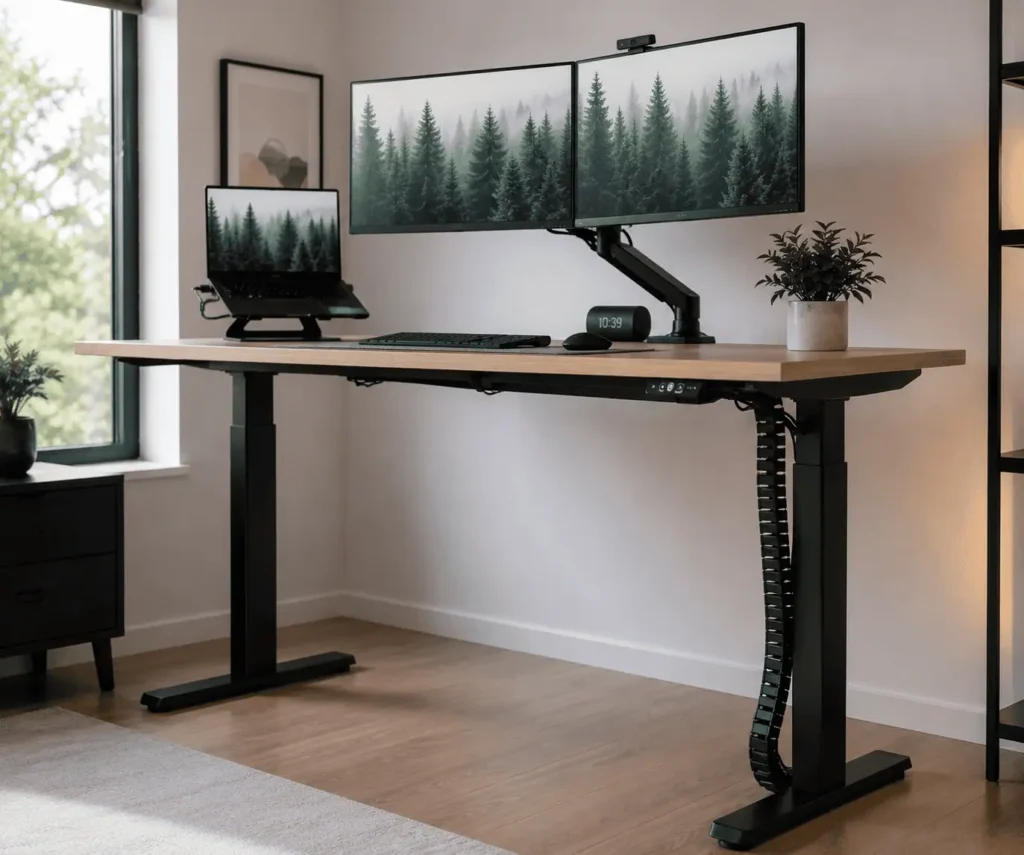
Leave enough slack for every cable so nothing gets pulled when you change the desk height.
Route cables down one desk leg using adhesive cable clips or a cable spine. This keeps the cables secure while allowing the desk to move freely.
Move the desk to both its lowest and highest positions before you finish. If a cable pulls tightly or rubs against the frame, adjust it before regular use.
Idea #18: Keep a Corner Desk Organized
Corner desks usually have more surface area, but longer cable paths can create clutter.
Place your power strip near the back corner of the desk so most cables travel in the same direction.
Bundle HDMI, DisplayPort, and Ethernet cables separately from charging cables to keep everything easier to manage.
This simple layout makes future upgrades and troubleshooting much easier.
Idea #19: Hide Cables on a Dual Monitor Setup
Two monitors usually double the number of cables, making the back of the desk look cluttered.
A dedicated multi-monitor cable management guide covers routing display, power, and peripheral cables for cleaner dual-monitor setups.
Route HDMI, DisplayPort, and monitor power cables through the monitor arm channels before guiding them into a cable tray.
This keeps the setup tidy and makes future upgrades much easier.
Idea #20: Organize a Gaming Desk
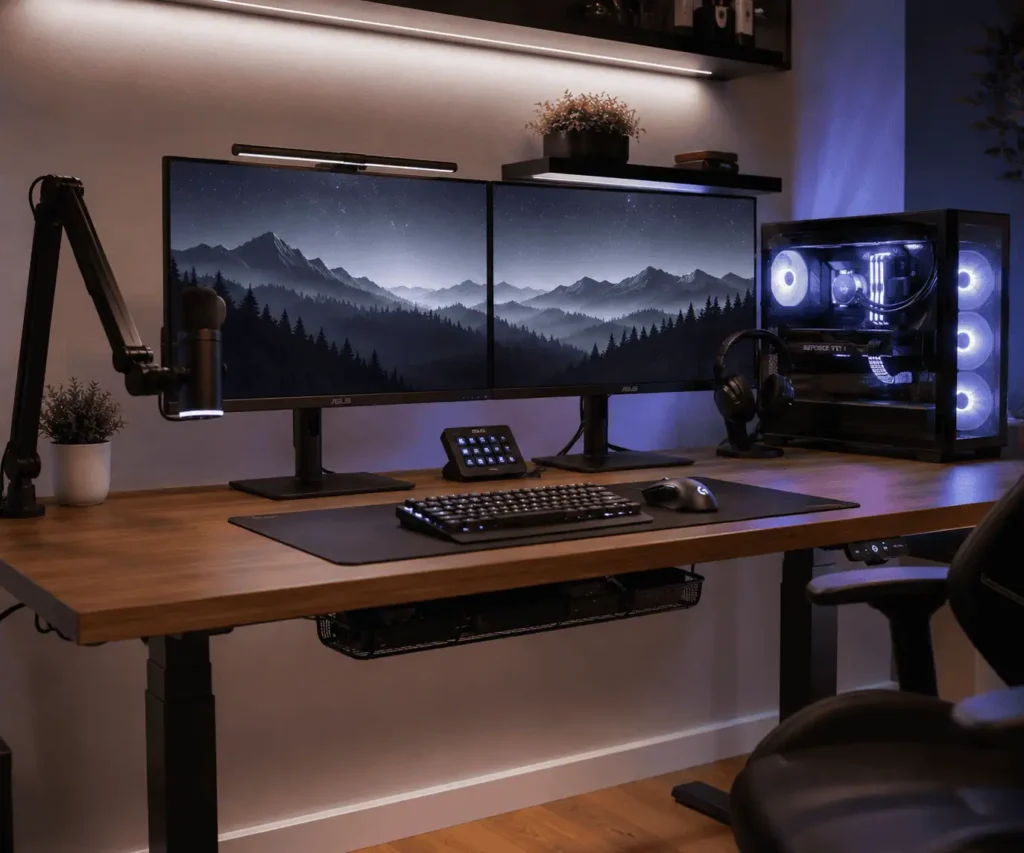
Gaming desks often include a desktop PC, one or two monitors, speakers, a headset, RGB lighting, a microphone, and several USB devices.
Group cables by purpose instead of device.
Keep power cables, HDMI or DisplayPort cables, USB cables, and Ethernet cables in separate bundles.
Label important cables before hiding them. This makes upgrades and troubleshooting much easier.
A clean gaming setup is also easier to upgrade when you add new monitors, accessories, or streaming equipment.
Idea #21: Build a Clean Home Office
A home office should look neat and stay practical.
Hide cables behind the monitor whenever possible and keep chargers off the desktop unless you use them every day.
If your workspace includes desktop speakers, good speaker wire management can further reduce visible cable clutter.
Store spare cables inside a drawer instead of leaving them beside your computer.
If you attend video meetings, check your desk from the camera’s view.
A tidy background creates a more professional appearance and helps remove visual distractions.
Common Cable Management Mistakes to Avoid
Good cable management is not only about hiding wires. It is also about avoiding small mistakes that can create problems later.
These final four ideas will help you build a setup that stays clean and works well for years.
Idea #22: Do Not Overtighten Cable Ties
Cable ties should hold cables together without squeezing them.
Pulling them too tightly can damage cable insulation and make future changes difficult.
Reusable cable ties are usually the better choice because they are easy to adjust.
Idea #23: Keep Power and Data Cables Organized
Grouping similar cables makes your setup easier to manage.
If several USB devices connect through one hub, proper USB hub cable management keeps those cables organized and easier to identify.
Keep display cables together, USB cables together, and power cables close to the power strip.
This simple habit makes troubleshooting much faster when you add or replace a device.
Idea #24: Leave Slack for Moving Devices
Some devices move every day.
Monitor arms, standing desks, and laptop stands all need a little extra cable length.
Leave enough slack so cables can move freely without being stretched.
A good rule is to test every moving device before finishing your cable management.
Idea #25: Review Your Setup Once a Month
Cable management is not a one-time task.
As you add new devices, cables slowly become untidy again.
Spend five minutes each month checking your workspace.
Remove unused cables.
Wipe dust from your cable tray.
Tighten loose cable ties.
Replace damaged cables.
Make sure nothing is hanging near chair wheels.
This small habit keeps your desk looking organized throughout the year.
Troubleshooting Common Cable Problems
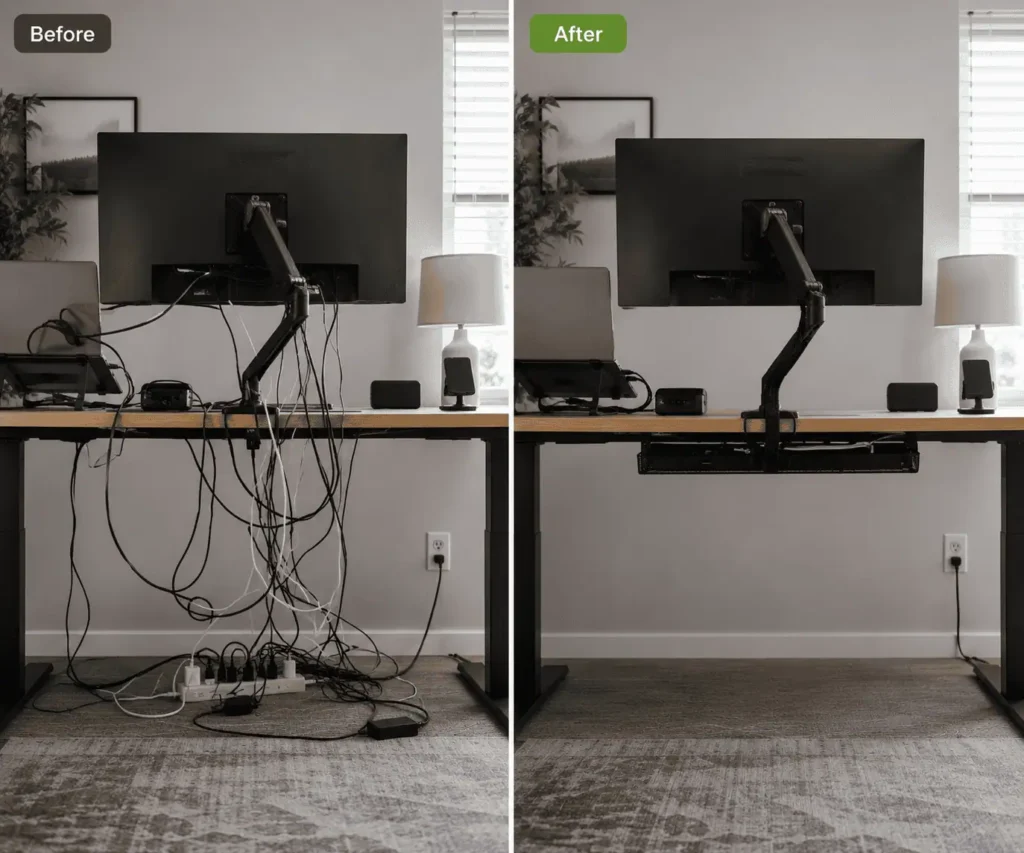
Even after organizing your desk, you may notice a few small problems. The good news is that most of them are easy to fix.
Cables Keep Falling Behind the Desk
This usually happens when charging cables are left loose.
Attach a cable clip near the edge of your desk to hold charging cables in place. This keeps them within reach instead of falling behind the desk every time you unplug a device.
Your Cable Tray Looks Full
A crowded cable tray is difficult to manage.
Start by removing cables you no longer use. Then bundle similar cables together and move large power adapters to one side of the tray.
If you still run out of space, consider using a larger cable tray instead of forcing everything into one place.
Your Desk Still Looks Messy
If your desk still feels cluttered, step back and look at it from where you normally sit.
One or two visible cables are often enough to make the whole setup look untidy.
Move those cables behind the monitor, under the desk, or along the back edge until they are less noticeable.
You Cannot Identify Your Cables
When every cable looks the same, replacing a device becomes frustrating.
Label both ends of important cables, such as HDMI, Ethernet, USB, and power cables. This makes future upgrades and troubleshooting much easier.
Simple Maintenance Tips
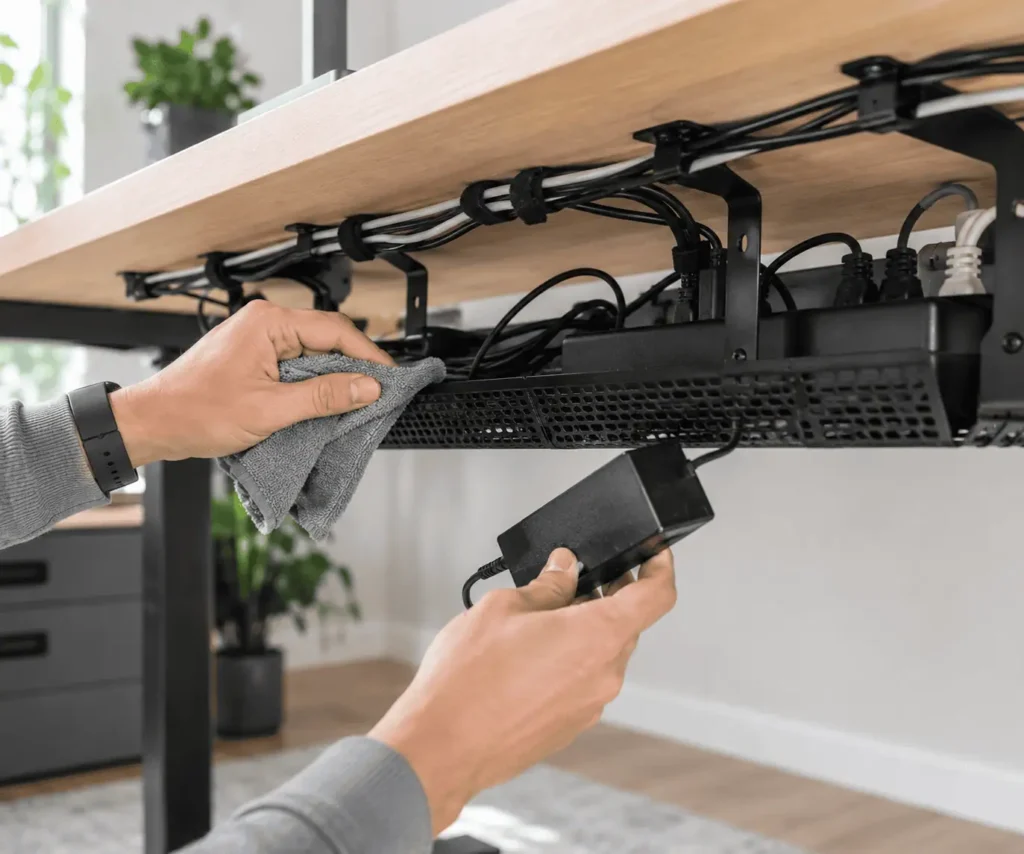
A minimalist desk stays clean because it is maintained regularly.
You do not need to spend hours reorganizing your workspace.
A few minutes each month is usually enough.
Follow these simple habits.
- Return charging cables to the same place after use.
- Remove devices you no longer need.
- Dust around your cable tray and power strip.
- Check power bricks for heat buildup while cleaning. Replace any damaged cables or adapters before using them again.
- Check that cable clips and cable ties are still secure.
- Replace damaged cables as soon as you notice them.
- Keep cables away from chair wheels and foot traffic.
Small maintenance tasks prevent cable clutter from building up again.
Conclusion
Creating a minimalist desk setup starts with reducing unnecessary cables, planning better cable routes, and using the right cable management products. Small improvements made over time can keep your workspace clean, organized, and easy to maintain. Start with one or two ideas from this guide, then build on them as your setup grows. A well-organized desk is easier to use, easier to maintain, and stays clutter-free as you add new devices.
FAQs
How many cables should be visible on a minimalist desk?
Only the cables you use every day should stay visible. Hide the rest behind or under the desk for a cleaner look.
Can cable clips damage my desk?
No, if you use quality adhesive cable clips and remove them carefully. Clean the surface before applying them for a stronger hold.
What is the best cable length for a desk setup?
Choose cables that comfortably reach your devices without leaving large loops. The right cable length makes routing much easier.
Are reusable cable ties better than zip ties?
Yes. Reusable cable ties are easy to adjust and reuse, making them a better choice for most desk setups.
Do I need expensive cable management products?
No. A few cable clips, reusable cable ties, and an under-desk cable tray are enough for most minimalist desk setups.