


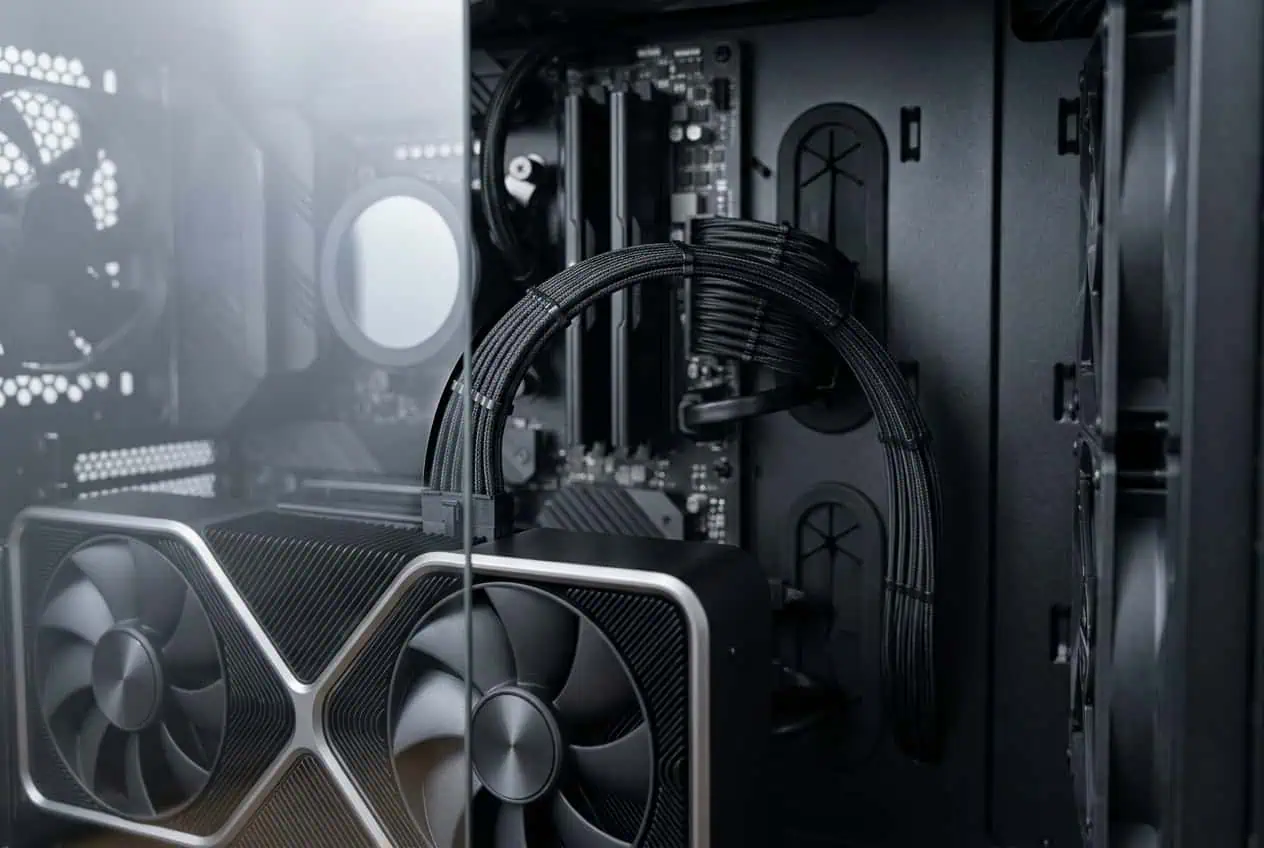
If your GPU fits inside the case but the power cable sits close to the side panel, do not force the panel closed. A tight cable path can push against the GPU power connector or force the cable into a sharp bend.
Check three things first: the connector must sit fully in the GPU socket, the cable must have enough room before its main bend, and the side panel should not press hard against the cable. If any of these fail, change the cable route before closing the case.
Your GPU power cable has enough clearance if the connector is fully seated, the cable can leave the connector without a sharp bend, and the side panel does not press against it. For 12VHPWR, keep the first section of cable straight before the main bend. If the panel pushes the cable or changes its position, reroute the cable or use a setup with more room.
Is Your GPU Power Cable Too Close to the Side Panel?
Your cable may not have enough clearance if you notice any of these problems:
- The side panel touches the power cable.
- The cable moves when you close the side panel.
- The cable bends sharply near the GPU connector.
- The connector is pulled sideways by the cable.
- You have to push the side panel to close it.
- The cable is squeezed between the GPU and side panel.
If any of these happen, do not use the side panel to force the cable into place.
Open the panel and check the cable route. The cable should leave the GPU connector naturally and then make its main bend farther away from the connector.
How Much Space Does Your GPU Power Cable Need?

There is no single clearance number for every GPU power cable.
The space you need depends on the GPU thickness, connector position, cable thickness, connector housing, and case width.
For 12VHPWR, about 35 mm, or 1.38 inches, of straight cable before the main bend is a common guideline.
This refers to the cable space needed before the main bend, not the total gap between your GPU and the side panel.
For 12V-2×6, follow the instructions for your specific GPU and cable. Cable designs can differ, so do not assume that every 12V-2×6 cable uses the same bend distance.
For 8-pin PCIe, there is no single universal side-panel clearance number. The cable should have enough room for a gentle bend without pressure from the case.
Why Bend Space Is Not the Total Clearance
The space needed inside the case includes more than the straight section of cable.
You also need room for:
- The GPU power connector
- Connector housing
- Cable thickness
- Cable bend
- GPU thickness
- Side-panel distance
A GPU with a recessed power connector may give the cable more usable space than a GPU with a connector close to the outer edge.
So do not measure only the gap between the GPU and side panel and compare it with the cable’s bend space.
How to Check If Your GPU Has Enough Cable Clearance
You can check the clearance with the GPU installed in its final position.
Connect the correct power cable first. Make sure the connector is fully inserted and sits straight in the GPU socket.
Then check the cable from the connector to the point where it makes its main bend.
Check the GPU Power Connector Position
Look at where the power connector sits on your graphics card.
Two GPUs with similar dimensions can need different cable clearance because their power connectors may be in different positions.
A recessed connector can give the cable more usable space.
Also check the GPU thickness. A wider graphics card can leave less room between the cable and side panel.
Check the First Cable Bend
The cable should not make a sharp turn right at the GPU connector.
For 12VHPWR, keep the first section of cable straight before the main bend unless your cable maker gives different instructions.
For 12V-2×6, follow the instructions for your specific cable.
For 8-pin PCIe, give the cable enough room to form a gentle curve instead of forcing it into a tight angle.
Check the Side Panel
Route the cable as it will sit during normal use.
Then bring the side panel close without forcing it.
If the panel pushes the cable inward, stop. That means the cable route does not have enough usable clearance.
The panel should close without changing the cable position or putting strong pressure on it.
What If Your GPU Power Cable Has Almost No Clearance?

If the cable has very little space, do not start by pushing it harder against the side panel.
First, find out where the space is being used.
Check whether the tight spot is caused by the cable route, connector position, cable thickness, or the case itself.
A poor cable route, a thick cable, a large connector housing, or a wide GPU can all reduce the available clearance.
If the Cable Bends Too Close to the Connector
Move the main bend farther away from the GPU connector.
Do not use the connector as the point where the cable makes a sharp turn.
If the Side Panel Presses the Cable
Change the cable route before closing the case.
Try to give the cable a more direct path away from the GPU connector. Avoid routing it across the top or side of the graphics card if that creates a sharp bend.
If there is still not enough room, the case may not provide enough side-panel clearance for that GPU and cable combination.
If the Cable Is Too Stiff
A thick or stiff cable can need more space than a thin cable using the same connector.
Check whether a different cable length or cable shape is available for your GPU and power supply.
Do not choose a replacement cable based only on the connector type.
If the GPU Connector Is Close to the Side Panel
Check the connector position on the graphics card.
A recessed connector can provide more room for the cable. If the connector sits close to the outer edge, the cable may need more side-panel space.
If the GPU is simply too close to the panel, changing the cable route may not solve the problem. A wider case may be needed.
Does Your GPU Connector Type Change the Clearance?
Yes. The connector and cable design can change how much space the cable needs.
8-Pin PCIe
8-pin PCIe cables are common on many graphics cards.
They usually offer several routing options, but they still need room for a gentle bend.
If your GPU uses two or three 8-pin connectors, check the space around each cable. Several cables can fill a narrow area quickly.
Do not force the cables together just to make the side panel close.
12VHPWR
12VHPWR uses a compact 16-pin connector on many high-power graphics cards.
The compact connector can reduce the connector width compared with several separate 8-pin plugs, but the cable still needs room to leave the connector before bending.
About 35 mm of straight cable before the main bend is a common guideline.
Make sure the connector is fully inserted before routing the cable. If there is a visible gap between the plug and GPU socket, check the connection before closing the case.
12V-2×6
12V-2×6 is a newer high-current GPU connector.
It still needs careful cable routing. Avoid bending or applying strong force close to the connector.
The exact cable design can differ, so follow the installation instructions for your GPU and cable instead of assuming the same clearance rule applies to every 12V-2×6 cable.
What Happens If There Is Not Enough Clearance?
Too little clearance can make the cable work against the case instead of following a natural path.
The most common signs are a sharp bend, connector movement, or pressure from the side panel.
Cable Gets Forced Into a Tight Bend
A tight bend close to the GPU connector puts extra stress on the cable and connector area.
This is especially worth checking with compact high-power connectors such as 12VHPWR and 12V-2×6.
Move the main bend farther from the connector instead of forcing a sharp turn.
The Connector Gets Pulled Sideways
A cable that is too short or badly routed can pull on the GPU power connector.
The connector should remain fully seated while the cable follows its route.
If moving the cable changes the connector position, the cable needs a better route.
The Side Panel Presses the Cable
A side panel can hide a clearance problem.
If you have to push the panel to close the case, the cable is being squeezed.
Open the panel and change the cable route. Do not rely on the panel to create the bend needed to make the cable fit.
How to Get More GPU Cable Clearance
If your cable does not have enough room, change the cable path first.
A better route can give the connector a straighter path and move the main bend farther away from the GPU.
If routing does not give you enough space, look at the cable, connector, and case as a complete setup.
Change the Cable Route
Give the cable a direct path away from the GPU connector before it turns toward the rear of the case.
Avoid pulling the cable across the top or side of the graphics card if that creates a sharp bend.
A small routing change can give the cable more usable space without changing the GPU or case.
Use a Case With More Side-Panel Space
If the GPU and cable are very close to the side panel, the case may simply be too narrow for the setup.
Large graphics cards can use much of the available case width before the power cable is connected.
When checking case specifications, look at GPU thickness and cable clearance instead of checking GPU length alone.
Consider a Different Cable or Angled Solution
A different cable length or shape may give you a better route through a tight case.
An angled cable or connector can also change the direction in which the cable leaves the GPU.
However, an angled connector has its own physical size. It may still need more room than expected.
Check the dimensions of the angled connector before using it in a narrow case.
Only use a cable or connector confirmed as compatible with your exact GPU and power supply.
Check Modular PSU Cable Compatibility
If you replace a modular PSU cable, make sure it is made for your exact power supply model or a confirmed compatible PSU series.
Do not assume that two modular PSU cables are interchangeable just because they use the same connector.
The PSU-side pinout can differ between brands and models. Using the wrong modular cable can damage the power supply or PC components.
GPU Cable Clearance With a Vertical GPU
A vertical GPU can change the distance between the graphics card, power connector, and side panel.
The GPU may sit closer to the side panel or tempered glass, leaving less room for the power cable to bend.
After mounting the GPU vertically, check the connector position and cable path again.
Make sure the cable can leave the connector without a sharp bend or pressure from the side panel.
The same clearance rules apply, but the cable route can be very different from a standard horizontal GPU installation.
- Keep the GPU power connector fully seated.
- Give the cable enough room before its main bend.
- Do not let the side panel force the cable into a bend.
- Check connector position, cable thickness, and GPU size.
- Use a compatible cable if your current cable cannot route safely.
Conclusion
If your GPU fits but the power cable is tight against the side panel, do not force the case closed. Check the connector, cable bend, and side-panel space together. 12VHPWR needs enough straight cable space before the main bend, but this does not mean every GPU needs the same side-panel clearance. For 12V-2×6 and 8-pin PCIe, follow the guidance for your specific cable and GPU. If the cable still has no natural path, change the routing or use a compatible setup with more room.
FAQs
Can a GPU power cable touch the side panel?
Light contact is not the goal. If the panel presses or bends the cable, you need more clearance or a better cable route.
Does GPU cable length affect clearance?
Yes. A cable that is too short can pull the connector into an awkward position, while excess cable can take up space near the side panel.
Can a thicker GPU cable need more clearance?
Yes. Cable thickness and stiffness affect how much space is needed for a safe, natural bend.
Does GPU backplate thickness affect cable clearance?
It can. A thicker backplate can reduce the space available between the graphics card and the side panel.
Can a smaller PC case cause GPU cable clearance problems?
Yes. A compact case may fit the GPU itself but leave too little room for the power cable and its bend.
Can GPU sag affect power cable clearance?
It can change the position of the GPU connector slightly. If the cable is already tight, even a small position change can affect its routing.