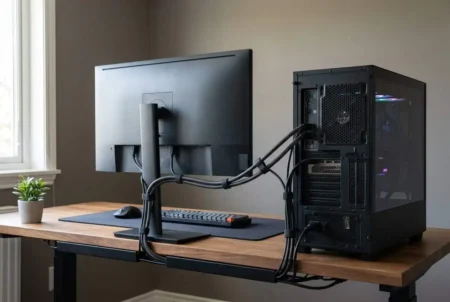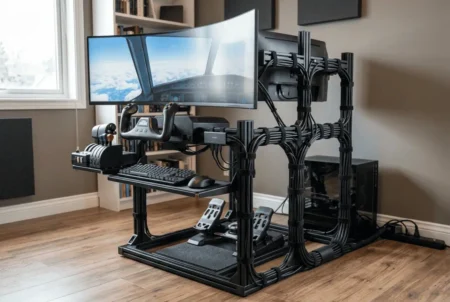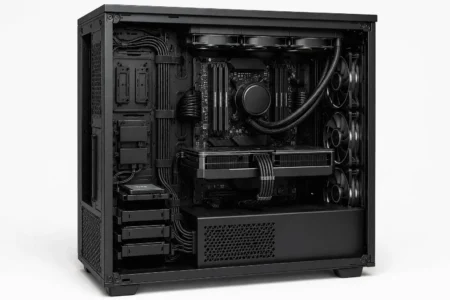
A dual monitor setup can improve productivity, gaming, and multitasking, but messy cables can quickly ruin the experience. If you have ever looked behind your monitors and seen power cables, HDMI cables, DisplayPort cables, and USB wires hanging everywhere, you are not alone. Across home offices, gaming desks, and professional workstations, exposed cables are one of the most common setup problems. Besides making a desk look cluttered, loose cables can collect dust, make cleaning harder, limit monitor movement, and place unnecessary strain on monitor ports.
The good news is that hiding monitor cables on a dual arm mount is usually much easier than most people think. With the right cable routing plan, proper cable management accessories, and a few simple adjustments, you can create a cleaner and more organized workspace. Well-managed cables not only improve the appearance of a desk but also make monitor adjustments easier and help keep the entire setup looking professional. In this guide, you will learn practical methods used in modern home offices, gaming setups, and dual monitor workstations to keep cables hidden and under control.
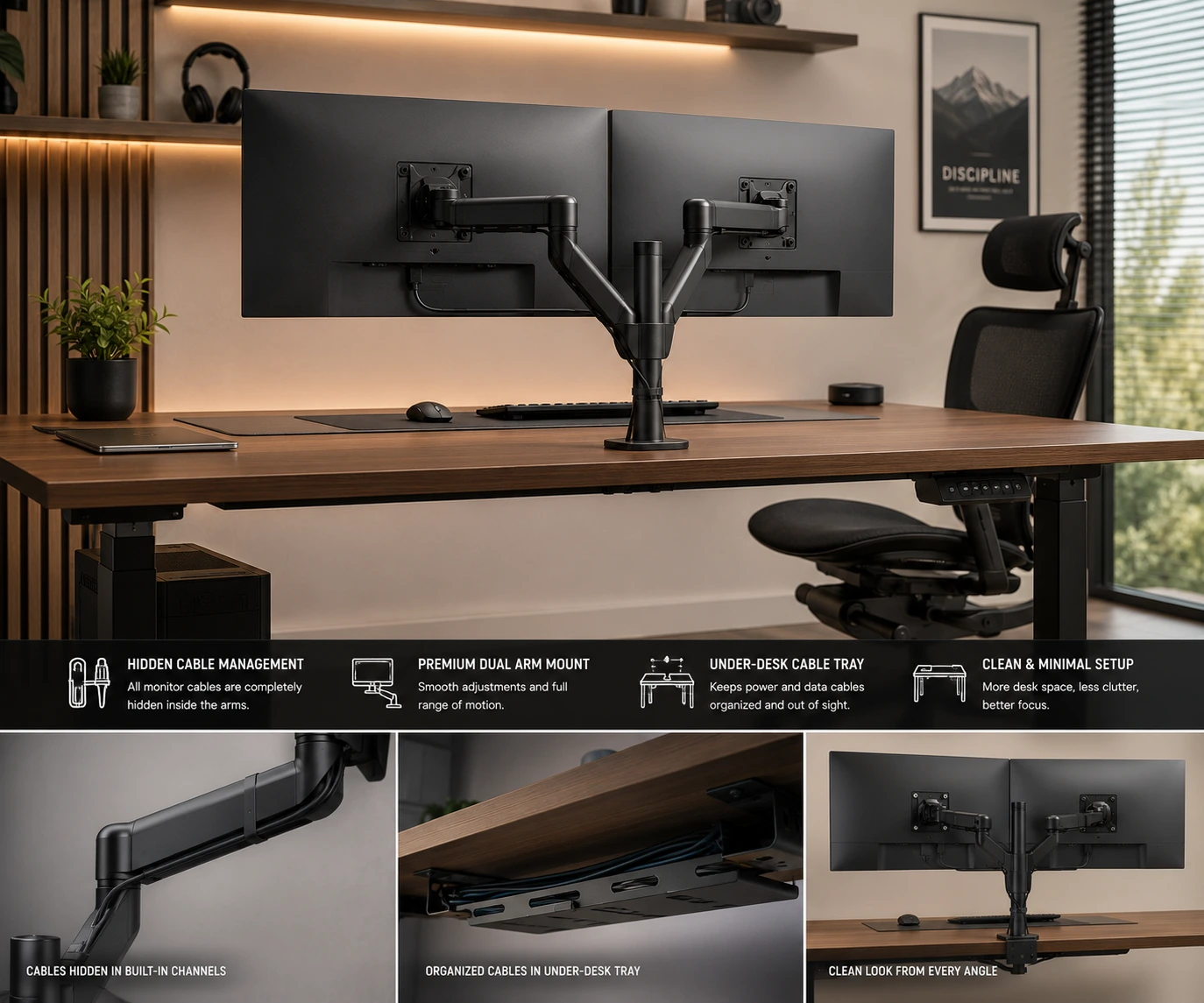
Key Takeaway: The easiest way to hide monitor cables on a dual arm mount is to route cables through the arm’s built-in cable channels, bundle them with Velcro straps or braided sleeves, and direct them into an under-desk cable tray. This keeps cables hidden, reduces clutter, and allows the monitors to move freely without cable strain.
Why Cable Management Matters on a Dual Arm Mount
Cable management is about more than appearance. A well-organized setup can make your desk feel larger and easier to use. When cables are routed correctly, there is less visual clutter around your monitors.
Loose cables can also create problems over time. Cables that pull against monitor ports may wear out faster. Wires that hang freely can catch on objects when you move your monitors. This is especially common with dual monitor arms that support tilt, swivel, and rotation.
A clean cable setup offers several benefits:
- Reduces visual clutter
- Helps protect monitor ports
- Makes desk cleaning easier
- Improves monitor movement
- Keeps cables organized
- Creates a more professional workspace
Whether you use your setup for gaming, remote work, content creation, or school, proper cable management can make a noticeable difference.
Start With a Cable Routing Plan
Before attaching cable clips or sleeves, take a few minutes to plan where every cable will go. This step is often skipped, but it can save a lot of time later.
Look at your entire setup and identify every cable connected to your monitors. Most dual monitor setups include:
- Power cables
- HDMI cables
- DisplayPort cables
- USB cables
- Speaker cables
- Webcam cables
Next, locate your PC, docking station, power strip, and wall outlet. The shortest and cleanest cable path is usually the easiest to manage.
Try to keep cables moving in the same direction whenever possible. Instead of letting each cable follow a different path, group them together. This creates a cleaner cable bundle and makes future changes easier.
A good cable routing plan should answer three questions:
- Where does each cable start?
- Where does each cable end?
- What path will each cable follow?
When you know the answers, hiding cables becomes much easier.
Measure Your Monitor Cables Before Installation
Many people begin cable management only to discover that their cables are too short. Others have cables that are far too long, creating extra clutter under the desk.
Measure the route each cable will take before installing everything permanently. Remember that a cable routed through a monitor arm will travel farther than a cable running directly between devices.
For example, a cable may need to:
- Travel through the monitor arm
- Move down the arm base
- Pass under the desk
- Reach the PC or power source
This extra distance adds up quickly.
If a cable is too short, it may pull on the monitor port when you adjust the screen. If a cable is too long, it can create a large bundle of unused wire.
Choosing the correct cable length helps create a cleaner setup and reduces cable strain.
Use the Built-In Cable Channels on Your Dual Arm Mount
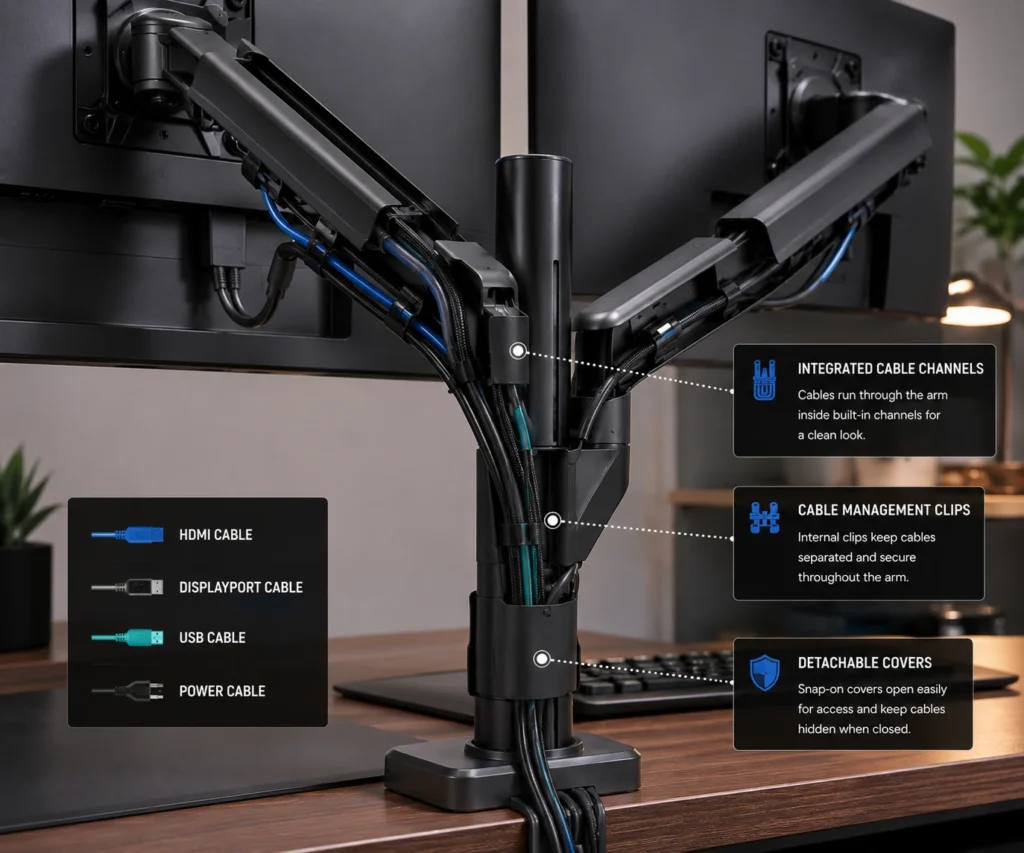
Many modern dual monitor arms include built-in cable management channels. These channels are designed to hide cables inside the arm structure.
If your dual arm mount includes cable covers or concealed pathways, use them as your primary cable routing system. They are usually the easiest way to hide monitor cables without adding extra accessories.
Start by opening the cable covers on both monitor arms. Route the monitor cables through the channels and follow the path recommended by the manufacturer.
Most users route DisplayPort cables, HDMI cables, power cables, and USB cables through the same channel. However, channel capacity varies between monitor arm designs. Some cable channels can hold several cables, while others are built for lighter cable bundles.
Avoid forcing too many cables into a small space. Overfilled cable channels can become difficult to close and may place pressure on the cables.
It is also important to leave a small amount of slack near each monitor. This extra cable length allows the monitor to move freely during tilt, swivel, and rotation adjustments.
A simple service loop behind each display can help prevent cable tension while keeping the setup neat.
Bundle Cables With Clips, Sleeves, and Velcro Straps
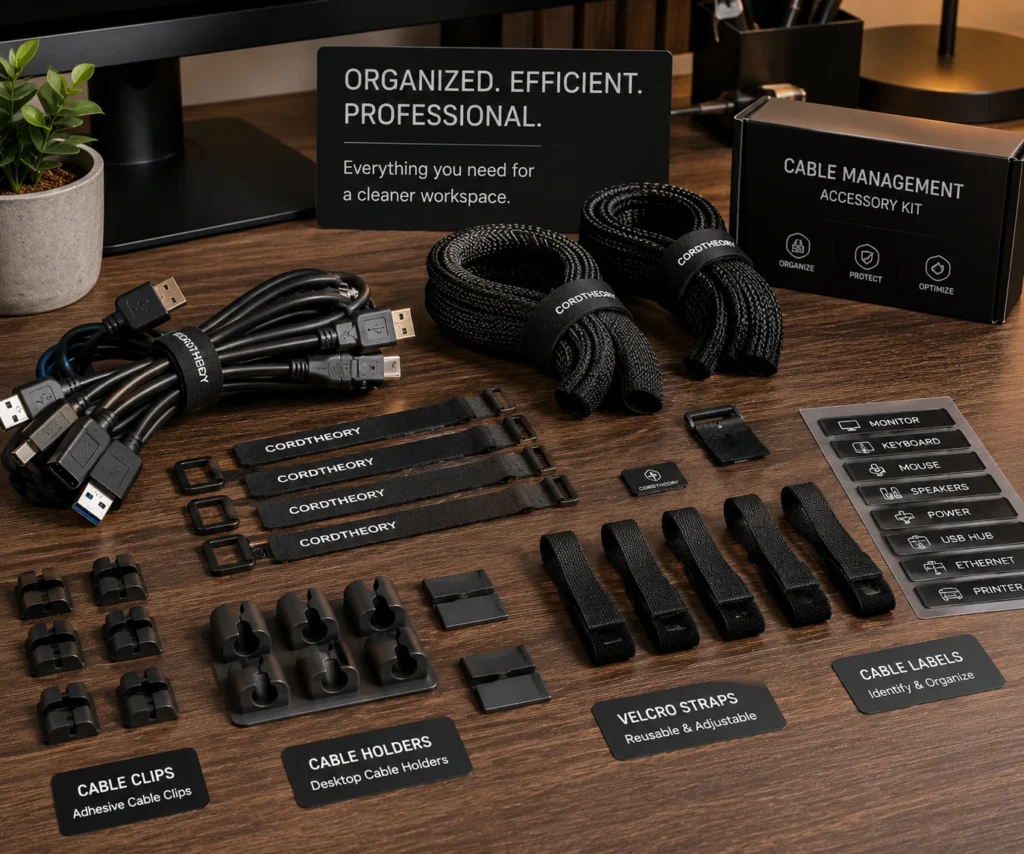
Once the cables leave the monitor arm, they should stay organized all the way to the desk frame or cable tray.
Cable clips, braided sleeves, and Velcro straps are some of the most useful cable management tools available. They help keep multiple cables together and prevent the tangled look that many dual monitor setups develop over time.
Velcro straps are often the easiest option because they can be removed and adjusted whenever new devices are added.
Cable sleeves are useful when several cables travel along the same route. Instead of seeing individual wires, you see one clean cable bundle.
Cable clips help guide cables along the desk frame, monitor arm base, or under-desk surface.
Cable labeling can also make future upgrades easier. A simple label on each cable helps you identify monitor, power, USB, and accessory connections without tracing every wire. This can save time when replacing devices or troubleshooting connection issues.
When bundling cables:
- Keep similar cables together
- Avoid tight bends
- Leave movement slack where needed
- Secure cables at regular intervals
- Keep power and signal cables organized
The goal is not to make the cables disappear completely. The goal is to make them look intentional, organized, and easy to maintain.
Manage Dual Monitor Cable Volume the Right Way
A dual monitor setup usually has more cables than a single monitor setup. You may have two power cables, two display cables, USB cables, speaker cables, and other accessories connected to your desk.
The more cables you have, the more important cable organization becomes.
Start by grouping cables that travel to the same location. For example, both monitor power cables may run to the same power strip. Likewise, both display cables may run to the same PC.
Dual monitor setups can quickly increase cable volume. Most users have two power cables and two display cables running through the monitor arms. Some setups also include USB cables, webcams, speakers, or docking stations.
As the cable bundle grows, the cable diameter becomes larger. If the bundle feels too thick for the monitor arm channels, switch to a braided cable sleeve after the cables leave the arm. This keeps the setup organized without putting pressure on the cables or channel covers.
A clean cable bundle is easier to manage and makes future upgrades much simpler.
Route Monitor Cables Under the Desk
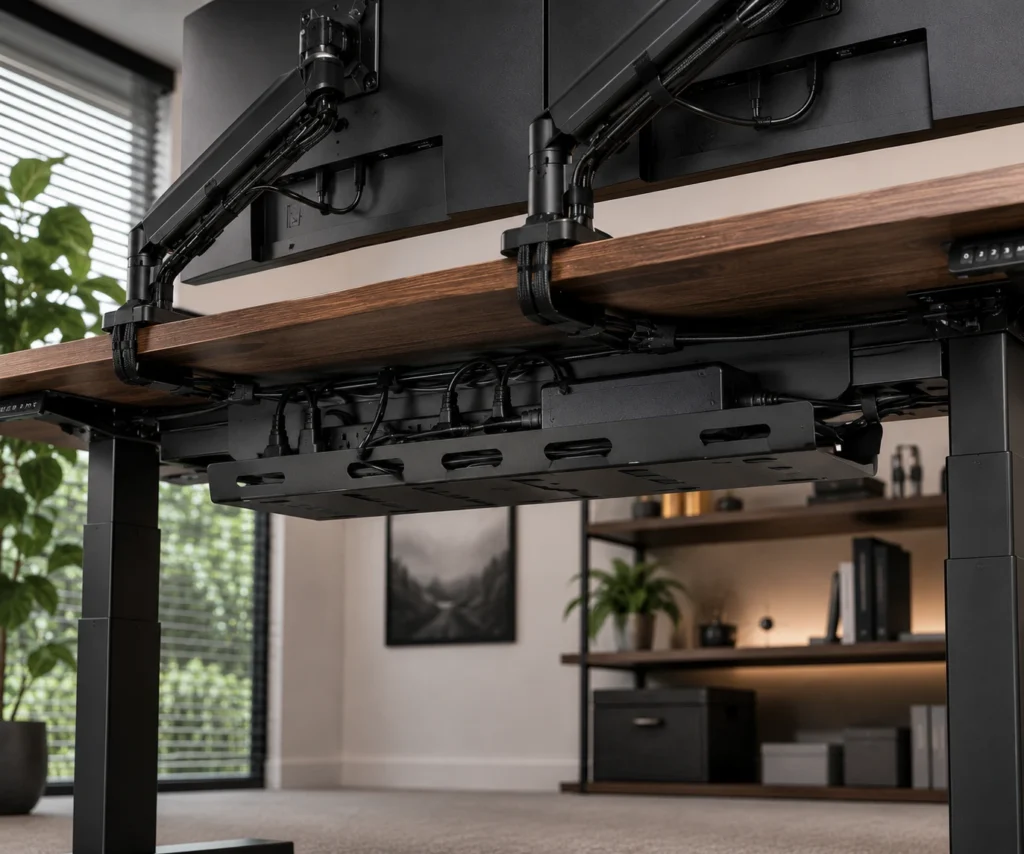
One of the best ways to hide monitor cables on a dual arm mount is to route them under the desk.
Many desks have unused space underneath that can hold cable trays, power strips, and cable bundles. This keeps cables off the desktop and out of sight.
An under-desk cable tray can hold:
- Power strips
- Excess cable length
- Power adapters
- Cable bundles
Mount the tray close to the monitor arm base whenever possible. This creates a shorter cable path and reduces visible wires.
An under-desk cable tray is also a great place to mount a power strip. This keeps power adapters and excess cable length off the floor and out of sight. A mounted power strip creates a cleaner cable path and makes it easier to connect new devices in the future.
Cable clips can also help guide cables along the desk frame. Instead of hanging loosely, the cables stay secure and organized.
Keeping cables off the floor creates a cleaner workspace, reduces trip hazards, and helps protect cables from accidental damage.
Prevent Cable Strain During Monitor Movement
Dual monitor arms are designed to move. You can tilt, swivel, rotate, and reposition the monitors throughout the day.
If cables are too tight, these movements can place stress on the monitor ports and cable connectors.
Always leave a small amount of extra cable length behind each monitor. This extra length is often called a service loop.
A service loop allows the monitor to move freely without pulling on the cable.
Many users leave about three inches of extra cable in a gentle U-shape near the monitor arm connection point. This extra slack allows the monitor to move without placing stress on the monitor port or cable connection.
After routing the cables, test every monitor movement:
- Tilt the monitor up and down
- Rotate the monitor if supported
- Move the arm forward and backward
- Adjust the monitor height
Watch the cables during each movement.
If a cable becomes tight, add more slack before securing everything permanently.
Protecting your cables today can help prevent connection problems later.
Cable Management Tips for Standing Desks
Standing desks add another challenge because the desk moves up and down.
One common problem with standing desks is called a desk stall. This happens when cables become too tight and limit the desk’s movement. In some cases, the cable bundle can stop the desk from moving smoothly.
To avoid this problem, create a central cable route that moves with the desk. Many users mount a cable tray directly to the desk frame. This allows the cable bundle, power strip, and adapters to move with the desk instead of staying in one place.
When setting up a standing desk:
- Leave extra cable slack
- Use flexible cable paths
- Secure cables to the desk frame
- Test the desk at full height
- Test the desk at minimum height
These simple steps help prevent cable tension and keep the setup looking clean.
Reduce Visible Wires With Wireless Accessories
You may not be able to remove every cable, but you can reduce the total number of wires on your desk.
Wireless accessories can help simplify cable management.
Many users replace wired devices with:
- Wireless keyboards
- Wireless mice
- Wireless headphones
- Wireless speakers
Each wireless device removes another cable from the desk.
This does not eliminate monitor power cables or display cables, but it does reduce cable clutter around the workspace.
For many users, fewer cables make cable management much easier.
A cleaner desk also helps the monitors become the main focus of the setup.
Choose a Monitor Arm With Built-In Cable Management
Not all monitor arms offer the same cable management features.
If you are shopping for a new dual arm mount, look for models with built-in cable channels and cable covers.
These features make cable routing easier from the beginning.
Good cable management features include:
- Integrated cable channels
- Removable cable covers
- Wide cable routing paths
- Hidden cable pathways
- Easy access for maintenance
Before buying a dual arm mount, check whether it uses a VESA mount system. VESA is the standard mounting pattern found on most monitors. A VESA-compatible monitor arm makes installation easier and gives you more options when upgrading your setup later.
Many VESA monitor arms also include cable covers, concealed pathways, and wider cable channels. These features help hide monitor cables more effectively and keep the setup looking clean.
A monitor arm with proper cable management can reduce the amount of work needed to hide cables later.
Before purchasing a monitor arm, check how the cables are routed through the arm. A well-designed system can make a major difference in the final appearance of your setup.
Common Mistakes to Avoid When Hiding Monitor Cables
Many cable management problems happen because of simple mistakes. A little planning can help you avoid these issues from the start.
One common mistake is using cables that are too short. Short cables often create tension and limit monitor movement. This can place stress on the monitor ports and reduce cable life.
Another mistake is using cables that are too long. Excess cable length can create clutter and make organization harder.
Avoid these common problems:
- Overfilling cable channels
- Creating sharp cable bends
- Pulling cables too tightly
- Ignoring monitor movement
- Skipping cable planning
- Leaving cables on the floor
- Blocking airflow with cable bundles
Some users also forget about future upgrades. If every cable is tightly secured, replacing a monitor or adding a new device can become difficult. Leave enough flexibility in your setup so changes can be made easily later.
Taking a little extra time during installation can prevent these issues.
The goal is to create a setup that is both clean and easy to maintain.
Final Cable Management Check
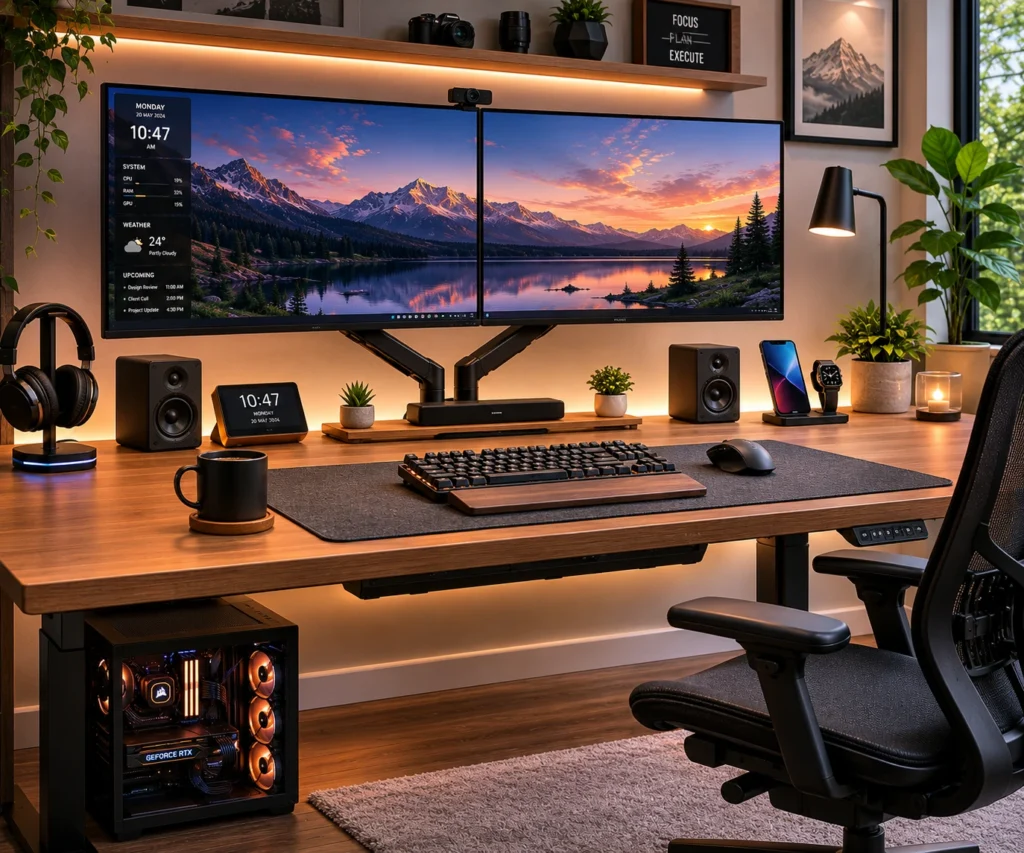
Before you finish, perform a complete inspection of your setup.
Start by looking at the desk from different angles. Check for visible cables that could be routed more neatly.
Next, test every monitor adjustment. Make sure the cables move freely and do not pull on the monitor ports.
Check the desk area underneath as well.
Look for:
- Loose cables
- Cable tension
- Unused cable loops
- Poorly secured cable bundles
- Cables near moving parts
A final inspection helps catch small issues before they become bigger problems.
You can also perform three quick tests before finishing your setup.
Rotation Test
Rotate each monitor and check for cable tension. Make sure the cables move smoothly and do not pull against the monitor arm.
Elevation Test
Raise and lower the monitor arm or standing desk to confirm the cables move freely. Check that no cable becomes stretched during movement.
Signal Test
Turn on the monitors and verify that all cables maintain a stable connection. Look for flickering screens, signal loss, or connection problems after cable routing.
Passing these simple tests gives you confidence that your setup is ready for everyday use.
Conclusion
Hiding monitor cables on a dual arm mount does not require expensive equipment or advanced skills. The most effective setups follow a few simple principles: plan the cable path, use the monitor arm’s built-in cable channels, bundle cables neatly, route them under the desk, and leave enough slack for movement. These practices are commonly seen in well-organized workstations because they help reduce clutter, protect cables from strain, and make the workspace easier to maintain. By applying the techniques covered in this guide, you can create a cleaner dual monitor setup that looks more professional, functions more smoothly, and stays organized for the long term.