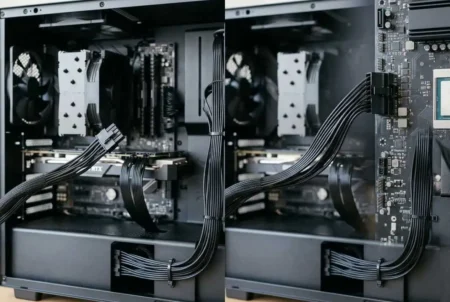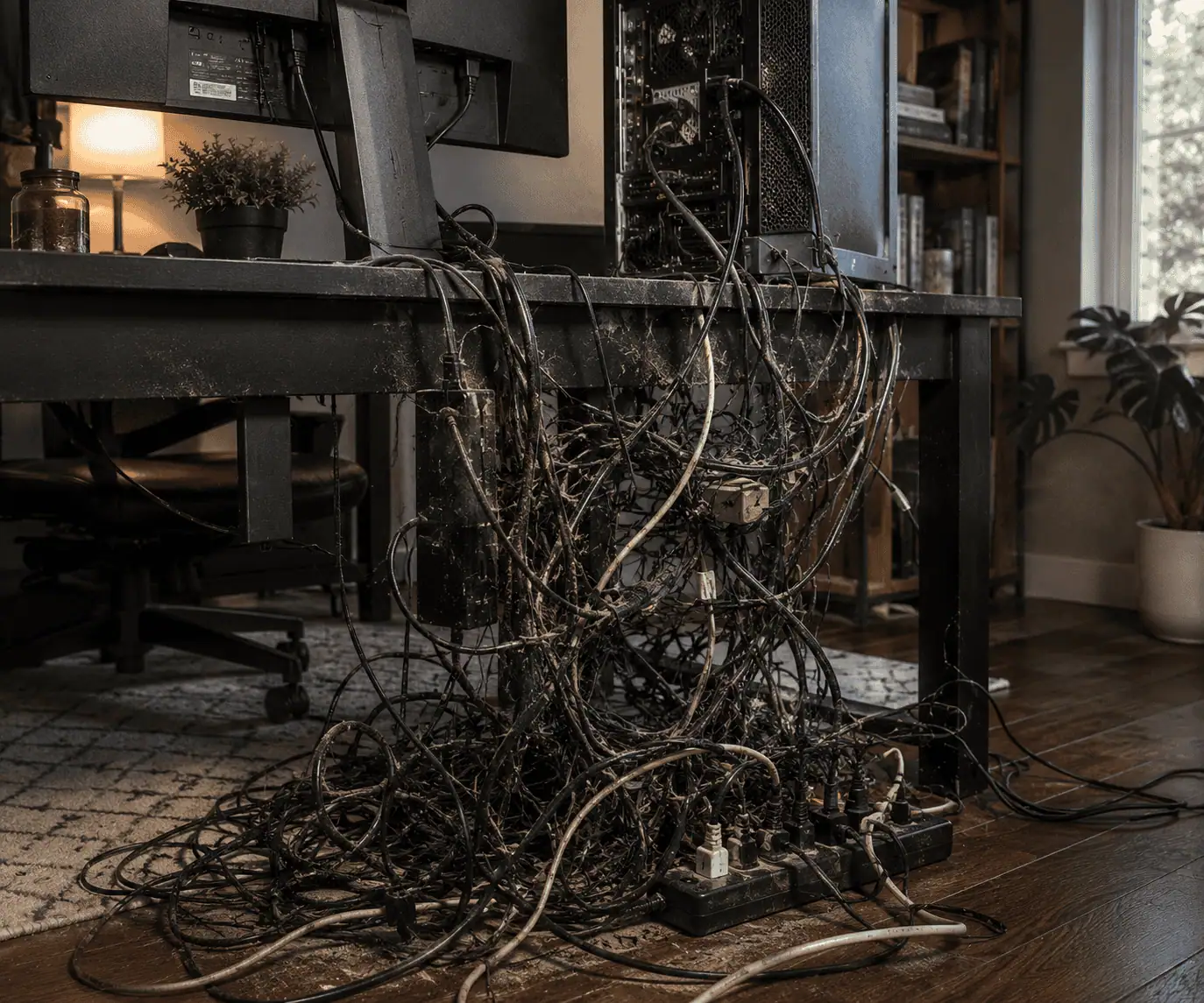
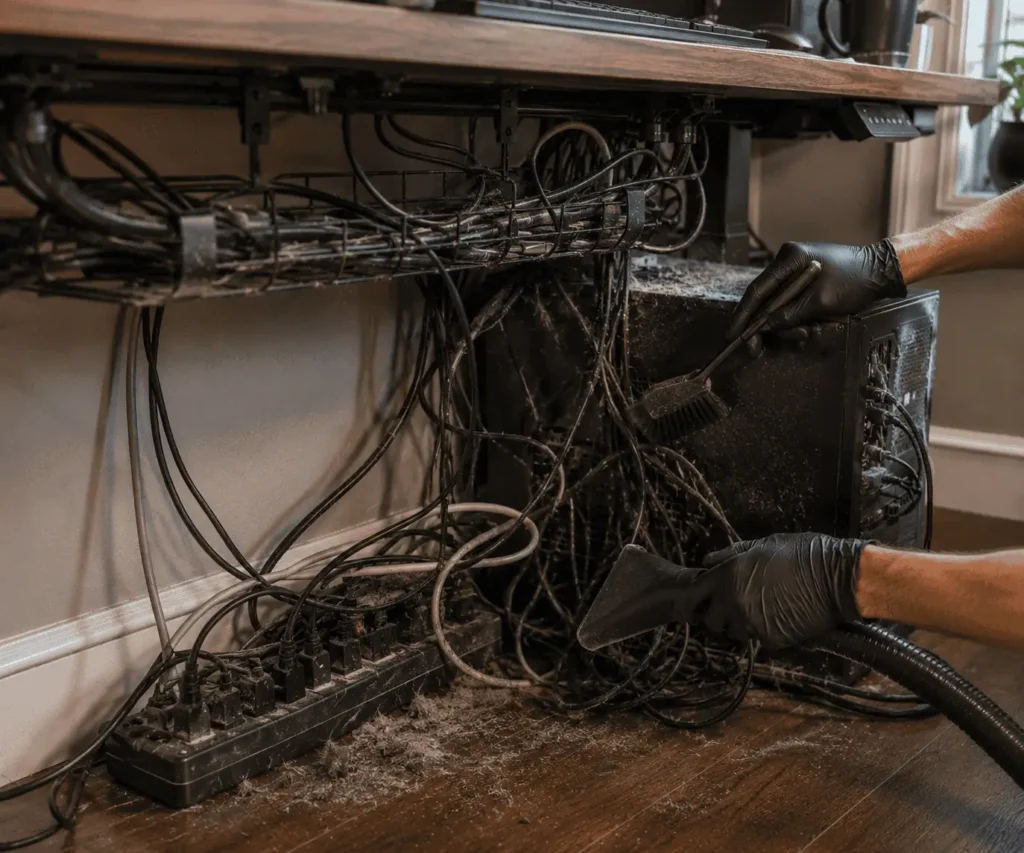
Dust trapped inside tangled PC cables is easy to overlook until the cable bundle becomes difficult to clean. Behind a desktop computer, under a desk, or around a power strip, dust can collect between cables and make your workspace look messy while making cables harder to inspect and maintain.
The good news is that you do not need special equipment to fix the problem. With a microfiber cloth, compressed air, and a few simple steps, you can clean dust out of tangled PC cables safely without damaging the cables or connectors.
Why Dust Builds Up Faster in Tangled PC Cables
Many people clean their desk and monitor but overlook the dust trapped inside tangled cable bundles. Tangled cables create small spaces where dust can collect and stay trapped for months.
Static Electricity Attracts Dust
Most PC cables have a plastic or rubber outer jacket. These materials can create a small static charge. That charge attracts fine dust particles floating through the room.
Over time, the dust sticks to the cable surface and begins to build up.
Tight Cable Bundles Trap Debris
When cables are tangled together, they create pockets where dust cannot easily escape. Hair, carpet fibers, and dirt settle between the cables and stay there.
A loose cable may only collect a thin layer of dust. A tightly tangled cable bundle can hold much more.
Floor-Level Cables Get Dirty Faster
Many PC cables run along the floor or behind a desk. These areas collect more dust than elevated surfaces.
If your cables sit on carpet, they may also pick up lint, pet hair, and other debris every day.
Signs Dusty Cable Bundles Need Attention
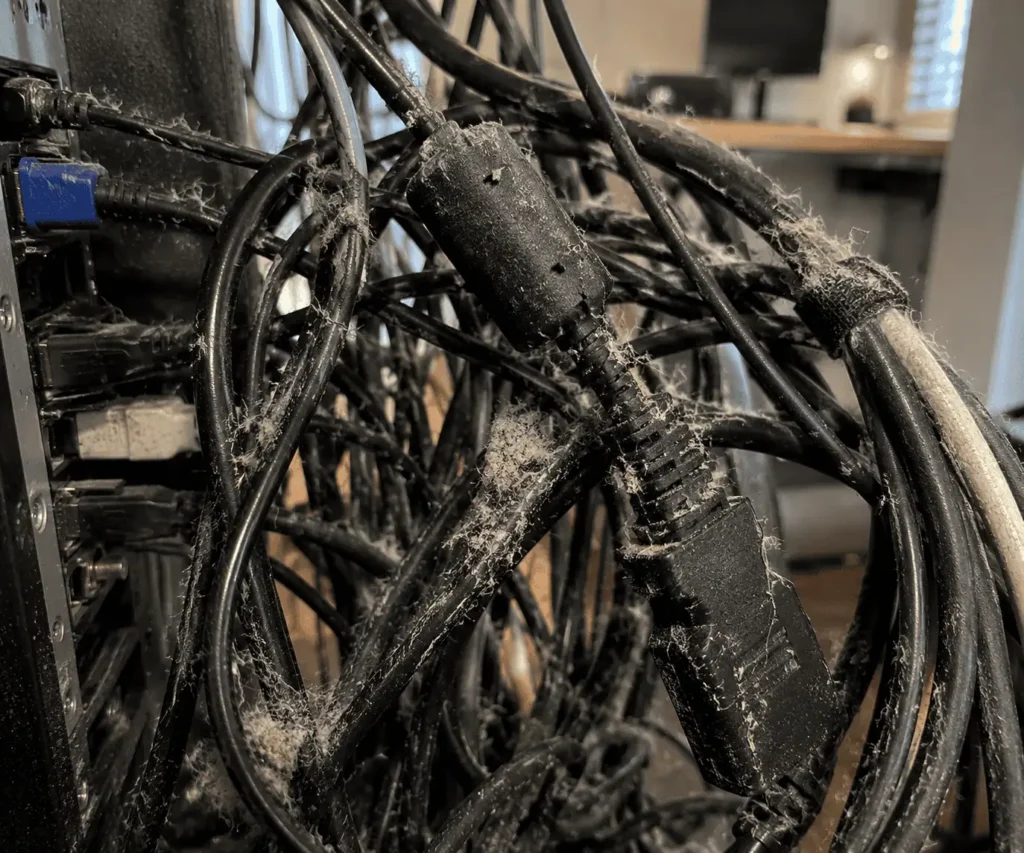
Dust builds up slowly, so it is easy to miss at first. However, tangled cable bundles usually show clear warning signs when they need cleaning.
Checking your cables regularly can help you remove dust before it becomes difficult to clean.
Visible Dust on Cables
The easiest sign to spot is a layer of dust on the cable surface.
If you can see dust on the outside of the cable bundle, there is often even more dust trapped between the cables. This is especially common behind a desktop PC, under a desk, or near a wall.
Dust Balls Around Cable Bundles
When cables stay tangled for a long time, dust can gather into small clumps or dust balls.
These often appear around:
- Power cords
- Ethernet cables
- HDMI cables
- Cable trays
- Surge protectors
Dust balls are a sign that loose debris has been collecting for weeks or even months.
Dirty Power Strips and Adapters
Power strips, charging bricks, and surge protectors are common dust collection points.
If you notice dust around these areas, the connected cables likely need cleaning as well.
Because power strips often sit near the floor, they are exposed to more dust and debris than other parts of the setup.
If your power strip sits on the floor, hiding your power strip under your desk can also help reduce dust buildup and make routine cleaning easier.
Dust Around PC Vents
Dusty cables are often a sign that the surrounding area needs attention too.
Check nearby:
- PC intake vents
- Case fans
- Monitor vents
- Power supply vents
Large cable bundles placed near these areas can make cleaning more difficult and may contribute to blocked airflow around the system.
Tools Needed to Clean Dust Out of Tangled PC Cables
You only need a few simple tools to clean dust out of tangled PC cables safely and effectively.
Microfiber Cloth
A microfiber cloth is one of the safest tools for cable cleaning.
It lifts dust from cable surfaces without scratching or leaving fibers behind. It also works well on power cords, monitor cables, USB cables, and Ethernet cables.
Keep a second clean cloth nearby for final wiping.
Soft Brush
A small soft brush helps remove dust from places that a cloth cannot reach.
It works especially well around:
- Cable connectors
- Velcro straps
- Cable sleeves
- Tight cable bundles
- Power adapters
A clean paintbrush can work if you do not have an electronics brush.
Compressed Air
Compressed air helps remove loose dust trapped inside tangled cable bundles.
It can also reach:
- Cable trays
- Power strip areas
- Behind monitors
- Tight desk corners
- Cable raceways
Use short bursts instead of continuous spraying. This prevents dust from spreading everywhere.
Vacuum With Brush Attachment
A vacuum can help collect dust after it has been loosened.
Use a brush attachment and avoid dragging the vacuum directly across cables. The goal is to remove dust from the surrounding area, not pull on the cables themselves.
Safety Steps Before Cleaning Tangled PC Cables
Before you start cleaning, take a few minutes to prepare your setup. This helps protect your equipment and makes the cleaning process much easier.
Many people rush into cleaning dusty cables. However, pulling on the wrong cable or cleaning around powered devices can create problems that are easy to avoid.
A little preparation can save time later.
Shut Down Your Computer and Devices
Start by turning off your desktop PC, monitor, speakers, external drives, and other connected devices.
If you use a laptop, shut it down completely instead of putting it into sleep mode.
This removes power from the system and reduces the chance of accidental damage while cleaning.
Unplug Power Cables
After shutting everything down, unplug the power cords from the wall outlet or surge protector.
If your setup includes multiple devices, disconnect them one at a time.
This creates a safer workspace and gives you more room to clean around the cables.
Take a Photo Before Disconnecting Anything
A quick photo can save a lot of frustration later.
Many computer setups use several cables that look nearly identical. HDMI cables, DisplayPort cables, USB cables, Ethernet cables, and power cords can easily get mixed up.
Taking a few photos gives you a reference when reconnecting everything.
If you have several similar cables, labeling your PC cables before disconnecting them can make reconnecting everything much easier.
Check Cables for Damage
As you handle each cable, look for signs of wear.
Pay attention to:
- Cracked cable jackets
- Frayed wires
- Loose connectors
- Bent pins
- Damaged insulation
Cleaning is a good time to identify cables that should be replaced.
Damaged cables can cause connection issues and may become a safety risk.
Separate Large Cable Bundles
Do not try to clean a tightly packed cable bundle all at once.
Instead, gently separate the cables into smaller groups.
This makes it easier to reach hidden dust and clean between the wires.
How to Untangle PC Cables Before Cleaning
Before removing dust, it helps to untangle the cable bundle. Cleaning tightly tangled cables is difficult because dust often hides between the wires.
Taking a few minutes to separate the cables makes the cleaning process faster and more effective.
Disconnect Unused Cables
Start by identifying cables that are no longer connected to a device.
Old charging cables, unused peripherals, or extra cords can add unnecessary clutter to the cable bundle. Removing them creates more space and makes the remaining cables easier to clean.
Loosen Cable Ties and Straps
If the cables are held together with Velcro ties, cable sleeves, or other fasteners, loosen them carefully.
This allows you to reach dust trapped inside the bundle and clean areas that are normally hidden.
Separate Cables Slowly
Work through the cable bundle one cable at a time.
Gently pull cables apart instead of trying to separate the entire bundle at once. This helps prevent knots from becoming tighter and reduces strain on connectors.
Avoid Pulling on Wires
Always handle cables by the connector or the cable body.
Pulling forcefully on a tangled wire can damage the connector, stretch the cable jacket, or loosen internal wiring.
If two cables are wrapped together, take your time and separate them gradually.
How to Clean Dust Out of Tangled PC Cables Step by Step
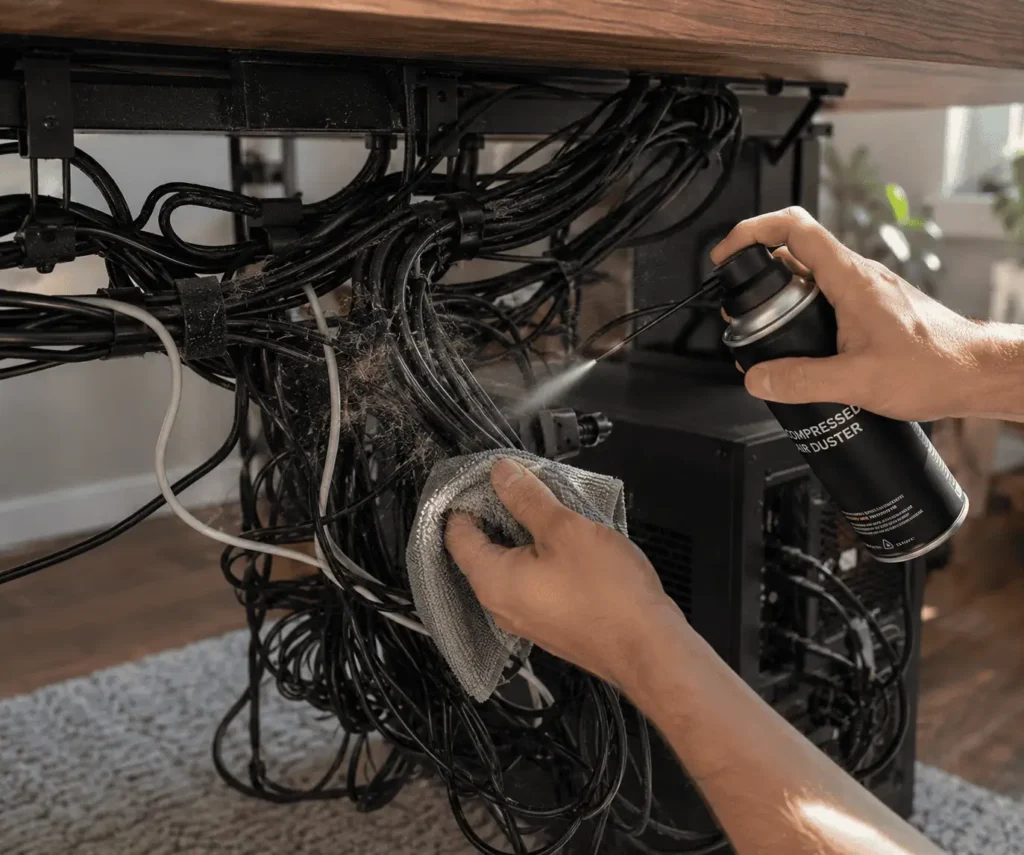
Now that your setup is safe and prepared, you can begin removing dust from the cable bundle.
The goal is to clean every cable without damaging the insulation, connectors, or cable routing.
Follow these steps for the best results.
Step 1: Loosen the Cable Bundle
Start by gently separating tangled cables.
Do not pull aggressively.
Work slowly and remove any Velcro straps, cable ties, or wraps that prevent access to dusty areas.
As the bundle opens up, you will often find hidden dust trapped between the cables.
Step 2: Remove Loose Dust First
Use compressed air or a soft brush to remove loose dust from tangled PC cables.
Work from top to bottom whenever possible.
This prevents dust from settling back onto areas you already cleaned.
Pay extra attention to:
- Cable intersections
- Velcro ties
- Power adapters
- Cable sleeves
- Connector ends
These locations often collect the most dust.
Step 3: Brush Away Compacted Dust
Some dust becomes packed tightly between cables.
This is common in older setups and areas that are cleaned less often.
Use a soft brush to loosen the buildup.
Avoid using excessive force.
The goal is to remove the dust without damaging the cable jacket.
Step 4: Wipe Each Cable Individually
Once the loose dust is gone, wipe each cable from one end to the other using a microfiber cloth.
Cleaning individual cables helps remove dust that brushing alone cannot reach.
Step 5: Clean Connectors Carefully
Connectors often trap dust around the edges.
Use a soft brush to remove dust from cable connectors.
Avoid pushing debris deeper into the connector.
If necessary, use short bursts of compressed air.
Step 6: Clean the Surrounding Area
The cables are only part of the problem.
Dust often builds up around:
- Cable trays
- Power strips
- Surge protectors
- Desk legs
- Monitor stands
- Floor areas behind the PC
Vacuum or wipe these areas before reconnecting the cables.
This prevents fresh dust from immediately settling back onto the cleaned cables.
Step 7: Inspect Everything Before Reconnecting
Before reconnecting your devices, inspect the cables one final time.
Look for:
- Remaining dust buildup
- Damaged insulation
- Loose connectors
- Worn cable jackets
Replacing a damaged cable now is much easier than troubleshooting a connection problem later.
Step 8: Reconnect and Organize Cables
Reconnect only the cables you actually use.
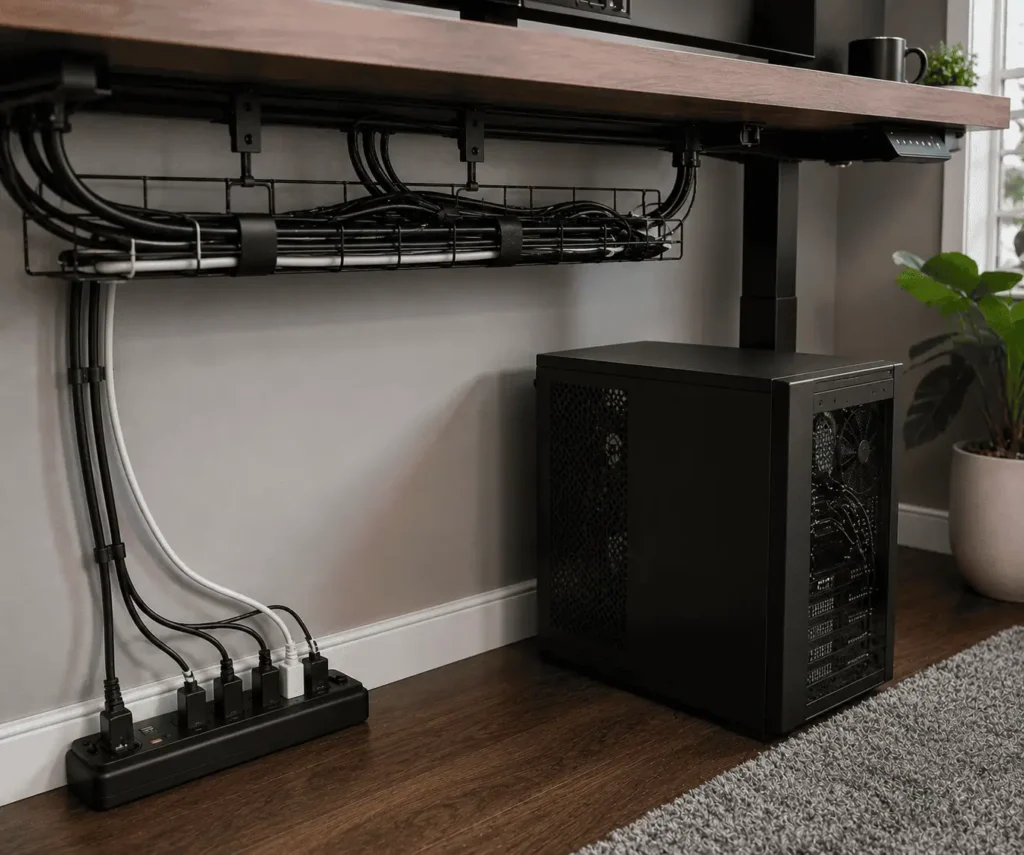
As you reconnect each cable, organize it into a cleaner route.
Use reusable Velcro ties to keep cable bundles neat without squeezing them too tightly.
Areas People Forget to Clean
When cleaning dust out of tangled PC cables, most people focus only on the cables themselves. However, dust often collects in nearby areas and quickly returns to the cables after cleaning.
Checking these commonly missed spots can help keep your setup cleaner for longer.
Behind the PC
The space behind a desktop PC is one of the biggest dust traps in a setup.
Multiple cables often meet in a small area, allowing dust to collect between them. Pull the PC away from the wall if possible and remove dust from both the cables and the surrounding space.
A soft brush or compressed air can help remove dust trapped in tight areas.
This area is often overlooked because most people rarely move their computer after setting it up.
Under the Desk
The area under a desk is easy to ignore during regular cleaning.
Dust, lint, and debris often collect around cable runs, power cords, and adapters. After cleaning the cables, vacuum or wipe the surrounding area to prevent dust from settling back onto the cables.
Cable Trays and Power Strips
Cable trays and power strips often collect hidden dust because they are rarely moved.
Remove loose dust with compressed air or a soft brush, then wipe the surface clean. Pay attention to the spaces around power adapters and extension cords where dust tends to build up.
Cleaning these areas at the same time as your cables helps prevent future buildup.
Braided Cable Sleeves and Velcro Ties
Cable sleeves and Velcro ties can hold dust just like the cables inside them, especially in setups with multiple RGB controller cables.
Use a soft brush to remove dust trapped in braided sleeves and around Velcro fibers. Then wipe the surface with a microfiber cloth.
Keeping these accessories clean helps stop dust from spreading back onto freshly cleaned cables.
Common Cable Cleaning Mistakes to Avoid
Cleaning tangled PC cables is usually simple. However, a few common mistakes can create more problems than they solve.
Avoiding these mistakes will help protect your cables and keep your setup working properly.
Using Too Much Water
One of the biggest mistakes is using a wet cloth.
Water and electronics do not mix well.
Always use a cloth that is only slightly damp if deeper cleaning is needed.
Spraying Cleaner Directly Onto Cables
Cleaning products should never be sprayed directly onto cables or connectors.
Instead, apply the cleaner to a cloth first.
This gives you better control and reduces the risk of moisture reaching electrical connections.
Pulling on Tangled Cables
When cables are heavily tangled, it can be tempting to pull them apart quickly.
Doing so can damage connectors, stretch cable jackets, or loosen internal wiring.
Work slowly and separate cables gently.
Ignoring Damaged Cables
Cleaning is the perfect time to inspect cables.
If you notice cracks, fraying, or damaged connectors, replace the cable instead of continuing to use it.
Over-Tightening Cable Ties
Cable ties should organize cables, not squeeze them.
Over-tightening can place stress on the cable jacket and make future cleaning harder.
Reusable Velcro ties are usually the safer choice.
Cleaning Only the Cables
Many people clean the cables but ignore the surrounding area.
Dust often remains inside cable trays, behind desks, and around power strips.
If those areas stay dirty, the cables will quickly become dusty again.
Cleaning the entire cable environment provides better long-term results.
Conclusion
Cleaning dust out of tangled PC cables helps keep your setup neat, easier to maintain, and less frustrating to work with. The process does not take long. By unplugging devices, untangling cable bundles, removing trapped dust, and cleaning nearby areas, you can prevent dust from building up over time. A quick cleaning every few months, combined with a regular PC wiring maintenance checklist, helps keep cables in good condition and makes future maintenance easier.
FAQs
Can I use a regular feather duster to clean PC cables?
A microfiber cloth or soft brush removes dust more effectively than a feather duster, which can simply move dust around.
Should I wear gloves while cleaning PC cables?
Gloves are not required, but clean, dry hands help avoid transferring dirt or moisture onto the cables.
Is it safe to clean PC cables while the computer is plugged in?
No. Turn off the computer and unplug the power cables before cleaning to reduce the risk of accidental damage.
Can I use household cleaning wipes on PC cables?
Avoid overly wet cleaning wipes. A dry or slightly damp microfiber cloth is a safer choice for cleaning cable surfaces.
What should I do if a cable still looks dirty after cleaning?
Inspect the cable for worn insulation, stains, or damage. If it remains dirty or shows signs of wear, replacing the cable may be the better option.