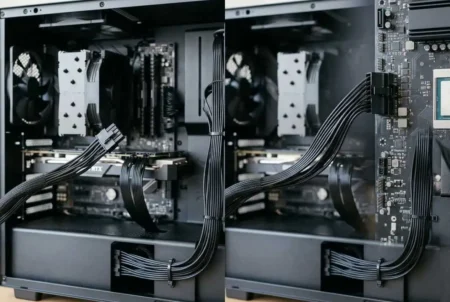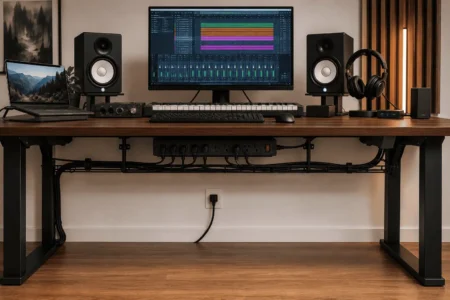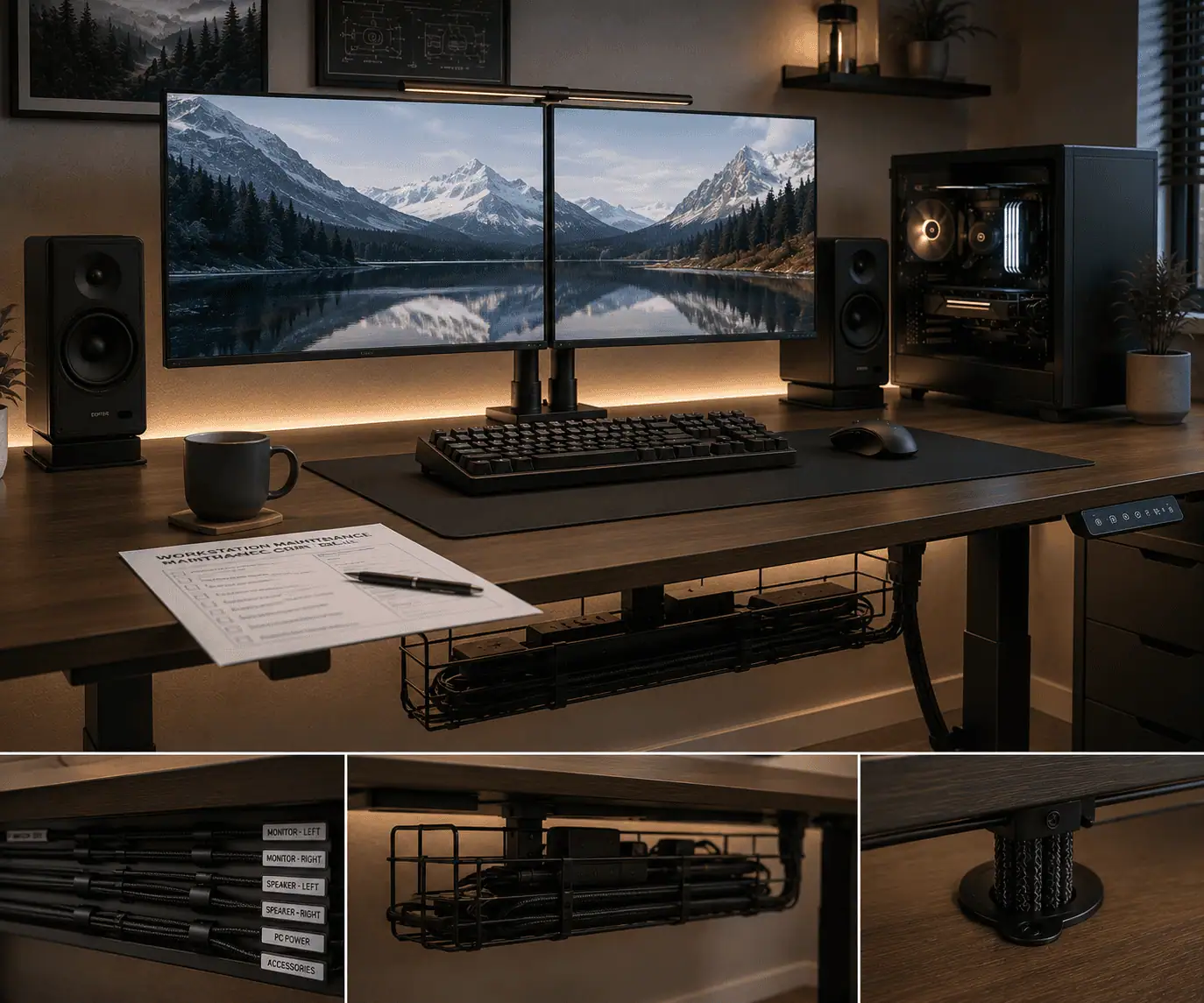
Organized PC wiring does not stay neat forever. Dust collects, cables shift, labels fade, and new devices can turn a clean setup into a tangled workspace. Without regular maintenance, cable management becomes harder to inspect, troubleshoot, and upgrade.
A simple maintenance checklist helps you keep cables organized, improve airflow, reduce cable wear, and protect connectors, power strips, and cable accessories. This guide shows the weekly, monthly, quarterly, and annual tasks needed to keep your PC wiring clean, safe, and easy to manage.
Why Organized PC Wiring Requires Regular Maintenance
Many people think cable management is a one-time task. They organize their cables and then forget about them.
However, cables are exposed to dust, movement, heat, and daily use. Without regular maintenance, small issues can quickly turn into bigger problems.
A simple maintenance routine helps keep your wiring system clean, safe, and easy to manage.
Improves Performance and Safety
Properly maintained cables are less likely to block airflow or create clutter around your workspace.
Regular inspections can also help you identify loose cables, damaged insulation, overloaded power strips, and other potential safety concerns before they cause problems.
Extends Cable Lifespan
Cables naturally wear out over time.
Frequent bending, stretching, and heat exposure can damage cable jackets, connectors, and internal wiring.
Routine inspections help you spot early signs of wear and replace damaged cables before they fail.
Makes Troubleshooting and Upgrades Easier
Most PC setups change over time as new devices are added or existing hardware is upgraded.
When cables remain organized and properly labeled, it becomes much easier to identify connections, trace cables, and make changes without disrupting the rest of the setup.
Regular maintenance helps keep your wiring accessible and ready for future upgrades.
Quick PC Wiring Maintenance Checklist
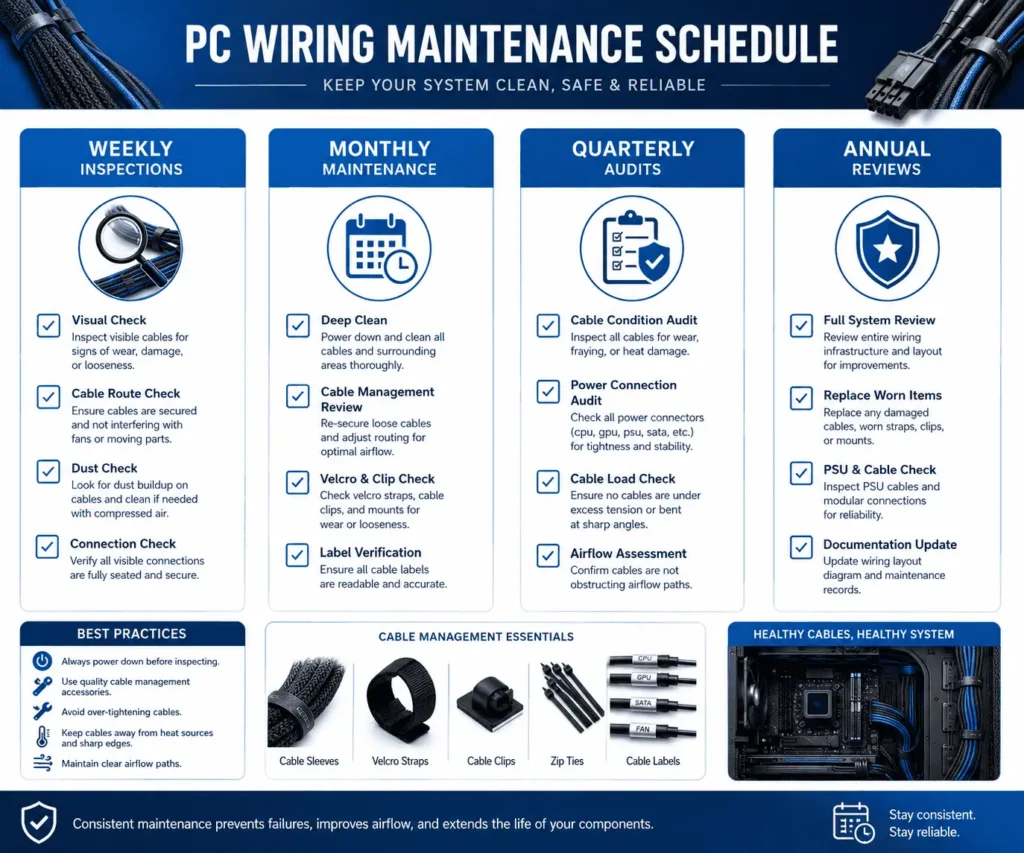
Keeping organized PC wiring in good condition does not require a lot of work. Small maintenance tasks performed regularly can prevent larger problems later.
A good maintenance routine should include weekly inspections, monthly maintenance tasks, quarterly audits, and an annual review.
Weekly Tasks
Weekly checks help you catch small problems before they become serious.
Look for loose cables, fallen cable clips, dust buildup, and cables that may have shifted out of place. Make sure power cords remain secure and that no wires are being stretched or pinched.
These inspections usually take only a few minutes.
Monthly Tasks
Monthly maintenance focuses on organization and cable condition.
Inspect cable labels, cable sleeves, Velcro straps, adhesive mounts, and under-desk accessories. Confirm that all cables are still routed correctly and that no new clutter has appeared.
This is also a good time to clean areas that collect dust.
Quarterly Tasks
A quarterly wiring audit provides a deeper review of your setup.
Remove cables that are no longer being used. Inspect connectors for wear. Check cable documentation and update labels if needed.
This review helps prevent old cables and unused accessories from creating clutter.
Annual Tasks
Once a year, perform a complete wiring inspection.
Review your entire setup and look for opportunities to improve cable routing, airflow, and accessibility. Replace worn accessories and retire cables that show signs of damage.
An annual review helps keep your cable management system efficient as your equipment changes.
Weekly PC Wiring Inspection Checklist
Weekly inspections are the easiest way to maintain organized PC wiring.
These checks require very little time, but they can prevent many common cable management problems.
Check for Loose Cables
Start by looking for cables that have moved from their original position.
Inspect cables under the desk, behind monitors, around speakers, and near power strips.
Loose cables can become tangled, damaged, or difficult to identify later.
Secure any cable that appears out of place using existing cable clips, sleeves, or Velcro straps.
Inspect Visible Damage
Carefully examine visible cables for signs of wear.
Look for:
- Cracked cable jackets
- Frayed insulation
- Bent connectors
- Pinched sections
- Sharp bends
Even minor damage can become worse over time.
If a cable shows signs of deterioration, monitor it closely and plan for replacement if necessary.
Remove Dust Buildup
Dust is one of the most overlooked threats to organized PC wiring.
Dust collects around cable bundles, under desks, inside cable trays, and near power strips.
Use a microfiber cloth, soft brush, or compressed air to remove dust from accessible areas.
Keeping cables clean also makes inspections easier because damage is easier to spot, and following proper PC cable cleaning methods helps prevent dust from collecting inside cable bundles and accessories.
Verify Cable Routing
Take a quick look at the path each cable follows.
Check that cables remain inside cable sleeves, raceways, trays, or clips. Make sure no wires are hanging where they could be snagged by chairs, feet, or moving equipment.
If you use a standing desk, raise and lower the desk to confirm that cables move freely without stretching.
Good cable routing reduces wear and helps maintain a clean appearance throughout your workspace.
Confirm Device Connections
Finally, verify that all important devices remain connected properly.
Check monitor cables, USB connections, Ethernet cables, speaker wires, and power cords.
A loose connector may still work today but can become an intermittent problem later.
Taking a few minutes each week to verify connections can help prevent unexpected issues and keep your organized PC wiring system working smoothly.
Monthly PC Wiring Maintenance Tasks
Weekly inspections help you catch small issues. Monthly maintenance goes a step further. It focuses on cable organization, cable management accessories, and overall system health.
Spending a little time each month can prevent clutter from returning and help your organized PC wiring stay clean and easy to manage.
Review Cable Labels
Cable labels are useful only if they remain accurate and readable.
Over time, labels can fade, peel off, or become outdated after hardware upgrades. A monitor cable that was labeled a year ago may now connect to a different device.
Inspect all visible labels and make sure they still match the connected equipment.
Check labels on:
- Monitor cables
- USB cables
- Ethernet cables
- Speaker wires
- Power cables
Replace damaged labels immediately. Clear cable identification makes future troubleshooting much easier, especially when you label PC cables consistently.
Inspect Cable Clips and Mounts
Cable clips and adhesive mounts play an important role in cable management.
These accessories hold cables in place and prevent them from hanging loose. However, adhesive materials can weaken over time due to heat, humidity, and daily use.
Look for clips that are:
- Pulling away from surfaces
- Cracked or damaged
- No longer holding cables securely
Replace weak or damaged mounts before they fail completely.
Check Cable Sleeves and Raceways
Cable sleeves and cable raceways help hide and protect groups of wires.
Inspect these accessories for signs of wear. Make sure sleeves remain closed properly and raceway covers stay attached.
Look for:
- Torn cable sleeves
- Broken raceway covers
- Exposed cable bundles
- Dust buildup inside raceways
Keeping these accessories in good condition also makes RGB controller cable management easier in systems with multiple lighting components.
Verify Power Strip Organization
Power strips often become cluttered as new devices are added over time.
Inspect all power strips and surge protectors to make sure they remain organized and accessible.
Check for:
- Loose plugs
- Unused adapters
- Overloaded outlets
- Tangled power cords
Remove unnecessary devices whenever possible. A cleaner power area improves both safety and cable management.
If your power strip is still sitting on the floor, consider hiding your power strip under your desk to reduce clutter and make cleaning easier.
Clean Hidden Cable Areas
Many people clean visible surfaces but forget hidden cable spaces.
Dust often collects in areas such as:
- Under-desk cable trays
- Behind monitors
- Behind PC cases
- Around surge protectors
- Inside cable baskets
Use compressed air, a soft brush, or a microfiber cloth to remove accumulated dust.
Regular cleaning helps improve airflow and keeps wiring easier to inspect.
Quarterly PC Wiring Audit
A quarterly wiring audit is a deeper review of your entire cable management system.
Unlike weekly inspections or monthly maintenance, this audit focuses on identifying clutter, removing unnecessary cables, checking cable health, and improving overall organization.
Performing a wiring audit every three months helps keep your setup efficient, safe, and easy to maintain.
Remove Unused Cables
Technology setups change over time.
You may replace a monitor, upgrade hardware, switch peripherals, or remove devices completely. Old cables often remain connected long after they are no longer needed.
Inspect your setup and remove any cables that no longer serve a purpose.
Common examples include:
- Old charging cables
- Unused HDMI cables
- Spare USB cables
- Disconnected speaker wires
- Retired Ethernet cables
Removing unnecessary cables reduces clutter and improves accessibility.
Update Cable Documentation
Documentation is often overlooked in home PC setups, but it can save time during upgrades and troubleshooting.
Maintain a simple record of:
- Device names
- Cable types
- Connection locations
- Power strip assignments
Whenever equipment changes, update your records to keep them accurate.
Review Recent Equipment Changes
Think about any changes made during the past few months.
Ask yourself:
- Have I added new peripherals?
- Have I changed monitor positions?
- Have I upgraded PC hardware?
- Have I installed new networking equipment?
These changes may require adjustments to cable routing, labeling, or cable management accessories, especially after rebuilding a PC or moving to a reverse connector PC case.
Inspect Cable Condition
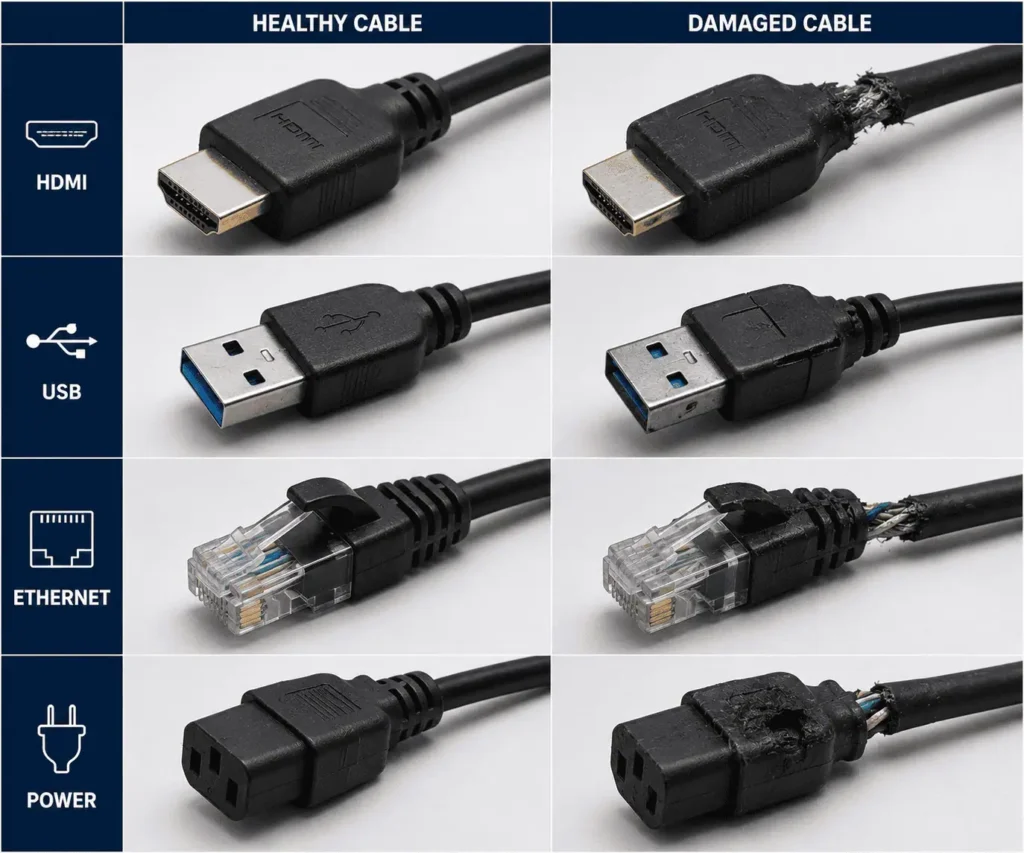
Carefully examine all visible cables for signs of wear or damage.
Look for:
- Cracked cable jackets
- Frayed insulation
- Pinched cables
- Sharp bends
- Flattened sections
- Discoloration
Pay special attention to areas near connectors and locations where cables move frequently.
Even minor damage can become worse over time.
Check Connector Health
Cable connectors experience regular use and should be inspected during every audit.
Check USB, HDMI, DisplayPort, Ethernet, and power connectors for:
- Bent pins
- Loose connections
- Cracked housings
- Broken locking tabs
- Excessive wear
A damaged connector can cause connection problems even when the cable itself appears healthy.
Look for Heat Damage
Heat can shorten cable lifespan and damage insulation.
Inspect cables located near:
- PC exhaust vents
- Power supplies
- Graphics cards
- Surge protectors
- Other heat-producing devices
Warning signs include:
- Brittle insulation
- Warping
- Discoloration
- Burn marks
Replace damaged cables as soon as possible.
Monitor Connection Problems
Some cable failures are not visible.
If you notice:
- Monitor flickering
- USB disconnects
- Audio interruptions
- Network dropouts
the cable may be failing internally.
Any cable causing repeated connection issues should be considered for replacement.
Evaluate Accessibility
A well-organized wiring system should be easy to use.
Ask yourself:
- Can I identify important cables quickly?
- Can I unplug a device without moving other cables?
- Can I trace a cable easily?
- Can I access my power strip when needed?
If the answer is no, your setup may need further organization.
Create a Replacement List
At the end of the audit, make a list of cables and accessories that may need replacement.
Prioritize items showing:
- Physical damage
- Connector wear
- Heat exposure
- Repeated connection issues
Keeping a replacement list helps you address problems before they affect your setup.
Airflow and Cooling Inspection
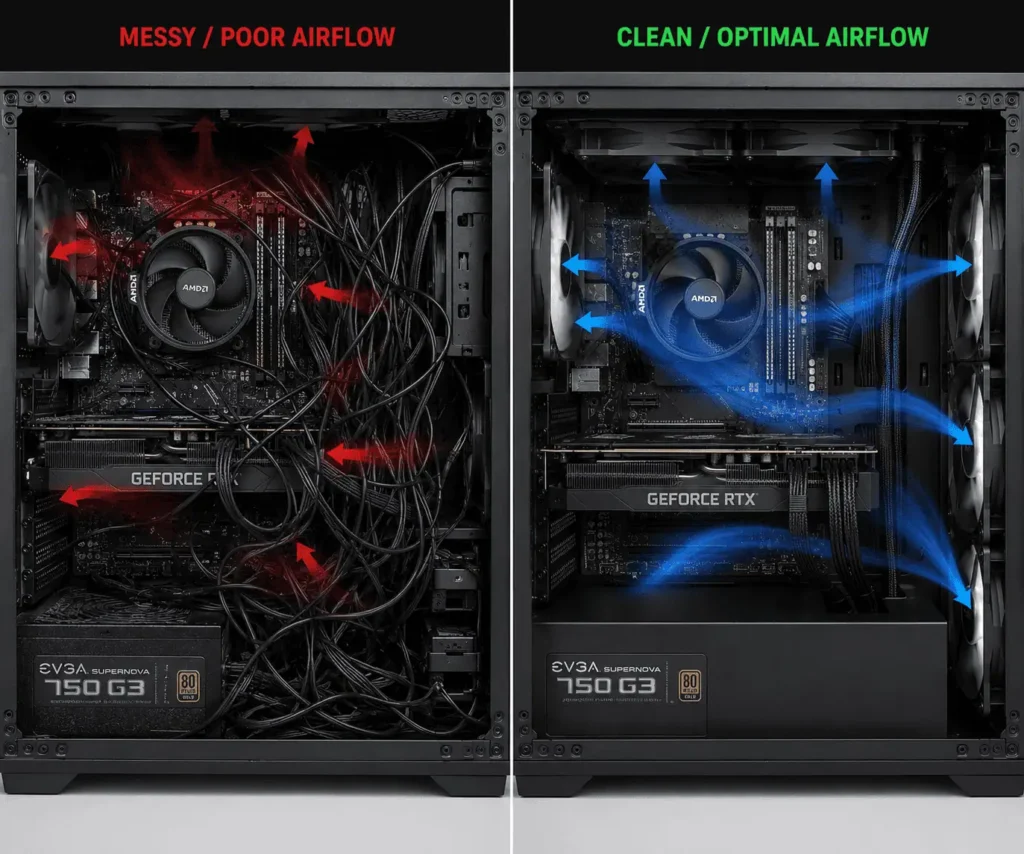
Good cable management helps maintain proper airflow around your PC.
When cables block vents or cooling fans, heat can build up inside the system. Over time, this may affect cooling performance and make dust accumulation worse.
For this reason, airflow checks should be included in your regular PC wiring maintenance routine.
Check Intake and Exhaust Areas
Inspect the intake and exhaust areas of your PC to make sure cables are not blocking airflow.
Look for:
- Loose cables near fans
- Excess cable length near vents
- Cable bundles blocking airflow paths
- Dust buildup around cooling components
Keeping these areas clear helps cooling components work more effectively.
Look for Airflow Restrictions
Take a quick look inside and around your PC.
Check whether:
- Cables cross major airflow paths
- Cable bundles create barriers inside the case
- Wires block ventilation openings
- Dust collects around cable groups
If you notice any restrictions, reroute the cables to create a cleaner path for airflow.
Watch for Cooling Problems
Poor cable routing can sometimes contribute to cooling issues.
Common warning signs include:
- Higher fan noise
- Increased system temperatures
- Hot air trapped behind the PC
- Excessive dust buildup
If these issues appear, inspect both your cable routing and cooling system to identify potential airflow problems.
Cable Accessory Maintenance
Cable management accessories play a major role in keeping wiring organized.
Even the best cable routing system can fail if the accessories holding everything together become damaged.
Inspect these items regularly to keep your setup in good condition.
Inspect Cable Clips
Cable clips help guide cables along desks, walls, and furniture.
Check each clip for signs of wear.
Look for:
- Cracks
- Loose adhesive
- Broken retention tabs
- Movement from the original position
Replace damaged clips before cables begin to sag or fall out of place.
Check Velcro Straps
Velcro straps are popular because they are reusable and adjustable.
Inspect straps for:
- Weak fastening strength
- Frayed edges
- Dirt buildup
- Loss of grip
Replace worn straps when they can no longer secure cable bundles properly.
Examine Cable Sleeves
Cable sleeves protect and organize groups of wires.
Inspect sleeves for:
- Tears
- Open seams
- Fraying
- Excessive stretching
A damaged sleeve may expose cables and reduce the overall appearance of the setup.
Inspect J Channels and Raceways
J channels and raceways help hide cables along walls and desks.
Check for:
- Loose mounting points
- Missing covers
- Cracks
- Warping
Repair or replace damaged sections as needed.
Review Under-Desk Cable Trays
Under-desk cable trays often hold multiple cables, power strips, and adapters.
Inspect trays for:
- Loose mounting hardware
- Excess cable weight
- Dust buildup
- Overcrowding
A tray that becomes overloaded may sag or fail over time.
Check Adhesive Cable Mounts
Adhesive mounts can weaken as they age.
Inspect each mount carefully.
Look for:
- Peeling adhesive
- Movement
- Cracks
- Separation from the mounting surface
Replace failing mounts before they release cables unexpectedly.
Verify Power Strip Mounting
If your power strip is mounted under the desk, inspect the mounting method regularly.
Check for:
- Loose screws
- Weak adhesive strips
- Shifting movement
- Damaged brackets
A secure power strip helps keep cables organized and reduces clutter.
Remove Unused Accessories
Cable management systems often collect unused accessories over time.
You may find:
- Empty cable clips
- Unused mounts
- Old cable sleeves
- Spare raceway sections
Removing unnecessary accessories helps keep the setup clean and easier to maintain.
Evaluate Overall Organization
After inspecting all accessories, step back and review the entire setup.
Ask yourself:
- Are cables still secure?
- Are accessories working properly?
- Is the routing still efficient?
- Is the setup easy to access?
This final review helps ensure that your organized PC wiring remains neat, functional, and ready for future upgrades.
Standing Desk Wiring Maintenance Checklist
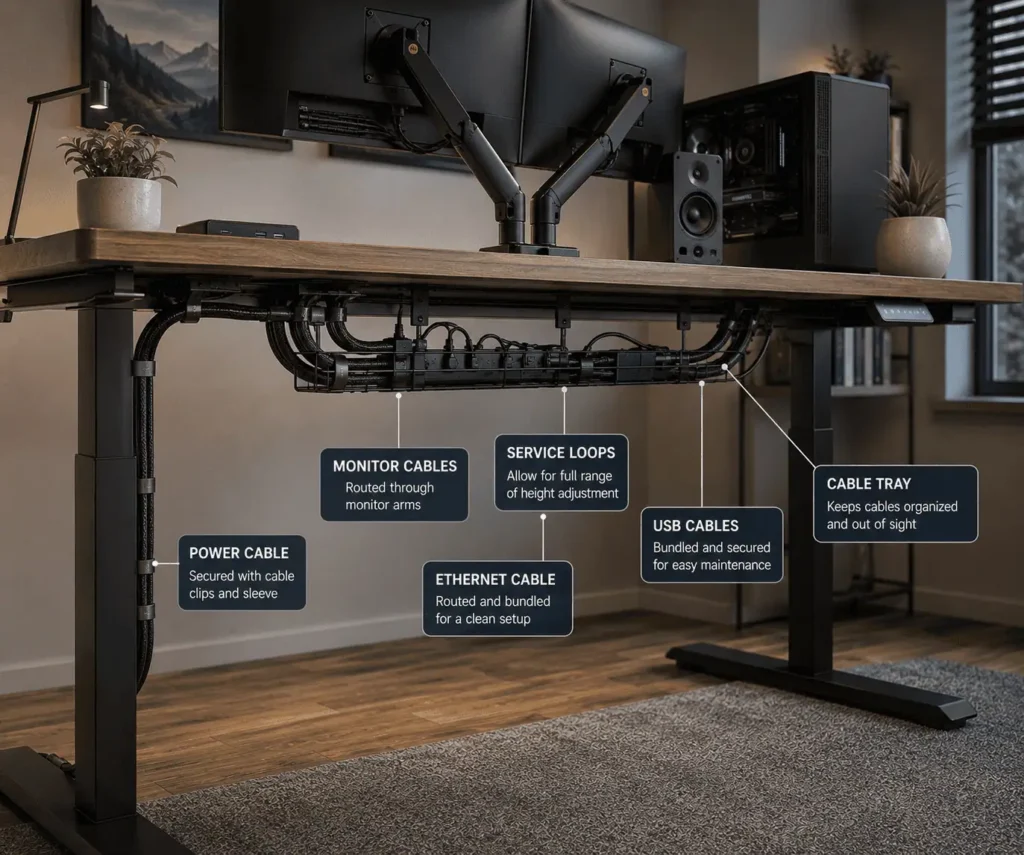
Standing desks create extra cable management challenges because the cables move whenever the desk changes height.
Without regular inspections, moving cables can stretch, wear out, or become damaged over time.
Inspect Moving Cables
Raise and lower the desk through its full height range while observing all moving cables.
Pay close attention to:
- Monitor cables
- USB cables
- Ethernet cables
- Speaker wires
- Power cables
Look for cables that pull tightly, twist excessively, rub against furniture, or catch on desk components.
Check Service Loops and Cable Strain
Moving cables need enough slack to travel safely with the desk.
Inspect service loops and make sure cables remain loose throughout the desk’s full range of motion.
Watch for:
- Tight cables
- Pulled connectors
- Sharp bends
- Stretched wiring
No cable should support the weight of a monitor, docking station, or other device.
Watch for Wear Points
Inspect areas where cables bend or move frequently.
Common wear points include:
- Monitor arm connections
- Docking station connections
- Desk edges
- Cable sleeve entry points
Also check cable trays, cable chains, clips, and mounts for damage or loose mounting.
Early detection of wear can help prevent future cable failures and keep your standing desk wiring organized.
When Should You Replace PC Cables?
Many people continue using cables long after they should be replaced.
A damaged cable may still function, but it can cause performance problems, connection failures, or safety concerns.
Knowing when to replace a cable is an important part of organized PC wiring maintenance.
Physical Damage
Visible damage is usually the clearest sign that a cable needs replacement.
Inspect cables regularly for:
- Cracks
- Cuts
- Fraying
- Exposed wires
- Flattened sections
Any cable with exposed conductors should be replaced immediately.
Intermittent Connections
Some cables fail internally before visible damage appears.
Watch for symptoms such as:
- Random monitor blackouts
- USB disconnects
- Audio interruptions
- Network dropouts
- Devices that reconnect repeatedly
If moving a cable causes the connection to return, internal damage may be present.
Excessive Bending
Years of bending can weaken internal wiring.
Pay attention to cables that:
- Remain sharply bent
- Fold around tight corners
- Show permanent kinks
- Feel unusually stiff
These cables may be approaching the end of their lifespan.
Heat Exposure
Heat can slowly damage cable insulation.
Inspect cables located near:
- Graphics cards
- Power supplies
- Space heaters
- Radiators
- High-temperature electronics
Heat damage often appears as:
- Discoloration
- Hard insulation
- Brittle outer jackets
- Warping
Replace affected cables before they fail.
Connector Wear
Connectors wear out through repeated use.
Inspect connectors for:
- Bent pins
- Loose connections
- Broken locking tabs
- Cracked housings
A worn connector may cause unreliable performance even when the cable itself remains intact.
Outdated Cable Standards
Technology changes over time.
Older cables may continue working but may not support modern performance requirements.
Examples include:
- Older HDMI versions
- Aging Ethernet cables
- Outdated USB cables
- Legacy display connections
Replacing outdated cables may improve compatibility and help support newer devices and features.
Failed Cable Management Inspections
If a cable repeatedly appears on your maintenance inspection list, replacement may be the best option.
Replacing a questionable cable often costs less than spending hours troubleshooting future issues.
Common PC Wiring Maintenance Mistakes
Even a well-organized setup can become messy if regular maintenance is ignored.
Avoiding a few common mistakes can help keep your PC wiring clean, safe, and easy to manage.
Overtightening Cable Ties
Cable ties should hold cables securely without squeezing them.
Overtightened ties can:
- Damage cable insulation
- Increase cable wear
- Make future adjustments difficult
If possible, use reusable Velcro straps because they are easier to adjust during maintenance.
Ignoring Dust Buildup
Dust is one of the most common cable management problems.
Over time, dust can:
- Hide cable damage
- Restrict airflow
- Make inspections more difficult
Regular cleaning helps keep cables visible and easier to maintain.
Forgetting Labels and Documentation
Labels and cable maps should be updated whenever equipment changes.
Outdated labels can create confusion during upgrades and troubleshooting.
Keeping simple documentation makes it easier to identify cables and maintain an organized wiring system.
Overloading Cable Trays
Cable trays are designed to support a limited amount of weight.
Adding too many cables, adapters, or power strips can lead to:
- Sagging trays
- Reduced accessibility
- Increased clutter
Review tray capacity during your regular maintenance checks.
Treating Cable Management as a One-Time Task
This is the most common mistake.
Cables move, accessories wear out, and new devices are added over time.
Regular inspections, cleaning, and audits help prevent clutter from returning and keep your organized PC wiring system working efficiently.
Conclusion
Maintaining organized PC wiring does not require much time, but it can prevent clutter, improve airflow, extend cable lifespan, and make troubleshooting easier. By following regular weekly, monthly, and quarterly checks, you can keep your cable management system clean, safe, and efficient. A few minutes of maintenance today can help you avoid bigger cable and connectivity problems in the future.
FAQs
Should I unplug my PC before inspecting the cables?
Yes. Turning off and unplugging your PC before a detailed inspection helps reduce the risk of accidental damage or electrical hazards.
Can poor cable management affect external devices?
Yes. Loose or tangled cables around monitors, speakers, docking stations, or routers can make maintenance and troubleshooting more difficult.
Do cable management accessories need to be replaced?
Yes. Replace cable clips, Velcro straps, sleeves, or adhesive mounts if they become loose, cracked, or no longer hold cables securely.
Does room temperature affect PC cables?
High temperatures can speed up cable wear over time, especially near heat sources or poorly ventilated workspaces.
Should I inspect cables after moving my desk or PC?
Yes. Any time you move your desk or computer, check cable routing, connectors, and cable strain to ensure everything remains secure.