If you have ever upgraded a GPU, cleaned your PC, or moved your setup, you have probably spent time trying to identify identical HDMI, DisplayPort, USB, SATA, or power cables. Without clear labels, reconnecting devices can become frustrating and slow, especially on gaming PCs and workstations with multiple monitors and peripherals.
A simple cable labeling system makes troubleshooting, maintenance, and future upgrades much easier. In this guide, you will learn how to label PC cables, choose the right labels, organize internal and external connections, and create a system that saves time whenever you need to work on your computer.
When Should You Label Your PC Cables?
You should label your PC cables when:
- Building or upgrading a PC
- Adding more monitors or peripherals
- Cleaning your computer
- Moving your setup
- Organizing a messy desk
A simple label helps you identify the correct HDMI, DisplayPort, USB, or power cable without testing every connection.
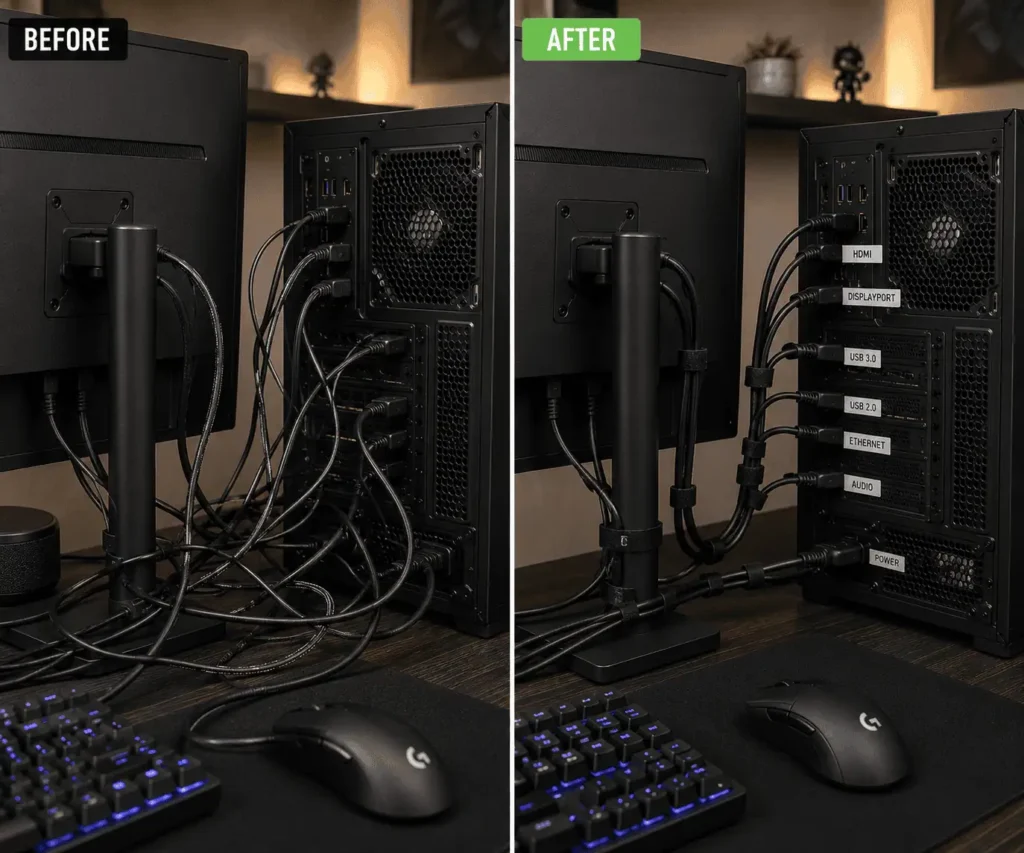
Why Labeling PC Cables Makes Troubleshooting Easier
When a PC stops working correctly, cables are often the first thing you check. A loose display cable, a disconnected USB device, or a cable connected to the wrong port can waste valuable time.
A proper cable label helps you identify the correct connection immediately. Instead of unplugging different cables and guessing, you know exactly which cable belongs to your monitor, keyboard, external SSD, or other device.
Before You Start Labeling Your PC Cables
A little preparation can make the labeling process easier and more accurate.
Take Photos of Your Existing Setup
Before disconnecting any cable, take clear photos of:
- The back of your computer
- Monitor connections
- USB devices
- Cable routing under your desk
- Internal motherboard connections
These photos give you a visual reference if a label falls off or you forget where a cable belongs.
For custom PCs, photos of your motherboard headers, SATA connections, fan headers, RGB connectors, and front panel cables can be especially useful during future upgrades.
Group Cables by Device and Function
Group similar cables together, such as display, USB, network, audio, power, and internal PC cables. This keeps your labeling system organized and consistent.
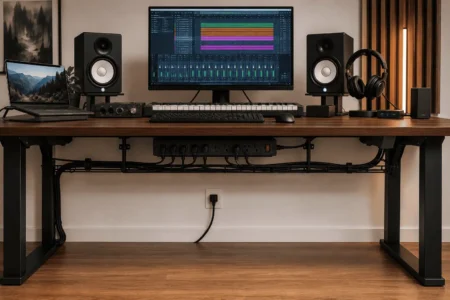
After labeling external cables, you can hide a power strip under your desk to keep the entire workspace cleaner and easier to manage.
Create a Simple Naming System
A good cable label should be short and easy to understand.
Avoid writing long sentences because labels have limited space.
Good examples:
✓ Main Monitor DP
✓ Monitor 2 HDMI
✓ Keyboard USB
✓ Mic USB-C
✓ Router LAN
✓ External SSD
Poor examples:
✗ Cable for my main gaming monitor
✗ USB cable connected on the left side of my desk
Use the same style for all labels. A consistent naming system makes your setup easier to understand months or years later.
Best Tools and Materials for Labeling PC Cables
The best label depends on how often your setup changes. Some labels are better for permanent systems, while others work well for temporary testing or frequent hardware changes.
Self-Laminating Cable Labels
Self-laminating labels have a clear protective layer that covers the printed text.
They resist dirt, scratches, and fading, making them a good option for long-term gaming PCs and workstations.
Wrap-Around Cable Labels
Wrap-around labels attach directly around the cable.
They work well for HDMI, DisplayPort, USB, Ethernet, and power cables.
They provide a clean appearance and are easy to read.
Heat-Shrink Labels
Heat-shrink labels tighten around a cable after heat is applied.
They provide excellent durability and are commonly used in professional environments or long-term installations.
Velcro Cable Tags
Velcro cable tags are reusable and easy to remove.
They are useful for PC builders, hardware testers, and users who frequently change their equipment.
Label Makers vs Handwritten Labels
A simple marker and tape can work for temporary cable identification.
However, handwritten labels can become difficult to read over time.
A label maker creates clear and consistent labels that look more professional and last longer.
Temporary vs Permanent PC Cable Labels
Temporary labels like masking tape, painter’s tape, or reusable Velcro tags are useful during PC building, testing, or frequent hardware changes.
For long-term setups, choose self-laminating, wrap-around, or heat-shrink labels because they provide better durability.
Choosing the Right Label Size
The size of a cable label matters. A label that is too large can make a cable difficult to handle. A label that is too small may be hard to read.
Small labels are suitable for thin cables such as:
- USB-A cables
- USB-C cables
- Thunderbolt cables
- 3.5mm audio cables
Larger labels work better for thicker cables, including:
- Ethernet cables
- Power cords
- Some HDMI and DisplayPort cables
Always choose a label that provides enough space for clear text without interfering with the connector.
How to Label PC Cables Step by Step
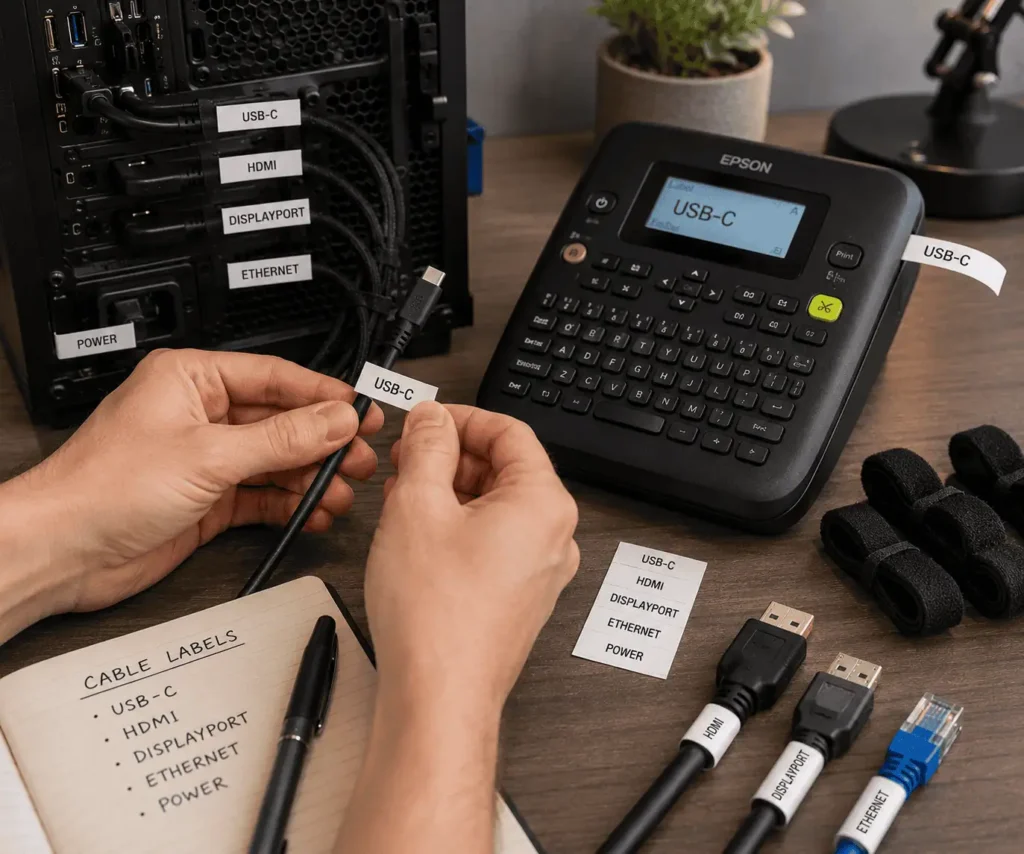
A good cable labeling system should be simple, organized, and easy to maintain.
Step 1: Shut Down Your Computer and Work Safely
Turn off your computer completely before touching any cables.
If you are working inside the PC case, switch off the PSU, unplug the power cable from the wall outlet, and press the power button for a few seconds to release any remaining electrical charge.
This reduces the chance of accidental damage while working on your PC.
Step 2: Disconnect and Organize Cables
Disconnect one cable at a time when possible.
Keep similar cables together. For example, place all display cables in one group and USB devices in another group.
This method reduces mistakes when reconnecting your setup.
Step 3: Decide What Information to Write on Each Label
A common mistake is writing labels that are too general.
For example, a label that says “USB” does not help when you have multiple USB devices connected to your computer.
A useful cable label may include:
- Device name
- Cable type
- Port number
- Connection location
Keep the text short because cable labels have limited space.
Examples of clear labels include:
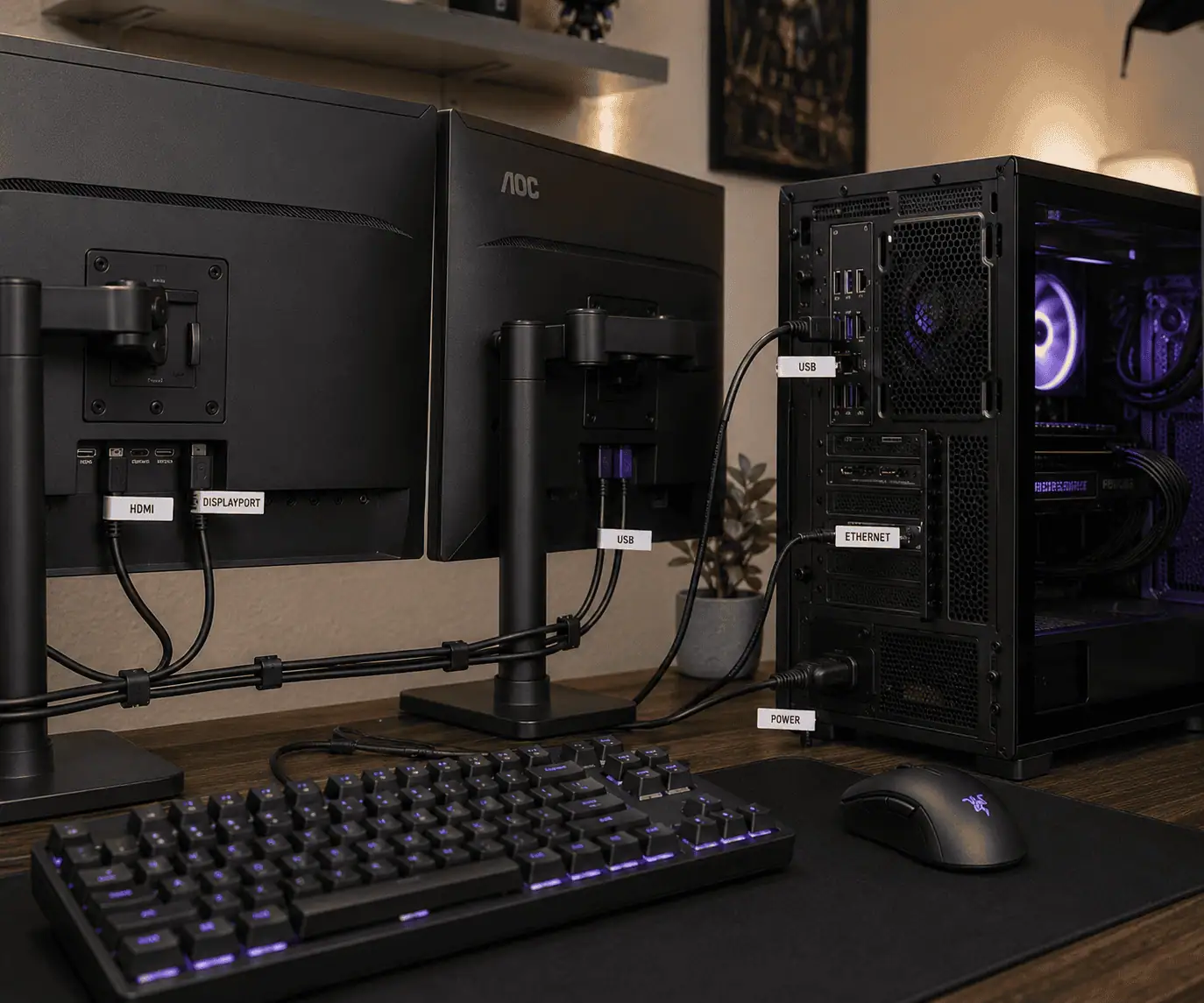
- Main Monitor DP
- Monitor 2 HDMI
- Keyboard USB
- Webcam USB-C
- Backup SSD USB-C
- Router LAN
These names make future troubleshooting faster.
Step 4: Place Labels in the Correct Position
Place the label close to the connector where you can easily see it.
For example, a label should be near the HDMI plug, DisplayPort connector, USB connector, or Ethernet plug.
However, avoid placing labels where they block the connector, make the cable difficult to bend, or interfere with cable management.
A properly placed label should remain visible while allowing the cable to connect and disconnect normally.
Step 5: Label Both Ends of Every Cable
Many people label only one side of a cable. This can create confusion later, especially with long cables that run behind a desk or through a cable management tray.
Label both the device end and the computer end.
For example:
Monitor side:
- Main Monitor DP
PC side:
- GPU DisplayPort 1
This approach makes it easier to identify the exact connection without tracing the entire cable.
Step 6: Check Your Labels Before Finishing
After reconnecting your devices, review every label.
Ask yourself:
- Can I read the label easily?
- Does the name clearly identify the device?
- Are both ends labeled?
- Will the name still make sense after several months?
Correct unclear labels immediately. A few extra minutes now can save a lot of time during future repairs or upgrades.
What Information Should You Write on PC Cable Labels?
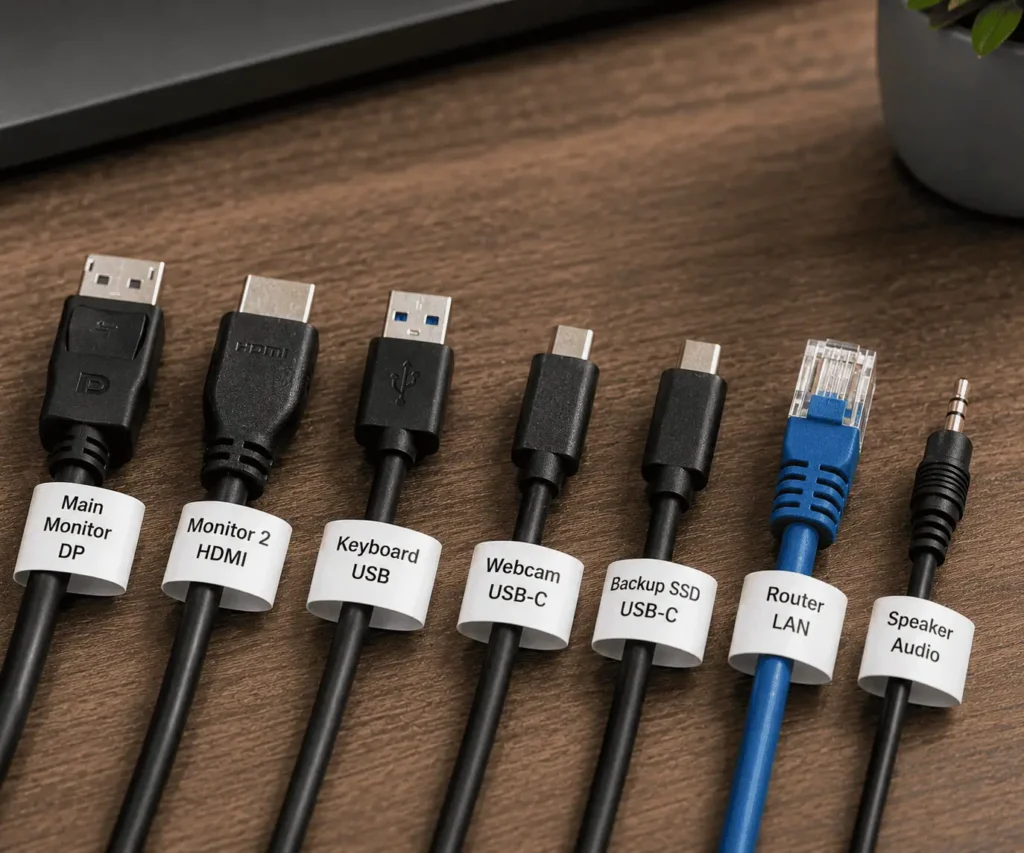
The best cable labels provide useful information without becoming too long.
A good label usually contains a combination of:
- Device name
- Cable type
- Port number
- Cable destination
Here are some examples:
Creating a consistent naming system makes labeling PC cables more effective and keeps your setup easier to maintain over time.
How to Label Different Types of PC Cables
Different PC cables have different jobs. Therefore, using a specific naming system for each cable type makes your setup easier to understand.
You can identify cables faster during troubleshooting, cleaning, or hardware upgrades.
Labeling Monitor and Display Cables
Monitor cables can become confusing, especially if you have a dual-monitor or triple-monitor setup.
Most computer displays use HDMI or DisplayPort cables. If your graphics card has multiple ports, adding the port number to your label can make identification easier.
Good examples include:
- Main Monitor DP
- Monitor 2 HDMI
- GPU DisplayPort 1
- GPU DisplayPort 2
- Capture Card HDMI
These labels help when you experience no display issues after moving your computer or changing your monitor setup.
Labeling USB and Peripheral Cables
Use clear names like “Keyboard USB,” “Webcam USB-C,” or “Gaming Controller USB” instead of generic labels such as “USB 1” or “USB Cable.
Common devices include keyboards, mice, webcams, microphones, external SSDs, USB hubs, printers, and gaming controllers.
Labeling Ethernet and Network Cables
Network cables should clearly show where the connection starts and ends.
Good examples include:
- Router LAN
- Gaming PC Ethernet
- Network Switch Port 3
- NAS Ethernet
These labels help you quickly identify the correct cable when solving internet or network connection problems.
Labeling Power and Audio Cables
Power and audio cables often look similar, especially behind a desk. Use clear names for power connections such as “PC PSU Power,” “Main Monitor Power,” or “Dock Power Adapter.”
For audio cables, including 3.5mm speaker, microphone, or headphone connections, use simple labels like “Speaker Audio,” “Mic Audio,” or “Headphone Jack.” Clear labels help you identify the correct cable quickly during cleaning, troubleshooting, or rearranging your workspace.
Labeling Internal PC Cables
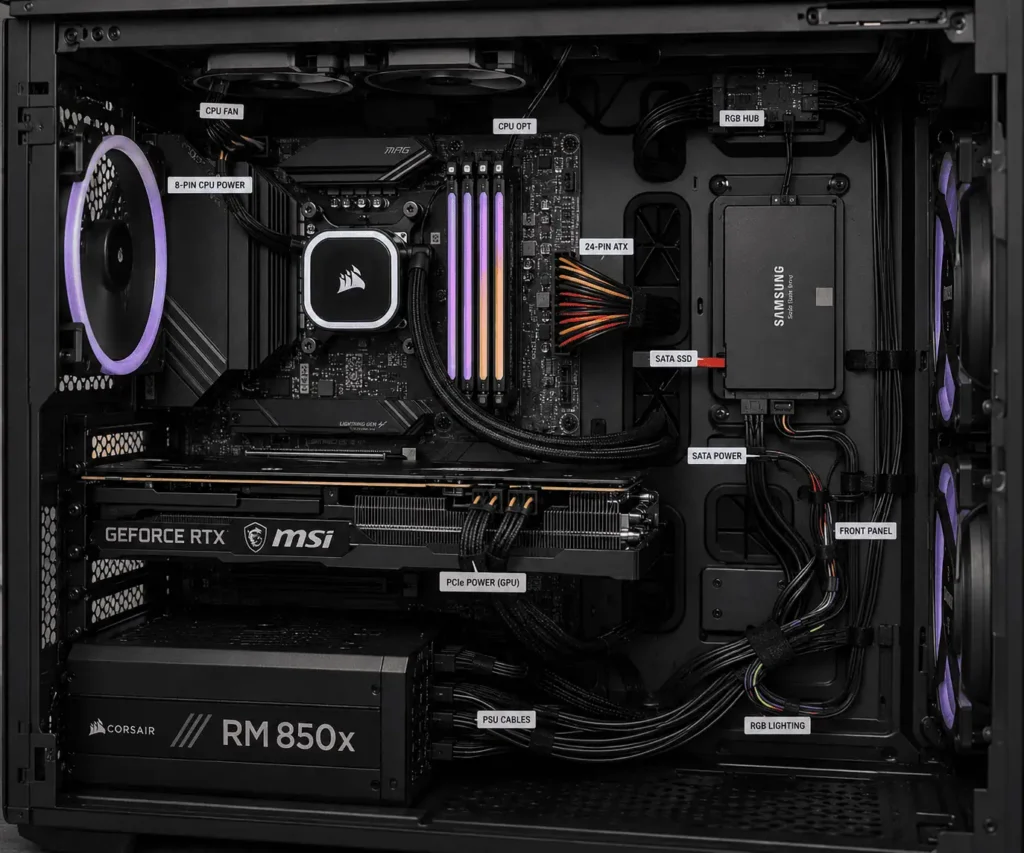
Many cable labeling guides focus only on external cables. However, internal PC cables can also become confusing during repairs and upgrades.
Before disconnecting internal components, take clear photos of your motherboard and cable layout. These images can work together with your written cable map.
Important internal cables to label include:
Storage Cables
Storage cables connect your drives to the motherboard and power supply.
Examples:
- SATA SSD 1
- SATA SSD 2
- HDD SATA Power
Motherboard Power Cables
Power connections are some of the most important cables inside your computer.
Examples:
- 24-Pin ATX Power
- 8-Pin CPU Power
- GPU PCIe Power
These labels are useful when replacing a power supply or upgrading your graphics card.
Cooling Cables
Cooling components use several small connectors that can be difficult to identify later.
Examples:
- CPU Fan
- Rear Case Fan
- Top Case Fan
- AIO Pump
Proper labels help when replacing a cooler or changing your PC case.
RGB and Lighting Cables
Modern gaming PCs often include RGB or ARGB lighting cables.
Examples:
- Front RGB
- Top ARGB Header
- RGB Controller
Labeling these connections prevents confusion when changing fans, light strips, or controllers.
If your system includes several RGB devices, good RGB controller cable management makes routing and identifying lighting cables much easier.
Front Panel Connectors
Front panel cables are some of the smallest and easiest cables to mix up.
Examples include:
- Power Switch
- Reset Switch
- Power LED
- HDD Activity LED
- Front USB Header
- Front Audio Header
Proper labels can save a lot of time when replacing a motherboard or moving your parts into a new case.
Create a PC Cable Map for Future Maintenance
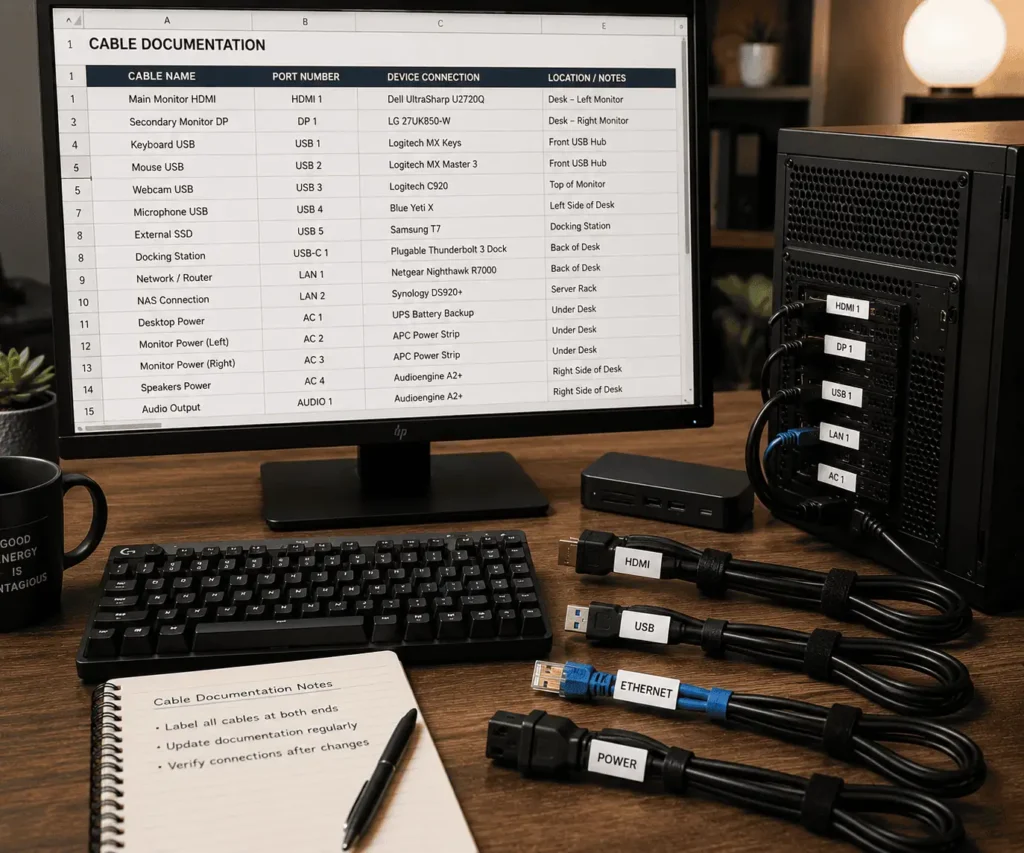
Labels help you identify individual cables. However, a cable map gives you a complete overview of your entire setup.
A simple cable map can be created using:
- A notebook
- A notes application
- A spreadsheet
Your cable map should record:
- Cable name
- Device connection
- Port number
- Cable location
For example:
GPU DisplayPort 1 → Main Monitor
USB-C Rear Port → Backup SSD
Motherboard USB Header → Front USB Ports
SATA Port 1 → 2TB SSD
Photos can make your cable map even more useful. Store images of your desk setup, monitor connections, and motherboard wiring together with your notes.
A complete cable record is especially valuable for gaming setups, streaming stations, and professional workstations with many connected devices.
Use a Color-Coding System for Faster Cable Identification
Written labels tell you exactly what a cable does. However, color coding allows you to recognize cable categories more quickly.
This method is especially helpful for gaming PCs, multi-monitor setups, streaming desks, and workstations with many connected devices.
You can create your own color system. The most important rule is to stay consistent.
Here is a simple example:
You can use colored cable tags, labels, or Velcro ties.
Remember that colors should support your written labels, not replace them. For example, a blue tag tells you it is a display cable, but a label such as “Main Monitor DP” tells you the exact connection.
How Cable Labels Help During Real PC Troubleshooting
The biggest advantage of labeling PC cables appears when something stops working.
Instead of checking every cable one by one, you can identify the correct connection immediately.
Fixing a No Display Problem After Moving Your PC
Moving your computer or changing your desk layout can loosen a display connection.
A clear label helps you quickly identify:
- Main monitor cable
- Secondary monitor cable
- GPU DisplayPort connection
- GPU HDMI connection
As a result, you spend less time checking every port and cable.
Finding a Faulty USB Device
A desk may have several USB devices connected at once. Without labels, finding the correct cable can take time. Clear labels help you identify the right connection within seconds.
Reconnecting Cables After Cleaning Your Computer
Cleaning your computer often requires moving cables or opening the PC case.
Before disconnecting anything for cleaning, it also helps to remove built-up dust from your cable bundle. Following proper PC cable cleaning methods can reduce the chance of damaging connectors and keep your setup easier to maintain.
Labels help you reconnect:
- SATA cables
- Fan connectors
- RGB cables
- Front panel connectors
- Power connections
This reduces mistakes when putting your computer back together.
Upgrading PC Hardware More Easily
Most computers change over time. You may install a new SSD, upgrade your GPU, replace your PSU, add more case fans, or install a new CPU cooler.
A good labeling system shows where each cable belongs before you disconnect anything.
This makes hardware upgrades faster and helps prevent incorrect connections.
Common Mistakes to Avoid When Labeling PC Cables
Even a good cable organization system can fail if labels are unclear or placed incorrectly.
Avoid these common mistakes.
Using Names That Are Too General
A label like “USB” does not provide enough information.
Many setups have several USB devices. Therefore, use names that describe the exact device.
Poor examples:
- USB
- Cable 1
- Black Cable
Better examples:
- Keyboard USB
- Webcam USB-C
- Backup SSD USB-C
Clear names make future troubleshooting much easier.
Labeling Only One End of a Cable
Long cables can travel behind desks, through cable trays, or around monitor arms.
If only one side has a label, you may still have to trace the entire cable.
Always label both the device side and the computer side for quick identification.
Using Low-Quality or Incorrect Label Types
Cheap labels can peel, fade, or become difficult to read.
Choose temporary labels when you expect frequent changes. Use durable labels for permanent setups.
A quality label saves time because it remains readable for years.
Placing Labels in the Wrong Location
A label should be easy to see without affecting the cable connection.
Do not place labels where they block connectors, create unnecessary bending, or make cable management difficult.
The best position is usually close to the connector while leaving enough room to plug and unplug the cable comfortably.
Forgetting to Update Labels After Hardware Changes
Your PC setup may change over time.
You may add a new monitor, install more storage, replace your graphics card, or connect new accessories.
Update your labels whenever your hardware changes. Old or incorrect labels can create the same confusion as having no labels at all.
Maintaining and Updating Your PC Cable Labels
Check your labels after cleaning, moving, or upgrading your PC. Replace damaged labels and update your cable map and photos whenever your setup changes.
If you’re unsure what to check, following a PC wiring maintenance checklist helps ensure nothing gets overlooked.
Conclusion
A few minutes spent labeling your PC cables today can save a significant amount of time during future upgrades, cleaning, and troubleshooting. Clear labels, consistent naming, and updated cable records make it easier to identify the correct connection, reduce mistakes, and keep your setup organized as it grows over time.
FAQs
How long do cable labels usually last?
High-quality self-laminating and heat-shrink labels can remain readable for years. Their lifespan depends on the label material and the environment where the cables are used.
Should I label laptop cables as well as desktop PC cables?
Yes. Labeling laptop chargers, docking station cables, monitors, USB hubs, and external drives makes it easier to reconnect everything after travel or moving your workspace.
Can I use QR code labels for PC cables?
Yes, especially for complex setups. A QR code can link to a cable map, spreadsheet, or maintenance notes while the printed label shows a short cable name.
What is the easiest way to remove old cable labels?
Peel the label off slowly. If adhesive remains, wipe it away with a small amount of isopropyl alcohol before applying a new label.
Do wireless devices eliminate the need for cable labels?
Not completely. Most PC setups still use power cables, monitor cables, charging cables, Ethernet connections, or docking stations that benefit from clear labeling.