RGB lighting can make a PC build look clean and modern, but it also adds extra cables inside the case. RGB fans, LED strips, and other lighting accessories often connect to an RGB controller, RGB hub, SATA power cable, or motherboard header. As more devices are added, cable clutter can become difficult to manage.
Without proper RGB controller cable management, loose wires can make upgrades harder and create a messy appearance. This guide covers cable routing, controller placement, and simple ways to organize RGB wiring for a cleaner and more organized PC build.
What Is an RGB Controller?
An RGB controller manages the lighting effects of RGB and ARGB devices inside a PC.
It can control colors, brightness, and lighting modes for RGB fans, LED strips, and other lighting accessories.
Many RGB controllers connect through SATA power, a USB header, or an RGB header.
As more RGB devices are added, proper cable management becomes more important.
Why RGB Controller Cables Become Difficult to Manage
RGB lighting adds extra cables inside a PC case.
A single RGB fan may use a fan cable and a lighting cable.
Cable clutter increases as more RGB fans, LED strips, and accessories are added.
SATA power cables, USB header cables, splitters, and excess cable length can also make routing more difficult.
Without proper planning, cables can quickly become messy.
RGB Controller vs RGB Hub
An RGB controller and an RGB hub are often confused.
An RGB controller manages colors, brightness, lighting modes, and animations, whereas an RGB hub mainly distributes connections between multiple RGB devices.
Some products sold as controllers are actually hubs or splitters.
These devices distribute signals but do not independently control lighting effects.
True RGB controllers often require SATA power, a USB header, or an RGB header.
Knowing the difference helps with both cable management and system planning.
ARGB vs RGB Cable Management
Before organizing cables, it helps to understand the difference between RGB and ARGB.
3-Pin 5V ARGB
ARGB stands for Addressable RGB.
Each LED can display different colors at the same time.
ARGB uses a 3-pin 5V connector.
Many modern RGB fans and LED strips use ARGB because it allows advanced lighting effects.
ARGB cables are often thinner but may appear in larger numbers because many devices use separate connections.
4-Pin 12V RGB
Traditional RGB uses a 4-pin 12V connector.
All LEDs display the same color at the same time.
These cables are slightly different and must not be connected to ARGB headers.
Mixing connectors can damage components.
From a cable management standpoint, it is useful to separate ARGB and RGB cables into different bundles. This makes future upgrades easier and reduces confusion during maintenance.
Why Good RGB Controller Cable Management Matters
Good cable management offers benefits beyond appearance.
Better Airflow
Loose cables can block airflow.
Proper cable routing helps keep intake and exhaust paths clear.
While cable management alone will not dramatically lower temperatures, it helps prevent airflow restrictions caused by loose wiring.
Easier Maintenance
Organized cables make future upgrades easier.
When cables are grouped correctly, replacing a fan or installing a new RGB component takes less time.
Faster Troubleshooting
If a lighting issue occurs, organized wiring makes it easier to identify the correct cable.
You can quickly trace connections between the RGB controller, motherboard header, fan hub, and RGB device.
Cleaner Appearance
A clean build looks more professional.
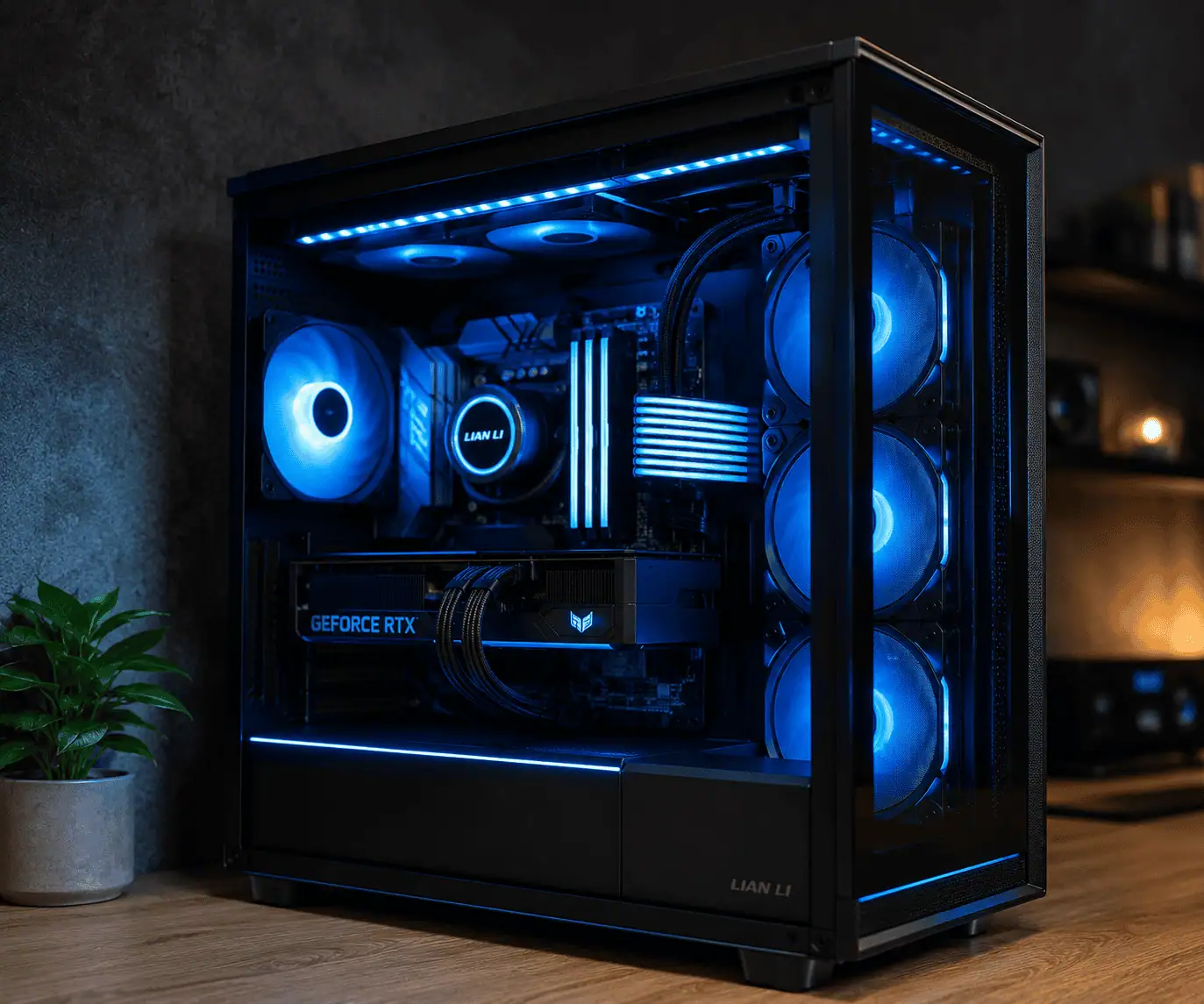
Neatly routed RGB cables create a more organized appearance through tempered glass side panels.
Reduced Cable Stress
Poor cable routing can place stress on connectors.
Keeping cables secured with proper support helps reduce unnecessary strain.
What a Clean RGB Build Should Look Like
A clean RGB build should have very few visible cables.
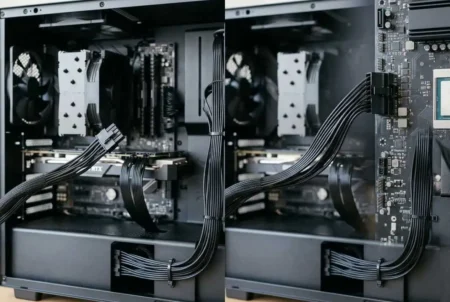
Most RGB wiring should stay behind the motherboard tray or inside the PSU shroud.
RGB fans, LED strips, and controller cables should follow organized routing paths.
The goal is to create a clean appearance while keeping cables easy to access for future upgrades.
Best Places to Mount an RGB Controller
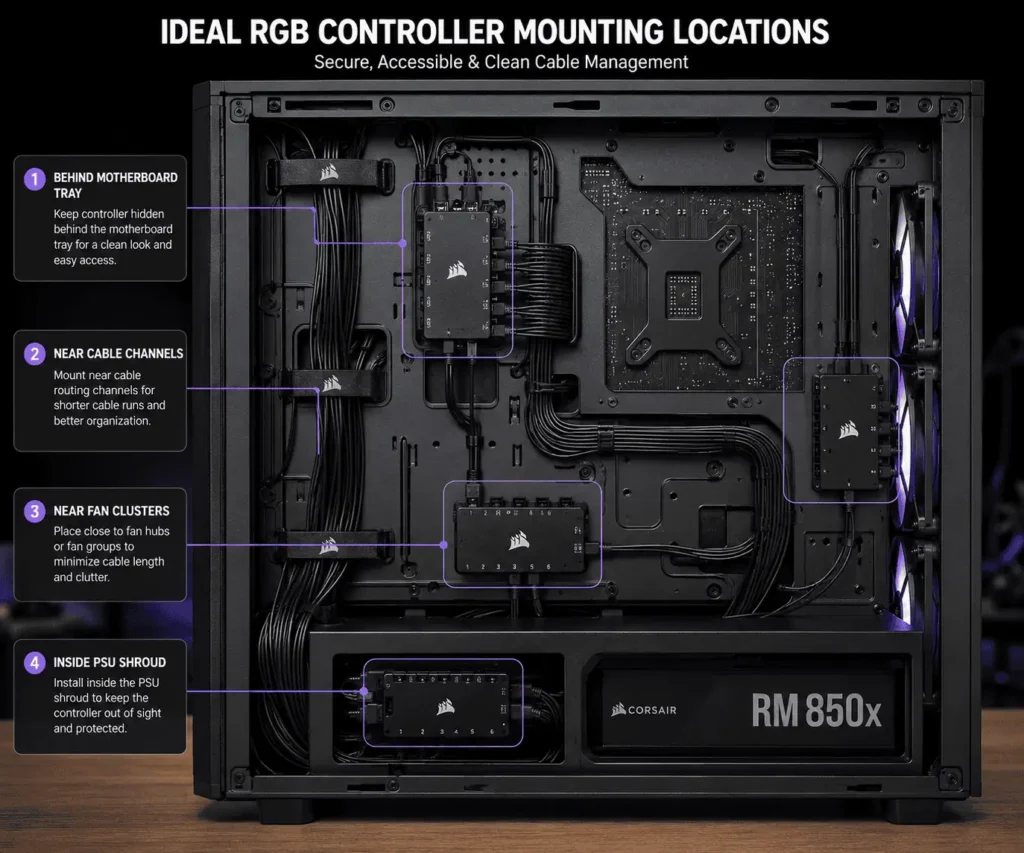
The right location can reduce cable clutter and shorten cable runs.
Behind the Motherboard Tray
This is one of the most popular locations.
It keeps the controller hidden and makes cable routing easier, especially in a reverse connector PC case, where most cables are routed behind the motherboard tray.
Inside the PSU Shroud
The PSU shroud can hide both the controller and excess cable length.
It also keeps wiring out of sight.
Near Cable Management Channels
Mounting the controller near cable channels simplifies routing.
This helps create a cleaner layout.
Near Fan Clusters
Placing the controller close to RGB fans can reduce cable length.
Shorter cable runs are easier to manage.
Tools That Make RGB Controller Cable Management Easier
A few simple tools can make cable routing easier.
Velcro Ties
Velcro ties bundle cables together and can be reused during upgrades.
Cable Clips
These clips secure wires along the case and help keep routing organized.
Cable Sleeves
Cable sleeves combine multiple wires into one cleaner bundle.
How to Manage RGB Controller Wiring Step by Step
Good RGB controller cable management starts with planning.
Taking a few extra minutes before securing cables can prevent problems later.
Step 0: Plan Your Cable Routes
Before connecting any cables, create a simple routing plan.
Identify RGB Device Locations
Locate all RGB fans, LED strips, and lighting accessories.
This helps you choose the shortest cable paths.
Count Connected Devices
Count how many devices will connect to the RGB controller.
Make sure the controller has enough ports.
Choose the Controller Location
Pick a mounting location before installation.
Good placement reduces cable clutter.
Check Available Headers
Locate RGB headers, ARGB headers, USB headers, and fan headers.
This helps prevent routing problems later.
Plan Future Expansion
Leave space for extra fans or LED strips.
This can save time during future upgrades.
Step 1: Identify Every RGB Device
Start by locating all RGB and ARGB devices.
This may include:
- RGB fans
- ARGB fans
- LED strips
- AIO cooler lighting
- RGB accessories
- RGB memory lighting
Knowing how many devices connect to the controller helps you plan cable routes.
Step 2: Separate Cable Types
Different cable types should be grouped separately.
Common cable groups include:
- RGB cables
- ARGB cables
- PWM fan cables
- SATA power cables
- USB header cables
Keeping these groups separate makes troubleshooting much easier, especially when you label your PC cables consistently.
Step 3: Mount the RGB Controller
Choose the mounting location before routing cables.
Install the controller securely using the mounting method provided by the manufacturer.
A stable controller prevents cables from shifting over time.
Step 4: Route Cables Along Existing Paths
Use the cable channels already built into the case.
Most modern cases provide routing holes and channels near:
- Motherboard tray
- PSU shroud
- Drive cages
Following these paths creates a cleaner layout.
Step 5: Bundle Similar Cables Together
Group cables that travel in the same direction.
This keeps routing organized.
Examples include:
- Front fan RGB cables
- Top fan RGB cables
- Rear fan RGB cables
If a fan uses both a PWM cable and an RGB cable, route them together.
Use Velcro ties or cable clips to keep bundles secure.
Keep connectors easy to access for future upgrades.
This reduces clutter and makes troubleshooting easier.
Step 6: Secure Excess Cable Length
Many RGB devices include more cable length than needed.
Instead of leaving loops exposed:
- Bundle excess cable
- Secure it behind the motherboard tray
- Store it inside unused cable space
- Keep it away from moving parts
This step creates a much cleaner build.
Step 7: Check Airflow Paths
Before closing the case, inspect airflow routes.
Make sure cables are not blocking:
- Front intake fans
- Top exhaust fans
- Rear exhaust fan
- CPU cooler airflow path
- GPU airflow path
Good airflow is one of the biggest benefits of proper cable management.
Regular PC cable cleaning also helps prevent dust from collecting around RGB cables, fans, and other internal components.
How to Route RGB Controller Cables Behind the Motherboard Tray
The area behind the motherboard tray is often the best location for cable management.
Many cases provide several millimeters of clearance specifically for cable routing.
Use the Closest Routing Hole
Do not run cables across large sections of the case.
Instead, use the nearest routing hole whenever possible.
Shorter cable paths create a cleaner layout.
Follow Existing Cable Bundles
If fan cables already follow a certain route, place RGB cables beside them.
This reduces the number of separate cable paths behind the tray.
Avoid Crossing Multiple Cable Groups
Crossing cable bundles creates clutter.
Try to keep cable groups running in parallel whenever possible.
Leave Service Loops
A small amount of slack can be helpful.
Service loops allow you to disconnect devices without completely removing cable ties.
Just avoid leaving large visible loops.
RGB Controller Cable Management for Small PC Cases
Small form factor builds benefit from careful cable planning because every inch of space matters.
Plan cable paths before installing components.
Mount the RGB controller close to connected devices whenever possible.
Use short cable routes and store excess wiring behind the motherboard tray or inside the PSU shroud.
How to Hide Excess RGB Controller Wiring
Excess cable length is a common cable management problem.
Many RGB fans and LED strips include longer cables than needed.
If left loose, these cables can quickly create clutter.
Bundle Extra Cable Length
The easiest solution is to bundle excess wiring together.
Group extra cable length into small loops and secure it with:
- Velcro ties
- Reusable zip ties
- Cable sleeves
Avoid creating large cable balls. Smaller bundles are easier to hide and manage.
Use Empty Areas Behind the Motherboard Tray
Most modern PC cases provide unused space behind the motherboard tray.
This area is often the best location for storing extra RGB wiring.
Keep cable bundles flat so the side panel can close properly.
Store Excess Wiring Inside the PSU Shroud
A PSU shroud can hide both the RGB controller and excess cable length.
This area is usually hidden from view and offers more room for cable storage.
Just make sure cables do not interfere with the power supply fan.
Managing Multiple RGB Controllers
Some PC builds use more than one RGB controller.
This is common in systems with multiple RGB fan groups or LED strips.
It can also happen when upgrading an existing PC with additional RGB fans or LED strips.
Without planning, multiple controllers can create cable clutter.
Group Devices by Controller
Assign specific devices to each controller.
For example:
- Controller 1 for front fans
- Controller 2 for top fans
- Controller 3 for LED strips
This creates a more organized layout and makes troubleshooting easier.
Keep Controller Cables Separate
Avoid mixing cables from different controllers.
Use separate cable bundles whenever possible.
This helps identify devices quickly when adjustments are needed.
RGB Ecosystems That Help Reduce Cable Clutter
Modern RGB ecosystems are becoming better at reducing cable clutter.
Many manufacturers now offer solutions that require fewer cables than older RGB systems.
Corsair iCUE LINK
Corsair iCUE LINK uses a daisy-chain design.
Instead of connecting every device individually, several devices can connect through a shared cable path.
Benefits include:
- Fewer visible wires
- Cleaner routing
- Easier installation
- Reduced cable clutter
Lian Li UNI FAN Systems
Lian Li UNI FAN products connect fans together physically.
This design reduces the number of separate RGB and fan cables.
Many builders choose these fans because they simplify cable management.
NZXT RGB Ecosystem
NZXT uses dedicated RGB controllers and fan controllers designed to keep installations organized.
The ecosystem allows several devices to connect through centralized hubs.
SignalRGB Compatible Controllers
SignalRGB supports many RGB controllers and lighting devices.
Using one compatible controller instead of several different systems can simplify wiring and reduce cable complexity.
Daisy-Chained RGB Devices
Daisy-chaining allows multiple RGB devices to share a connection path.
This reduces:
- Cable count
- Cable crossings
- Controller ports used
Whenever possible, daisy-chain capable devices can help create a cleaner build.
Common RGB Controller Cable Management Mistakes
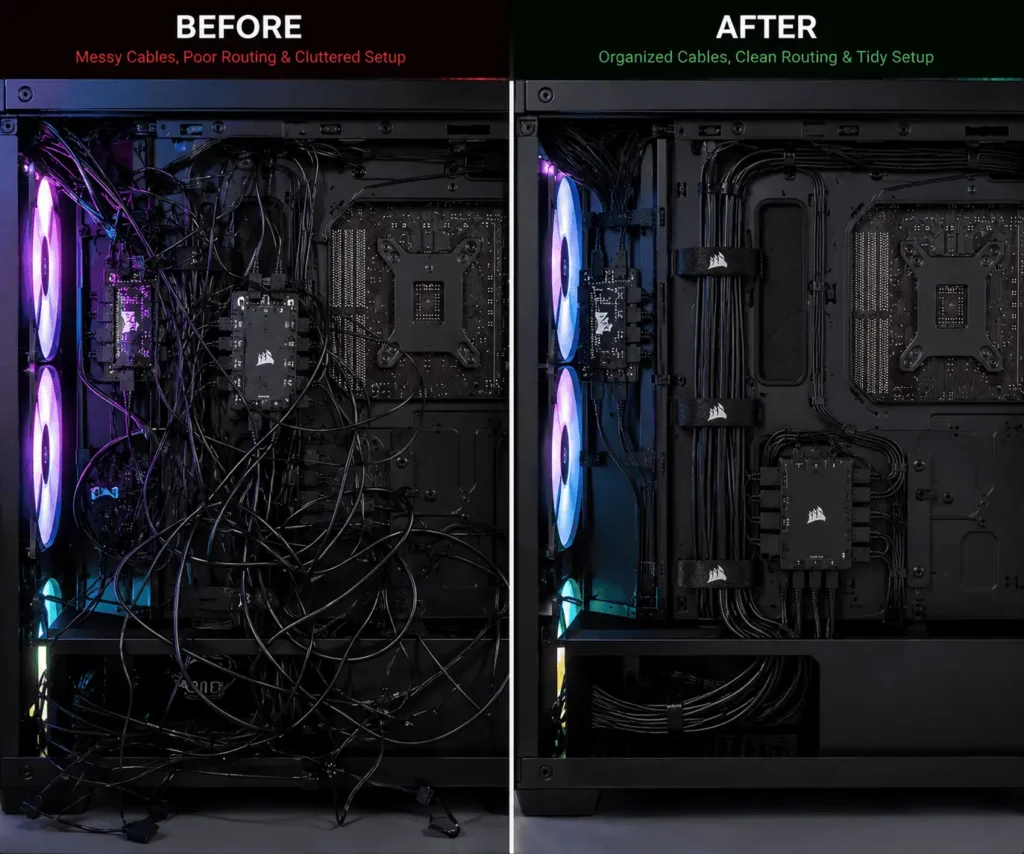
Even experienced builders sometimes make mistakes when organizing RGB wiring.
Avoiding these issues can improve both appearance and functionality.
Mounting the Controller Too Far Away
Long cable runs often create unnecessary clutter.
Choose a location close to connected devices whenever possible.
Blocking Airflow Paths
Loose cables can interfere with airflow.
Avoid routing cables directly in front of:
- Intake fans
- Exhaust fans
- CPU coolers
- Graphics cards
Mixing RGB and ARGB Connections
RGB and ARGB use different connectors.
Mixing them can create confusion and may damage hardware.
Keep these cable groups separated.
Using Too Many Splitters
Splitters can be useful, but too many splitters often create larger cable bundles.
Use them only when necessary.
Over-Tightening Cable Ties
Cable ties should hold cables securely.
However, excessive pressure can stress wires and connectors.
Secure cables firmly without crushing them.
Ignoring Future Upgrades
Many builders focus only on the current setup.
Leave some flexibility for future upgrades.
A small amount of planning now can save time later.
Conclusion
RGB controller cable management helps keep a PC build clean, organized, and easier to maintain. By placing the controller in the right location, routing cables properly, and securing excess wiring, you can reduce clutter and keep airflow paths clear. A simple cable management plan, combined with a regular PC wiring maintenance checklist, helps keep your RGB setup clean and easier to maintain over time.
FAQs
Where should I mount an RGB controller?
Behind the motherboard tray or inside the PSU shroud are the most common locations.
Can I hide RGB controller cables behind the motherboard tray?
Yes. Most PC cases include space behind the motherboard tray for cable routing.
Does RGB controller cable management improve airflow?
It helps keep airflow paths clear by preventing cables from blocking fans.
What is the difference between an RGB controller and an RGB hub?
An RGB controller manages lighting effects. An RGB hub mainly distributes connections.
Can I connect RGB fans directly to an RGB controller?
Yes, if the fan connector is compatible with the controller.
What is the difference between an RGB header and an ARGB header?
An RGB header uses a 4-pin 12V connection. An ARGB header uses a 3-pin 5V connection.