


Managing HDMI and DisplayPort cables can get messy fast, especially behind a monitor or dual-monitor setup. HDMI DisplayPort cable management helps you route, hide, and secure display cables without leaving a pile of loose cable on your desk.
This guide shows how to manage HDMI and DisplayPort cables around your monitor, PC, and desk. You will learn where to route the cables, how much slack to leave, how to hide extra length, and how to keep the cables safe while maintaining a clean PC setup.
Connect Your HDMI or DisplayPort Cable to the Right Port

Before you hide any cable, make sure it is connected to the correct ports. This saves you from changing the cable route later.
For a desktop PC with a dedicated graphics card, the basic connection is:
Monitor → HDMI or DisplayPort cable → GPU
Plug the cable into the graphics card at the back of the PC. Do not use the motherboard’s video output if you want the display to run from your dedicated GPU.
The monitor end goes into its matching input. An HDMI cable goes into HDMI, while a DisplayPort cable goes into DisplayPort.
If your monitor has both HDMI and DisplayPort, check which connection supports the resolution and refresh rate you want. A gaming monitor may support different refresh rates on different inputs.
If You Have a Dedicated GPU
Look at the lower section on the back of your PC where the graphics card is installed. You will usually find several DisplayPort outputs and one or more HDMI outputs.
Connect your monitor to one of these GPU ports.
This is also useful for gaming monitors that need a high refresh rate. The available refresh rate depends on the monitor, GPU, port, and cable connection.
If Your PC Uses Integrated Graphics
If your PC does not have a dedicated graphics card, the motherboard’s HDMI or DisplayPort output may be the correct place to connect the monitor.
The CPU must also support integrated graphics for this to work.
Once the display works, you can start routing the cable.
Plan the Cable Route Before Securing It
Do not start by attaching clips or cable ties. First decide where the HDMI or DisplayPort cable should go.
A good cable route should be short, easy to follow, and free from sharp bends.
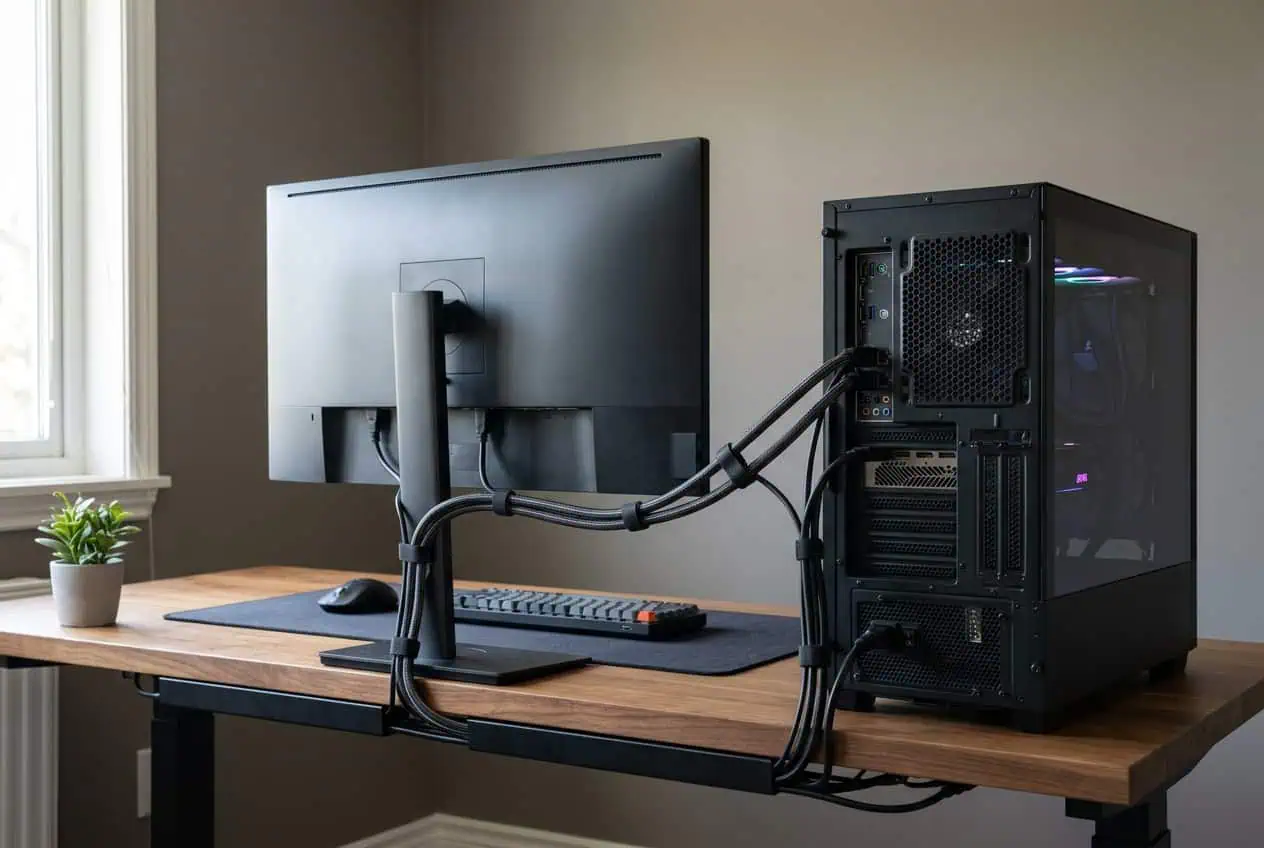
For most desk setups, a simple path works well:
- Connect the cable to the monitor.
- Run it down the back of the monitor.
- Follow the monitor stand if possible.
- Move the cable behind the desk.
- Guide it toward the PC.
- Secure it near the back of the desk.
- Keep a small amount of slack near the monitor.
The last step matters. Your monitor needs some room to move.
If the cable is pulled tight, moving or rotating the monitor can put stress on the connector.
Avoid routing the cable across the front of the desk. A rear route keeps the display cable out of your work area and makes the setup look cleaner.
Route HDMI and DisplayPort Cables Behind the Monitor

The back of the monitor is usually the best starting point for cable management.
Run the HDMI or DisplayPort cable downward from the monitor instead of letting it hang straight into the desk area.
If your monitor stand has a built-in cable channel, use it. This keeps the cable close to the stand and reduces visible cable clutter.
If there is no cable channel, you can guide the cable along the back of the stand with a small Velcro strap or cable clip.
Do not tighten the strap too much. The cable should stay in place without being crushed.
Once the cable reaches the desk, guide it toward the rear edge. From there, you can run it down to the PC.
Cable clips can help keep the route in place. Velcro straps are useful when you want to remove or change the cable later.
A cable sleeve can also group several cables that follow the same path.
Leave Enough Cable Slack
A clean setup should still let you move the monitor.
Leave a small loop of cable near the monitor stand. This gives the screen room to move without pulling on the connector.
You need more slack if your monitor can:
- Tilt
- Swivel
- Rotate
- Move up and down
- Move on a monitor arm
Do not make the loop so large that it hangs below the desk.
The goal is to have enough cable for normal movement without leaving a large bundle behind the monitor.
Hide Extra HDMI and DisplayPort Cable Length
Long display cables often create the biggest cable management problem.
If the cable is longer than you need, do not pull it tight to remove the extra length. Gather the excess cable into a loose loop instead.
Secure the loop with a Velcro strap.
You can then place the extra cable behind the desk where it is less visible.
Avoid making very tight coils. A loose loop is easier to adjust and puts less stress on the cable.
Also keep the connector ends easy to reach. You may need to unplug the monitor later.
Manage HDMI and DisplayPort Cables on a Dual-Monitor Setup

Two monitors mean two display cables, but that does not mean you need twice the clutter.
A common setup looks like this:
GPU → DisplayPort → Monitor 1
GPU → HDMI or DisplayPort → Monitor 2
Both cables can follow the same general route behind the desk.
Start by connecting both monitors and testing them. Once both displays work, route the cables together where they share the same path.
For example, the two cables can run down behind the monitors, follow the back edge of the desk, and then separate near the PC if their GPU ports are in different positions.
Keep enough slack for each monitor.
Do not tie the two cables together so tightly that moving one monitor pulls on the other cable.
HDMI on One Monitor and DisplayPort on Another
There is no problem with using HDMI for one monitor and DisplayPort for another if the PC and monitors support those connections.
The important part is to check the supported resolution and refresh rate for each connection.
For cable management, treat both as display cables. Route them together where practical, then separate them near the monitor or PC when needed.
This can give you a cleaner dual-monitor setup without forcing every display to use the same cable type.
Keep Display Cables Safe While Managing Them
Cable management should make the setup cleaner without putting extra stress on the cables.
Avoid sharp bends behind the monitor or desk.
Do not crush an HDMI or DisplayPort cable under a desk leg or heavy object.
Do not pull the cable from the connector when moving the monitor. Hold the connector when you need to unplug it.
Keep the cable away from places where your chair, feet, or desk drawer can catch it.
If the cable runs through a tight opening, make sure the connector can pass through without being forced.
DisplayPort connectors on many standard cables also have a locking mechanism. Press the release button before removing one. Do not pull it out with force.
HDMI vs DisplayPort for Cable Management

HDMI and DisplayPort can both be managed in the same way. The main difference is which connection your monitor and GPU need.
Before routing the cable, check the ports on your monitor and graphics card. Choose the connection that supports the resolution and refresh rate you want.
HDMI is common on monitors, TVs, game consoles, and PCs. It can be a good choice when your monitor and GPU support the features you need.
DisplayPort is common on PC graphics cards and gaming monitors. It is often used for high-refresh-rate PC displays.
If both connections support your required display settings, choose the one that gives you the cleaner cable route. Then run it behind the monitor and along the back of the desk.
Do not choose HDMI or DisplayPort based only on cable appearance. Check the monitor and GPU specifications first.
| Connection | Best Use | What to Check |
|---|---|---|
| DisplayPort | High refresh rate gaming monitors | Check the DisplayPort version and monitor specifications. |
| HDMI | Monitors, TVs, and other HDMI devices | Check the HDMI version, resolution, and refresh rate support. |
| Dedicated GPU | Gaming PCs with a graphics card | Connect the monitor directly to a compatible GPU port. |
| TV connection | PC-to-TV setups | HDMI is often the simplest direct connection when supported. |
What to Do With HDMI-to-DisplayPort Adapters
A direct cable is usually easier to manage when your PC and monitor have matching ports.
For example:
HDMI → HDMI
or
DisplayPort → DisplayPort
HDMI-to-DisplayPort connections are different from simply using a cable with two matching ends. The direction of the connection and the type of adapter can matter.
An adapter can also affect the features available to the display. Resolution, refresh rate, adaptive sync, and other features can depend on the adapter and the devices being connected.
If both your GPU and monitor support the same connection, a direct cable is usually the simpler option.
If you need an adapter, check its supported resolution and refresh rate before hiding the connection behind your desk.
Keep Display Cables Separate From Other PC Cables
Your HDMI and DisplayPort cables are only part of a PC setup.
You may also have:
- Power cables
- USB cables
- Ethernet cables
- Audio cables
- Keyboard cables
- Mouse cables
Do not create one huge bundle just because all the cables run behind the desk.
Group cables that follow the same route, but leave cables that need movement enough room to move.
For example, the cable going to a monitor arm needs more freedom than a power cable running straight down the back of the desk.
You can use separate Velcro straps for each group. This makes future changes much easier.
Common HDMI and DisplayPort Cable Management Mistakes
Hiding the Cable Too Tightly
A cable should stay secure without being squeezed. Tight straps can make the cable harder to move and adjust.
Use a loose strap that holds the cable in place.
Leaving Too Much Cable Hanging
A large loop behind the monitor can become visible from the front of the desk.
Gather the extra length and secure it behind the desk instead.
Routing the Cable Across the Desk
A display cable crossing the desk creates clutter and can get caught on your hands or other equipment.
Route it behind the monitor and along the rear of the desk when possible.
Pulling the Cable Tight
A tight cable can pull on the monitor or GPU connector when you move the screen.
Leave enough slack for normal monitor movement.
Blocking Monitor Movement
Do not secure the cable to a fixed point if doing so stops the monitor from tilting, swiveling, or moving on its arm.
Move the monitor through its normal range before you finish securing the cable.
Hiding the Cable Before Testing the Display
This is an easy mistake to make.
Test the monitor first. Check the image, resolution, refresh rate, and other display features you need.
Then finish the cable management.
Using an Adapter Without Checking Its Limits
An adapter may not support every feature available from a direct connection.
Check its resolution, refresh rate, and other display limits before using it in your setup.
Test the Display Before Finishing Cable Management
Once your HDMI or DisplayPort cable is connected, test the monitor before securing everything.
Check that:
- The monitor shows an image.
- The correct input is selected.
- The expected resolution is available.
- The expected refresh rate is available.
- All monitors work in a dual-monitor setup.
- Your required display features are available.
If everything works, finish the cable route.
Secure the cable behind the monitor, guide it along the back of the desk, and store the extra length out of sight.
This order makes cable management much easier because you do not have to undo a clean setup just to change a display connection.
Before You Finish the Connection
- Check which ports your GPU has.
- Check which ports your monitor has.
- Use the correct HDMI or DisplayPort cable.
- Connect the cable directly to the GPU if you have one.
- Select the correct input on the monitor.
- Set the required resolution and refresh rate in Windows.
Conclusion
Managing HDMI and DisplayPort cables is mainly about choosing the right connection, testing it, and giving the cable a clean route. Run the cable behind the monitor, leave enough slack for movement, secure it with light pressure, and hide extra length behind the desk. For dual monitors, group cables where they share the same path but keep enough freedom for each screen. A clean setup should also let you reach the connectors and move your monitors without pulling on the cables.
FAQs
Can I use HDMI and DisplayPort at the same time?
Yes. A PC can use HDMI for one monitor and DisplayPort for another if the GPU and monitors support those connections.
Does a longer HDMI or DisplayPort cable reduce refresh rate?
Cable length does not automatically lower the refresh rate. However, very long or poor-quality cables can cause signal problems at high resolutions and refresh rates.
Can I connect a monitor to the GPU without using the motherboard port?
Yes. If you have a dedicated graphics card, connect the monitor directly to a compatible HDMI or DisplayPort port on the GPU.
Can HDMI and DisplayPort cables share the same cable sleeve?
Yes. You can group them in the same sleeve, but leave enough room so the cables are not tightly compressed.
Why does my monitor say no signal after I change from HDMI to DisplayPort?
Check that the monitor is set to the DisplayPort input and that the cable is fully connected. Also check the GPU port and display settings.
Can I use the same HDMI or DisplayPort cable for two monitors?
A normal HDMI or DisplayPort cable connects one source to one display. For multiple monitors from one output, you need hardware that supports features such as DisplayPort MST or a suitable dock.