Modern graphics cards use thick GPU power cables that can be difficult to route inside a PC case. In compact builds or cases with a tempered glass side panel, the cable may bend too close to the GPU power connector or become too tight. Many builders focus on clean cable management but overlook the stress placed on the connector.
A stressed graphics card power cable can create cable tension, reduce connector clearance, and make upgrades more difficult. Good GPU cable routing protects the PCIe power connector or 12VHPWR/12V-2×6 connector from unnecessary strain. This guide explains how to identify and prevent cable strain.
What Is Cable Strain on a GPU Power Connector?
Cable strain happens when a power cable pushes, pulls, or twists the GPU connector.
This can happen when you bend a cable too sharply. It can also happen when the cable is pulled tight during cable management. In some cases, the PC side panel presses against the cable and creates constant pressure.
A GPU power connector should sit naturally. The cable should follow a smooth curve without pulling in any direction.
Common causes of cable strain include:
- Sharp bends near the connector
- Tight cable routing
- Heavy cable extensions
- Side panel pressure
- Unsupported cable weight
- Limited space inside the case
Modern GPUs often use thicker cables than older graphics cards. These cables take up more space and need careful routing. This is especially true for high-power connectors such as 12VHPWR and 12V-2×6 cables.
A cable may look neat from the outside but still place stress on the connector.
This often happens when builders focus only on appearance. A clean-looking cable route is important, but it should never place unnecessary pressure on the connector.
Understanding cable strain is the first step to preventing connector stress and improving GPU cable management.
Why Cable Strain Can Damage GPU Power Connectors
GPU power connectors are designed to stay firmly connected while delivering power to the graphics card. However, they cannot handle constant pulling, twisting, or pressure from poorly routed cables.
When a cable is under strain, it can place force on the connector. Over time, this force may affect how the connector sits in the GPU.
Here are some common problems caused by cable strain.
Poor Connector Contact
A power connector works best when it is fully seated and remains in the correct position.
If a cable constantly pulls on the connector, the connection may not stay perfectly aligned. Even a small amount of movement can create problems over time.
This is one reason why proper cable routing is important.
Increased Wear on the Connector
Every cable and connector experiences some wear during normal use.
However, a cable that is constantly bent or under tension may put extra stress on the connector housing and locking mechanism.
Over time, repeated stress may increase wear on the connector and cable.
Extra Pressure From Side Panels
Many modern PC cases have tempered glass side panels.
In some builds, the GPU power cable sits very close to the glass. Closing the panel may push it against the cable.
This creates constant pressure on the connector. The problem is often hidden because the cable looks normal from the outside.
Stress on High-Power GPU Cables
Many newer graphics cards use thick power cables. These cables are often stiffer than older PCIe cables.
Because they are harder to bend, they can place more force on the connector if you route them incorrectly.
This is especially important when working with 12VHPWR and 12V-2×6 power cables.
Owners of high-performance graphics cards often have less room for cable routing because these cards are larger and use thicker power cables.
Signs Your GPU Power Cable Is Under Stress
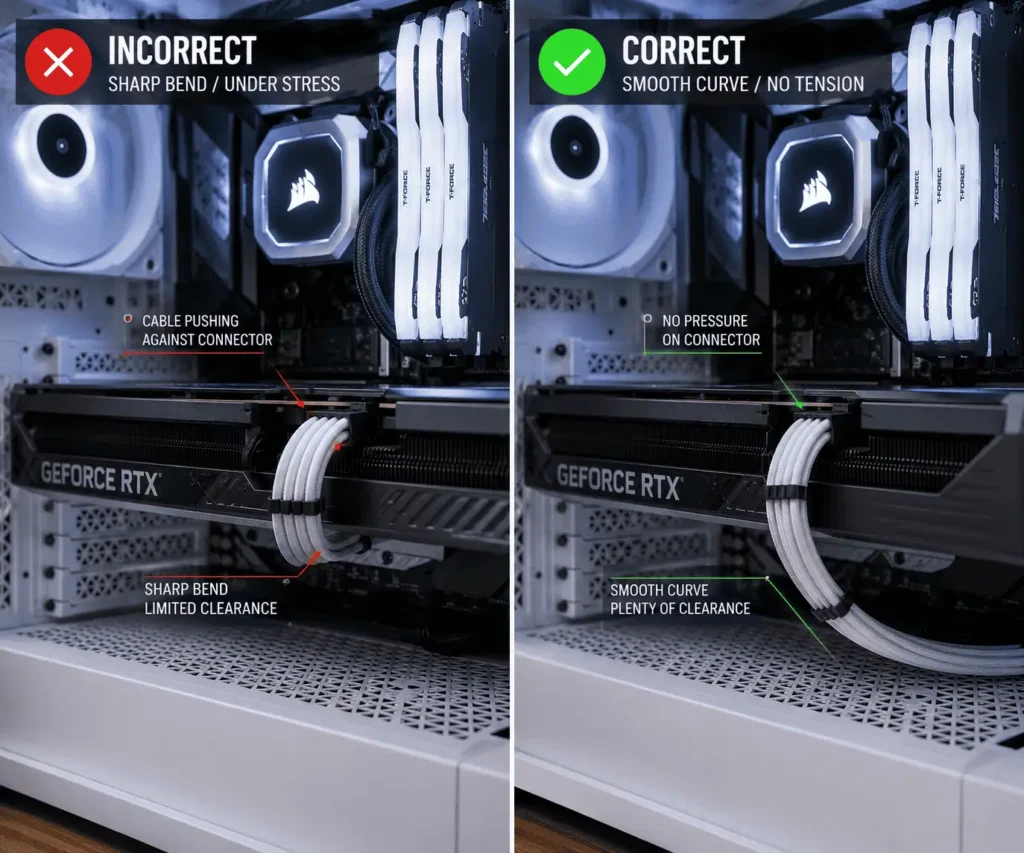
Cable strain is not always easy to spot.
A PC may work normally even when the cable is under pressure. That is why it helps to inspect the cable routing carefully.
Here are some signs that your GPU power cable may be under stress.
Sharp Bends Near the Connector
One of the easiest warning signs to spot is a sharp bend close to the connector.
The cable should follow a gentle curve. If it bends immediately after leaving the connector, there may be too much strain on the connection.
The Cable Pulls to One Side
A properly routed cable should not pull the connector sideways.
If the cable naturally pulls left, right, up, or down, it may be placing unnecessary force on the connector.
The Side Panel Presses Against the Cable
After closing the case, check the clearance between the side panel and the GPU cable.
If the panel squeezes the cable between itself and the graphics card, the cable is likely under stress.
Tight Cable Routing
Some builders pull cables tightly to create a cleaner appearance.
While this may look organized, it can create tension throughout the cable path.
A small amount of slack is usually better than a cable that is stretched tight.
Heavy Cable Extensions Hanging Down
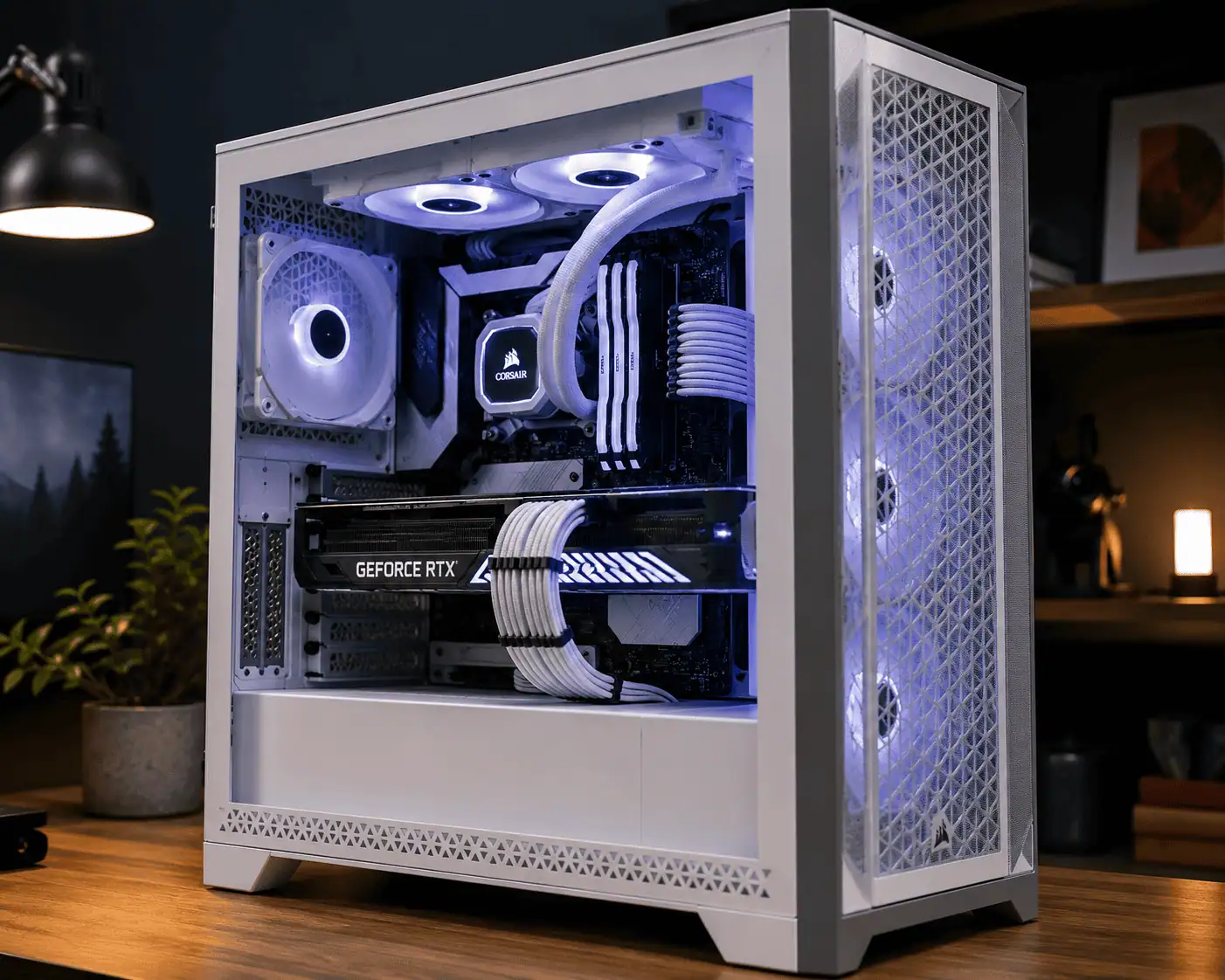
Sleeved cable extensions can improve the appearance of a build.
However, some extensions can pull downward on the connector if you do not support them properly.
This can create long-term strain.
Connector Does Not Sit Naturally
Take a close look at the connector.
If it appears tilted, twisted, or forced into position, the cable routing may need adjustment.
A properly connected cable should sit naturally without pressure from any direction.
Checking for these warning signs can help you fix cable strain before it becomes a larger problem.
8 Ways to Prevent Cable Strain on GPU Power Connectors
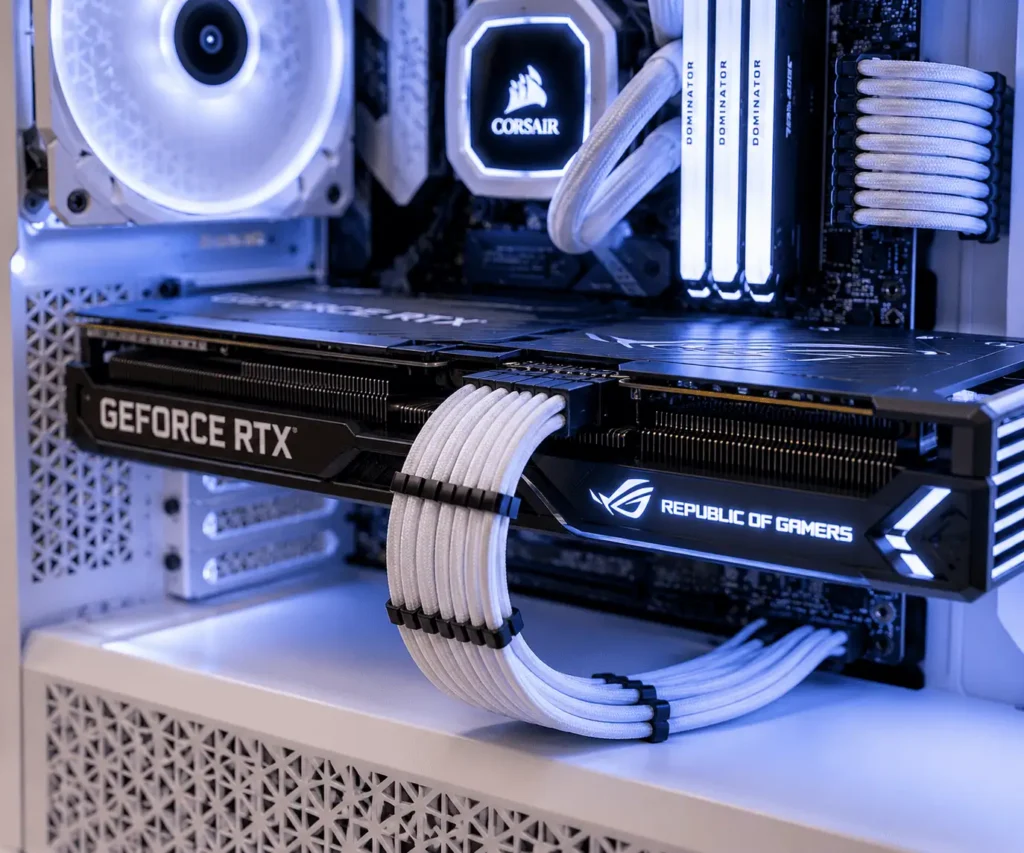
Preventing cable strain is usually simple.
A few small changes during cable management can reduce pressure on the connector and improve cable routing.
Here are some of the best ways to protect your GPU power cables.
1. Leave Slack Near the Connector
One of the most common mistakes is pulling the cable too tight.
A tight cable may look clean, but it can place constant tension on the connector.
Instead, leave a small amount of slack near the GPU power connector. This allows the cable to rest naturally without pulling in any direction.
2. Avoid Sharp Bends
Sharp bends are a common cause of cable strain.
Try to create a smooth curve instead of bending the cable immediately after the connector.
This is especially important for thicker GPU power cables and newer high-power connectors.
A gentle bend places less stress on the cable and connector.
3. Check Side Panel Clearance
Many cable strain problems happen after the side panel is installed.
Before closing the case, check how much space exists between the cable and the side panel.
After closing the panel, inspect the cable again if possible.
The cable should not be compressed or forced into a tighter bend.
This is especially important in compact PC cases where there is limited space between the graphics card and the side panel.
4. Support Heavy Cables
Some GPU power cables are heavy. Sleeved extensions can add even more weight.
If the cable hangs freely, the weight may pull downward on the connector.
Use cable clips, cable combs, or other cable management accessories to help support the cable.
This reduces long-term stress on the connection.
5. Route Cables Through the Best Grommet
The path you choose matters.
Try routing the cable through the nearest cable management opening instead of forcing it across the case.
A shorter and more direct route often reduces unnecessary bends and tension.
Take a few minutes to test different routing paths before securing the cable.
6. Avoid Over-Tightening Zip Ties
Zip ties are useful for cable management, but they can also create problems.
A zip tie that is pulled too tight can force the cable into an unnatural position.
Secure cables firmly, but do not crush or pinch them.
The cable should still be able to follow a natural curve.
7. Use Quality Cable Extensions
Cable extensions can improve the appearance of a build.
However, low-quality extensions may be stiff or difficult to route.
Choose extensions that allow smooth cable routing without creating extra tension.
After installation, check that the extension does not pull on the GPU connector.
8. Inspect Your Cables Regularly
Cable strain can develop over time.
Moving the PC, upgrading hardware, or cleaning the system can change cable positions.
Inspect the GPU power cable every few months.
Look for sharp bends, tension, or pressure from nearby components.
A quick inspection can help you spot problems before they become serious.
How Much Can You Bend a GPU Power Cable?
GPU power cables need a smooth path without sharp bends or strong pressure near the connector. A cable that is pulled tight or forced into a tight curve can place extra stress on the GPU power connector.
How much a cable can bend depends on the cable type, connector, graphics card, and available space inside the case. Give the cable enough room to leave the connector naturally, then route it through a gentle curve.
Do Cable Extensions Increase GPU Connector Strain?
Cable extensions are popular because they improve the appearance of a PC build.
Many builders use sleeved extensions to create a cleaner and more professional look.
However, cable extensions can sometimes increase cable strain.
Added Weight
Cable extensions are often heavier than standard PSU cables.
If the extension hangs freely, the extra weight may pull downward on the GPU connector.
This is more noticeable in builds with large graphics cards and long cable runs.
Supporting the cable can help reduce this problem.
Stiffer Cable Routing
Some extensions use thick sleeving that makes the cable less flexible.
While this can improve appearance, it can also make routing more difficult.
A stiff cable may push against the connector if there is not enough space inside the case.
Always check how the cable sits after installation.
Does Vertical GPU Mounting Reduce Cable Strain?
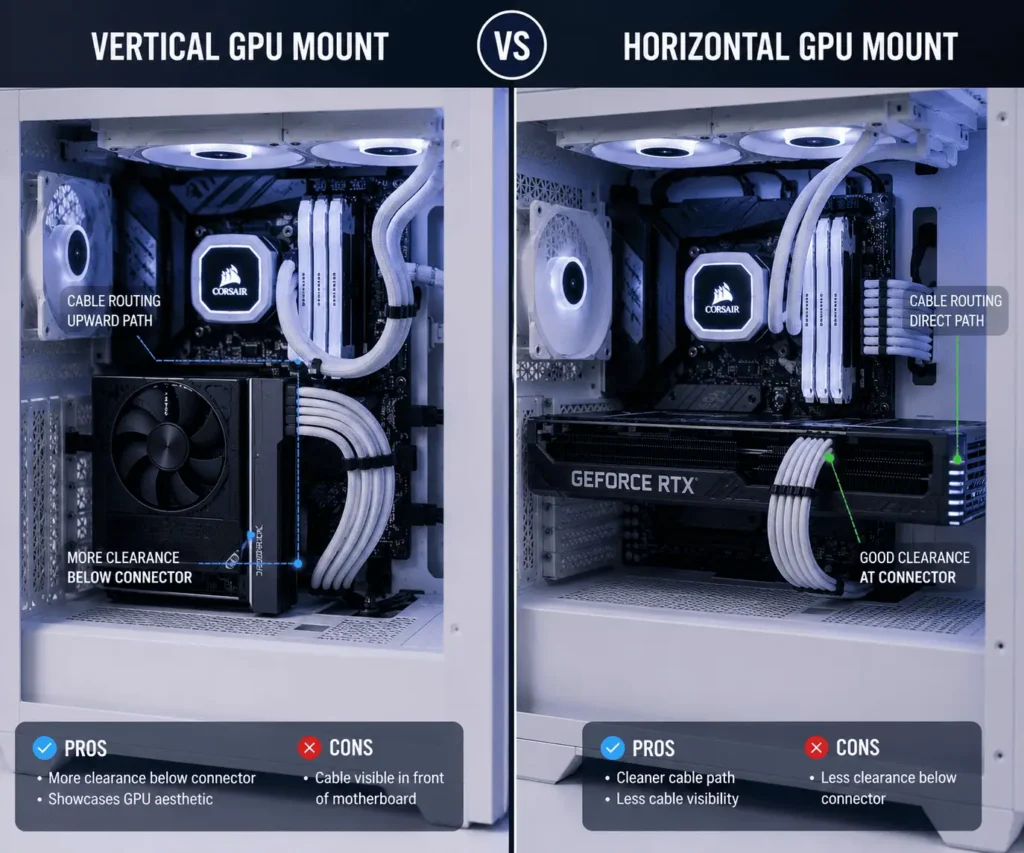
In some cases, yes.
A vertical GPU mount can make cable routing easier by changing the position of the power connector.
However, the results depend on the case design and available clearance.
Potential Drawbacks
Not every vertical mount improves cable routing.
In some cases, the graphics card may sit closer to the side panel.
This can reduce cable clearance and create new routing challenges.
Always check the available space before deciding on a vertical mounting setup.
Focus on Cable Clearance
Whether the GPU is mounted horizontally or vertically, cable clearance matters most.
The cable should have enough room to follow a natural curve.
If the connector is free from pressure and the cable is not forced into a tight bend, the mounting position becomes less important.
Good cable routing is usually more important than the orientation of the graphics card itself.
Common GPU Cable Management Mistakes That Create Connector Stress
Many cable strain problems are caused by simple cable management mistakes.
A build may look clean from the outside but still place stress on the GPU power connector. Knowing what to avoid can help protect both the cable and the graphics card.
Bending the Cable Too Close to the Connector
This is one of the most common mistakes.
Many builders bend the cable immediately after it leaves the connector.
This often happens when builders have limited space between the graphics card and the side panel.
A sharp bend can place pressure on the connector and make the cable harder to route.
Instead, leave a short straight section before creating a gentle curve.
Ignoring Side Panel Pressure
Many builders check cable routing before closing the case.
However, they forget to check what happens after the side panel is installed.
A side panel can press against the cable and force it into a tighter bend.
Always inspect cable clearance after closing the case.
Using Too Many Zip Ties
Zip ties help keep cables organized.
However, using too many zip ties or tightening them too much can force a cable into an unnatural position.
The cable should be secured without being squeezed or pulled.
Good cable management should guide the cable, not force it into place.
Letting Heavy Cables Hang Unsupported
Some GPU power cables are thick and heavy.
Sleeved cable extensions can add even more weight.
If the cable hangs freely, gravity can pull on the connector over time.
Supporting the cable with clips, combs, or other cable management accessories can help reduce this stress.
Forcing Cables Into Small Spaces
Small PC cases often have limited room for cable routing.
Trying to force a thick cable through a tight opening can create unnecessary pressure.
Take time to test different cable paths.
A slightly different route may reduce strain and improve airflow at the same time.
Forgetting to Recheck the Cable After Upgrades
Adding a new cooler, storage drive, or graphics card can change cable positions.
A cable that was routed correctly before may become strained after an upgrade.
Whenever you work inside the PC, inspect the GPU power cable again.
This only takes a few minutes and can help prevent future problems.
This is common when replacing an older graphics card with a newer model that uses a different connector location or thicker power cables.
How to Check Your GPU Power Connector After Building a PC
After finishing a build, take a few minutes to inspect the GPU power cable.
This simple check can help you spot cable strain before it causes problems.
Check That the Connector Is Fully Seated
The connector should sit completely inside the graphics card power socket.
Look for any visible gaps.
The connector should feel secure and should not move easily.
Check for Cable Tension
The cable should not pull on the connector.
Check that the cable rests naturally without being stretched or twisted.
If the cable pulls in any direction, adjust the routing and leave a little more slack.
A properly routed cable should sit comfortably without placing pressure on the connector.
Inspect the Cable Path
Check the entire cable route from the graphics card to the power supply.
Look for tight sections, unnecessary twists, or areas where the cable is being pulled.
A relaxed cable path usually creates less strain.
Confirm That Extensions Are Supported
If you use cable extensions, make sure they are not hanging from the connector.
The weight should be supported by the cable management system whenever possible.
Repeat the Inspection Periodically
Cable positions can change over time.
Moving the PC, cleaning the system, or replacing components can affect cable routing.
A quick inspection every few months helps keep the connector free from unnecessary stress.
By checking these areas regularly, you can maintain good GPU cable management and reduce the risk of cable strain.
When Should You Check for GPU Cable Strain?
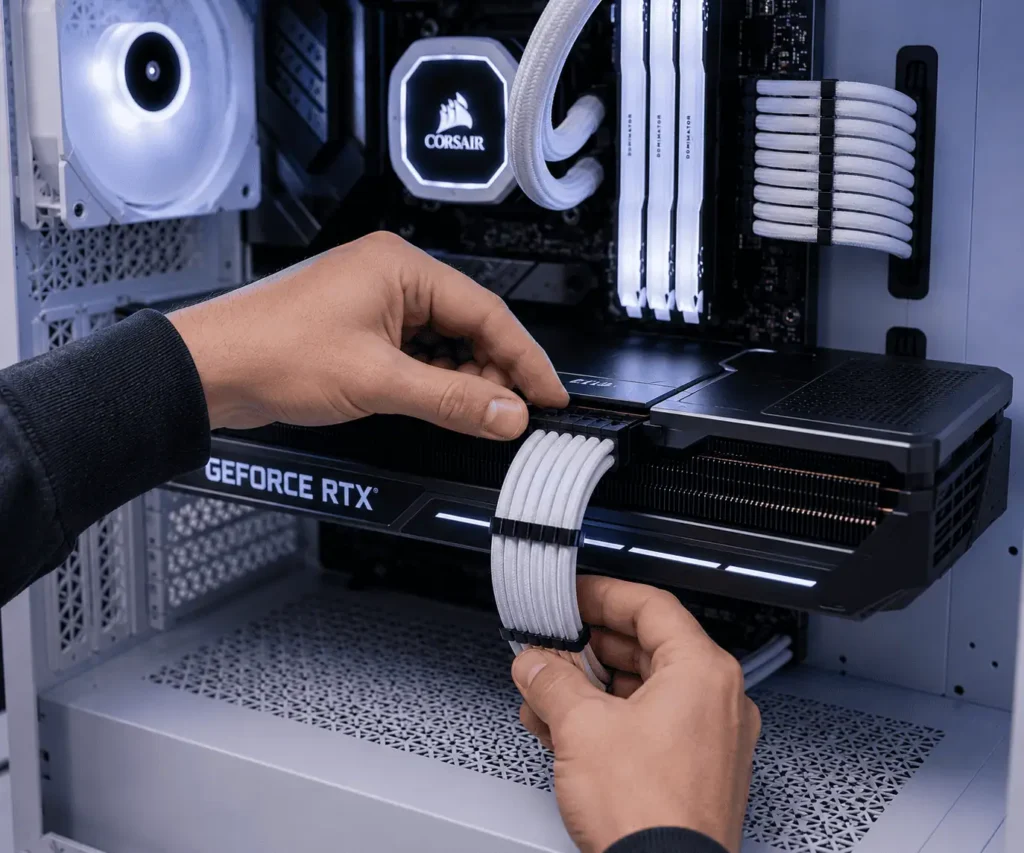
Cable strain is not something you need to check every day. However, there are several situations where a quick inspection is a good idea.
After Building or Upgrading Your PC
Always inspect GPU power cables after finishing a build or installing a new graphics card.
Verify that the connector is fully seated and that the cable follows a natural path.
Different graphics cards can have different connector locations and cable requirements. A cable route that worked with an older GPU may not work as well with a newer model.
After Transporting the PC
Moving a computer can shift cables and components.
Inspect the cable routing after transport to make sure nothing has changed.
During Routine Cleaning
Dust cleaning is a good time to inspect cable routing.
Look for sharp bends, loose cables, or signs of strain around the connector.
Conclusion
Preventing cable strain on GPU power connectors does not require special tools or complicated modifications. In most cases, good cable routing, gentle bends, proper cable support, and regular inspections are enough to reduce stress on the connector. The recommendations in this guide are based on common PC building and cable management practices used to improve connector clearance, reduce tension, and maintain a secure connection. Taking a few extra minutes to check your cable routing during a build or upgrade can help keep your GPU power cables organized and reduce unnecessary strain over time. To apply these same cable routing practices across the rest of your system, it’s also worth exploring PC component cable management.
FAQs
Can cable strain reduce GPU performance?
No. It does not reduce performance directly, but it can affect connector reliability over time.
Are custom sleeved PSU cables better than cable extensions?
Usually yes. Custom PSU cables are lighter and easier to route than extensions.
Should I replace a GPU power cable if it has been under strain for a long time?
Only if you see damage, loose connections, or signs of wear on the cable or connector.
Does the type of PC case affect GPU cable strain?
Yes. Smaller cases often have less cable clearance, making strain more likely.
Can frequent GPU upgrades increase the chance of cable strain?
Yes. A new GPU may change the cable path and require different routing.