


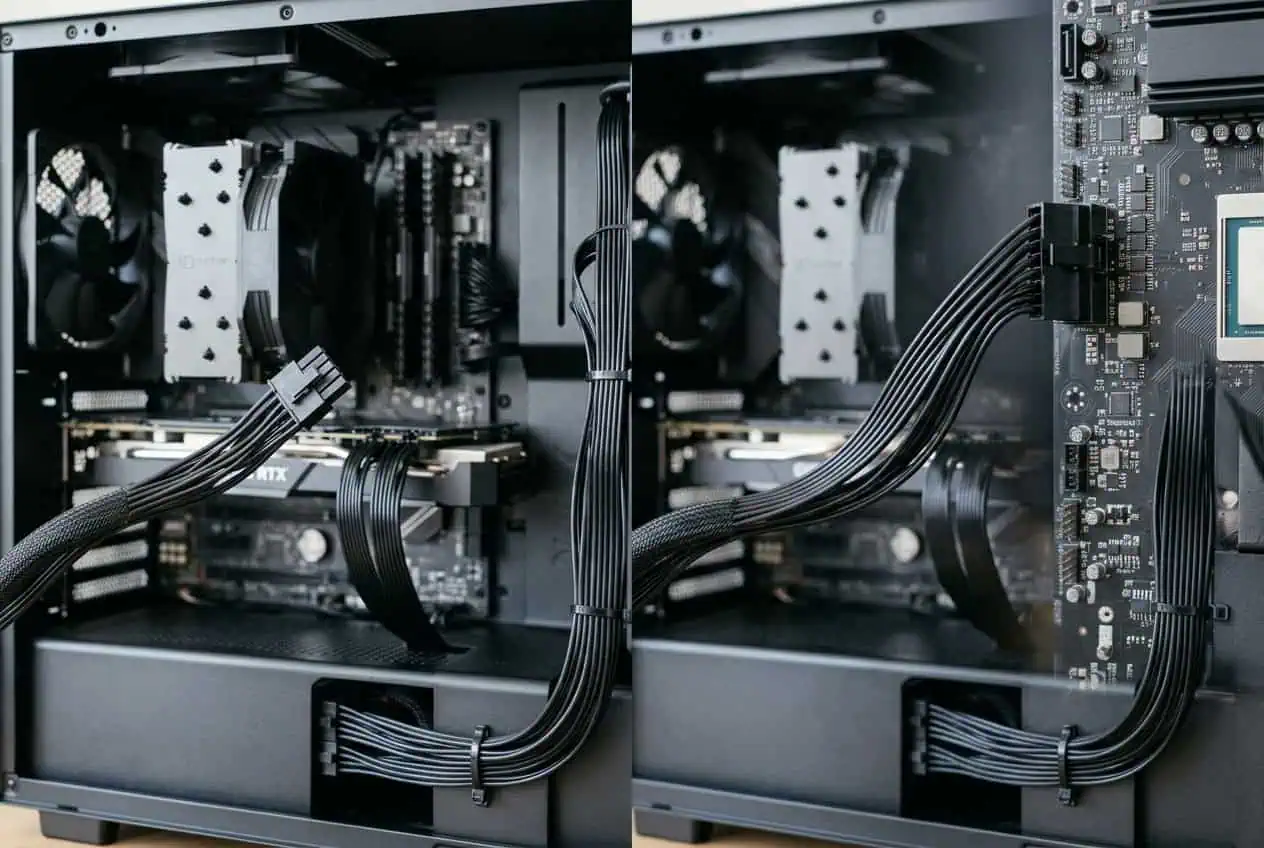
If your PC cables keep coming loose, the problem can be frustrating. A connector may not be fully seated, the cable may be pulling on the connection, or the cable, connector, or port may be damaged.
First, check if the cable should be connected at all. An unused PSU cable can hang loose and be normal. A required GPU, motherboard, CPU, SATA, or USB connection should stay secure.
Why Do My PC Cables Keep Coming Loose?
A PC cable can come loose for several reasons. Most problems come from poor connector fit, cable tension, damage, or changes to the cable route.
The cable is not fully plugged in
A connector can look connected even when it is not fully seated.
This can happen after building a PC, cleaning it, or changing a component. Check that the plug is fully inserted into the port.
If the connector has a locking tab or retention clip, make sure it is properly engaged. Do not force a connector into a port. If it does not fit correctly, check that you are using the right cable and port.
A Reddit discussion about a power cable that kept falling out also raised incomplete insertion as a possible cause.
Cable tension is pulling on the connection
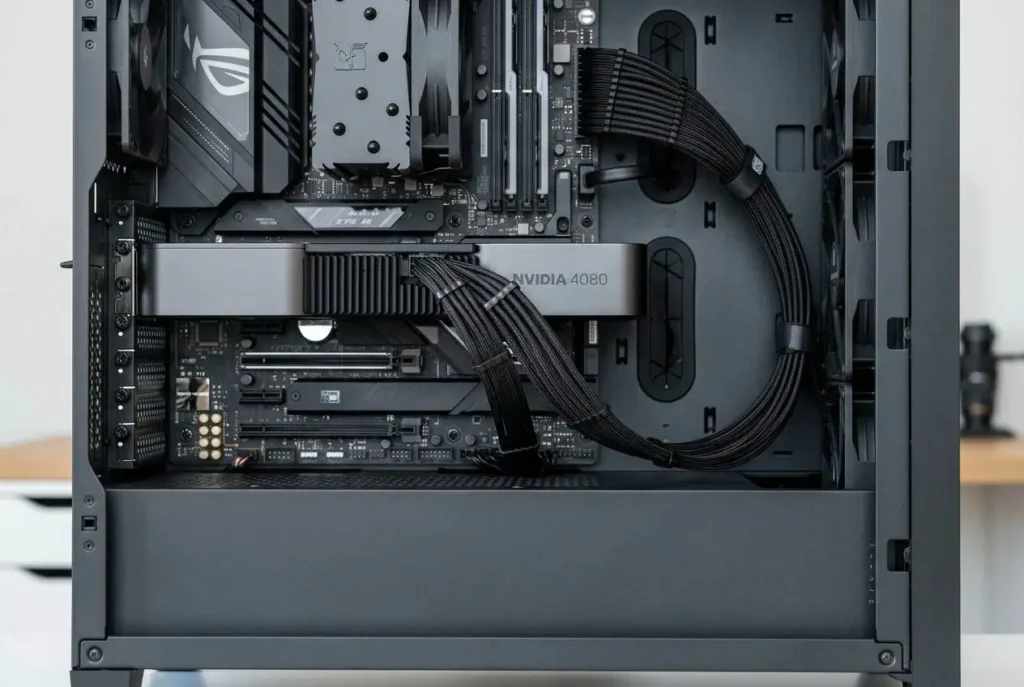
A cable can slowly pull against its connector when the route is too tight.
This can happen when a cable:
- Pulls sideways from the port
- Has very little slack
- Bends sharply near the connector
- Is held too tightly by a cable tie
- Is pressed against the PC side panel
The connector should not have to support the tension of the whole cable.
Leave some slack near the connection. Then route the cable in a smooth curve.
The cable is too heavy
Some PC cables are thick and heavy. Sleeved cables and cable extensions can add more weight.
If a heavy cable hangs directly from a connector, its weight can place extra force on the connection.
Support the cable farther along its route. Use the case’s cable channels, tie-down points, clips, or Velcro straps.
The support should hold the cable while the connector stays focused on making the connection.
The connector or port is worn
Repeated plugging and unplugging can wear some connectors, especially if the locking mechanism or housing becomes damaged.
Check the connector and port for:
- Broken locking tabs or latches
- Cracked connector housing
- Bent contacts or pins
- A plug that moves more than it should
- A port that no longer holds the connector securely
If the cable stays loose with a known-good replacement cable, the port itself may be worn or damaged.
Your PC wiring guidance also lists loose connections, broken locking tabs, bent pins, and cracked housings as signs that need attention.
The cable or connector is damaged
A damaged cable or connector may not stay secure.
Look for:
- Cuts or cracks
- Frayed insulation
- Exposed wires
- Melted plastic
- Dark or discolored areas
- Bent contacts
- Damaged connector housing
Do not keep using a damaged power cable just because the PC still works.
A cable that only works when held in one position may also have an internal problem.
You recently moved or upgraded the PC
Moving a desktop PC can change cable positions.
A cable that had enough slack before may become tight after the case is moved. The same can happen after installing a new GPU, storage drive, fan, or PSU.
Check the cable route after moving or upgrading the PC.
Are PC Power Cables Supposed to Be Loose?
An unused cable can be loose. A required cable should not keep coming out.
This difference matters because a modular PSU can have several cables that your PC does not need.
Unused PSU cables can stay disconnected
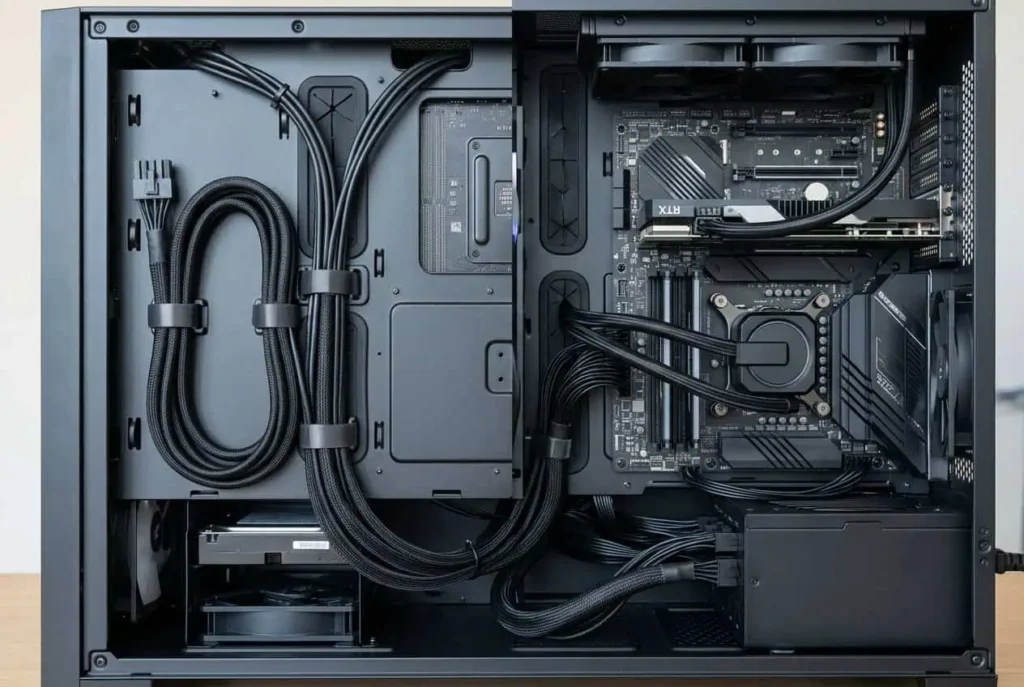
You may have extra:
- PCIe power cables
- SATA power cables
- Molex cables
- Other modular PSU connectors
These cables do not need to connect to anything if your PC does not use them.
You can bundle unused cables and place them behind the motherboard tray or inside the PSU shroud. Keep them away from fans and other moving parts.
An unused modular PSU cable hanging inside the case does not mean the PC has a connection problem.
Required cables should stay connected
Some cables must stay secure for the PC to work correctly.
These include:
- 24-pin motherboard power cable
- CPU/EPS power cable
- GPU power cable
- SATA power cable
- SATA data cable
- Fan cables
- Front-panel cables
If one of these keeps coming out, find the cause instead of pushing it back in each time.
Keep spare modular PSU cables with the correct PSU
If you store unused modular cables, keep each PSU’s cables together.
Label the cables with the PSU model if needed. This makes it easier to identify them later and reduces the risk of using the wrong cable.
Never assume that a modular PSU cable is compatible because the connector fits. Modular PSU cables can use different pinouts between brands and models.
Use the cable supplied with the PSU or a replacement that the PSU manufacturer confirms is compatible with your exact model.
What If the PC Power Cord Is Loose?
If you mean the external power cord that connects the PSU to the wall, check both ends of the cord.
Make sure the IEC connector is fully inserted into the PSU. Also check that the wall plug fits securely in the outlet.
Do not keep using a loose, damaged, hot, or discolored power cord.
If the plug does not stay secure, the problem may be with the power cord, the PSU socket, or the wall outlet rather than the PC’s internal cable management.
How to Fix a PC Cable That Keeps Coming Loose
Start with the connection. Then check the cable and its route.
1. Turn off and unplug the PC
Shut down the PC, switch off the PSU, and unplug the AC power cord before working inside the case. This gives you a safer way to inspect internal connections.
2. Check the connector seating
Make sure the connector is fully inserted.
If it has a locking tab or latch, check that the latch is properly engaged.
Do not push harder if the connector does not fit. Check that you have the correct connector and port.
3. Remove cable tension
Follow the cable from the connector to the next routing point.
If it is stretched tight, pulling sideways, or bending sharply near the connector, reroute it.
Leave enough slack for the cable to rest naturally.
4. Check the cable and port
Inspect both ends of the cable.
Look for:
- Damaged insulation
- Bent contacts
- Broken latches
- Cracked plastic
- Signs of heat
- Loose or damaged ports
If the cable looks fine but the connection remains loose, inspect the port as well.
5. Support heavy cable sections
Thick cables and extensions can place extra force on a connector.
Use cable clips, Velcro straps, or the case’s built-in tie-down points. Secure the cable farther away from the connector so the support carries some of the cable weight.
6. Give the cable more room
Check the area around the side panel and other components.
A thick cable can be pushed or bent when the side panel is closed. Reroute the cable if the panel presses against it.
7. Replace a damaged cable
If the cable has visible damage or keeps losing its connection after proper routing, replace it.
For modular PSUs, use a cable that is confirmed compatible with your exact PSU.
Do not use another modular PSU cable just because the connector looks the same.
What Happens When a PC Cable Comes Loose?
The result depends on what the cable connects.
A GPU power connection can cause power loss, crashes, or other unstable behavior.
A 24-pin motherboard connection can cause boot or power problems.
A CPU/EPS connection can cause startup problems or prevent the PC from working correctly.
A SATA power cable can cause a storage drive to lose power.
A SATA data cable can make a drive disappear or disconnect.
A USB cable can make the connected device disconnect.
A fan cable can stop a fan from running.
A front-panel cable can affect the power button or case LEDs.
A loose connection does not always cause an immediate failure. Some connections may work intermittently before the problem becomes obvious.
When Is a Loose PC Cable a Serious Problem?
A loose connection needs more attention when it carries power or shows signs of physical damage.
Watch for:
- Unusual heat
- Burning smell
- Melted plastic
- Dark or discolored areas
- Damaged contacts
- Exposed wires
- Cracked connector housing
- A connection that repeatedly loses power
If you see these signs on a power connection, stop using it.
Do not use tape or another quick fix to hold a damaged high-current connector in place.
A damaged cable should be replaced. If the port or connector on the hardware is damaged, the hardware may also need repair or replacement.
GPU power cables need extra care
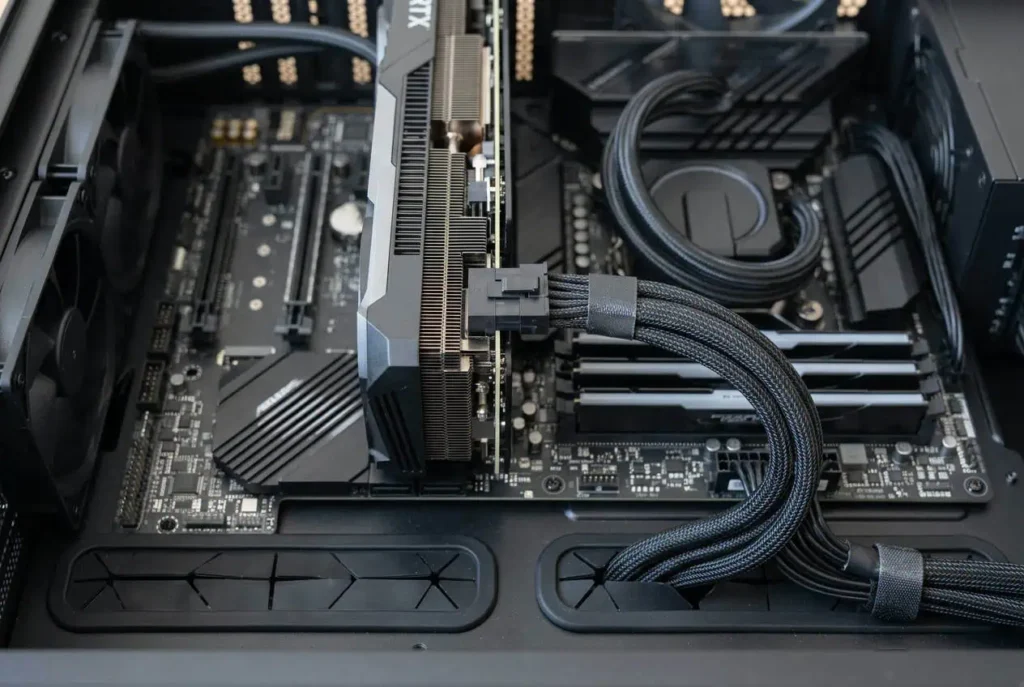
GPU power cables carry a high amount of current, so the connector should be fully seated and the cable should not pull on it.
If your GPU uses a 12VHPWR or 12V-2×6 connector, check that the plug is fully inserted and that the cable has enough room to leave the connector without a sharp bend or strong sideways pull. Do not force the connector or bend the cable tightly right next to the plug.
If you notice unusual heat, discoloration, melted plastic, or a burning smell around the GPU power connector, stop using the connection and inspect the cable and connector.
How to Stop PC Cables From Coming Loose Again
Once the cable is secure, fix the route so it does not pull on the connector again.
Leave some slack near connectors
Do not pull cables tight just to make the inside of the PC look cleaner.
A small amount of slack lets the cable rest naturally without pulling on the connection.
Avoid sharp bends
Let thick cables form a smooth curve near the connector.
Do not force a tight bend immediately after the plug.
Keep side panels from pressing on cables
Check the cable path before closing the case.
If the side panel pushes against a thick cable, reroute the cable or give it more space.
Use cable ties and Velcro correctly
Hold cables in place without crushing them.
Do not overtighten cable ties around individual cables. Velcro straps are useful when you expect to change the cable route later.
Use the PC case for cable routing
Modern PC cases often have:
- Cable channels
- Rubber grommets
- Tie-down points
- Space behind the motherboard tray
- PSU shroud
- Rear cable space
Use these areas to keep cables secure without putting pressure on the connectors.
Check cables after upgrades
Inspect the connections after installing hardware, cleaning the PC, or moving the case.
Make sure the connectors are still fully seated and the cables are not under tension.
Conclusion
If your PC cables keep coming loose, check the connection first. Then look for cable tension, poor routing, connector wear, or cable damage. An unused PSU cable can stay disconnected, but a required power or data cable should remain secure. If you see heat, melting, burning smell, or other damage, stop using the connection and replace the affected cable or hardware.
FAQs
Can cable vibration make a PC cable come loose?
Yes. Repeated movement or vibration can affect a poorly secured connection, especially if the connector already has a weak fit.
Can dust cause a PC cable to become loose?
Dust can interfere with some connectors if it builds up heavily around the contact area. Turn off and unplug the PC before cleaning a connector or port.
Why does my PC cable keep coming loose after I replace it?
If a new cable has the same problem, the port, connector latch, cable route, or mounting position may be causing the issue. Check the connection and port rather than replacing cables repeatedly.
Can a loose PC cable cause random restarts?
Yes, a loose power connection can interrupt power and may cause shutdowns, restarts, crashes, or other unstable behavior. The exact symptom depends on which connection is loose.
Can I use a cable tie to stop a PC cable from coming loose?
You can use a cable tie or Velcro strap to support the cable, but do not use it to force the connector into place. The connector should remain fully seated on its own.