Loose cables can make even a clean desk look messy. They often slide behind the desk, become hard to reach, or create cable clutter around a home office, gaming desk, or standing desk. If your desk has a steel frame, magnetic cable clips for metal desks offer a simple way to improve cable management without using adhesive.
These reusable cable management accessories attach to magnetic surfaces and help route USB-C cables, HDMI cables, Ethernet cables, charging cables, and power cords more neatly. This guide explains how to choose, place, and use magnetic cable clips to create a cleaner and more organized desk setup.
What Are Magnetic Cable Clips for Metal Desks?
Magnetic cable clips are cable organizers that attach to steel desk frames and other magnetic surfaces. They hold cables in place and help reduce cable clutter.
Most magnetic cable clips use a strong magnet and a cable holder. This design makes cable routing easier and allows the clips to be moved whenever a desk setup changes.
How Magnetic Cable Clips Work
A magnetic cable clip has two main parts. The first part is the magnet. The second part is the cable holder.
The magnet attaches to the desk. The cable holder keeps the wire secure. This simple design makes it easy to move cables whenever needed.
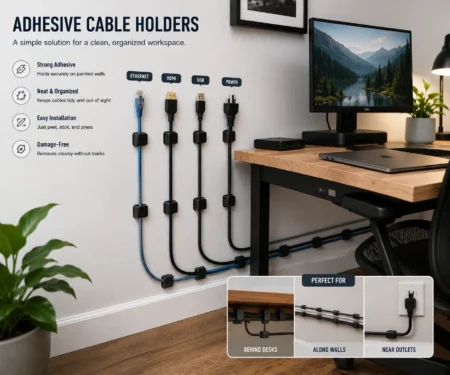
Unlike adhesive cable clips, magnetic clips do not leave sticky residue behind. You can remove them and place them somewhere else in seconds.
Types of Magnetic Cable Clips
There are different types available.
Single-Cable Clips
These clips hold one cable at a time. They are often used for phone chargers, USB-C cables, and headphone cords.
Multi-Cable Clips
These clips can hold several cables together. They are useful for managing monitor cables, charging cables, and other wires that run in the same direction.
Magnetic Cable Holders
Magnetic cable holders are designed to keep frequently used cables easy to reach. They are often placed near the front edge of a desk.
Magnetic Cord Organizers
These products help with general cable organization. They can guide cables along a desk frame, monitor arm, or under-desk area.
No matter which type you choose, magnetic cable clips make cable routing easier and help create a cleaner workspace.
Why Metal Desks Are Ideal for Magnetic Cable Management
Not every desk works well with magnetic cable clips. The best results come from desks made with steel or other magnetic materials. This is why many people use this for metal desks instead of adhesive cable organizers.
A metal desk gives magnets a strong surface to attach to. This helps keep cables secure and makes it easy to move clips whenever your setup changes.
Steel Desks vs Wood Desks
Steel desks are one of the best surfaces for magnetic cable clips. The magnets can attach directly to the desk frame, legs, or support bars.
Wood desks are different. Since wood is not magnetic, clips cannot stick directly to the desk. In most cases, you would need adhesive cable clips or another cable management solution.
If your desk has a wooden top but a steel frame, magnetic cable clips can still work well. Many users place the clips along the metal frame underneath the desktop.
Steel Frames vs Aluminum Frames
Many people think magnets work on all metal surfaces. This is not always true.
Most steel desk frames are magnetic, while aluminum is generally non-magnetic.
If your desk has a steel frame, magnetic cable clips will usually attach without any problems. If your desk uses aluminum parts, the clips may not stick at all.
Before buying, check what material your desk frame is made from.
Why Magnets Need a Ferrous Surface
Magnets attach best to ferrous metals. Ferrous metals contain iron.
Steel contains iron, which allows magnets to create a strong connection. This is why steel desk frames are popular for magnetic accessories.
Materials such as wood, plastic, glass, and aluminum do not contain enough iron for magnets to attach properly.
Understanding this simple rule can help you choose the right cable management tools for your workspace.
Advantages of Using Magnetic Cable Clips on Metal Desks
Metal desks offer several benefits for cable management.
Easy Repositioning
You can move magnetic cable clips at any time. There is no need to peel off adhesive strips or replace sticky pads.
This makes upgrades and desk changes much easier.
No Sticky Residue
Adhesive cable clips often leave glue behind. This can make a desk look messy.
Magnetic clips do not leave marks or residue on a steel desk frame.
Better Cable Routing
A metal desk gives you more places to guide cables.
You can route cables along desk legs, support beams, crossbars, and monitor arm mounts. This creates a cleaner and more organized workspace.
Improved Workspace Organization
A tidy desk is easier to use.
When cables are routed correctly, your power cords, USB-C cables, Ethernet cables, and HDMI cables stay organized and easy to access.
This helps reduce cable clutter and improves the overall appearance of your desk setup.
Can Magnetic Cable Clips Work on Non-Metal Desks?
Sometimes.
Many desks use a wood or laminate top with a steel frame underneath. In these cases, magnetic cable clips can attach to the frame instead of the desktop.
If your desk has no metal parts, magnetic clips are usually not the best choice. Adhesive cable clips, cable sleeves, or cable raceways may work better.
Before choosing a cable management solution, look underneath your desk and identify the materials used in the frame and support structure.
Where to Place Magnetic Cable Clips on a Metal Desk
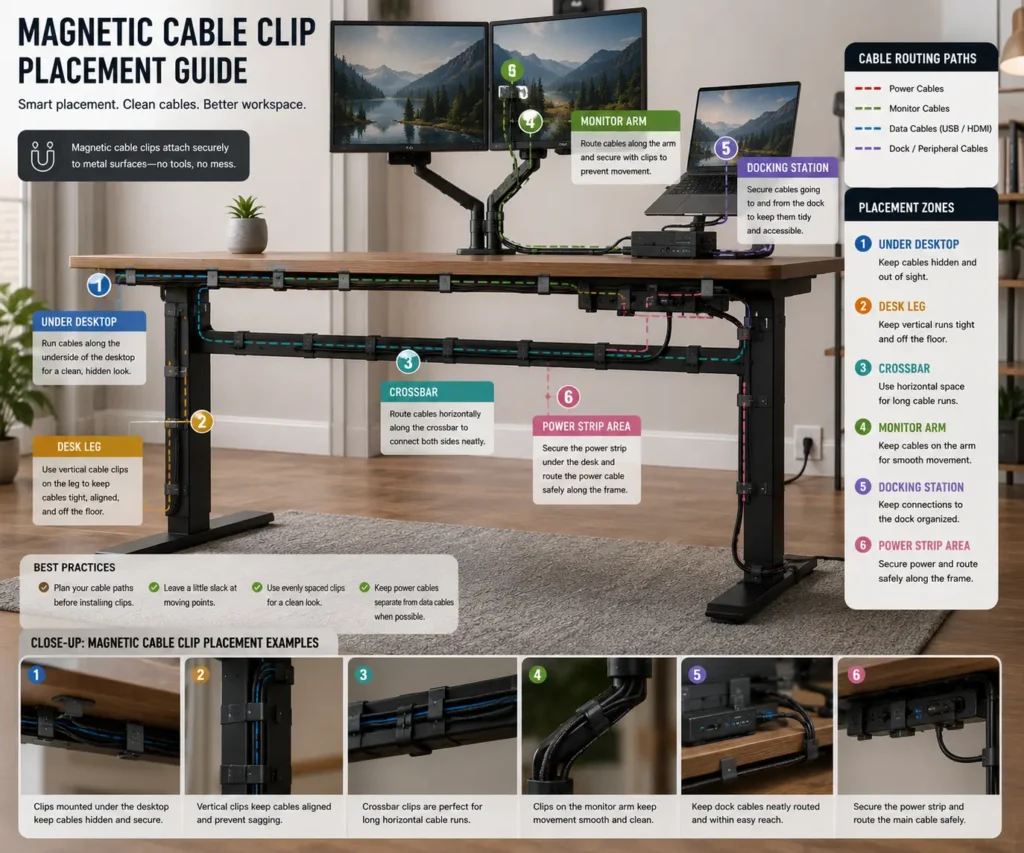
Using magnetic cable clips in the right places can make a big difference. Good placement helps improve cable routing, reduce cable clutter, and keep cables easy to access.
Before attaching any clips, take a few minutes to look at your desk setup. Find where your cables start and where they need to go. Then place the clips along that path.
Under the Desktop
One of the best places for magnetic cable clips is underneath the desktop.
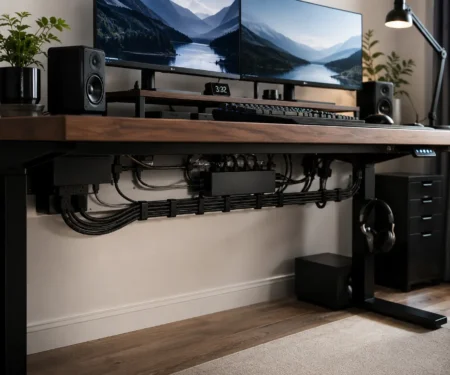
Many metal desks have a steel frame below the work surface. This area is hidden from view, making it a great location for routing cables.
You can use clips to guide:
- Monitor cables
- USB-C cables
- HDMI cables
- Ethernet cables
- Charging cables
This keeps wires off the floor and helps create a cleaner workspace.
Along Desk Legs
Desk legs are another useful location.
Many cables run from the desktop down to a power strip, wall outlet, or computer tower. Routing cables along a desk leg helps keep them organized and prevents them from hanging loosely.
Place several magnetic cable clips down the length of the leg. This creates a neat cable path from top to bottom.
On Crossbars and Support Beams
Many standing desks and office desks include crossbars or support beams.
These metal parts are often hidden underneath the desk. They provide a perfect surface for magnetic cable clips.
You can route multiple cables along these bars while keeping them out of sight.
This works especially well for:
- Dual monitor setups
- Docking station cables
- Gaming desk accessories
- Power cables
Near a Monitor Arm
A monitor arm often creates extra cable clutter because several cables connect to each display.
Magnetic cable clips can help guide these cables from the monitor arm to the desk frame.
This creates a cleaner look and reduces visible wires around the monitor.
For dual-monitor setups, place clips at regular intervals to keep cables grouped together.
Around a Docking Station
A docking station usually connects to many devices at once.
You may have:
- USB cables
- Display cables
- Ethernet cables
- Charging cables
Without proper cable management, this area can become messy very quickly.
Place magnetic cable clips near the docking station to guide each cable in the correct direction. This makes it easier to identify and access cables when needed.
Near a Power Strip
A power strip is often the busiest part of any desk setup.
Several power cords may connect to the same location. Without organization, these cables can become tangled.
Magnetic cable clips help separate power cords and keep them routed neatly along the desk frame.
This also makes cleaning and maintenance easier.
Areas to Avoid
While magnetic cable clips are flexible, some locations should be avoided.
Do not place clips:
- Near moving desk joints
- On non-magnetic surfaces
- Where cables may get pinched
- Near areas with heavy foot traffic
- Where cables can snag during desk movement
Poor placement can reduce the effectiveness of your cable management system.
Plan Cable Routes Before Installing Clips
The best results come from planning ahead.
Start by identifying:
- Where each cable begins
- Where each cable ends
- Areas where cables may cross
- Places where cable slack is needed
After mapping the cable path, place magnetic cable clips along the route.
This simple step helps create a cleaner desk setup and reduces future cable management problems.
Magnetic Cable Clips for Standing Desks
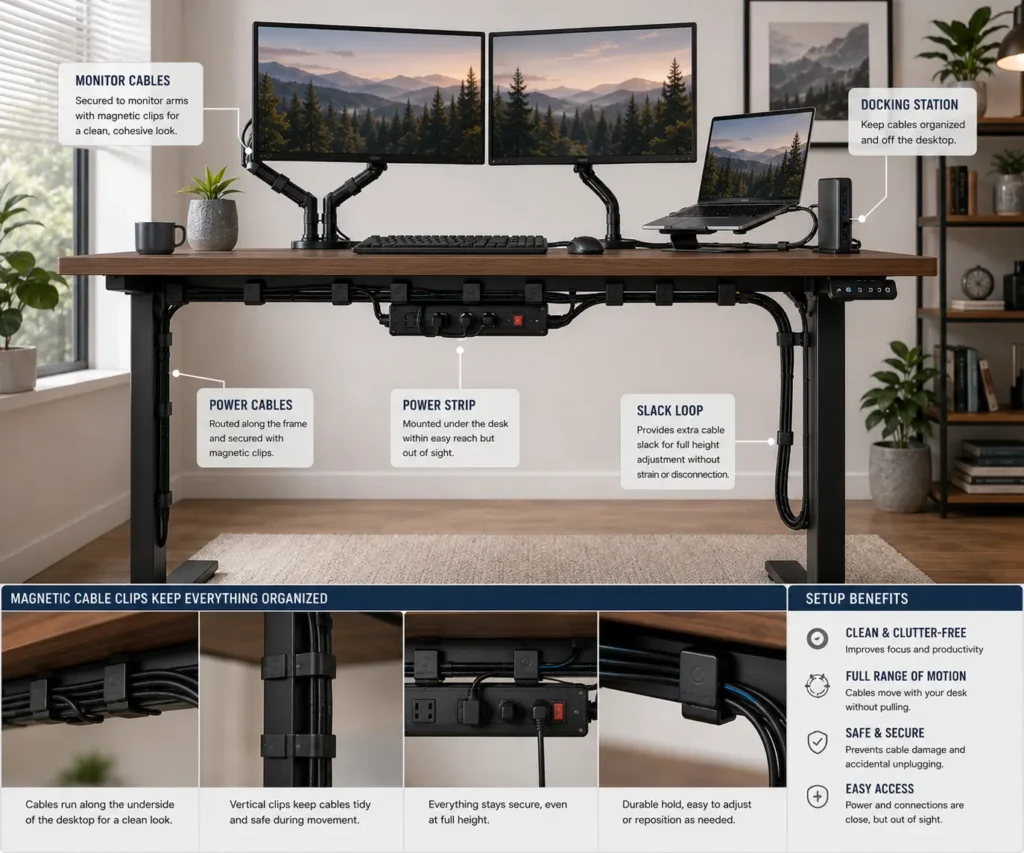
A standing desk moves up and down throughout the day. This movement can create cable management problems if cables are not routed correctly.
Loose cables may pull, snag, or become tangled when the desk changes height. This is why many standing desk users add magnetic cable clips for metal desks as part of their cable management system.
When used correctly, magnetic cable clips help keep cables organized while allowing the desk to move freely.
Why Standing Desks Need Better Cable Management
A fixed desk stays in one position. The cables rarely move.
A standing desk is different. Every time you raise or lower the desk, the cables move with it.
Without proper cable routing, you may notice:
- Hanging cables
- Tangled cords
- Cable strain
- Snagged wires
- Increased cable clutter
Good cable management helps prevent these issues and keeps your workspace neat.
Managing Cable Slack
One of the most important parts of standing desk cable management is cable slack.
Cable slack is the extra length left in a cable so it can move safely when the desk changes height.
Without enough slack, cables can become tight. Over time, this may put stress on connectors and devices.
Too much slack can also create problems. Excess cable may hang down and look messy.
The goal is to leave enough cable length for smooth movement while keeping cables organized.
Preventing Cable Snags
Cable snags are common on standing desks.
A cable may catch on:
- Desk legs
- Monitor arms
- Crossbars
- Power strips
- Nearby furniture
Magnetic cable clips help guide cables along a planned route. This reduces the chance of wires getting caught during movement.
When installing clips, always check that cables can move freely through the desk’s full height range.
Routing Monitor Cables
Many standing desks use one or more monitors.
Each monitor may have:
- A power cable
- An HDMI cable
- A DisplayPort cable
- A USB cable
These cables can quickly create clutter behind the desk.
Place magnetic cable clips along the monitor arm or desk frame to guide the cables together. This creates a cleaner look and makes cable management easier.
If your PC has visible GPU or PSU cables, cable combs can also improve the appearance of your build.
Organizing Docking Station Cables
A docking station often connects several devices to a laptop or desktop computer.
This means multiple cables may run to the same location.
Magnetic cable clips help separate and organize these cables. They also make it easier to identify the correct cable when adding or removing devices.
Managing Power Cords
Power cords are usually thicker than data cables.
Because of their size, they can be harder to manage on a standing desk.
Use magnetic cable clips along the desk frame to guide power cords toward a power strip or wall outlet.
This helps keep the cords off the floor and reduces visible cable clutter.
Best Practices for Standing Desk Cable Routing
Follow these simple tips for better results:
- Leave enough cable slack for desk movement.
- Route cables along the steel frame whenever possible.
- Keep cables away from moving parts.
- Group similar cables together.
- Use multiple clips instead of forcing many cables into one clip.
- Test the desk at its highest and lowest positions.
These small steps can improve both cable organization and desk safety.
Combining Magnetic Cable Clips with Other Cable Management Tools
Magnetic cable clips work best when used with other cable management products.
Many users combine them with:
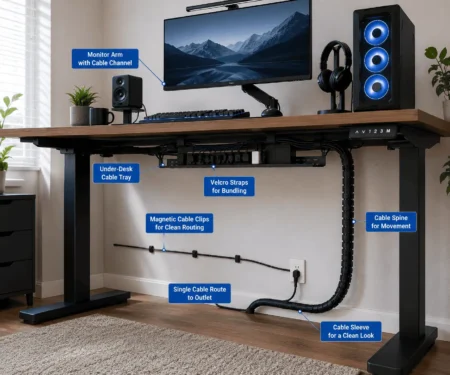
- Cable sleeves
- Cable raceways
- Under desk cable trays
- Velcro ties
For example, an under desk cable management tray can hold a power strip beneath the desk, while magnetic cable clips guide individual cables along the frame.
This creates a cleaner and more professional desk setup.
What Cables Can Magnetic Cable Clips Hold?
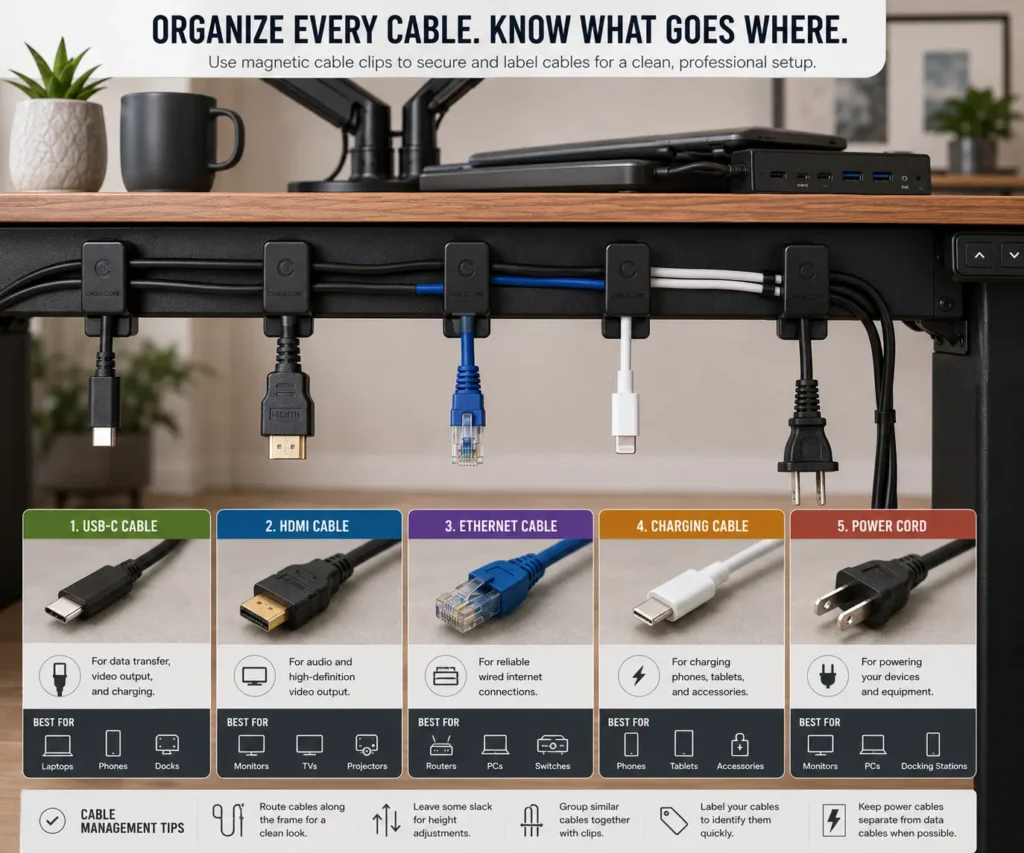
Many people think magnetic cable clips only work for small charging cables. In reality, they can help organize many different types of cables found in a modern desk setup.
The exact number and size of cables a clip can hold depends on its design and magnetic strength. Some clips are made for a single cable, while others can hold several cables at once.
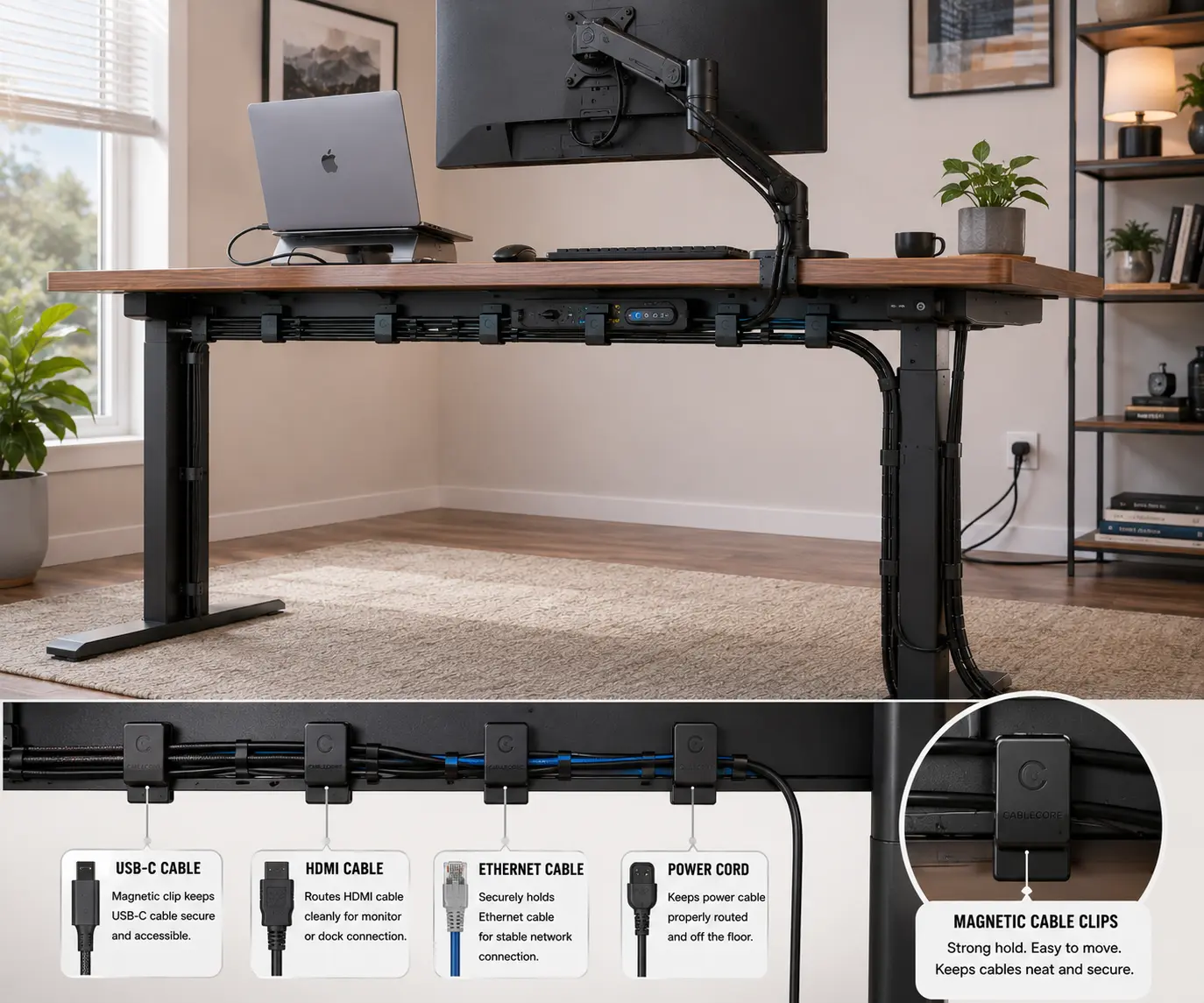
USB-C Cables
USB-C cables are one of the most common cables used today.
They connect:
- Laptops
- Smartphones
- Tablets
- Docking stations
- External drives
Because USB-C cables are usually thin and flexible, they work very well with magnetic cable clips.
You can place clips near the front of the desk to keep charging cables easy to reach.
HDMI and Display Cables
Monitors often use HDMI or DisplayPort cables.
These cables are slightly thicker than USB-C cables, but most magnetic cable clips can hold them without any problems.
Routing display cables along a steel desk frame helps reduce visible wires and creates a cleaner workstation.
Ethernet Cables
A wired internet connection is still common in many home offices and gaming setups.
Ethernet cables can easily become tangled when they run alongside other wires.
Magnetic cable clips help guide Ethernet cables along a planned route while keeping them separated from other connections.
This improves cable organization and makes troubleshooting easier.
Power Cords
Power cords are usually the thickest cables on a desk.
These cables connect:
- Monitors
- Computers
- Docking stations
- Speakers
- Power strips
Some small magnetic cable clips may struggle with heavy power cords. For larger cables, choose clips with a wider opening and a stronger magnet.
This provides a more secure hold and prevents cables from slipping out.
Audio Cables
Audio cables are often used with:
- Headphones
- Speakers
- Microphones
- Audio interfaces
Because these cables are usually lightweight, magnetic cable clips can hold them easily.
Proper cable routing also helps prevent tangles and keeps your desk looking tidy.
Can Magnetic Cable Clips Hold Multiple Cables?
Yes, many magnetic cable clips are designed to hold more than one cable.
This is useful when several cables follow the same path.
For example, you may route:
- A monitor power cable
- An HDMI cable
- A USB cable
along the same section of the desk frame.
Using one multi-cable clip can reduce clutter and simplify cable management.
Avoid Overloading a Single Clip
Even strong magnetic cable clips have limits.
Trying to force too many cables into one clip can create problems.
You may notice:
- Cables slipping out
- Poor cable routing
- Added strain on connectors
- Reduced organization
Using several clips along the cable path usually produces better results than relying on one clip to hold everything.
Choosing the Right Clip for Your Cables
Before buying magnetic cable clips, consider the types of cables in your setup.
A simple home office may only need clips for charging cables and monitor wires.
A gaming desk or multi-monitor workstation may need stronger clips that can support thicker cable bundles.
Choosing the correct clip size helps improve cable management and creates a cleaner, more organized workspace.
Typical Desk Setup Cables That Work Well with Magnetic Cable Clips
Most magnetic cable clips can organize:
- USB-C cables
- HDMI cables
- DisplayPort cables
- Ethernet cables
- Power cords
- Audio cables
- Charging cables
- Webcam cables
- Keyboard cables
- Mouse cables
This makes them a flexible cable management solution for both home office and gaming desk setups.
Understanding Magnetic Strength
Not all magnetic cable clips are the same. Some use stronger magnets than others.
The strength of the magnet affects how well the clip stays attached to your desk and how many cables it can support.
If you use magnetic cable clips on a metal desk, choosing the right magnetic strength can improve both cable organization and long-term reliability.
Why Magnetic Strength Matters
A strong magnet helps keep the cable clip securely attached to the desk frame.
This becomes more important when managing:
- Power cords
- Monitor cables
- Cable bundles
- Docking station cables
A weak magnet may slide or fall when supporting heavier cables. A stronger magnet provides a more secure hold and helps maintain a cleaner cable route.
What Are Neodymium Magnets?
Many high-quality magnetic cable clips use neodymium magnets.
Neodymium magnets are known for their strong holding power despite their small size.
Because of their strength, they are commonly used in:
- Cable management accessories
- Tool holders
- Speakers
- Many electronic products
For most desk setups, neodymium magnets offer enough strength to keep cables organized without taking up much space.
Strong Magnets vs Weak Magnets
A strong magnet can:
- Hold cables more securely
- Support heavier cable bundles
- Stay attached during desk movement
- Improve cable routing
A weak magnet may:
- Shift position easily
- Lose grip over time
- Struggle with thicker cables
- Require frequent adjustments
This is especially important for standing desks, where cables move whenever the desk changes height.
Heavy Cables Need Stronger Clips
Some cables place more weight on a cable clip than others.
Examples include:
- Monitor power cables
- Desktop PC power cords
- Thick HDMI cables
- Ethernet cable bundles
- Docking station cables
If your setup includes several heavy cables, choose magnetic clips that are designed for larger cable loads.
Using stronger clips can help prevent cables from slipping or pulling the clip away from the desk frame.
How Desk Material Affects Magnetic Strength
The material of your desk also affects how well the magnet performs.
A steel desk frame usually provides a strong magnetic connection.
Thin metal surfaces may offer less holding power. Aluminum surfaces generally do not work because aluminum is not magnetic.
For the best results, attach magnetic cable clips to solid steel sections of the desk frame whenever possible.
Signs Your Magnetic Cable Clips Are Too Weak
You may need stronger clips if you notice:
- Clips sliding down the frame
- Cables falling out of place
- Cable bundles pulling the clip loose
- Frequent repositioning
These signs often indicate that the magnet is not strong enough for the cables being used.
Choosing the Right Magnetic Strength
Most home office setups do not require extremely powerful magnets.
For a typical desk setup, look for clips that can securely hold:
- USB-C cables
- Charging cables
- HDMI cables
- Ethernet cables
For larger workstations, gaming desks, or multi-monitor setups, stronger magnetic clips may provide better performance.
Magnetic Strength and Cable Management
Strong magnets alone do not create good cable management.
The best results come from combining:
- Proper cable routing
- Good clip placement
- Adequate cable slack
- Suitable clip size
When these elements work together, magnetic cable clips can help create a cleaner, safer, and more organized desk setup.
How to Install Magnetic Cable Clips on a Metal Desk
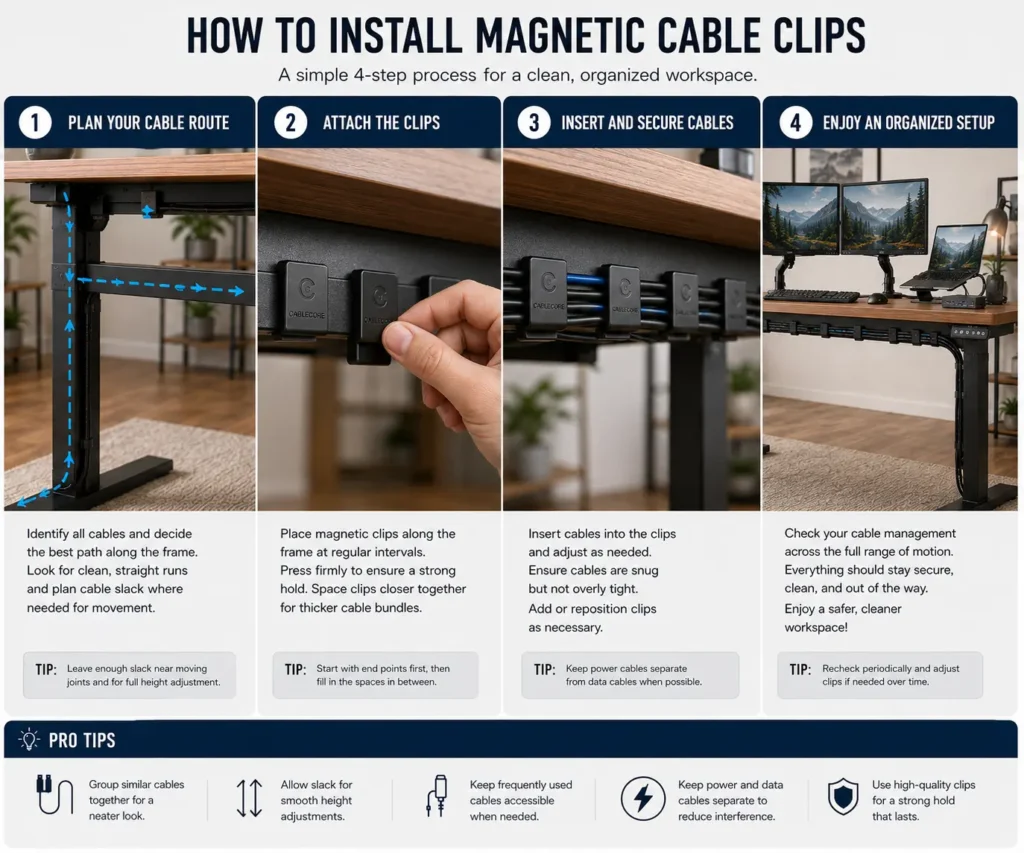
Installing magnetic cable clips for metal desks is simple. Most setups take only a few minutes.
The key is to plan your cable routes before attaching the clips. This helps create a cleaner desk setup and reduces the need for adjustments later.
Step 1: Identify the Cables You Want to Organize
Start by looking at all the cables connected to your desk.
Common examples include:
- USB-C cables
- HDMI cables
- Ethernet cables
- Power cords
- Charging cables
- Audio cables
Separate the cables you use often from those that rarely move.
This makes it easier to create an organized cable routing plan.
Step 2: Find the Best Cable Path
Next, decide where the cables should travel.
A good cable route should:
- Follow the desk frame
- Stay out of sight when possible
- Avoid moving parts
- Keep cables easy to access
Many users route cables underneath the desk and along steel support beams.
This creates a cleaner appearance and reduces visible cable clutter.
Step 3: Clean the Installation Area
Before placing the clips, wipe the metal surface with a dry cloth.
Dust and dirt can sometimes reduce contact between the magnet and the desk frame.
A clean surface helps the clips sit flat and stay secure.
Step 4: Attach the Magnetic Cable Clips
Place the clips along the planned cable route.
Good locations include:
- Under the desktop
- Along desk legs
- On support beams
- Near a monitor arm
- Around a docking station
Because the clips use magnets, you can easily move them if needed.
Do not worry about finding the perfect position right away.
Step 5: Insert the Cables
Place each cable into the appropriate clip.
Try to keep similar cables together.
For example:
- Monitor cables together
- Charging cables together
- Ethernet cables together
This makes future cable management much easier.
Step 6: Leave Enough Cable Slack
This step is especially important for standing desks.
Leave a small amount of extra cable length between clips.
This extra length is called cable slack.
Cable slack allows cables to move safely when the desk changes height.
Without enough slack, cables may become tight and place stress on connectors.
Step 7: Test Desk Movement
If you use a standing desk, raise and lower it several times.
Watch how the cables move.
Check for:
- Tight cables
- Snagging points
- Hanging loops
- Areas where cables rub against the frame
Make adjustments as needed.
The goal is smooth movement at every desk height.
Step 8: Secure Larger Cable Groups
If several cables travel in the same direction, consider using additional cable management products.
Many people combine magnetic cable clips with:
- Cable sleeves
- Velcro ties
- Cable raceways
- Under desk cable trays
If you’re deciding between reusable straps and permanent fasteners, our guide comparing zip ties vs Velcro ties explains which option works best for different setups.
Common Installation Mistakes to Avoid
Many cable management problems happen because of simple mistakes.
Avoid:
- Placing clips too far apart
- Using too few clips
- Overloading a single clip
- Forgetting cable slack
- Routing cables near moving desk parts
Taking a few extra minutes during installation can prevent these issues.
Conclusion
Magnetic cable clips for metal desks are an easy way to keep cables organized, accessible, and out of the way. They improve cable routing without adhesive and work well with steel desk frames in home offices, gaming desks, and standing desks. By selecting the right clip size, planning cable routes, and leaving enough cable slack, you can reduce cable clutter and maintain a cleaner, more efficient workspace.
FAQs
Can magnetic cable clips rust?
Most magnetic cable clips use coated magnets or plastic housings that help resist rust during normal indoor use.
Are magnetic cable clips reusable?
Yes. You can remove and reposition them as often as needed without leaving adhesive residue.
Can I paint over magnetic cable clips?
It is possible, but paint may affect their appearance or fit. Most users leave them as they are.
Do magnetic cable clips work in workshops or garages?
Yes. They can help organize cables on steel workbenches, tool cabinets, and other magnetic surfaces.
Can magnetic cable clips be used outdoors?
Some can, but most are made for indoor use. Check the manufacturer’s specifications before using them outside.