A messy desk often starts underneath, where loose cables, power strips, chargers, and adapters create unnecessary cable clutter. Whether you have a home office, gaming setup, or standing desk, tangled wires can make cleaning harder, device upgrades frustrating, and your workspace look disorganized.
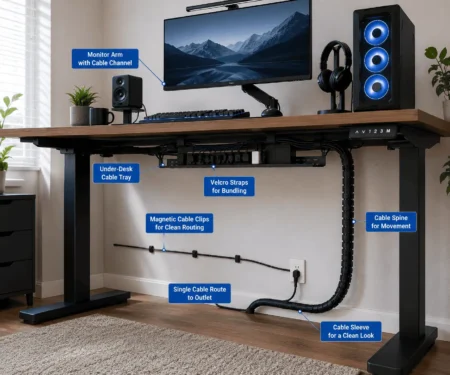
An under desk cable management tray keeps cables organized and off the floor. Combined with proper cable routing and other cable management accessories like cable sleeves or cable raceways, it helps create a cleaner, safer, and more organized desk setup. This guide explains how to choose, install, and use the right tray for your workspace.
Quick Answer
An under desk cable management tray is a tray or basket mounted underneath a desk that stores cables, power strips, chargers, and adapters in one organized location. It keeps wires off the floor, reduces cable clutter, improves safety, and creates a cleaner workspace.
What Is an Under Desk Cable Management Tray?
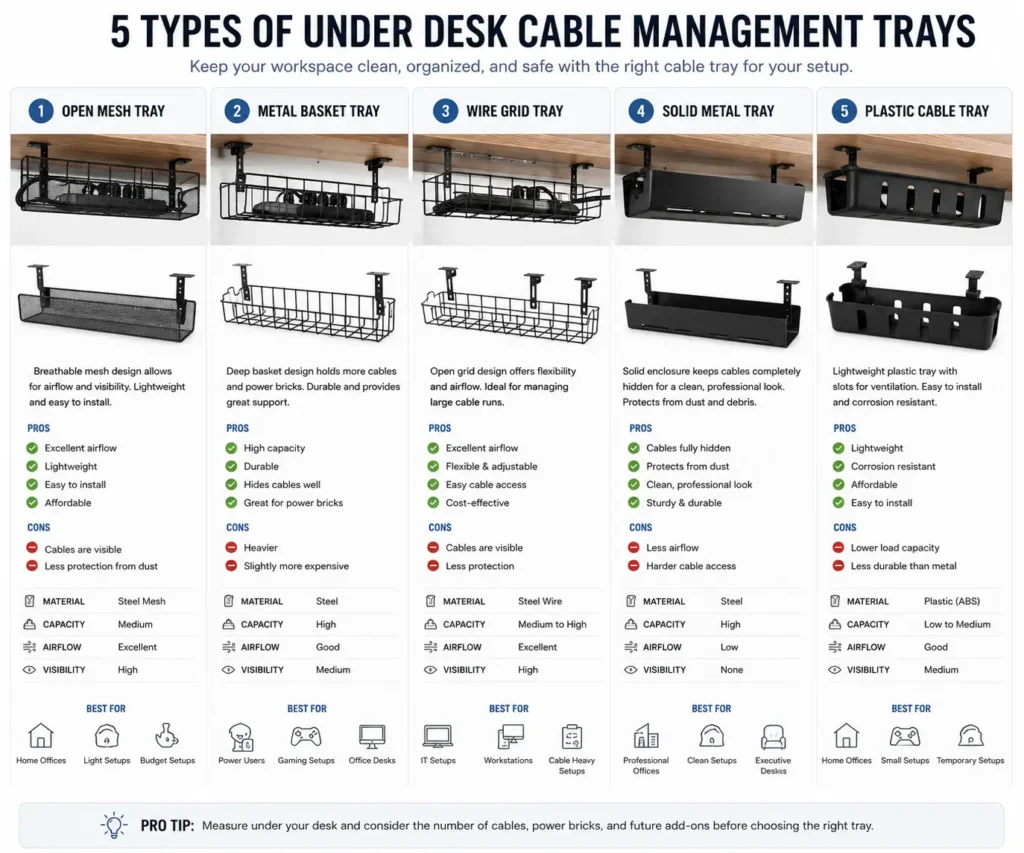
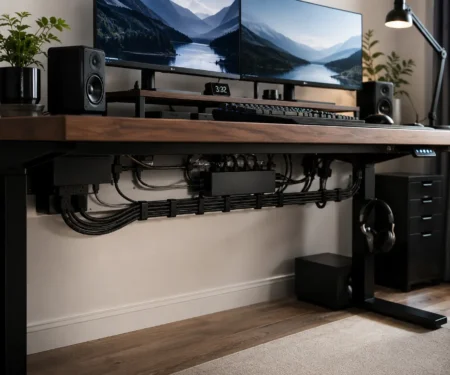
An under desk cable management tray is a tray, basket, or channel mounted beneath a desk that holds cables, power strips, chargers, and power adapters in one organized location.
Instead of allowing wires to hang toward the floor, the tray keeps them secured underneath the desk. This helps reduce visible clutter while making cable management easier.
Most cable management trays are made from:
- Steel
- Wire mesh
- Metal baskets
- Plastic
Some models attach using screws, while others use clamp-on mounting systems.
How Does a Cable Management Tray Work?
A cable management tray acts as a storage area for cables and power accessories.
After mounting the tray under the desk, cables are routed into the tray instead of hanging loosely. Power strips and charging bricks can also be placed inside, depending on the tray design.
By keeping everything in one location, the tray creates a more organized cable path between devices and power sources.
What Can You Store in a Cable Management Tray?
Most people use a cable management tray to store more than just cables.
Common items include:
- Power strips
- Laptop chargers
- Monitor power adapters
- HDMI cables
- DisplayPort cables
- Ethernet cables
- USB hubs
- Docking station cables
The exact capacity depends on the tray size and design.
Why Are Cable Management Trays So Popular?
Modern desk setups use more devices than ever before.
A typical workspace may include:
- One or two monitors
- A laptop or desktop computer
- Speakers
- A phone charger
- A webcam
- External storage devices
Each device adds another cable.
Without a cable management system, these wires can quickly become difficult to control. A cable management tray provides a simple way to keep cables organized while maintaining a cleaner appearance.
Benefits of Using an Under Desk Cable Management Tray
An under desk cable management tray offers several practical benefits beyond appearance.
Creates a Cleaner Workspace
Visible cables can make a desk look disorganized.
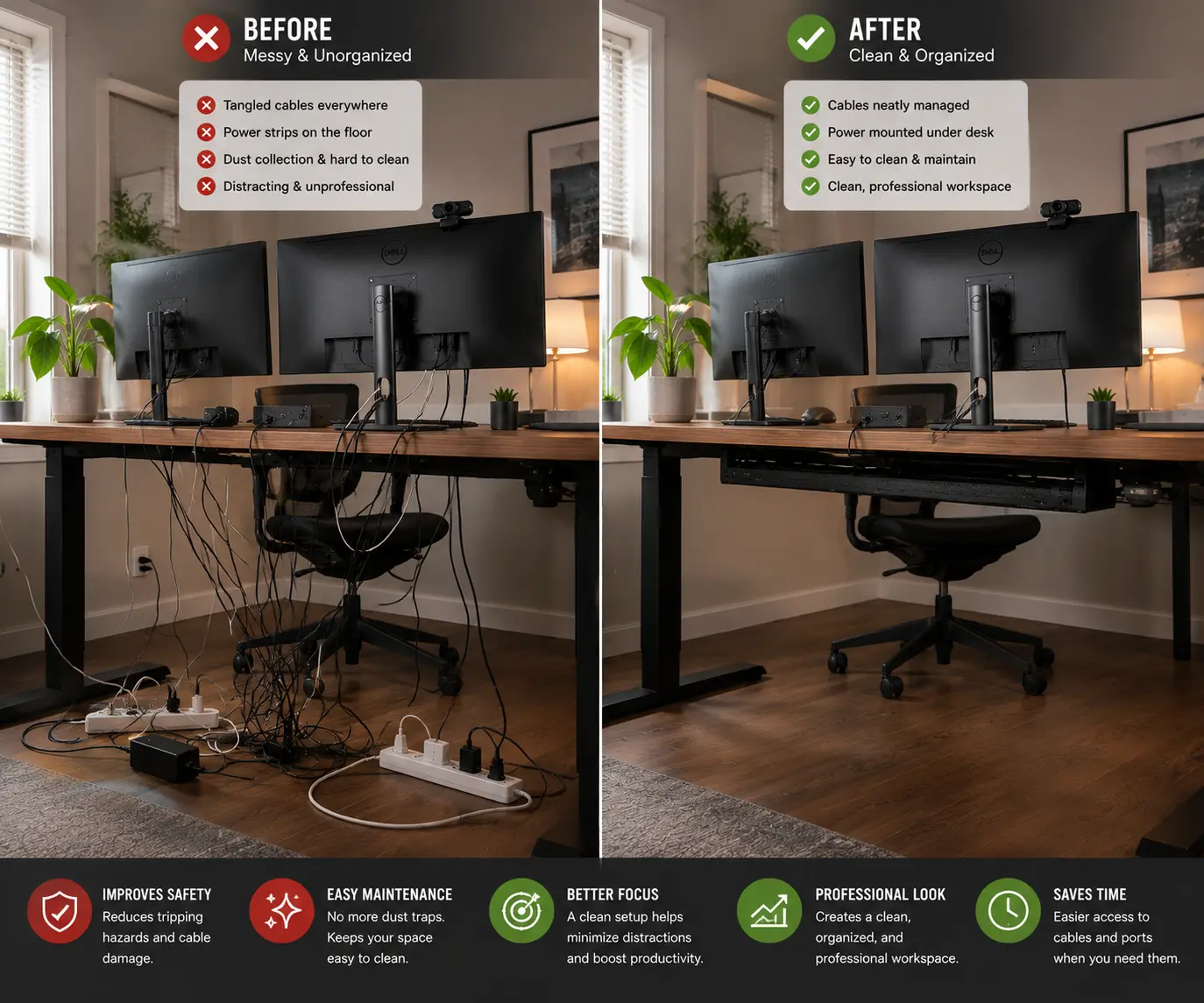
A cable tray hides many of those cables underneath the desk, helping create a cleaner and more professional setup.
Reduces Cable Clutter
Cables often cross over each other and become tangled.
Keeping them inside a tray makes them easier to organize and manage.
Improves Safety
Loose cables on the floor can become tripping hazards.
A cable tray helps keep cables away from foot traffic and everyday movement around the desk.
Protects Cables from Damage
Cables can become damaged when they are pulled, bent sharply, or stepped on.
Storing them inside a tray helps reduce unnecessary wear.
Makes Cleaning Easier
Dust often collects around loose cables.
With cables stored neatly underneath the desk, cleaning becomes much simpler.
Supports Future Upgrades
Many desk setups change over time.
When cables are already organized, adding a monitor, docking station, or other accessory becomes much easier.
What Size Cable Management Tray Do You Need?
Choosing the right tray size is one of the most important decisions. A tray that is too small can fill up quickly, while an oversized tray may take up unnecessary space under the desk.
The best size depends on the number of devices connected to your workspace.
Small Setups
Small desk setups usually include:
- One monitor
- One laptop
- One charger
These setups often work well with compact trays.
Home Office Setups
A typical home office may include:
- One or two monitors
- Laptop or desktop computer
- Power strip
- Desk lamp
Most home office users need a medium-sized tray that can handle several cables and power adapters.
Dual-Monitor Setups
Dual monitors increase cable requirements.
You may need space for:
- Two display cables
- Two monitor power cables
- USB accessories
- Charging cables
A larger tray often provides better cable organization.
Gaming Setups
Gaming desks usually have the highest cable count.
If your gaming PC has a glass side panel, cable combs can keep visible GPU and PSU cables neatly aligned.
Common devices include:
- Gaming PC
- Multiple monitors
- Speakers
- RGB lighting
- Streaming equipment
These setups often benefit from wider trays with higher weight capacity.
Standing Desk Setups
Standing desks need extra room for cable movement.
A tray should allow enough space for cable slack while keeping cables organized during height adjustments.
General Size Guide
How Many Cables Can an Under Desk Cable Management Tray Hold?
Many buyers focus on tray width but forget about cable capacity.
The number of cables a tray can hold depends on:
- Tray width
- Tray depth
- Cable thickness
- Number of power adapters
Large charging bricks take up much more space than standard cables.
Typical Cable Capacity
If you expect to add devices later, leave extra room inside the tray.
Before Buying an Under Desk Cable Management Tray
A few simple checks before purchasing can prevent installation problems later.
Measure Available Space
Check the area underneath your desk before selecting a tray.
Measure:
- Desk width
- Desk depth
- Mounting area
This helps avoid buying a tray that does not fit.
Check Legroom
Some trays extend lower than others.
Make sure the tray will not interfere with:
- Knee movement
- Chair movement
- Footrests
Comfort should always come first.
Count Connected Devices
Every device adds more cables.
Take inventory of:
- Monitors
- Computers
- Speakers
- Chargers
- USB hubs
This provides a better estimate of your storage needs.
Plan for Future Growth
Many users add devices over time.
Choosing a slightly larger tray today can save money later.
Can a Cable Tray Hold a Power Strip?
Yes. Many people use a cable management tray specifically to hold a power strip.
Keeping the power strip inside the tray helps reduce cable clutter and keeps outlets within easy reach.
Benefits of Storing a Power Strip in a Tray
A power strip stored inside the tray can:
- Free up floor space
- Reduce visible cables
- Improve organization
- Simplify cable routing
This creates a cleaner workspace overall.
Placement Tips
For best results:
- Mount the power strip securely
- Keep cables organized
- Leave enough room for plugs and adapters
Good placement makes future changes easier.
Do Cable Trays Affect Airflow?
Airflow is often overlooked when planning cable management.
Some trays allow air to move more freely than others.
Open Designs
Mesh and wire trays provide excellent airflow.
These designs help prevent heat from building up around power adapters and charging bricks.
Enclosed Designs
Solid trays hide cables more effectively.
However, they may provide less airflow than open designs.
Managing Heat
Large power adapters can generate heat during normal use.
Avoid packing them tightly together.
Leaving some space inside the tray helps maintain airflow and improves cable accessibility.
How Much Weight Can an Under Desk Cable Tray Hold?
Weight capacity varies between tray designs.
Some trays support only cables, while others can hold power strips and heavy adapters.
What Adds Weight?
The heaviest items often include:
- Power strips
- Surge protectors
- Laptop chargers
- Power bricks
- Docking stations
These items can quickly increase the total load.
Why Weight Capacity Matters
Overloading a tray may cause:
- Sagging
- Loose hardware
- Reduced stability
Always follow the manufacturer’s recommendations.
Best Under Desk Cable Tray Placement
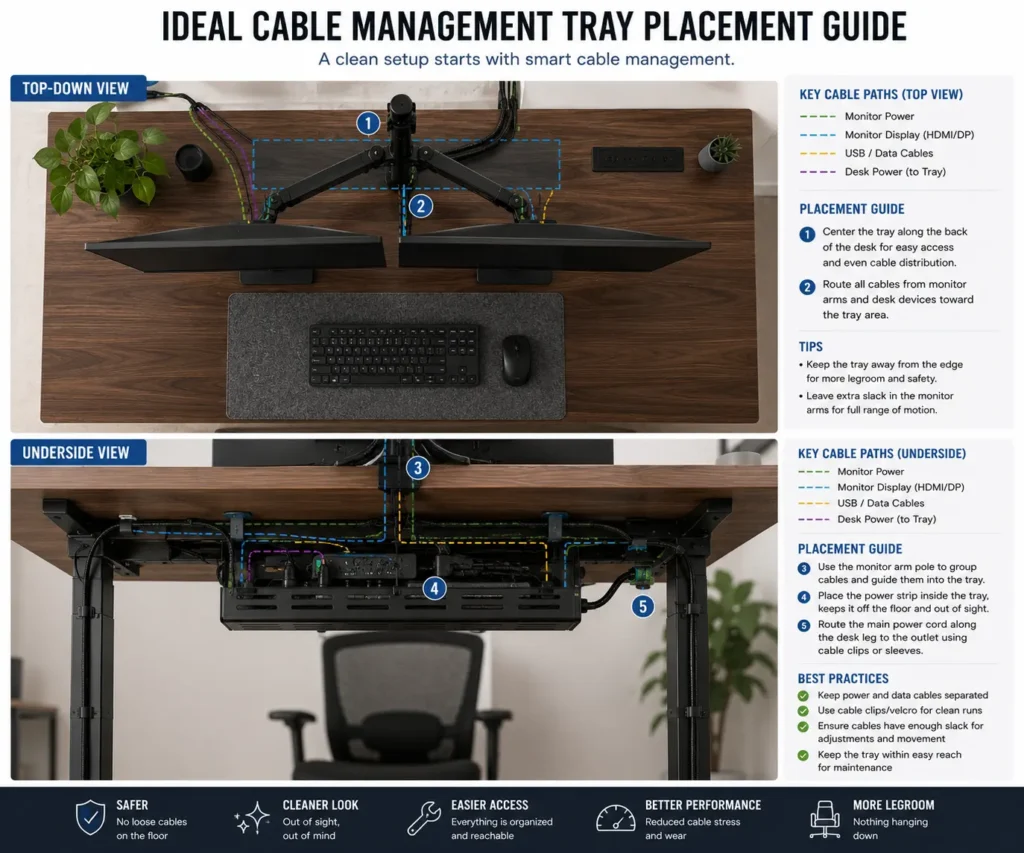
The location of the tray affects both appearance and usability.
A well-placed tray makes cable management easier from the beginning.
Behind Monitor Arms
Many monitor cables naturally travel toward the back of the desk.
Installing the tray nearby can reduce visible cable runs.
Near Power Sources
Placing the tray close to an outlet can shorten cable routes and improve organization.
Center Placement
Many users install trays near the center of the desk.
This allows cables to enter from multiple directions.
Avoid Obstructions
Before mounting the tray, check for:
- Desk supports
- Drawer systems
- Frame components
- Leg clearance
Proper placement helps avoid future problems.
How to Install an Under Desk Cable Management Tray
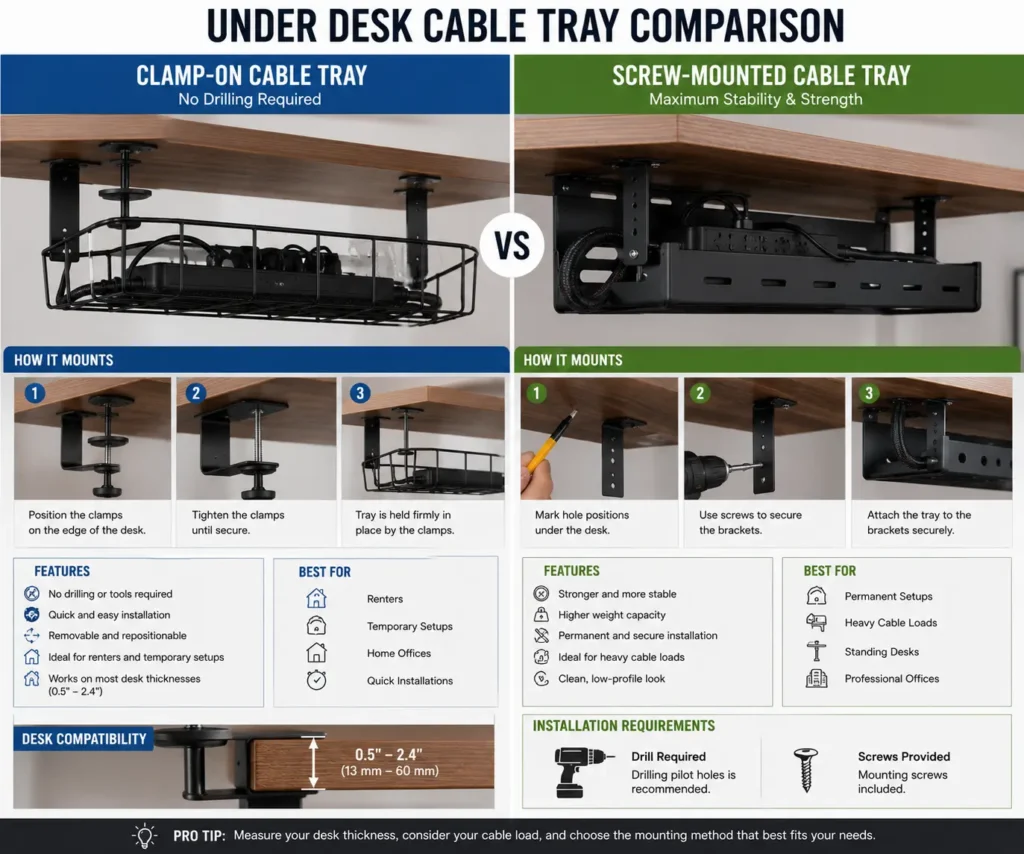
Installation varies by tray design. However, the overall process is usually straightforward.
Step 1: Plan the Location
Identify the best mounting area before drilling or clamping.
Step 2: Test Clearance
Confirm that the tray will not interfere with legs, drawers, or desk frames.
Step 3: Mount the Tray
Follow the manufacturer’s instructions for either:
- Clamp-on installation
- Screw-mounted installation
Step 4: Route the Cables
Place cables into the tray and group similar cables together.
Step 5: Check Stability
Before finishing, make sure the tray is secure and properly supported.
Under Desk Cable Trays for Standing Desks
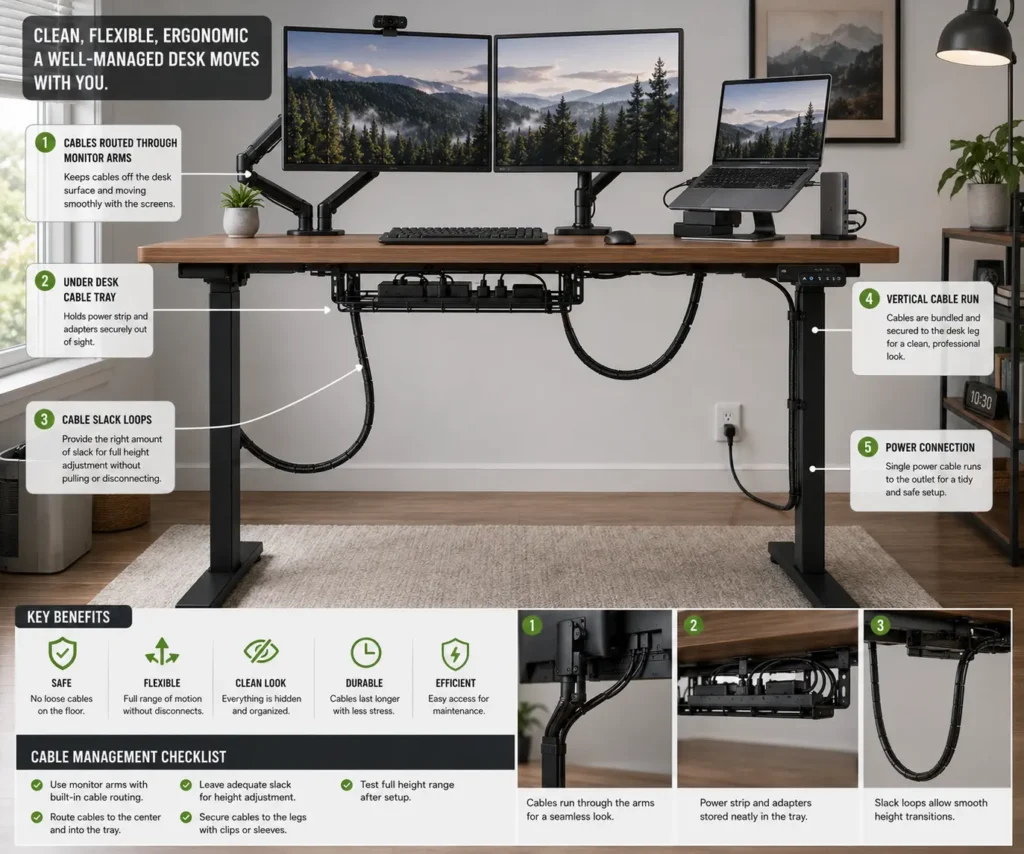
Standing desks require extra cable planning because the desk moves throughout the day.
Without proper cable management, cables can become stretched or disconnected.
Leave Cable Slack
Cable slack is the extra length needed for movement.
Always test the desk at its highest position to ensure cables can move freely.
Avoid Cable Tension
Tight cables place stress on connectors and devices.
Allow cables to move naturally as the desk changes height.
Position the Tray Carefully
For most standing desks, the rear center area provides the best balance between cable access and movement.
Will a Cable Management Tray Work With Your Desk?
Most desks can support a cable management tray, but compatibility should always be checked first.
Solid Wood Desks
Solid wood desks generally work well with both clamp-on and screw-mounted trays.
MDF and Particle Board Desks
These desks can support trays, but proper screw length is important.
Glass Desks
Glass desks should generally use compatible clamp-on solutions.
Avoid drilling into glass surfaces.
Standing Desks
Standing desks work well with cable trays as long as moving parts and frame components are considered during installation.
Under Desk Cable Tray vs Cable Raceway vs Cable Sleeve
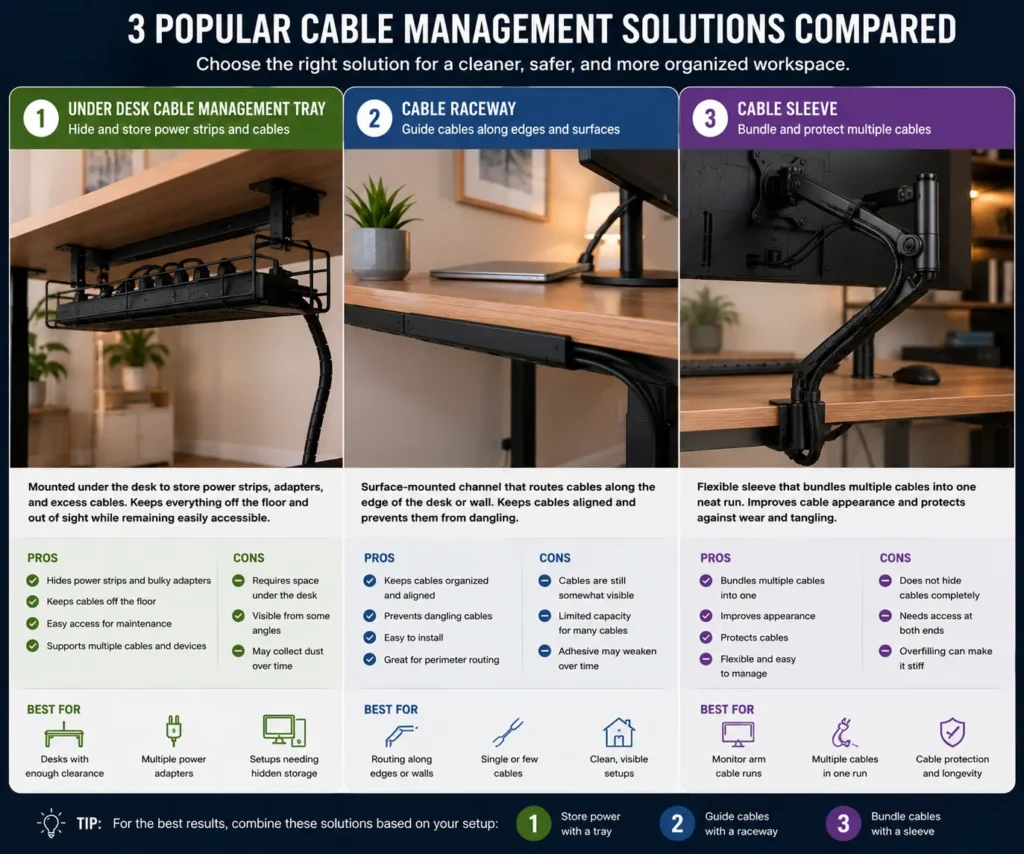
Many people use these cable management solutions together. However, each one serves a different purpose.
Understanding the differences can help you choose the right solution for your setup.
When to Use an Under Desk Cable Tray
A cable tray is designed to store cables and power accessories underneath a desk.
It works best for:
- Power strips
- Power adapters
- Charging bricks
- Large cable bundles
If your goal is to keep cables off the floor and out of sight, a cable tray is often the best option.
When to Use a Cable Raceway
A cable raceway creates a dedicated path for cables to follow.
Raceways are commonly used:
- Along the back edge of a desk
- Under desks
- Along walls
They help hide visible cables while keeping them organized.
If you use a standing desk, a raceway can also help guide cables as the desk moves.
When to Use a Cable Sleeve
A cable sleeve wraps around several cables and combines them into one bundle.
This is useful for:
- Monitor cables
- Keyboard cables
- Mouse cables
- Speaker cables
Cable sleeves are especially helpful when cables remain visible outside the desk.
Cable management sleeves are ideal for grouping several monitor, USB, and power cables into one organized bundle.
Which Solution Is Best?
Each solution solves a different problem.
A cable tray stores cables.
A raceway guides cables.
A sleeve bundles cables.
Many clean desk setups use all three together to achieve the best results.
Comparison Table
One Large Cable Tray or Multiple Small Trays?
Many people wonder whether they should install one large tray or several smaller trays.
Both approaches can work well.
Benefits of One Large Tray
A large tray creates one central location for cable management.
Benefits include:
- Simpler installation
- More storage space
- Easier cable routing
- Fewer mounting points
Many home office users prefer this approach.
Benefits of Multiple Small Trays
Multiple trays allow better separation of cables.
For example:
- One tray for power cables
- One tray for display cables
- One tray for network cables
This can make future troubleshooting easier.
Which Option Should You Choose?
One large tray is usually the best choice for most desk setups.
However, multiple trays may work better for complex workstations with many devices.
Common Under Desk Cable Management Tray Mistakes
Even a good cable tray cannot fix poor cable management habits.
Avoiding common mistakes can help create a cleaner and more reliable setup.
Choosing a Tray That Is Too Small
One of the most common mistakes is underestimating future cable needs.
A tray may seem large enough today but become crowded after adding more devices.
When possible, leave room for growth.
Overloading the Tray
Every tray has a weight limit.
Loading a tray with too many power strips and adapters can reduce stability.
Always follow the manufacturer’s recommendations.
Ignoring Cable Organization
Some users place cables inside the tray without organizing them.
This often creates a tangled bundle that becomes difficult to manage later.
Grouping similar cables together can make maintenance easier.
Forgetting Cable Labels
Cable labels make it easier to identify connections.
This becomes especially useful when upgrading equipment or troubleshooting problems.
Leaving No Slack for Standing Desks
Standing desks require extra cable length.
Without enough slack, cables may become stretched when the desk moves.
Always test the desk at its highest position.
Mixing Power and Data Cables
Separating power cables from data cables can improve organization and simplify troubleshooting.
Although not always necessary, many users find this approach helpful.
Additional Accessories That Improve Cable Management
A cable tray works best when combined with other cable management tools.
These accessories can help create a cleaner and more organized setup.
Velcro Cable Ties
Velcro ties help secure cable bundles while remaining easy to remove and adjust.
They are a popular choice for:
- Monitor cables
- Charging cables
- Peripheral cables
If you’re unsure which fastener to use, our comparison of zip ties vs Velcro ties explains when each option works best
Cable Sleeves
Cable sleeves bundle several cables together inside a protective cover.
They are especially useful for cables that travel from the desk to the floor.
Cable Clips
Magnetic cable clips help hold frequently used charging, USB, and headphone cables in place while keeping them easy to access.
They can prevent frequently used cables from slipping behind the desk.
Cable Raceways
Raceways create a structured path for cables.
They are useful for hiding cables that remain visible around the desk.
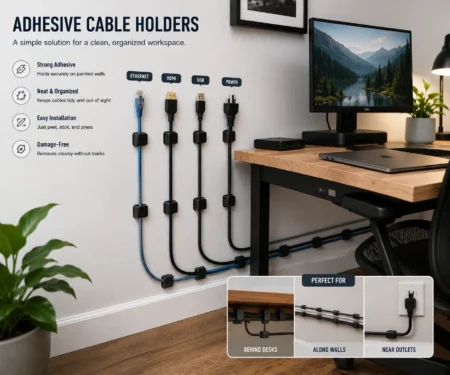
For cables routed along walls, shelves, or furniture, adhesive cable holders are often a better solution than a cable tray.
Desk Grommets
Desk grommets provide a clean opening for cables to pass through the desktop.
They help reduce visible cable clutter while improving cable routing.
Cable Labels
Labels make it easier to identify cables during upgrades, repairs, or troubleshooting.
This simple accessory can save time later.
How to Maintain an Under Desk Cable Management Tray
Once installed, a cable tray requires very little maintenance.
However, regular checks can help keep everything working properly.
Remove Dust Periodically
Dust can collect around cables and power adapters over time.
Cleaning the tray occasionally helps maintain a cleaner workspace.
Check Mounting Hardware
Inspect screws or clamps every few months.
Make sure the tray remains secure and stable.
Inspect Cable Condition
Look for signs of wear such as:
- Frayed cable jackets
- Sharp bends
- Damaged connectors
Replacing damaged cables early can help avoid future problems.
Update Cable Labels
As devices change, update labels to match the current setup.
This keeps cable identification simple and accurate.
Final Thoughts
An under desk cable management tray is a simple upgrade that can make a noticeable difference in almost any workspace. Whether you use a home office, gaming desk, or standing desk, the right tray helps organize cables, protect power accessories, and keep your setup easier to maintain. Choose a tray that fits your current devices while leaving room for future additions, and combine it with good cable routing and a few cable management accessories for the best long-term results.
FAQs
Can an Under Desk Cable Management Tray Be Removed Later?
Yes. Clamp-on trays can usually be removed without leaving marks, while screw-mounted trays may leave small mounting holes.
Do Cable Management Trays Fit Corner Desks?
Most trays can be installed on corner desks if there is enough flat space underneath. Always measure the available mounting area before purchasing.
How Often Should You Reorganize the Cables in a Tray?
For most setups, checking the tray every few months is enough. Reorganize the cables whenever you add or remove devices.
Can a Cable Management Tray Reduce Dust Around Cables?
While it does not prevent dust completely, storing cables inside a tray keeps them off the floor, making the area easier to clean.
Should You Install a Cable Tray Before or After Setting Up Your Desk?
Installing the tray before connecting all your devices usually makes cable routing faster and helps create a cleaner layout from the start.