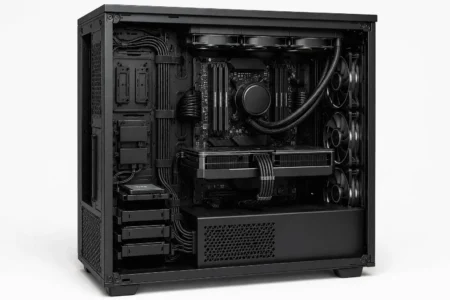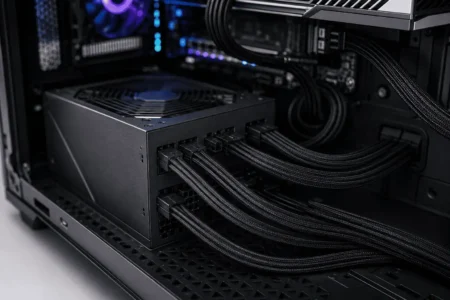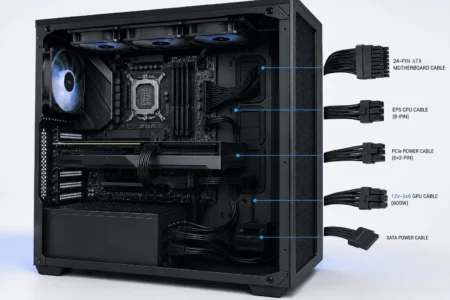
AIO coolers can improve CPU temperatures, but the extra cables they include can make a build look messy. Pump cables, radiator fan cables, RGB wires, and power connections can quickly create clutter if they are not routed properly.
Learning how to manage AIO pump and radiator fan cables helps keep your PC clean, organized, and easier to maintain. This guide explains where each cable should connect, how to route cables neatly, and how to avoid common wiring mistakes during installation.
Why Proper AIO Cable Management Matters
Many people focus only on hiding cables. While appearance is important, there are other benefits as well.
Good AIO cable management can:
- Improve airflow inside the case
- Make cleaning easier
- Reduce cable clutter
- Prevent cables from touching fan blades
- Make future upgrades simpler
- Help with troubleshooting
A few extra minutes spent routing cables can save a lot of frustration later.
Understanding the Different Cables on an AIO Cooler
Before routing anything, identify every cable that comes with your AIO cooler.
Different brands such as Corsair, NZXT, Arctic, DeepCool, and Lian Li may use slightly different designs, but most AIO coolers include similar cables.
Pump Power Cable
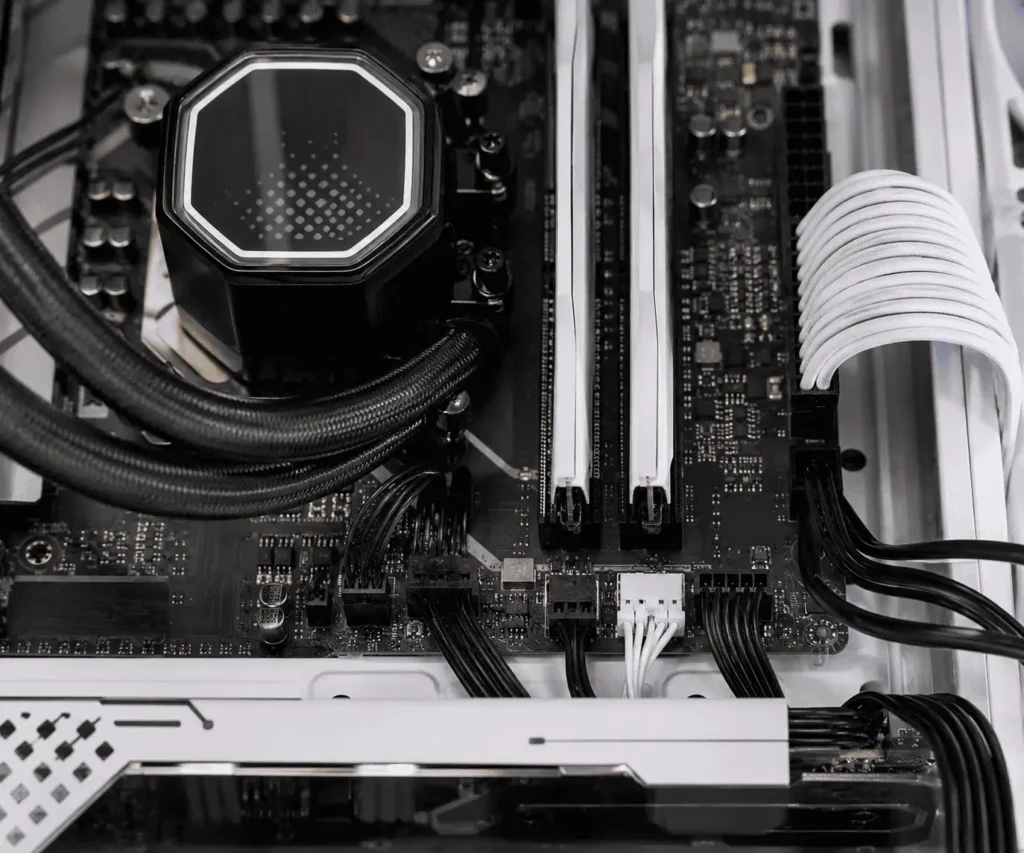
This cable powers the pump. It usually connects to the AIO_PUMP header on the motherboard.
Some AIO coolers use SATA power from the power supply instead.
Always follow the instructions provided by the manufacturer.
Pump Tach Cable
The tach cable sends pump speed information to the motherboard.
It allows the system to monitor pump operation and detect potential issues.
Radiator Fan PWM Cables
These cables control radiator fan speed.
They often connect to:
- CPU_FAN header
- CPU_OPT header
- Fan hub
- PWM splitter
RGB or ARGB Cables
Many AIO coolers include RGB lighting.
These cables connect to:
- RGB controller
- ARGB header
- Manufacturer-specific hub
RGB cables can create a lot of clutter if they are not managed properly.
SATA Power Cable
Some AIO coolers use SATA power to provide additional power to the pump, fan hub, or lighting controller.
This cable usually runs directly to the power supply.
Where Should Each AIO Cable Connect?
One reason this topic appears so often on forums is confusion about motherboard headers.
Knowing where each cable belongs makes cable management much easier.
AIO_PUMP Header
Many AIO coolers use the AIO_PUMP header, but some manufacturers recommend CPU_FAN or a dedicated controller.
Always follow the cooler manual.
CPU_FAN Header
Connection methods vary by manufacturer, so always verify the recommended setup.
Most motherboards from ASUS, MSI, Gigabyte, and ASRock expect a fan signal on the CPU_FAN header.
If nothing is connected, you may receive a CPU fan error during startup.
CPU_OPT Header
The CPU_OPT header often works as a secondary CPU cooling header.
Many builders use it for additional radiator fans.
ARGB Header
ARGB cables usually connect to a 3-pin 5V ARGB header.
Always verify compatibility before connecting.
Using the wrong header can damage lighting components.
SATA Power Connection
Connect SATA power cables directly to an available SATA connector from the power supply.
Route these cables behind the motherboard tray whenever possible.
Planning Cable Routes Before Installation
Good cable management starts before the cooler is installed.
A few minutes of planning can prevent a messy build.
Locate Headers First
Most motherboard manuals include a diagram showing header locations, which can make cable planning much easier.
Identify:
- AIO_PUMP header
- CPU_FAN header
- CPU_OPT header
- ARGB header
- Fan hub location
Knowing where these headers are located helps you choose the shortest cable path.
Check Cable Lengths
Some AIO cables are shorter than others.
Before securing anything, make sure every cable can comfortably reach its destination.
Avoid stretching cables across the motherboard.
Use Existing Cable Channels
Many modern cases include:
- Cable channels
- Routing cutouts
- Velcro straps
- Cable covers
Take advantage of these features whenever possible.
Managing AIO Pump Cables
Pump cables are usually visible because the pump sits directly on the CPU.
Proper routing helps maintain a clean appearance.
Route Cables Along the Tubes
Many builders run pump cables alongside the cooling tubes.
This creates a cleaner look and reduces visible wiring.
Small Velcro straps can help secure cables without damaging them.
Route Behind the Motherboard Tray
Whenever possible, pass pump cables through the nearest routing hole and behind the motherboard tray.
This hides excess cable length and reduces clutter around the CPU socket.
Leave a Small Service Loop
Do not pull cables completely tight.
A small amount of slack makes future maintenance easier.
You may need to remove the pump later for upgrades or cleaning.
Managing Radiator Fan Cables
Radiator fans often create the most cable clutter.
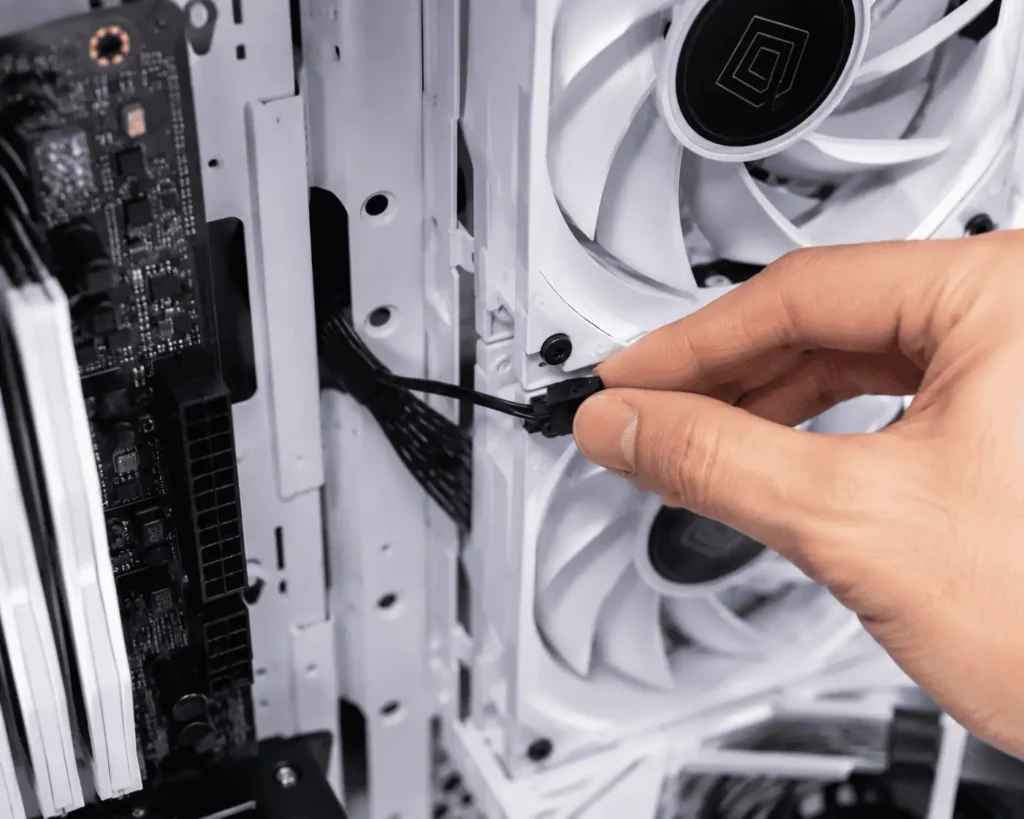
Each fan usually includes at least one PWM cable and sometimes an RGB cable.
The best cable routing method often depends on the radiator size and the number of fans installed.
AIO Cable Management for Different Radiator Sizes
120mm AIO
A 120mm AIO usually has the simplest cable setup. Route the fan cable directly to the nearest motherboard header and secure any extra length behind the motherboard tray.
240mm AIO
A 240mm AIO uses two radiator fans, which can create additional cable clutter. Using a PWM splitter helps combine fan connections and keeps cable routing cleaner.
360mm AIO
A 360mm AIO often includes three fan cables and multiple RGB cables. A fan hub or daisy-chain system can reduce visible wiring and simplify cable management.
420mm AIO
A 420mm AIO requires careful planning because of its larger size and longer cable runs. Route cables along the radiator frame and use cable channels to keep the installation organized.
Cable Routing Based on Radiator Position
Radiator placement affects cable routing.
The best path depends on where the radiator is installed.
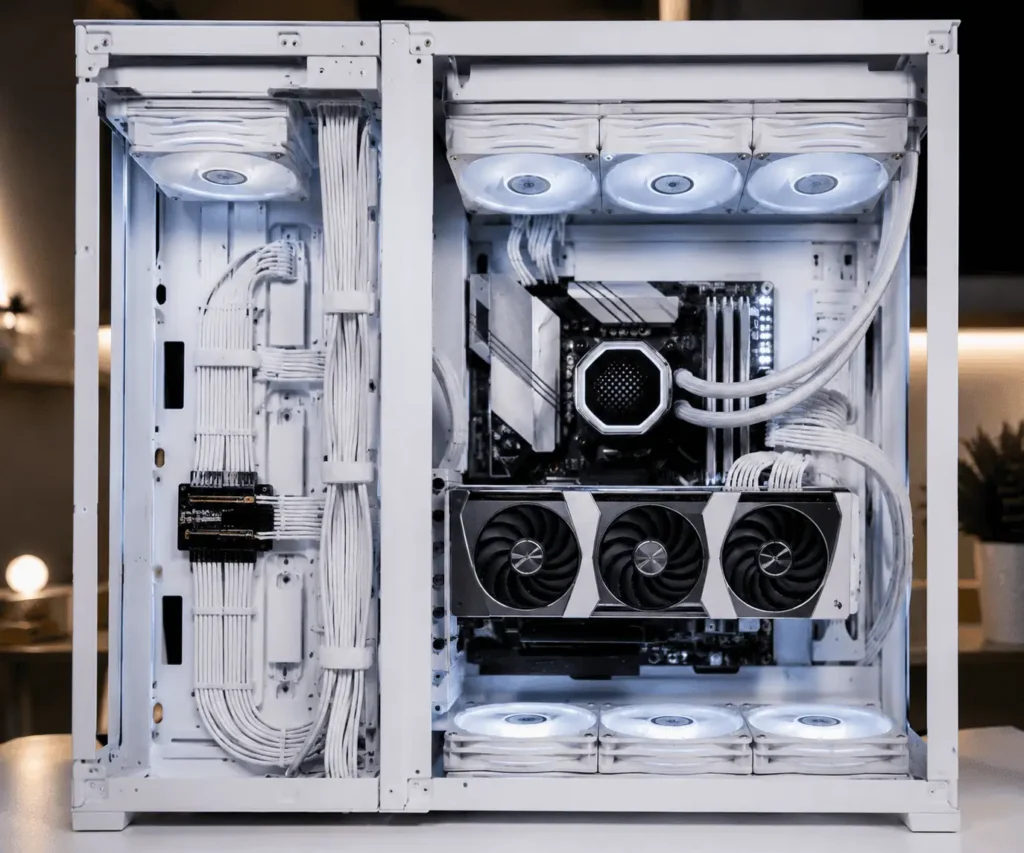
Top-Mounted Radiator
Top-mounted radiators often provide the cleanest routing.
Fan cables can usually pass through the top cable openings and directly behind the motherboard tray.
This keeps most wiring hidden.
Front-Mounted Radiator
Front-mounted radiators often require longer cable runs.
Route fan cables along the edge of the radiator and through nearby routing holes.
Secure loose cables before reinstalling front panels.
Side-Mounted Radiator
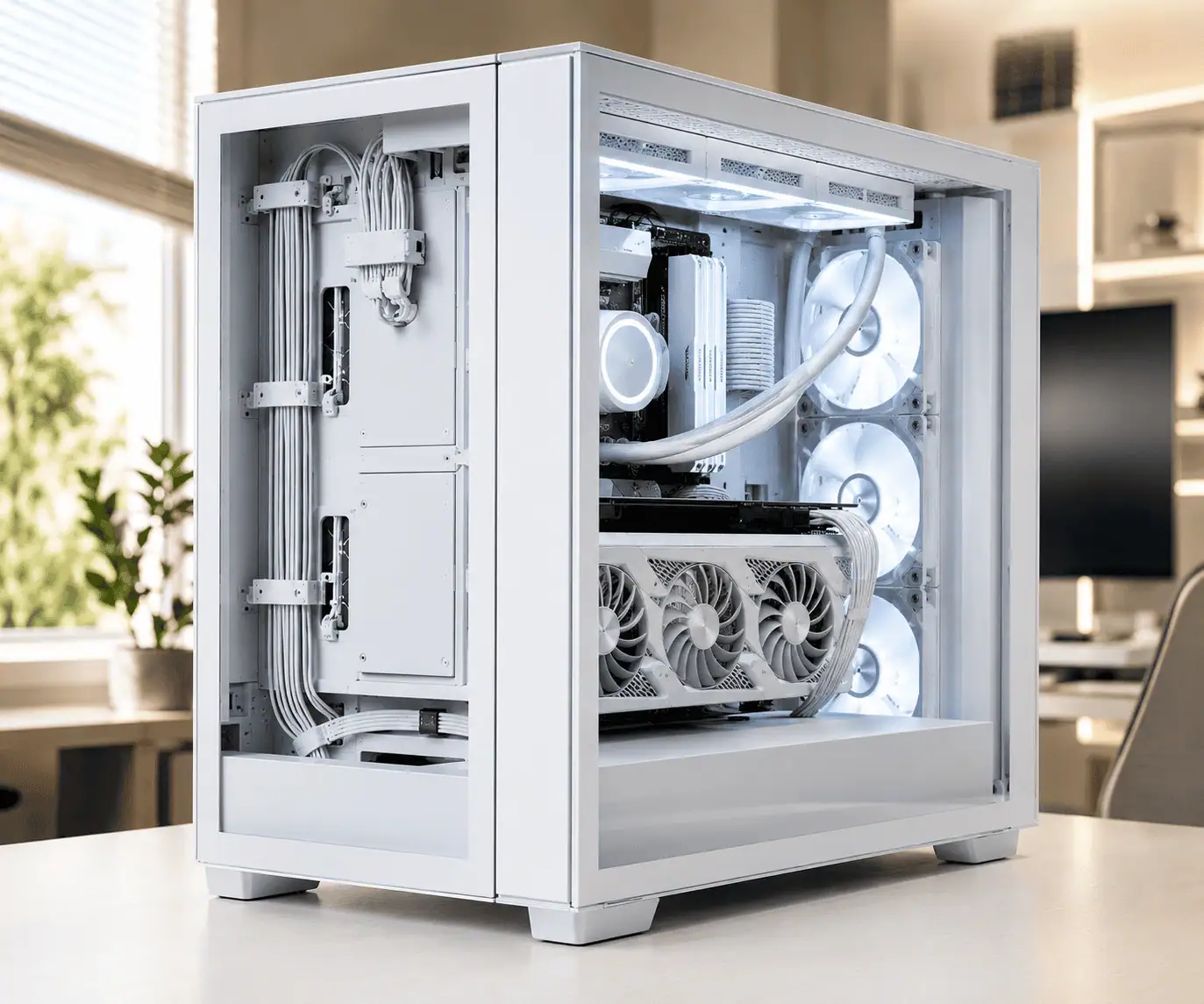
Side-mounted radiators are common in dual-chamber cases.
Most cables can be routed directly into the rear chamber.
This often produces the cleanest result.
Using Fan Hubs, Splitters, and Daisy Chains
Managing several fan cables individually can become difficult.
This is where hubs and splitters help.
PWM Splitters
A PWM splitter combines multiple fan cables into one motherboard connection.
This reduces clutter and simplifies cable routing.
Fan Hubs
A fan hub centralizes multiple fan connections.
Instead of running separate cables across the case, fans connect to the hub.
Only a few cables then need to reach the motherboard.
Daisy-Chained Fans
Some modern fans support daisy chaining.
This allows multiple fans to connect together.
Fewer cables are required, resulting in a cleaner installation.
Managing RGB and ARGB Cables
RGB cables often create more clutter than fan cables.
Without planning, the inside of the case can become difficult to manage.
Group Similar Cables Together
Keep RGB cables grouped separately from fan power cables.
This makes future troubleshooting easier.
Use an RGB Controller
An RGB controller can reduce the number of cables running to the motherboard.
Many AIO manufacturers provide dedicated controllers.
Hide Excess Wiring
Route extra RGB cable length behind the motherboard tray.
Avoid stuffing large cable bundles near airflow paths.
How to Bundle AIO Cables Without Restricting Airflow
Keep cable bundles close to the case edges whenever possible.
Avoid creating large cable clusters in front of intake or exhaust fans.
Velcro straps are often easier to adjust than zip ties and allow future upgrades without cutting fasteners.
A few small cable bundles usually look cleaner than one large bundle.
Which AIO Cables Should Stay Accessible?
Some AIO cables are easier to troubleshoot when they remain accessible.
Fan hub connections, RGB controllers, and SATA power connections are good examples.
These components may need to be checked during upgrades or troubleshooting.
Cables that rarely require adjustment can be routed deeper behind the motherboard tray to keep the build clean.
Common Mistakes When Managing AIO Cables
Even experienced builders make mistakes.
Avoid these common issues.
Using the Wrong Header
Always verify motherboard header labels before connecting cables.
A wrong connection can lead to startup errors or lighting problems.
Blocking Airflow
Large cable bundles can restrict airflow.
Keep cables secured against case edges whenever possible.
Overtightening Zip Ties
Zip ties that are too tight can damage cable insulation.
Use moderate pressure when securing cables.
Leaving Cables Near Fan Blades
Loose cables can enter spinning fans.
Always double-check clearance before powering on the system.
Ignoring Future Upgrades
Leave enough slack for future maintenance.
Removing components becomes much easier later.
Troubleshooting AIO Wiring Problems
If something is not working correctly, check the following areas.
Pump Not Detected
Verify:
- Pump cable connection
- AIO_PUMP header
- SATA power connection
Check motherboard BIOS settings if needed.
CPU Fan Error
This usually happens when the motherboard does not detect a signal on the CPU_FAN header.
Confirm that radiator fans or the appropriate cable are connected correctly.
Radiator Fans Not Spinning
Inspect:
- PWM connections
- Fan hub connections
- Splitter cables
Loose connections are a common cause.
RGB Not Working
Check:
- ARGB header connection
- RGB controller connection
- SATA power connection
Also verify that the lighting software recognizes the device.
Conclusion
Learning how to manage AIO pump and radiator fan cables can make your PC look cleaner and easier to maintain. By connecting each cable to the correct header, planning cable routes early, and using fan hubs or splitters when needed, you can reduce clutter and avoid common wiring mistakes. A well-organized AIO setup also improves airflow, simplifies upgrades, and makes troubleshooting much easier in the future. It’s also worth understanding PC component cable management to keep every cable in your system organized, from the PSU and motherboard to storage drives and cooling components.
FAQs
Do All AIO Coolers Use the Same Cable Setup?
No. Different AIO coolers use different cable layouts. Some models use separate cables for the pump, fans, RGB lighting, and USB connections, while others combine several functions through a hub or controller.
Should I use zip ties or Velcro straps?
Both work well. Velcro straps are easier to adjust later, while zip ties provide a more permanent solution.
Can I Connect Multiple Radiator Fans to One Header?
Yes, many builders use a PWM splitter or fan hub to connect multiple radiator fans to a single motherboard header. Always check the header’s power limit before connecting several fans.
What Happens If I Connect the Pump to the Wrong Header?
The pump may not run at the intended speed, and the motherboard may display cooling-related warnings. Follow the cooler manufacturer’s instructions for the correct header.
Can I Hide AIO Cables Behind the Motherboard Tray?
Yes. Most excess cable length can be routed behind the motherboard tray using cable channels, routing cutouts, or Velcro straps. Just make sure the cables are not stretched too tightly and remain accessible if future maintenance is needed.