Building a PC is exciting until you reach the cable management stage. What starts as a clean setup can quickly turn into a tangled mess of PSU, GPU, fan, and RGB cables. Poor cable routing can block airflow, make the side panel difficult to close, and turn future upgrades into a frustrating task. Many first-time builders are unsure which cable to route first or how to organize everything without creating more clutter.
The good news is that a dual chamber PC case is built to solve these problems. With the right cable routing order and a few simple techniques, you can create a cleaner, more organized build that is easier to maintain.
Understanding the Layout of a Dual Chamber PC Case
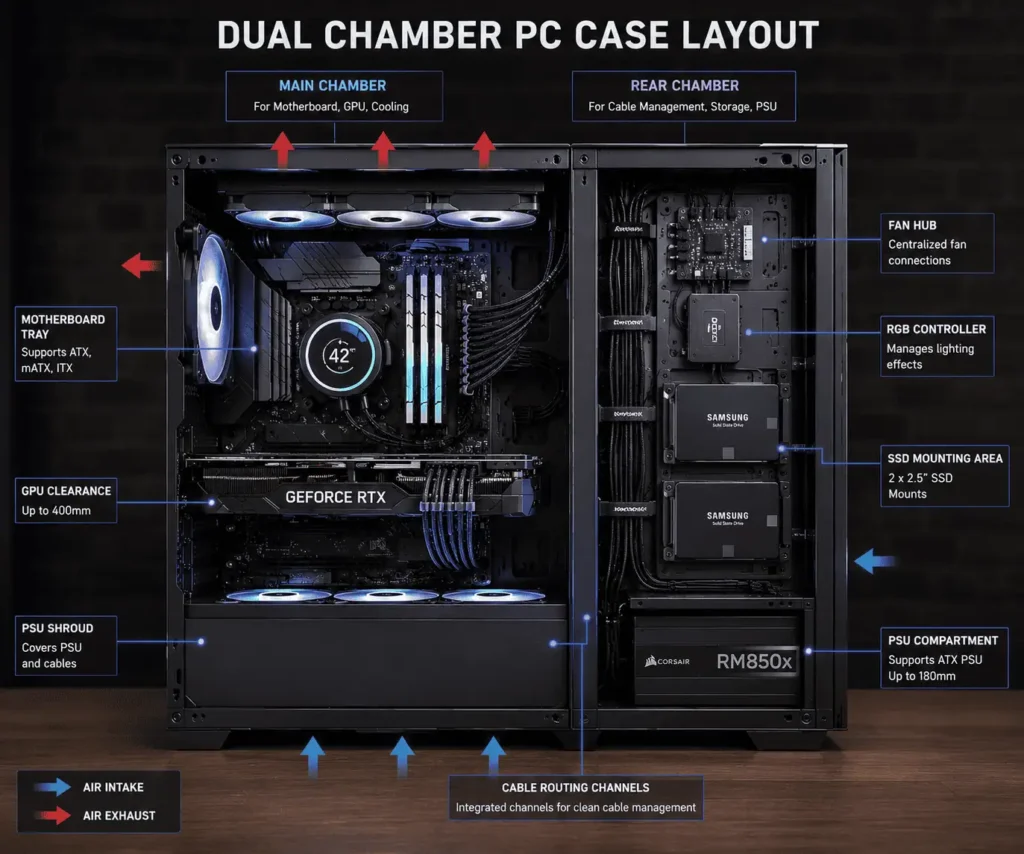
Before routing cables, it helps to understand how a dual chamber case works.
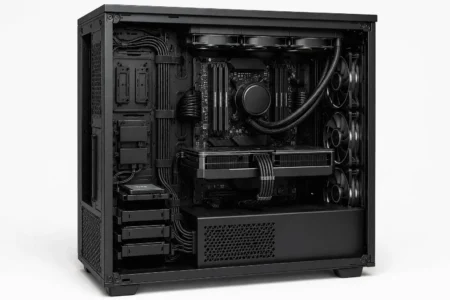
Unlike a traditional PC case, a dual chamber design divides the interior into two sections. The front chamber holds the motherboard, graphics card, CPU cooler, and fans. The rear chamber usually contains the power supply, storage drives, fan hubs, RGB controllers, and excess cable length.
This layout gives cables their own space. It also keeps the main chamber cleaner.
Main Chamber vs Rear Chamber
The main chamber is where your important hardware is displayed. This area should stay as clean as possible.
The rear chamber is the working area for cable management. Most cable routing happens here. This is where you can bundle cables, hide connectors, and store extra cable slack.
When both chambers are used correctly, the finished build looks cleaner and more professional.
Where the PSU, SSDs, and Cable Runs Go
Most dual chamber cases place the power supply behind the motherboard tray. Many also provide mounting points for SSDs and fan controllers in the rear chamber.
Cable routing channels and rubber grommets allow cables to move between both chambers.
These channels help you:
- Hide cables
- Improve airflow
- Reduce clutter
- Create cleaner cable runs
How Dual Chamber Designs Improve Airflow
Good airflow depends on clear paths for air movement.
When cables are spread across the main chamber, they can block intake fans and reduce cooling performance.
A dual chamber case solves this problem by moving most cables behind the motherboard tray. This allows cool air to travel freely from intake fans to exhaust fans.
As a result, components can stay cooler during gaming, streaming, and heavy workloads.
Tools and Accessories That Make Cable Routing Easier
Cable management becomes much easier when you have the right tools.
You do not need expensive accessories. A few simple items can make a big difference.
Velcro Straps
Velcro straps are one of the best tools for cable management.
Unlike zip ties, they can be removed and reused. This makes future upgrades much easier.
Use Velcro straps to bundle:
- PSU cables
- Fan cables
- RGB cables
- SATA cables
Zip Ties
Zip ties provide a more permanent solution.
They work well when you are finished routing cables and do not plan to make changes soon.
Do not overtighten zip ties. Tight bundles can damage cables over time.
Cable Combs
Cable combs help organize visible cables.
They are commonly used with:
- 24-pin motherboard cables
- GPU power cables
- Cable extensions
Cable combs keep wires parallel and create a cleaner appearance.
Cable Extensions
Sometimes standard power supply cables are too short or difficult to route.
Cable extensions can help create cleaner cable runs and improve the overall look of the build.
Many builders use sleeved cable extensions to match the color theme of their PC.
The Best Cable Routing Order for a Clean Build
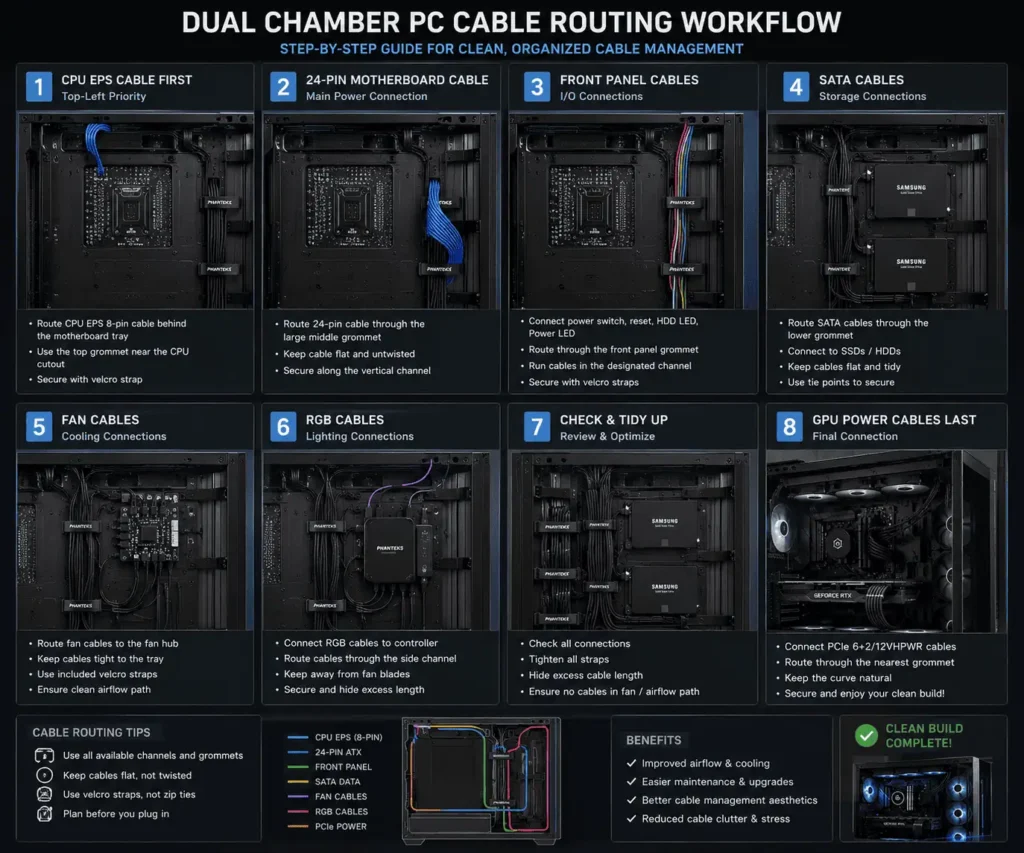
One of the biggest mistakes beginners make is routing cables randomly.
A better approach is to follow a specific order.
This prevents cables from crossing each other and reduces frustration later.
Route the CPU EPS Cable First
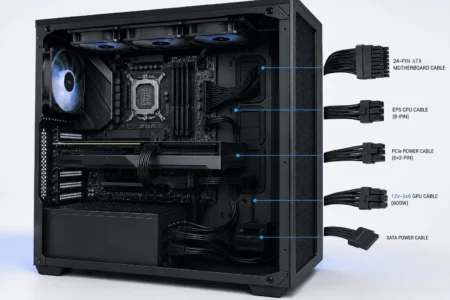
Always start with the CPU power cable.
This cable usually runs to the top of the motherboard. It is often the hardest cable to access after other components are installed.
Route it through the nearest cable grommet and secure it behind the motherboard tray.
Getting this cable in place first saves time later.
Route the 24-Pin Motherboard Cable
The 24-pin motherboard cable is one of the largest cables inside the case.
Route it through the closest cable channel and secure it behind the tray.
If you are using cable combs, install them now to keep the cable straight and organized.
Route Front Panel Connectors
Front panel cables are small but important.
These include:
- Power switch
- Reset switch
- USB connectors
- Audio connectors
Route them along the edges of the case whenever possible.
Keeping these cables close to the frame helps maintain a cleaner appearance.
Route SATA and Storage Cables
Storage cables are usually easy to hide inside the rear chamber.
Keeping SATA data and power cables organized separately can make troubleshooting and future upgrades easier.
How to Route Front-Panel Cables Cleanly
Front-panel cables are often overlooked during a PC build. However, these small cables can create clutter if they are not routed properly.
The goal is to keep them hidden while maintaining easy access to motherboard headers.
USB 3.0 Cable Routing
USB 3.0 cables are thick and less flexible than most PC cables.
Route the cable through the nearest cable channel and connect it directly to the motherboard. Avoid sharp bends because they can place stress on the connector.
Try to keep the cable close to the motherboard tray for a cleaner appearance.
USB-C Cable Routing
Many modern dual chamber PC cases include a front USB-C port.
These cables are also thick and can be difficult to manage.
Use the shortest possible route and secure the cable behind the motherboard tray using Velcro straps.
HD Audio Cable Routing
HD Audio cables are usually thin and easy to hide.
Route them along the bottom edge of the motherboard tray whenever possible. This keeps them away from fan cables and power cables.
Power and Reset Switch Cables
Power switch and reset switch cables are small but important.
Guide them through the nearest opening and keep them close to the case frame. Their thin design makes them easy to hide.
Example Cable Routing Workflow
If this is your first time building inside a dual chamber PC case, following a step-by-step workflow can make the process much easier.
Step 1: Install the Power Supply
Mount the power supply inside the rear chamber.
If you are using a modular PSU, connect only the cables you need.
Step 2: Route the CPU EPS Cable
Run the CPU power cable through the top routing channel before installing large components.
This cable is usually the hardest to reach later.
Step 3: Route the 24-Pin Motherboard Cable
Guide the motherboard power cable through the nearest grommet.
Leave enough slack for a smooth connection.
Step 4: Connect Front-Panel Cables
Route the power switch, reset switch, USB, USB-C, and HD Audio cables before the build becomes crowded.
Step 5: Install Storage Cables
Connect SATA power and SATA data cables to SSDs and hard drives.
Keep the cable runs tidy behind the motherboard tray.
Step 6: Route Fan and RGB Cables
Connect fan cables and RGB cables to their controllers before installing the graphics card.
This provides easier access.
Step 7: Install the Graphics Card
Mount the GPU and check clearance around nearby cables.
Make sure nothing will interfere with the fans.
Step 8: Route GPU Power Cables
Guide GPU cables through the nearest cable opening.
Avoid unnecessary cable loops.
Step 9: Secure Cable Bundles
Use Velcro straps or zip ties to organize cable groups.
Keep bundles flat against the motherboard tray.
Step 10: Perform a Final Inspection
Check every connection.
Inspect airflow paths.
Make sure fans can spin freely.
Verify that the side panel closes without pressure.
How to Route Fan and RGB Cables
Fan cables and RGB cables can quickly create clutter if they are not managed properly.
Many dual chamber PC cases include space for a fan hub or RGB controller in the rear chamber. This makes routing much easier.
Start by connecting the fan cables to the nearest routing channel. Then guide them toward the fan hub. Keep the cables flat against the back of the motherboard tray whenever possible.
For RGB cables, follow the same approach. Try not to let RGB wires cross over other cable bundles. This keeps the rear chamber organized and makes future changes easier.
Fan Hub Placement
A fan hub allows multiple fans to connect to one location.
The best place for a fan hub is usually behind the motherboard tray or near the cable management area.
This position shortens cable runs and reduces visible wiring inside the main chamber.
If your case includes dedicated mounting points for a fan hub, use them whenever possible.
RGB Controller Placement
An RGB controller should be installed in an area that is easy to access.
This helps when adding new RGB devices or changing lighting settings.
Most builders place the controller close to the fan hub to keep lighting and cooling cables organized in one area.
Keeping PWM and ARGB Cables Organized
PWM fan cables and ARGB cables often run together.
Without proper organization, they can become difficult to manage.
Use Velcro straps to create separate cable bundles.
Group fan cables together and keep ARGB cables in their own bundle.
This makes upgrades, troubleshooting, and future maintenance much easier.
Labeling cable groups can also save time if you add new fans or lighting devices later.
How to Route PSU Cables in a Dual Chamber PC Case
The power supply is one of the biggest sources of cable clutter in any PC build.
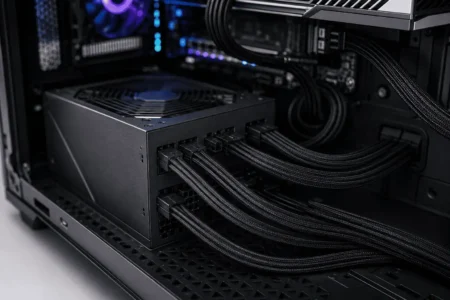
Fortunately, a dual chamber PC case provides a dedicated space for PSU cables. This makes it easier to create a clean layout without blocking airflow inside the main chamber.
The key is to plan your cable paths before connecting everything.
Using a Modular Power Supply
A modular PSU allows you to connect only the cables you actually need.
This reduces unnecessary cable clutter and creates more room for cable management.
If you are building a new system, a fully modular PSU is often the easiest option for keeping the rear chamber organized.
With fewer cables to manage, routing becomes faster and cleaner.
Managing Unused PSU Cables
Unused cables should never be left hanging inside the case.
If you have a modular power supply, disconnect any cables that are not needed.
If you are using a semi-modular or non-modular PSU, bundle unused cables together and store them neatly in the rear chamber.
This prevents loose cables from interfering with airflow and makes future upgrades easier.
Choosing the Best Cable Path
Before securing any cables, identify the shortest and cleanest path to each component.
Most dual chamber cases provide cable channels and routing holes for this purpose.
Try to avoid crossing cable paths whenever possible.
Organized cable runs create a cleaner appearance and make troubleshooting much easier later.
How to Manage Excess Cable Slack
Extra cable length is common in most PC builds.
The goal is to keep it hidden without creating large cable piles behind the side panel.
Create Service Loops
A service loop is a small amount of extra cable length left near a connection point.
This gives you flexibility when replacing hardware or disconnecting components later.
Without service loops, even a simple upgrade can become frustrating.
Use the Rear Chamber Storage Area
Most dual chamber PC cases provide additional space behind the motherboard tray.
Use this area to store excess cable length instead of forcing cables into the main chamber.
This keeps the visible side of the build clean and organized.
Avoid Large Cable Bundles
Large cable bundles can become difficult to manage.
Instead of creating one thick bundle, spread cables across multiple routing channels.
This creates a flatter cable layout and improves side panel clearance.
Do Not Force the Side Panel Closed
If the side panel does not close easily, stop and reorganize the cables.
Forcing the panel shut can place pressure on cable connectors and damage wiring over time.
A properly managed dual chamber build should allow the panel to close smoothly.
How to Route GPU Power Cables Without Blocking Airflow
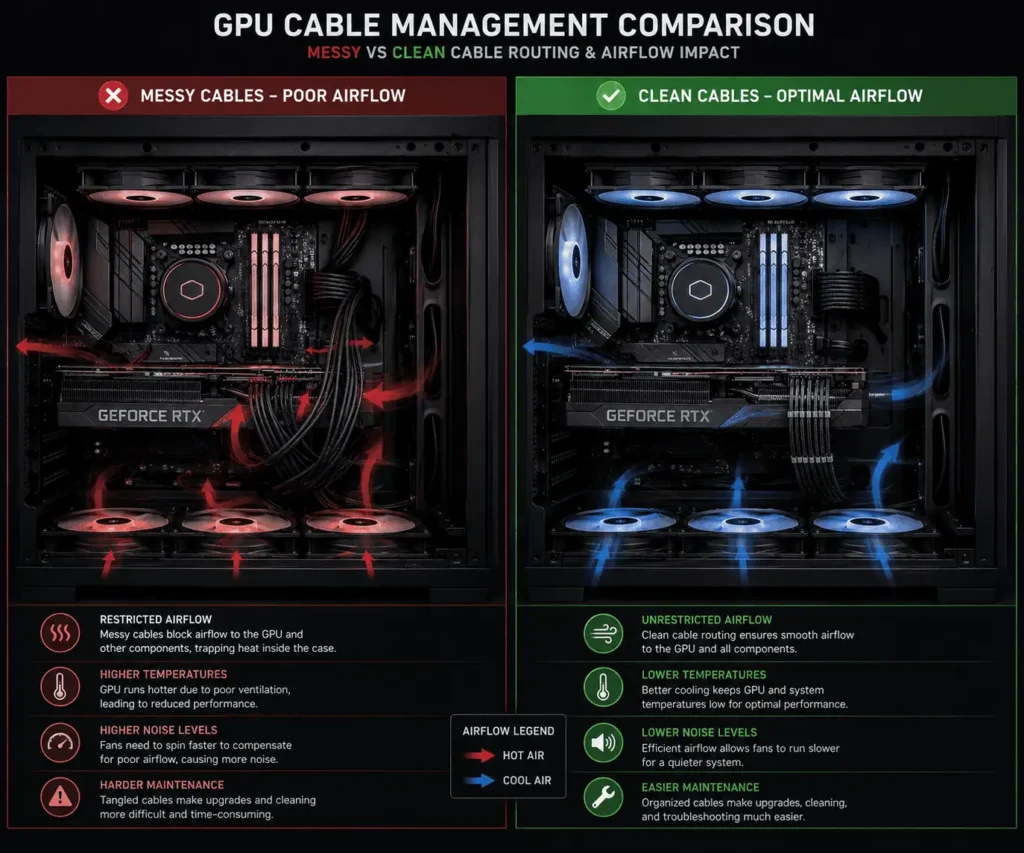
Modern graphics cards require large power cables.
These cables are often visible inside the main chamber, which makes proper routing especially important.
The goal is to create a clean cable path without restricting airflow around the GPU.
Horizontal GPU Setups
Most PC builders install their graphics card in a horizontal position.
Route GPU power cables through the nearest cable grommet and bring them directly to the graphics card.
Avoid allowing the cables to hang across intake fans or airflow channels.
Smooth cable bends usually look cleaner than sharp angles.
Vertical GPU Setups
Vertical GPU mounts have become increasingly popular because they showcase the graphics card.
However, cable management becomes more important because the cables are often more visible.
Route the cables behind the motherboard tray first.
Then bring them through the closest opening to minimize visible wiring.
This creates a cleaner presentation while maintaining good airflow.
Avoid Blocking Intake Fans
Many dual chamber cases use bottom-mounted or side-mounted intake fans.
GPU cables should never hang directly in front of these fans.
Even a small obstruction can reduce airflow efficiency.
Keep cables tucked close to the graphics card whenever possible.
Using Cable Combs for Cleaner Runs
Cable combs are one of the easiest ways to improve the appearance of GPU power cables.
They keep individual wires aligned and evenly spaced.
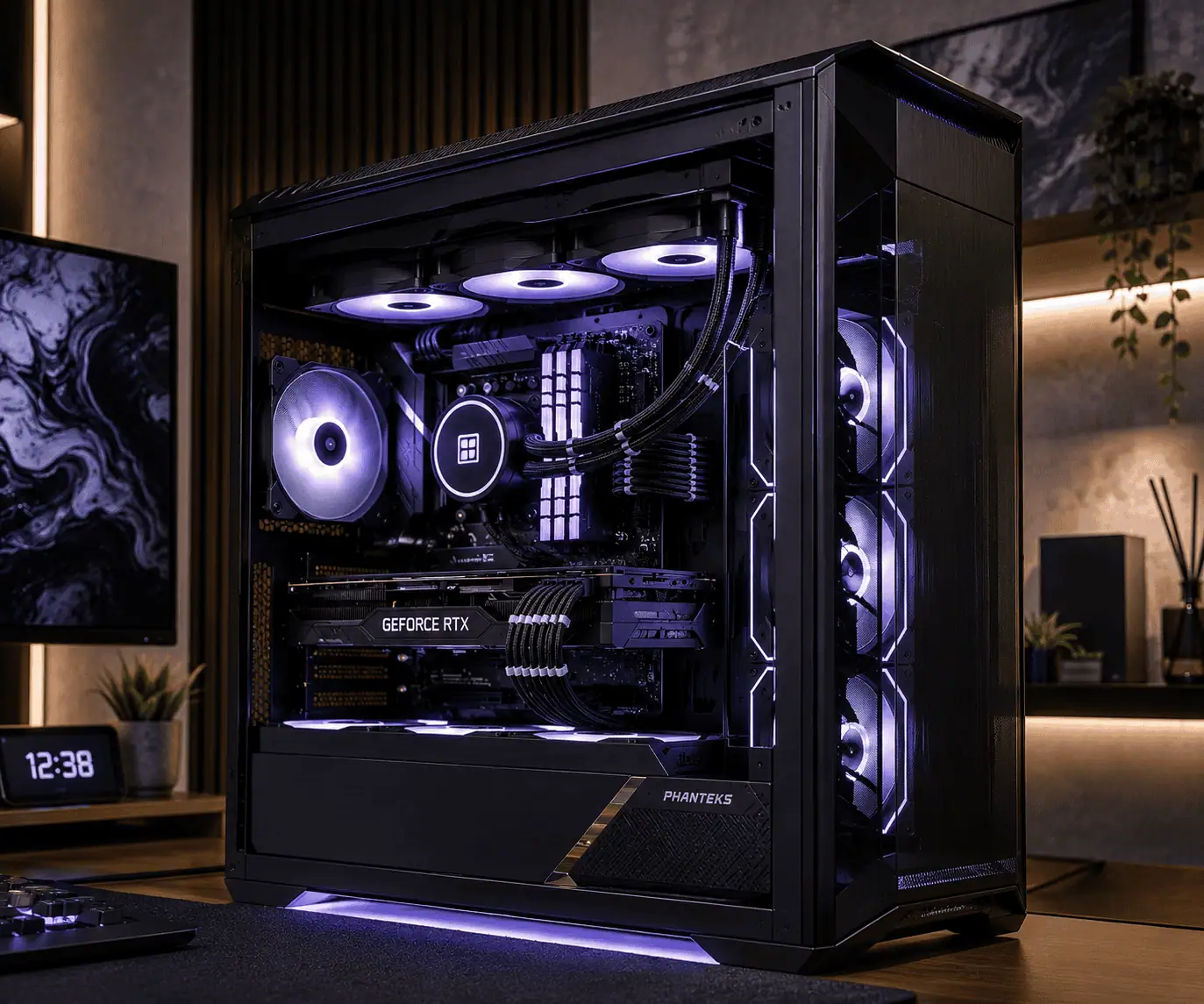
Many showcase PC builds use cable combs because they create straight and professional-looking cable runs.
Cable combs are especially useful when using sleeved cable extensions.
Common GPU Cable Routing Mistakes
Many builders make simple mistakes that affect both appearance and airflow.
Avoid these common problems:
- Routing cables across intake fans
- Creating excessive cable loops
- Pulling cables too tightly
- Using sharp cable bends
- Leaving cables unsupported
- Allowing cables to touch GPU fans
Fixing these mistakes can instantly improve the look of your build and make future upgrades much easier.
Cable Routing Tips for Better Airflow
Good cable management is not only about appearance.
It also helps your cooling system work more efficiently.
When airflow paths remain clear, cool air can move through the case more effectively.
This helps components maintain stable operating temperatures during gaming and demanding workloads.
Keep Intake Fans Unobstructed
Intake fans bring cool air into the system.
Any cable placed in front of these fans can reduce airflow.
Always keep the area around intake fans as clear as possible.
Avoid Blocking Radiators
If your build uses an AIO cooler or liquid cooling system, make sure cables do not block the radiator fans.
Radiators perform best when airflow is unrestricted.
Keep nearby cables secured and routed away from cooling hardware.
Separate Power and Data Cables
Separating cable groups creates a cleaner layout.
Power cables, fan cables, RGB cables, and storage cables should each follow their own route whenever possible.
This makes the system easier to manage and troubleshoot in the future.
Common Cable Routing Mistakes to Avoid
Even experienced PC builders make cable management mistakes.
Avoiding these problems can improve airflow, make upgrades easier, and create a cleaner-looking system.
Overtightening Zip Ties
Many builders pull zip ties too tightly.
This can place unnecessary pressure on cables and connectors.
Cables should be secure, but they should still have a little flexibility.
Crossing Major Airflow Paths
Cables should never run across important airflow channels.
When cables block airflow, cooling performance can suffer.
Always route cables around intake fans, radiators, and exhaust paths whenever possible.
Ignoring Fan Clearance
Before closing the case, check every fan carefully.
A loose cable touching a fan blade can create noise and damage both the fan and the cable.
Always verify that all fans spin freely.
Stuffing Cables Behind the Side Panel
The rear chamber may look hidden, but it still needs proper organization.
Stuffing cables into one area can make the side panel difficult to close.
A flat and organized cable layout works much better.
Routing Cables With BTF and Back-Connect Motherboards
Back-connect motherboards are changing the way builders manage cables.
These designs move many connectors to the rear side of the motherboard.
As a result, fewer cables are visible inside the main chamber.
This creates a cleaner build and can simplify cable management.
ASUS BTF
ASUS BTF motherboards move power and data connectors behind the motherboard tray.
This design helps eliminate visible motherboard cables.
Builders who want a clean showcase system often choose BTF-compatible hardware.
MSI Project Zero
MSI Project Zero follows a similar approach.
The rear-facing connectors create a much cleaner appearance while reducing cable clutter in the main chamber.
This design also makes airflow paths easier to keep clear.
Gigabyte Stealth
Gigabyte Stealth motherboards focus on hidden cable connections and simplified cable routing.
When paired with a compatible case, these systems can create one of the cleanest PC interiors available.
Should You Buy a BTF Motherboard for Easier Cable Management?
If cable management is a priority, a BTF or back-connect motherboard can be a great option.
These motherboards reduce visible cables and simplify routing.
However, they require compatible cases and may limit component choices compared to standard motherboards.
For many builders, a traditional motherboard inside a dual chamber case still provides excellent cable management.
Case Examples and Cable Routing Strategies
Different dual chamber PC cases offer different cable management features.
Learning how each layout works can help you plan your cable routing more effectively.
Lian Li O11 Dynamic
The Lian Li O11 Dynamic is one of the most popular dual chamber PC cases.
Its large rear chamber provides plenty of room for cable routing, fan hubs, RGB controllers, and excess cable storage.
This makes it ideal for showcase builds.
NZXT H9 Flow
The NZXT H9 Flow combines strong airflow with excellent cable management features.
Wide routing channels and built-in cable guides help keep cables organized.
This case is especially beginner-friendly.
Corsair 6500X
The Corsair 6500X uses a spacious dual chamber layout with dedicated cable management zones.
Builders can separate power cables, fan cables, and storage cables more effectively.
This creates a cleaner overall appearance.
HYTE Y70
The HYTE Y70 features a panoramic design that places more attention on cable management.
Because the interior is highly visible, careful cable routing becomes even more important.
Using cable combs and organized routing channels can make a significant difference in the final look.
Dual Chamber Cable Management Checklist
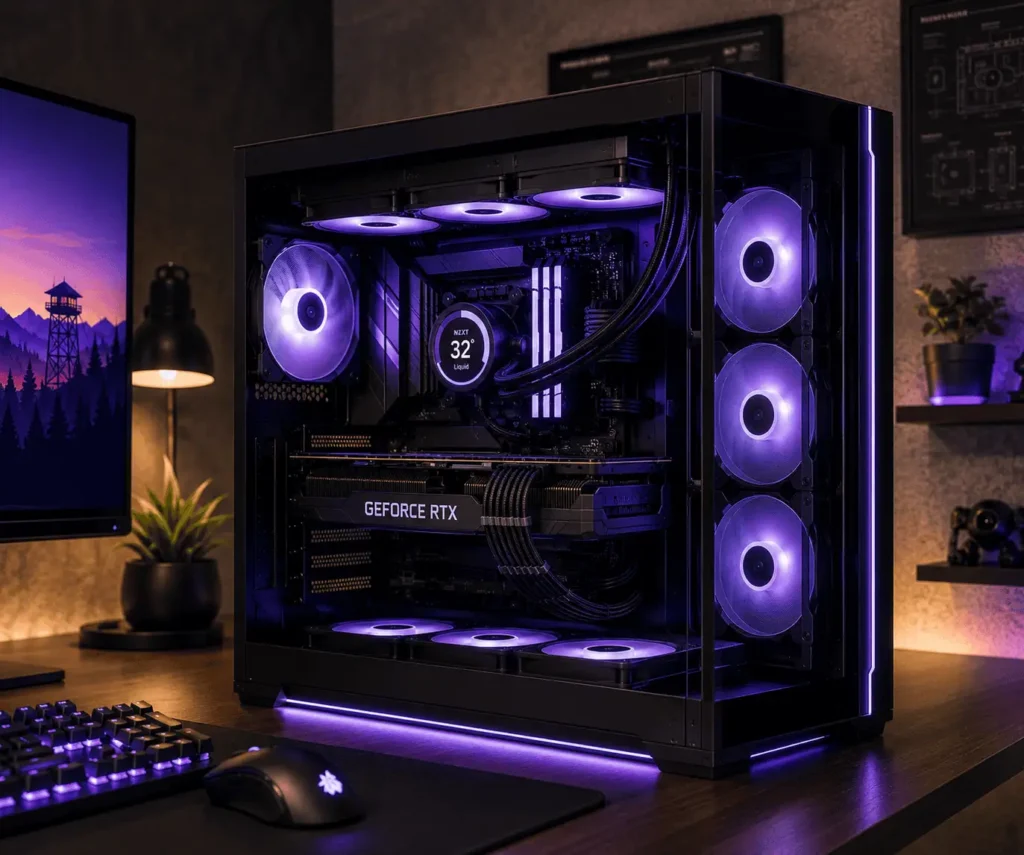
Before installing the side panels, perform one final inspection.
Use this checklist to make sure everything is ready:
- CPU EPS cable connected and secured
- 24-pin motherboard cable routed correctly
- GPU power cables clear of intake fans
- SATA cables connected properly
- Fan cables connected to the fan hub
- RGB cables connected to the controller
- No loose cables touching fan blades
- Airflow paths free from obstructions
- Rear chamber organized neatly
- Side panel closes without pressure
- All components detected and functioning correctly
Conclusion
Routing cables in a dual chamber PC case becomes much easier when you follow a clear plan instead of connecting everything at once. Start with the main power cables, organize each cable group carefully, and use the rear chamber to hide excess wiring.A few extra minutes spent on cable management can give you a cleaner-looking PC, improve airflow, and make future upgrades much simpler. A dual chamber case provides the space for cleaner routing, but it’s also worth exploring PC component cable management to organize every major component inside your PC.
FAQs
Can cable management affect dust buildup inside a PC?
Yes. Keeping cables away from airflow paths allows air to move more freely, which can help reduce dust collecting around major components over time.
Should I unplug all cables before upgrading a PC component?
Not always. If you’re replacing a single part, disconnect only the cables that are necessary and leave the rest organized to save time.
Is it safe to bend PC power cables during routing?
Yes, as long as you make gentle bends. Avoid forcing tight angles that could stress the cable or connector.
How often should I check cable management inside my PC?
A quick inspection every few months or whenever you clean your PC is usually enough to make sure cables remain secure and away from moving fans.
Can cable extensions reduce PC performance?
No. Quality cable extensions do not affect system performance. They are mainly used to improve cable routing and create a cleaner appearance.