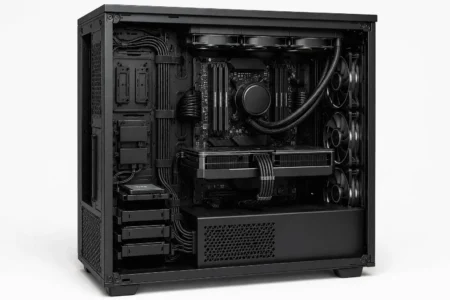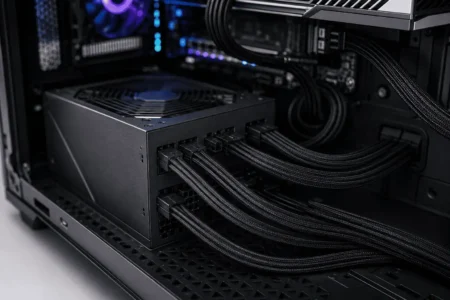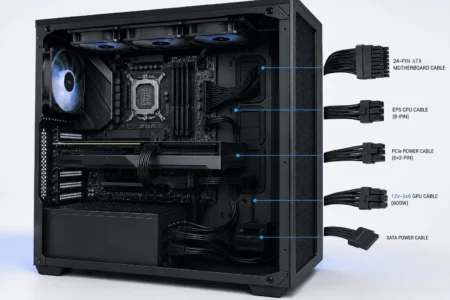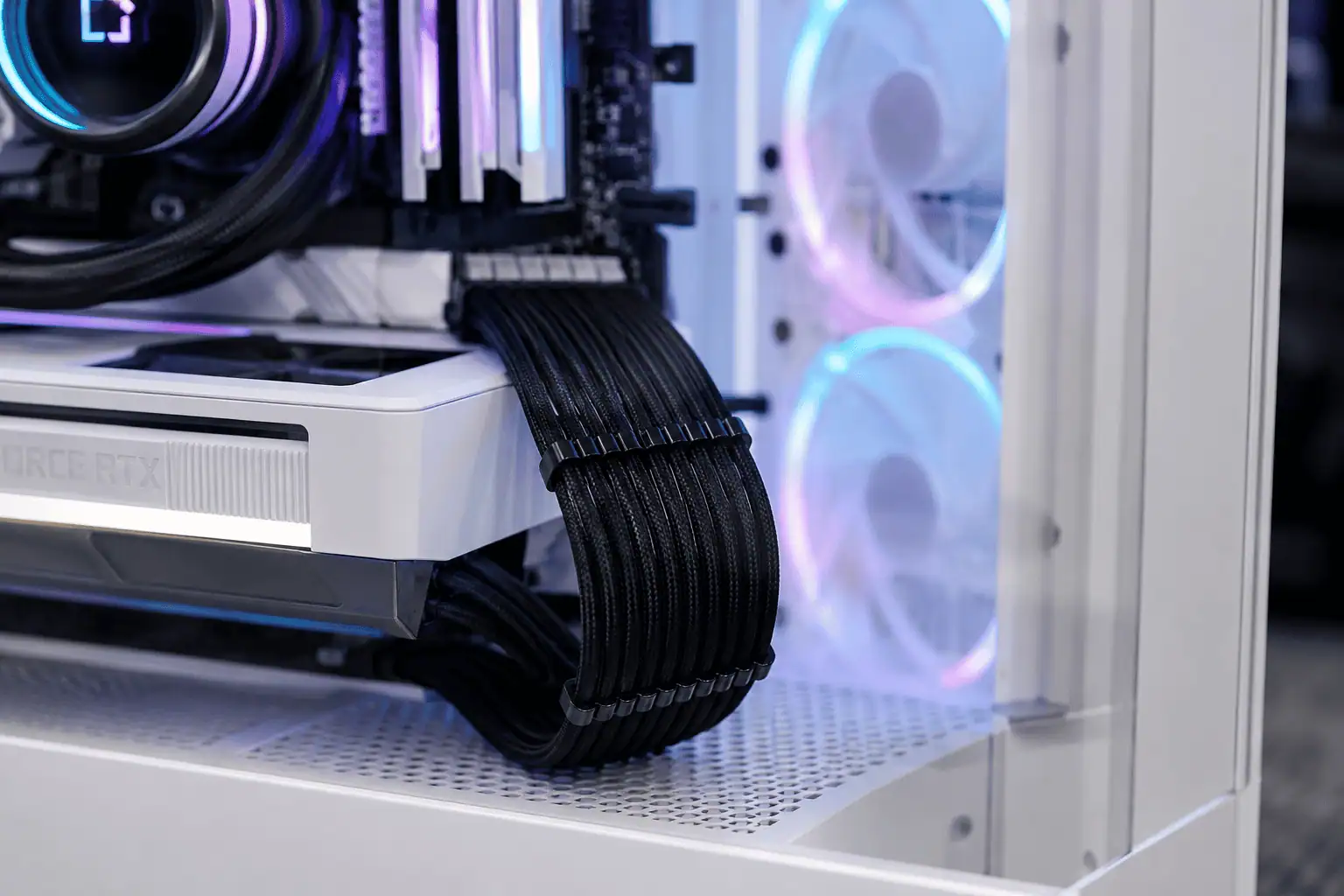
Building a clean PC is easier when your cables are routed neatly. The 24-pin power cable is one of the largest and most visible cables inside a computer, so routing it correctly can make your build look much cleaner while keeping the inside organized.
This guide explains routing 24 pin power cables step by step. You’ll learn the best routing path, how to avoid common mistakes, and tips for different PC case and power supply types so you can achieve a clean, professional-looking build.
What Is a 24-Pin Power Cable?
The 24-pin power cable is the main cable that connects your power supply unit (PSU) to the motherboard. It delivers power to the motherboard so your computer can start and run correctly.
It has a large connector with 24 pins and is usually covered with black, colored, or braided sleeving.
Almost every standard ATX desktop PC uses this cable. Without it, the motherboard cannot receive power from the PSU.
Because the cable is thick and less flexible than most PC cables, proper routing makes a noticeable difference to the final build.
Why Is the 24-Pin Cable Harder to Route?
Several things make this cable more difficult to manage than smaller cables.
- It contains many wires in one bundle.
- It is thicker than fan or SATA cables.
- Braided or sleeved cables are often stiff.
- The motherboard connector is usually visible through the side panel.
- Sharp bends can make the cable look uneven.
A little planning before installation can save time and help you achieve much cleaner cable management.
Why Proper Routing Matters
Proper cable routing does more than improve the appearance of your PC. It also keeps the inside of the case organized and makes future upgrades easier.
- Creates a cleaner build: A neatly routed 24-pin cable gives your PC a more professional look, especially in cases with a tempered glass side panel.
- Keeps airflow clear: A properly routed cable stays away from intake fans, allowing air to move freely through the case.
- Makes upgrades easier: Leaving a little slack lets you disconnect the cable without pulling or stretching it.
- Reduces cable stress: A gentle bend puts less pressure on the motherboard connector than a sharp bend.
- Helps the side panel close properly: Keeping the cable flat inside the cable management area prevents bulges and makes the side panel easier to install.
Tools and Accessories You’ll Need
You only need a few simple tools to route a 24-pin power cable neatly.
- Velcro straps: Easy to remove and reuse during future upgrades.
- Zip ties: Good for permanent cable management. Do not tighten them too much.
- Cable combs: Keep sleeved cables straight and evenly spaced.
- PSU cable extensions (optional): Improve the appearance of the visible cable and work well with cable combs.
Before Installing the Motherboard
Many PC builders wait until the motherboard is installed before thinking about cable routing. However, planning ahead can save time and make cable management much easier.
If your case has limited space behind the motherboard tray, loosely route the 24-pin power cable before installing the motherboard. This gives you more room to work and makes it easier to guide the cable through the correct rubber grommet later.
Do not connect the cable yet. Simply place it in the rear cable management area and leave enough slack to reach the motherboard connector after installation.
This simple step can prevent you from removing large components later just to reroute the cable. It is especially helpful in Mini-ITX and Micro-ATX builds where working space is limited.
Best Routing Path for a 24-Pin Power Cable
The best routing path depends on your PC case, but the basic process stays the same.
Step 1: Install the Power Supply
Install the power supply first before routing any cables.
If you have a fully modular PSU, connect only the cables you need. This reduces clutter behind the motherboard tray.
Step 2: Route the Cable Behind the Motherboard Tray
Instead of running the cable across the front of the motherboard, move it directly into the rear cable management area.
Most modern PC cases include cable channels or tie-down points in the rear cable compartment. Use these to guide the cable.
This keeps the main chamber clean and improves airflow.
Step 3: Bring the Cable Through the Nearest Grommet
Locate the rubber grommet closest to the motherboard’s 24-pin connector.
Bring the cable through this opening instead of using a lower or higher hole.
A shorter visible cable section creates a much cleaner build.
Step 4: Create a Smooth Curve
Before plugging in the connector, shape the cable into a gentle curve.
Do not force a sharp bend near the connector.
A smooth curve looks better and places less stress on the cable.
If you use sleeved extension cables, install cable combs before making the final curve.
Step 5: Connect the Motherboard
Press the connector firmly into the motherboard until the locking clip clicks into place.
Do not pull on the wires while connecting the cable.
Always hold the plastic connector body instead.
Step 6: Secure the Cable Behind the Tray
Move to the back of the case.
Use the built-in tie points to secure the cable with Velcro straps or zip ties.
Keep the cable flat against the motherboard tray.
Leave a small amount of slack instead of pulling the cable completely tight.
This extra slack makes future maintenance much easier.
Step 7: Check the Side Panel
Before closing the case, place the side panel gently against the chassis.
If it does not close easily, do not force it.
Open the panel again and rearrange the cable behind the motherboard tray until everything fits comfortably.
Route Based on Your Motherboard Layout
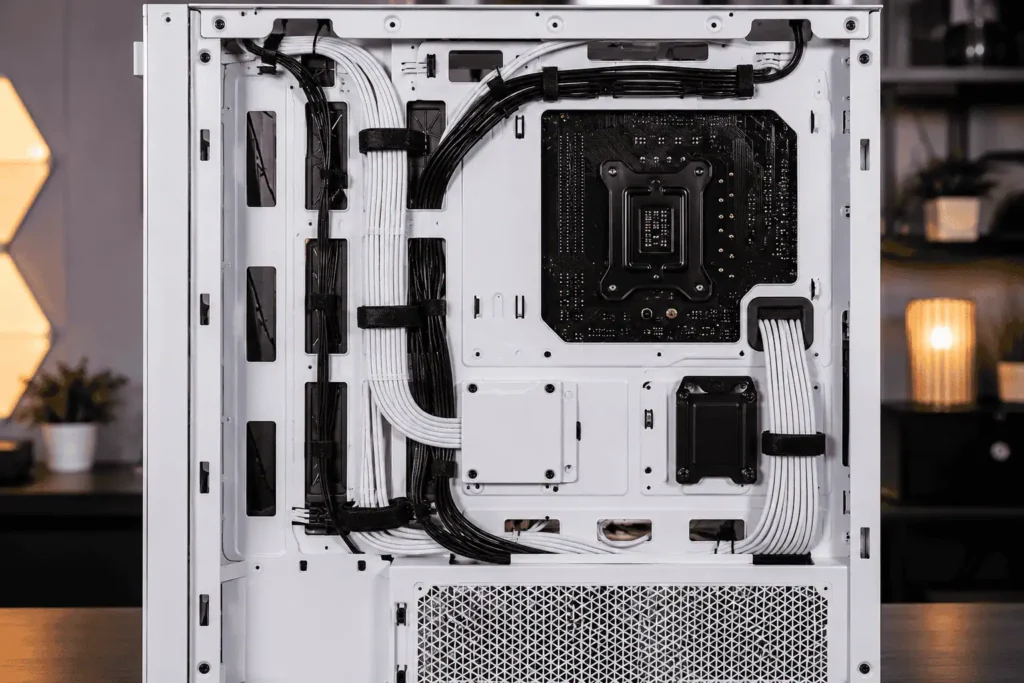
The location of the 24-pin connector changes slightly depending on your motherboard size. Choosing the best cable path helps create a cleaner build and avoids unnecessary bends.
ATX Motherboards
Most ATX motherboards place the 24-pin connector along the right edge of the board. Route the cable through the nearest rubber grommet to keep the visible section short and create a clean cable curve.
Micro-ATX Motherboards
Micro-ATX boards often place the connector slightly higher than standard ATX models. Use the closest cable opening to reduce the visible cable length and avoid routing the cable across the front of the motherboard.
Mini-ITX Motherboards
Mini-ITX systems have very little space for cable management. Route and connect the 24-pin cable before installing the graphics card or other large components. This gives you more room to work and helps prevent unnecessary strain on the cable.
Route the 24-Pin Cable by PC Case Type
The best routing path also depends on the size of your PC case. While the basic method stays the same, available space can affect how easily you manage the cable.
Mid-Tower Cases
Mid-tower cases offer enough space for clean cable management. Route the cable through the rear cable channel, bring it through the nearest rubber grommet, and secure it with Velcro straps or zip ties. This keeps the visible cable short and improves airflow.
Micro-ATX Cases
Micro-ATX cases have less room behind the motherboard tray. Use the nearest cable opening and avoid sharp bends. Keep the cable flat so the side panel closes easily.
Mini-ITX Cases
Mini-ITX systems have very limited space. Route the 24-pin cable before installing the graphics card or large CPU cooler whenever possible. This gives you more room to work and makes cable management much easier.
Routing with Different Power Supply Types
The type of power supply you use can affect cable routing. Some PSUs make cable management easier because you can remove unused cables, while others require you to organize extra cables inside the case.
Fully Modular Power Supplies
A fully modular PSU lets you connect only the cables you need. This reduces cable clutter and gives you more room in the cable management area, making it the easiest option for a clean build.
Semi-Modular Power Supplies
Semi-modular PSUs have some fixed cables, including the 24-pin cable on many models. You cannot remove these cables, but you can still achieve clean cable management by routing them neatly and securing any extra length.
Non-Modular Power Supplies
A non-modular PSU includes every cable whether you need it or not. Store unused cables inside the PSU shroud or another hidden area, and keep the visible 24-pin cable on the shortest and cleanest routing path.
Should You Use a 24-Pin Cable Extension?
A cable extension connects between the original PSU cable and the motherboard.
Many PC builders use extensions because they improve the appearance of the visible cable.
Extensions are especially popular in builds with tempered glass side panels.
Benefits of Cable Extensions
A good extension cable offers several advantages.
- Creates a cleaner appearance.
- Makes cable curves easier to shape.
- Works well with cable combs.
- Available in many colors.
- Helps match your PC’s color theme.
Hide the Connection Point
One common mistake is leaving the connection between the PSU cable and extension visible.
Instead, hide this joint inside the rear cable compartment.
Only the extension cable should remain visible inside the main chamber.
This creates a much cleaner and more professional finish.
How to Use Cable Combs Correctly
Cable combs help keep each wire straight and evenly spaced.
Many builders install them but place them randomly.
A little planning produces much better results.
Where Should Cable Combs Go?
Place the first cable comb close to the motherboard connector.
Add another comb near the middle of the visible cable.
If the visible section is longer, install one or two more combs to maintain an even curve.
This keeps every wire aligned from the PSU grommet to the motherboard.
Avoid Overusing Cable Combs
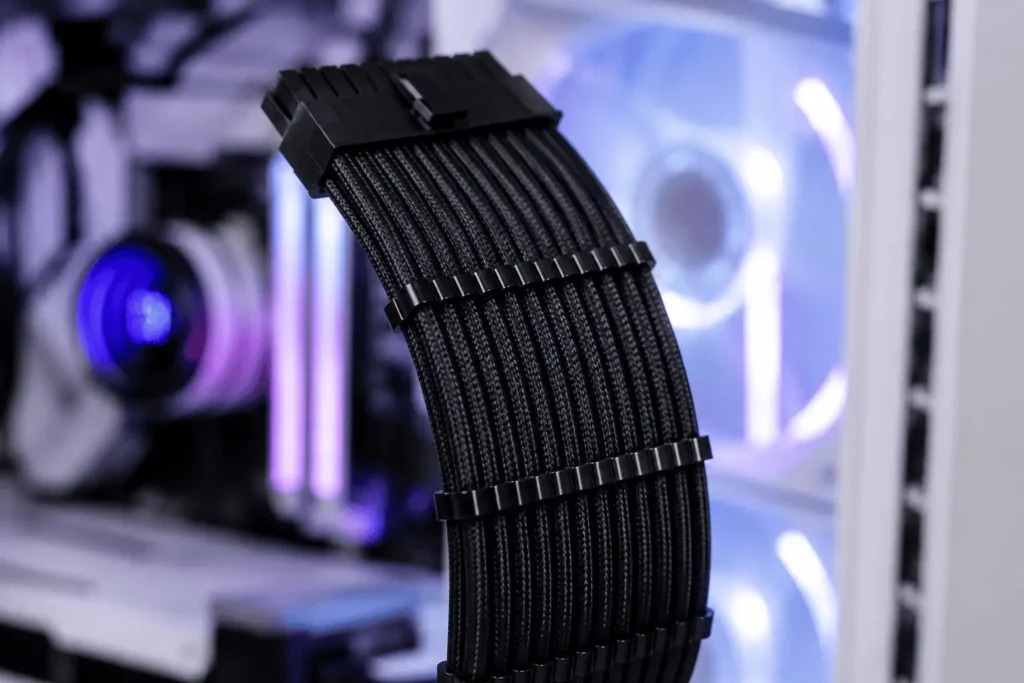
Too many cable combs can make the cable look crowded.
Use only enough to keep the wires evenly spaced.
The goal is a smooth curve, not a perfectly rigid cable.
How to Route Thick Sleeved 24-Pin Cables
Sleeved cables are thicker than standard PSU cables, so they need a little more space.
Shape the cable into a gentle bend instead of forcing it into place. Install cable combs before making the final curve, and leave a little extra slack so the cable does not press against the side panel.
Rear Cable Management Tips
A clean PC build depends on how well you organize cables at the back of the case. Keeping this area tidy makes the front look cleaner and helps the side panel close without force.
Bundle Extra Cable Length
Fold extra cable into large loops instead of tight bends. Secure the bundle with Velcro straps and use the case’s built-in cable channels whenever possible.
Keep Thick Cables Along the Edge
Route the 24-pin cable along the edge of the cable management area. This leaves more space for thinner cables such as SATA, fan, and RGB cables.
Secure Cables at Multiple Points
Use several tie points instead of one. This keeps the cables flat, prevents them from shifting, and reduces pressure on the side panel.
How Much Can You Bend a 24-Pin Power Cable?
The 24-pin power cable is designed to bend, but it should never be forced into a sharp angle. A gentle curve is the safest option.
Create Smooth Bends
Shape the cable slowly instead of forcing it into position.
A smooth bend looks cleaner and puts less stress on the connector and motherboard socket.
If the cable feels stiff, guide it into place with both hands. Do not twist or pull it.
Avoid Sharp 90-Degree Bends
A sharp bend close to the connector can make the cable look uneven.
It can also place extra pressure on the motherboard connector.
Leave a small gap between the connector and the start of the bend whenever possible.
Do Not Force the Side Panel
If the side panel pushes hard against the cable, reopen the case and adjust the routing.
Flatten the cable behind the motherboard tray or move it to another cable channel.
A few small changes can make the cable fit much better.
Does Cable Routing Improve Airflow?
Yes, good cable routing can improve airflow.
A large cable hanging in front of intake fans blocks part of the air entering the case.
When you route the 24-pin cable behind the motherboard tray, cool air can move more freely to important components.
Better airflow helps cool the graphics card, CPU cooler, and motherboard.
While one cable will not change temperatures by a large amount, keeping the front of the case clear helps your cooling system work as intended.
The Best Order for Routing PC Cables
Routing cables in the right order saves time and helps you avoid redoing your work.
- CPU power cable
- 24-pin power cable
- Graphics card power cables
- SATA power cables
- Fan, RGB, and front panel cables
Common Mistakes to Avoid
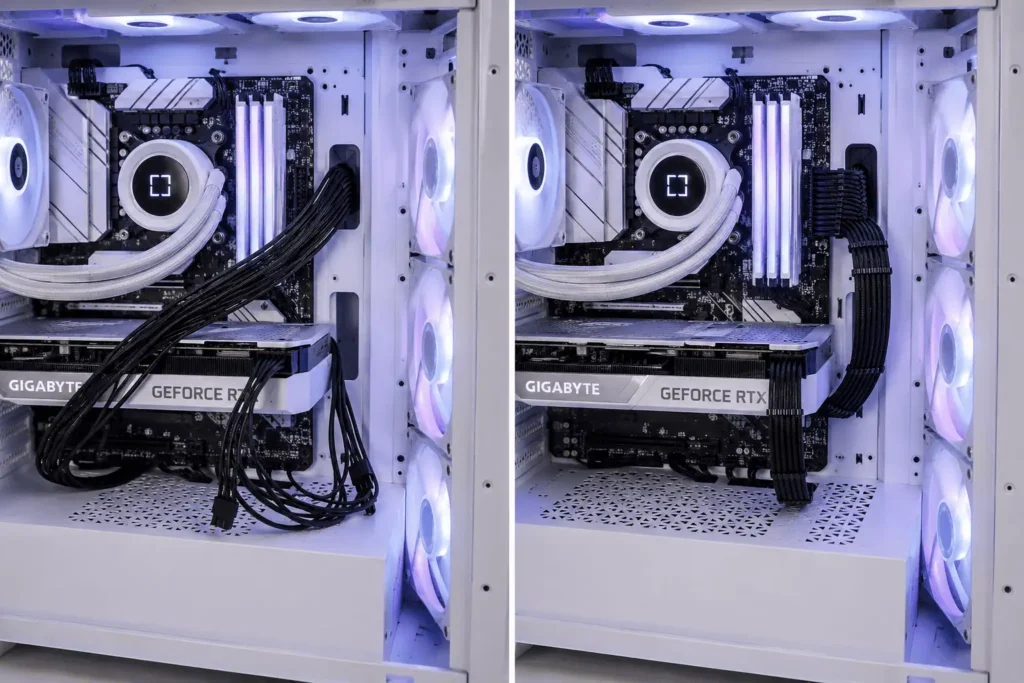
Avoid these common mistakes for cleaner cable management.
- Running the cable across the front of the motherboard instead of using the nearest cable opening.
- Pulling the cable too tight instead of leaving a little slack.
- Leaving the cable loose where it can block airflow or move during transport.
- Keeping the extension cable connection visible instead of hiding it inside the rear cable compartment.
- Tightening zip ties so much that they flatten the cable sleeving.
Conclusion
Routing 24 pin power cables helps create a cleaner and more organized PC build. Route the cable through the nearest rubber grommet, make a gentle bend, secure it with Velcro straps or zip ties, and leave a little slack for future upgrades. These simple steps improve cable management, keep airflow clear, and give your PC a neat finish without making future maintenance harder. To organize every major cable in your system, it’s also worth understanding PC component cable management.
FAQs
Can I route the 24-pin cable before installing the motherboard?
Yes. In smaller PC cases, routing the cable before installing the motherboard gives you more room to work and makes cable management easier.
How much bend is safe for a 24-pin power cable?
A gentle bend is safe. Avoid sharp bends near the connector because they can put extra stress on the cable and motherboard socket.
Can I reuse my old 24-pin cable with a new power supply?
No. Always use the cables that came with your power supply unless the manufacturer confirms they are compatible.
Do I need cable combs for a clean build?
No. Cable combs are optional. They simply help keep sleeved cables straight and evenly spaced.
Why does my side panel not close after cable routing?
The most common cause is thick or poorly arranged cables. Rearrange the cables, use the built-in cable channels, and keep the cable bundle as flat as possible.