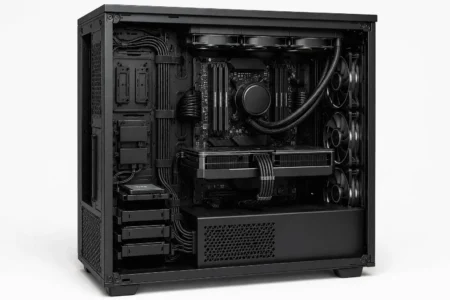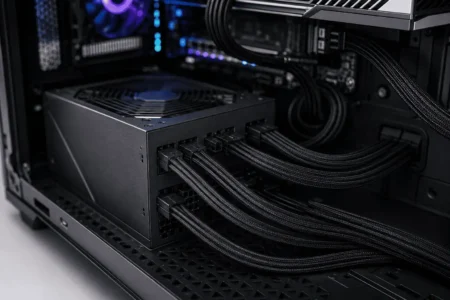
Many PC builders focus on the front of the case, but the real cable clutter is often behind the motherboard tray. Poor cable routing can create bulky cable bundles that make the side panel hard to close, block access to connectors, and complicate future upgrades. Thick 24-pin ATX, PCIe power, SATA, and fan cables can quickly fill the rear compartment if they are not routed carefully.
This guide explains how to tuck cables behind the motherboard tray using clean cable management techniques. You’ll learn the best cable routing order, how to use motherboard tray clearance and the PSU shroud, and how to avoid common mistakes while keeping airflow unobstructed.
What Does Tucking Cables Behind the Motherboard Tray Mean?
The motherboard tray is the metal section of a PC case where the motherboard is mounted.
Behind that tray is a hidden compartment designed for cable management.
Instead of leaving cables visible inside the main chamber, builders route them through cable cutouts and behind the tray.
This keeps the front of the build cleaner and creates a more organized appearance.
Most modern cases from brands such as Corsair, NZXT, Fractal Design, Lian Li, and Phanteks include dedicated cable routing channels, tie-down points, and rubber grommets to make this process easier.
Why Builders Route Cables Behind the Motherboard Tray
There are several reasons why builders use the space behind the tray:
- Reduces visible cable clutter
- Makes the PC look cleaner through a tempered glass panel
- Keeps cables away from fans
- Makes future upgrades easier
- Helps organize power and data cables
For cases with tempered glass side panels, hiding cables behind the motherboard tray can make the hardware stand out more clearly.
A cleaner layout often gives the entire build a more polished appearance.
Does Routing Cables Behind the Tray Improve Airflow?
Routing cables behind the motherboard tray can help keep the main chamber clear.
When large cable bundles are moved out of the way, fans have fewer obstacles in front of them.
The biggest benefit is organization, although moving large cable bundles away from fans can help maintain unobstructed airflow.
If you want to learn more about airflow and cable management, you can also read our guide on whether cable management improves airflow.
Check Your Case Before Routing Cables
Before you start moving cables behind the motherboard tray, take a few minutes to inspect your case.
Not every case offers the same amount of space.
Some cases provide deep cable channels and built-in straps, while others offer very little room behind the side panel.
Planning ahead can prevent frustration later.
Look for Cable Routing Features
Remove both side panels and examine the rear compartment.
Look for:
- Cable routing holes
- Rubber grommets
- Cable tie points
- Velcro straps
- Cable channels
- PSU shroud openings
These features help guide cables through the case and keep them secured.
Cases with dedicated routing channels are usually easier to work with because they help separate thick cables from smaller wires.
Check Motherboard Tray Clearance
One of the most overlooked parts of cable management is tray clearance.
Motherboard tray clearance is the amount of space between the tray and the rear side panel.
If there is not enough space, cable bundles can press against the panel and prevent it from closing.
As a general rule:
- Very tight cases have limited room for thick cable bundles.
- Mid-range cases usually provide enough space for standard cable routing.
- Larger cases offer more flexibility for thick 24-pin cables, PCIe cables, and SATA power chains.
The more space available, the easier it becomes to organize cables without creating bulges.
Identify Problem Areas Early
Before routing anything, locate areas where cables may pile up.
Common trouble spots include:
- Behind the CPU cutout
- Near SSD mounting locations
- Around cable tie anchors
- Near the side panel latch
- Above the PSU shroud
Knowing these areas ahead of time helps you avoid stacking too many cables in one place.
How Much Space Behind the Motherboard Tray Is Enough?
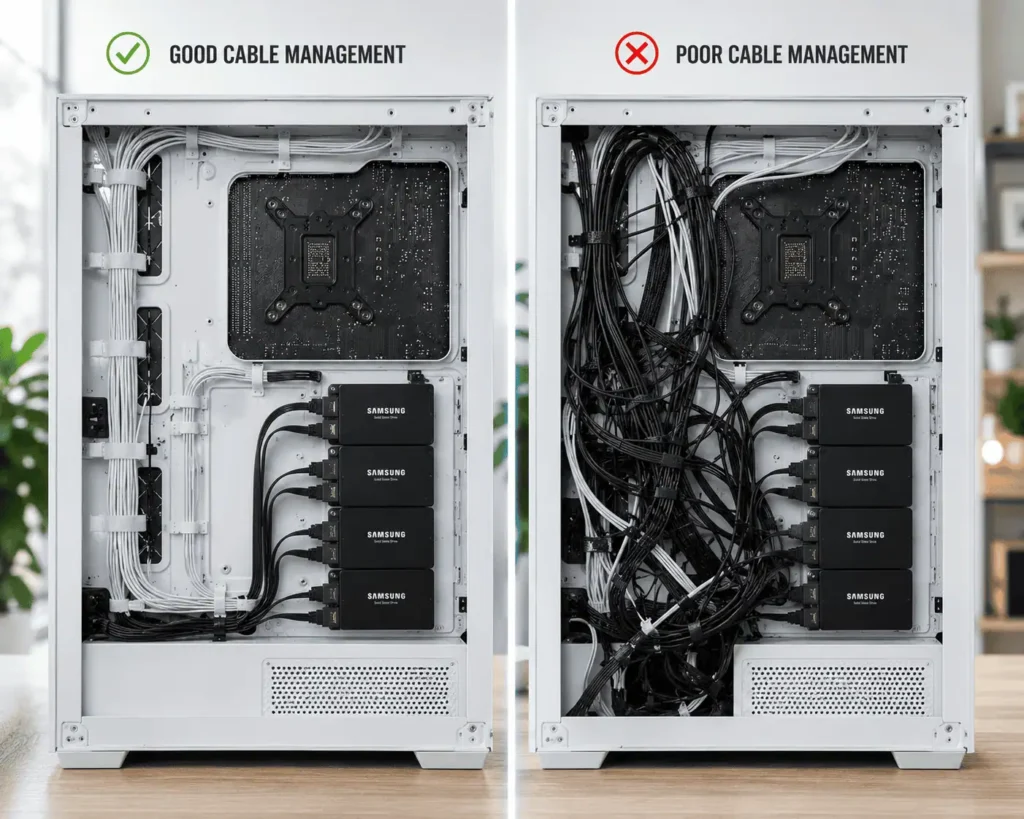
The amount of space behind the motherboard tray affects how easy cable management will be.
More space gives you greater flexibility when routing thick cables and cable bundles.
Less Than 15mm of Clearance
Cases with less than 15mm of clearance require careful planning.
Thick 24-pin ATX cables and PCIe power cables can quickly create pressure against the side panel.
15mm to 25mm of Clearance
This range is common in many modern mid-tower cases.
It usually provides enough room for standard cable routing when cables are kept flat and secured properly.
More Than 25mm of Clearance
Cases with more than 25mm of clearance offer the easiest cable management experience.
They provide extra room for thicker cable bundles, cable channels, and future upgrades.
Plan Your Cable Routes Before Connecting Components
Before connecting any cables, identify where the power supply, SSDs, fan hubs, and RGB controllers are located.
Planning cable paths in advance helps reduce cable crossings and keeps the motherboard tray area easier to organize.
Which Cables Should Be Routed Behind the Motherboard Tray?
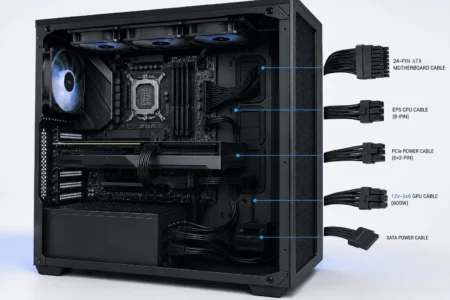
Most internal PC cables can be routed behind the motherboard tray to reduce visible clutter and create a cleaner layout.
Common examples include:
– 24-pin ATX power cable
– EPS CPU power cable
– PCIe GPU power cables
– SATA power cables
– SATA data cables
– Fan cables
– RGB cables
– Front panel connectors
The 24-pin ATX cable, PCIe GPU power cables, and SATA power cables usually take up the most space behind the motherboard tray, so plan their placement carefully.
Best Cable Routing Order for Beginners
Many builders start routing cables without a plan. This often leads to tangled wires, bulky cable bundles, and wasted time.
A better approach is to route cables in a specific order. This helps keep the rear compartment organized and prevents thicker cables from blocking smaller ones.
Start With the CPU Power Cable
The EPS CPU power cable is usually the hardest cable to route after the motherboard is installed.
Run this cable behind the motherboard tray first and bring it through the top cutout near the CPU power connector.
Getting it in place early prevents it from being trapped behind other cables later.
Route Front Panel Connectors Next
Front panel connectors are small and flexible.
Because these cables take up very little space, it is best to route them before larger cables fill the area.
This also makes it easier to keep them hidden under larger cable bundles.
Route Fan and RGB Cables
Fan cables and RGB controller cables should be routed before major power cables.
These wires are thin and can easily fit through narrow routing channels.
If your build includes multiple fans or RGB devices, grouping these cables together can help reduce clutter.
If you use lighting hardware, our RGB controller cable management guide covers additional routing techniques.
Route SATA Cables
Next, route SATA power cables and SATA data cables.
These cables are usually easier to manage before the 24-pin cable occupies the main routing channel.
If you have multiple SSDs, try to keep SATA cables flat against the motherboard tray.
If your build includes several drives, you may also find our guide on routing SATA cables for multiple SSD drives helpful.
Route the 24-Pin ATX Cable
The 24-pin motherboard cable is often the largest cable inside the system.
Route it through the closest grommet and remove excess slack from the main chamber.
Many builders use the 24-pin cable as a main anchor point behind the tray because other smaller cables can be routed beneath it.
Finish With GPU Power Cables
PCIe power cables should be routed last.
At this point, the rest of the cable layout is already organized, making it easier to choose the cleanest path to the graphics card.
If your GPU uses multiple power connectors, keep the cables parallel whenever possible for a cleaner appearance.
For additional tips, see our guide on preventing cable strain on GPU power connectors.
How to Tuck Cables Behind the Motherboard Tray
Now that you have a routing plan, it is time to start organizing the cables.
Step 1: Power Off the PC and Remove Both Side Panels
Turn off the system and disconnect the power cable.
Remove both side panels so you can access the front and rear compartments at the same time.
This gives you a clear view of all routing channels and tie-down points.
Step 2: Identify the Best Routing Path for Each Cable
Before securing anything, look at where each cable needs to enter and exit.
Try to choose the shortest and cleanest path.
Avoid crossing cables unnecessarily because this can create thick bundles behind the tray.
Step 3: Route Thick Cables First
Start with larger cables such as:
- 24-pin ATX cable
- EPS CPU power cable
- PCIe GPU power cables
These cables take up the most space.
Placing them first allows you to build the rest of the routing plan around them.
Step 4: Add Smaller Cables
Once the larger cables are in place, route:
- Fan cables
- RGB cables
- SATA data cables
- Front panel connectors
These smaller cables can often fit beneath larger cable runs.
This helps create a flatter cable layout.
Step 5: Secure Cables in Sections
Do not tighten every zip tie immediately.
Instead, loosely secure cables first.
This allows you to make adjustments if you need to reroute a cable later.
Once everything is positioned correctly, tighten the ties gradually.
Step 6: Flatten Large Cable Bundles
One of the most common mistakes is stacking cables on top of each other.
Instead of creating a round bundle, spread cables out across a wider area.
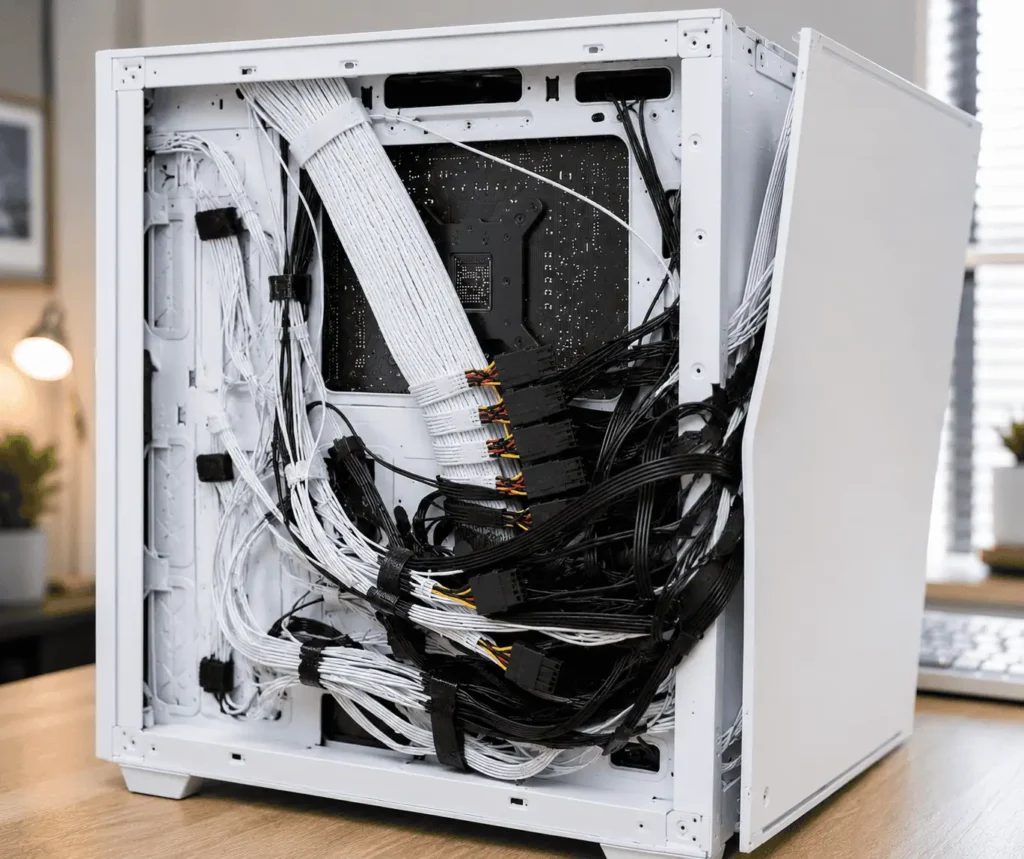
A flatter bundle takes up less depth and makes it easier for the side panel to close.
Step 7: Test Side Panel Clearance
Before finishing the job, place the rear side panel back onto the case without forcing it.
If the panel closes easily, your routing is likely fine.
If you feel resistance, identify the thickest cable area and reduce the bulk before securing everything permanently.
Leave Room for Future Upgrades
Avoid securing cables so tightly that they become difficult to access later.
Leaving a little flexibility in your cable routing can make it easier to add storage drives, fans, or other components in the future.
A well-organized cable layout should be easy to maintain as your system changes over time.
How to Route Individual Cable Types Properly
The 24-pin ATX cable, CPU power cable, GPU power cables, SATA cables, and fan cables should stay behind the motherboard tray for most of their route.
Use the nearest cable cutout or grommet to reach each component and keep cables as flat as possible against the tray.
Avoid sharp bends, especially on thicker power cables.
Fan, RGB, and SATA data cables are thinner and can often be routed beneath larger cable bundles.
If your case includes cable channels or Velcro straps, use them to keep cables secure and reduce rear-panel pressure.
Motherboard Tray vs PSU Shroud
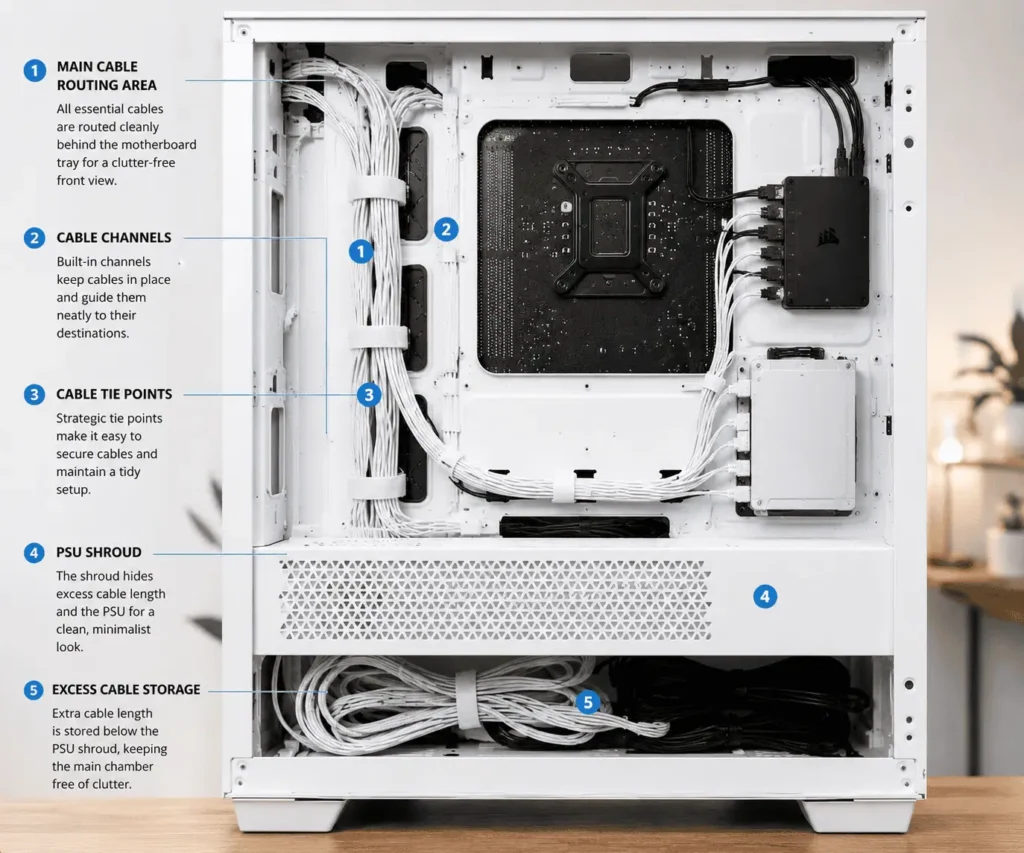
Many builders are unsure where certain cables should be hidden.
The answer depends on the cable type.
The motherboard tray is best for:
- Active cables
- Fan cables
- SATA cables
- Front panel connectors
- GPU power cables
- CPU power cables
The PSU shroud is best for:
- Excess cable length
- Unused modular cables
- Large cable loops
Think of the motherboard tray as a routing area and the PSU shroud as a storage area.
Using both correctly can make cable management much easier.
Is It Safe to Route Cables Behind the Motherboard Tray?
Yes, routing cables behind the motherboard tray is completely normal.
Modern PC cases are designed for this purpose.
However, there are a few rules to follow.
Safe Areas
Safe routing areas include:
- Cable channels
- Tie-down points
- Rear cable compartments
- Grommet openings
These areas are specifically designed for cable management.
Areas to Avoid
Avoid placing cables:
- Under the motherboard
- Between motherboard standoffs
- Against sharp metal edges
- Directly under mounting screws
These locations can damage cable insulation or create unnecessary pressure points.
Prevent Cable Damage
Avoid forcing thick cables into tight spaces.
If a cable feels compressed, reroute it instead of applying more pressure.
A clean routing path is always better than an overcrowded one.
Common Mistakes When Tucking Cables Behind the Motherboard Tray
Even experienced builders can make cable management mistakes.
Many side panel problems happen because of poor cable placement rather than a lack of space.
Avoid these common issues when routing cables behind the motherboard tray.
Creating Thick Cable Bundles
One of the biggest mistakes is stacking too many cables in one location.
When cables are bundled into a thick lump, they push against the rear side panel.
Instead of building upward, spread cables across a wider area. Flat cable routing usually works much better than thick cable bundles.
Over-Tightening Zip Ties
Zip ties should secure cables, not crush them.
Pulling zip ties too tight can flatten cable sleeves and make future upgrades more difficult.
Leave enough room for cables to sit naturally.
Ignoring Cable Bend Radius
Every cable needs room to bend.
Sharp bends can place stress on connectors and create awkward cable paths.
This is especially important for:
- 24-pin ATX cables
- PCIe GPU power cables
- SATA power chains
Gentle curves often look cleaner and place less strain on the wiring.
Routing Everything Through One Channel
Many cases offer multiple cable routing channels.
Trying to force every cable into one path often creates unnecessary bulk.
Spread cables between available channels whenever possible.
Securing Cables Too Early
Some builders tighten every zip tie before checking the final layout.
This makes adjustments difficult later.
Always test cable placement before permanently securing everything.
Why Your Side Panel Won’t Close
One of the most common cable management problems is a rear side panel that refuses to close.
Fortunately, the cause is usually easy to identify.
Thick 24-Pin Cable Buildup
The 24-pin motherboard cable is often the main source of rear panel pressure.
If the cable sits directly on top of several smaller cables, the bundle becomes too thick.
Try moving smaller cables to a different channel.
Excess Power Supply Cable Length
Unused cable length can quickly create clutter behind the motherboard tray.
Instead of stuffing extra cable into the rear compartment, move excess length into the PSU shroud when possible.
This helps reduce pressure on the side panel.
Stacked SATA Power Connectors
SATA power connectors are wider than many builders realize.
When several connectors overlap, they can create a noticeable bulge.
Keep SATA power chains flat and secure them along the edge of the case.
Poor Cable Distribution
Sometimes the problem is not the amount of cable but where it is located.
One area may be overloaded while other routing channels remain empty.
Redistributing cables often solves the problem without removing anything.
Cable Routing by Case Type
Different PC cases offer different cable management challenges.
The available space behind the motherboard tray can vary greatly.
Mid-Tower Cases
Mid-tower cases are the most common option.
Most provide enough room for standard cable routing and include multiple tie-down points.
Builders usually have enough space to hide the 24-pin cable, CPU power cable, and fan cables without major issues.
Mini-ITX Cases
Mini-ITX cases are often the most challenging.
Space is limited, and every cable path matters.
Builders may need to use shorter cables or modular power supplies to reduce clutter.
Keeping cable runs as short as possible is often the key to success.
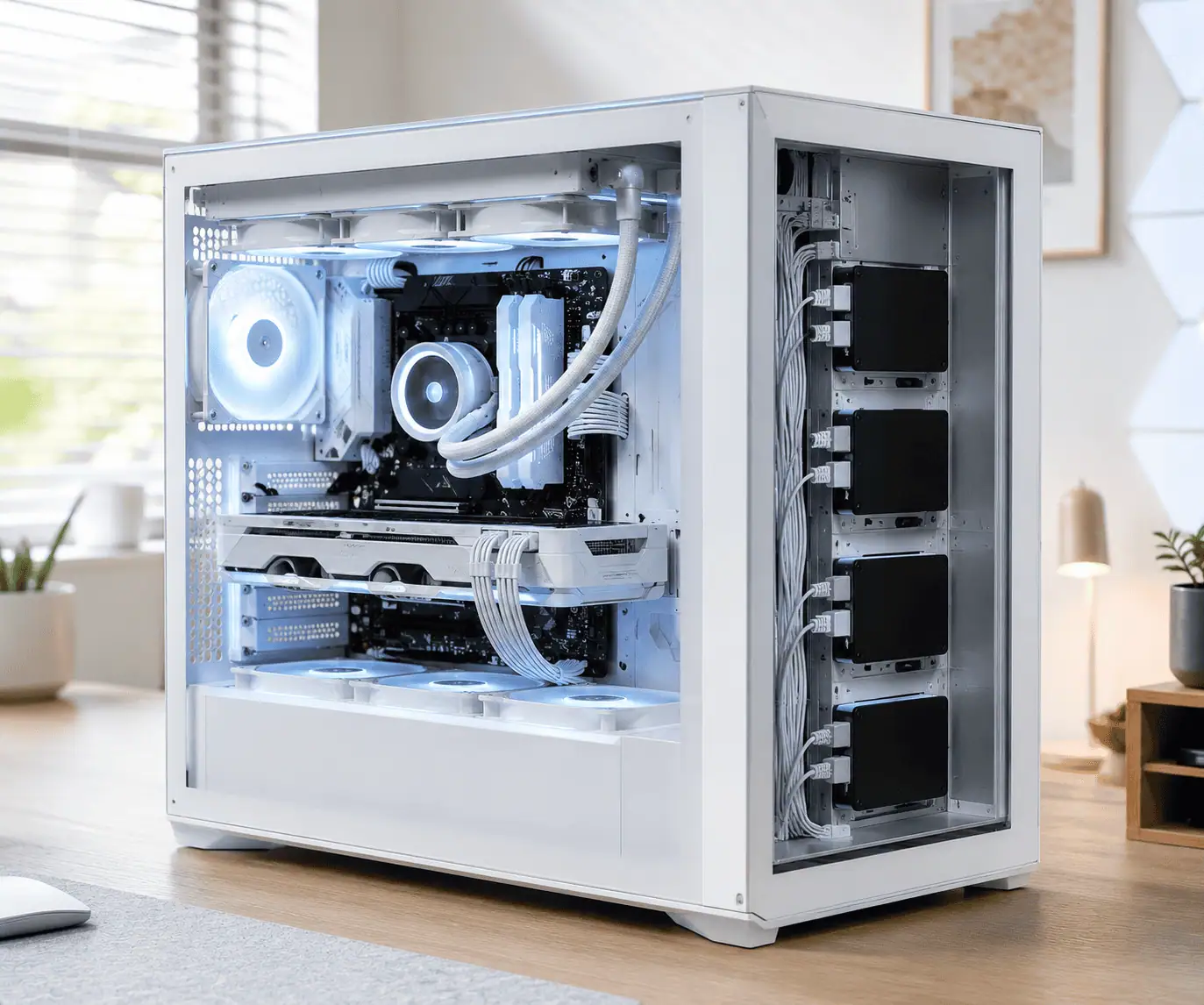
Dual-Chamber Cases
Dual-chamber cases offer a unique advantage.
Most of the cable clutter can be hidden in the rear chamber.
This design makes it easier to achieve a clean appearance through the tempered glass panel.
If you use a dual-chamber design, you can read our guide on routing cables in a dual chamber PC case for more detailed instructions.
Motherboard Tray Cable Management Checklist
Before closing the case, take a few minutes to review your work.
A quick inspection can prevent problems later.
Airflow Check
Make sure no cables are hanging in front of intake or exhaust fans.
Side Panel Check
Install the rear side panel without forcing it into place.
If resistance is present, review the cable layout.
Fan Clearance Check
Confirm that all fan cables are secured away from moving blades.
Connector Check
Inspect:
- 24-pin ATX connector
- CPU power connector
- GPU power connectors
- SATA connections
- Fan headers
Everything should be fully seated.
Conclusion
Tucking cables behind the motherboard tray is a simple way to create a cleaner and more organized PC build. By planning cable paths, routing larger cables first, and keeping cable bundles flat, you can reduce clutter and avoid common problems such as side-panel bulges. The key is to use the available space wisely and secure cables properly. With a little effort, you can improve the appearance of your build, make future upgrades easier, and keep cable management under control for the long term. To build on these cable routing techniques, it’s also worth exploring PC component cable management for every major component in your PC.
FAQs
Can I Put All My Cables Behind the Motherboard Tray?
Most cables can be routed behind the motherboard tray, but not every cable should stay there permanently.
Some cable length may need to remain visible near components and connectors.
How Much Space Do I Need Behind the Motherboard Tray?
More space is always helpful, but proper cable organization is often more important than raw clearance.
Flat cable routing usually works better than thick cable bundles.
What Happens if the Side Panel Does Not Close?
The most common causes are thick cable bundles, stacked SATA connectors, and excess cable length.
Reorganizing those areas usually solves the problem.
Can I Improve Cable Management Without Rebuilding My PC?
Yes. In most cases, you can improve cable management by loosening existing cable ties and rerouting cables behind the motherboard tray without taking the entire PC apart.
Do I Need Special Accessories to Tuck Cables Behind the Motherboard Tray?
No. Many PC cases already include routing channels, tie-down points, and straps that can help you organize cables without buying extra accessories.