Front panel header cable organization is easy to overlook during a PC build, but messy front panel connectors can create clutter and make upgrades, cleaning, or troubleshooting more frustrating. Since these small front I/O cables connect your case power button, reset button, and LEDs to the motherboard header, poor routing can quickly make the inside of your PC look untidy.
The good news is that organizing these cables takes only a few minutes. With proper cable routing and a few simple cable management techniques, you can create a cleaner, more organized PC that is easier to maintain and upgrade.
What Are Front Panel Header Cables?
Front panel header cables are small wires that connect your PC case buttons, lights, and front ports to the motherboard.
These cables plug into the front panel header, which is usually located along the bottom edge of the motherboard.
Without these connections, important case functions such as the power button, reset button, and status LEDs would not work.
Common front panel cables include:
- Power Switch (PWR_SW): Turns the PC on and off.
- Reset Switch (RESET_SW): Restarts the computer without shutting it down completely.
- Power LED (PLED): Shows when the system is powered on.
- HDD LED: Indicates storage activity.
- HD Audio: Connects the front headphone and microphone ports.
- USB Headers: Connect front USB 2.0, USB 3.0, or USB-C ports.
Understanding these cables makes it easier to identify them, connect them correctly, and create a clean cable routing path inside your PC.
Why Front Panel Header Cable Organization Matters
Front panel header cables may be small, but organizing them properly can improve both the appearance and usability of your PC.
Many builders focus on larger cables, such as motherboard power cables and GPU power cables, while leaving front panel wires untouched.
As a result, these small cables often become one of the messiest areas inside a build.
Spending a few extra minutes organizing front panel header cables can help create a cleaner system and make future maintenance much easier.
Cleaner Builds
One of the biggest benefits of front panel header cable organization is a cleaner-looking PC.
Front panel wires are usually thin and easy to hide.
When routed neatly along the motherboard edge or behind the motherboard tray, they become far less noticeable.
This helps reduce visual clutter and creates a more professional appearance inside the case.
A clean cable layout can also help highlight other components, such as:
- Graphics cards
- CPU coolers
- RGB lighting
- Memory modules
This is especially important in cases with tempered glass side panels where the internal layout is visible.
You do not need a perfect showcase build to benefit from cable management.
Even simple cable routing can make the inside of a PC look significantly more organized.
Easier Maintenance
Good cable organization makes it easier to work inside your computer.
At some point, most PC owners will need to:
- Clean dust from the system
- Replace a fan
- Install a new SSD
- Upgrade a graphics card
- Troubleshoot a hardware issue
When front panel cables are routed neatly, they are less likely to get in the way during these tasks.
Organized cables are also easier to identify. If you ever need to disconnect or inspect a front panel connector, you can quickly locate the correct wire instead of sorting through a tangled group of cables.
This can save time and reduce frustration during maintenance.
Better Airflow and Appearance
Front panel header cables have a small effect on airflow by themselves because the wires are thin. However, poor cable management can still contribute to overall clutter inside the case.
Loose cables can:
- Hang near fans
- Obstruct airflow paths
- Collect dust
- Make the build look untidy
Keeping the cables secured and routed along designated paths helps maintain a cleaner interior.
It is also a good idea to keep front panel wires away from:
- Front intake fans
- Bottom-mounted fans
- Graphics card fans
This reduces the chance of cables shifting into moving components and helps maintain clear airflow paths.
While better airflow is a benefit, appearance is often the first thing builders notice. A clean cable layout creates a more polished build and gives the system a more professional finish.
Small Effort, Long-Term Benefits
Front panel header cable organization does not require special skills or expensive tools. In most cases, a few simple routing adjustments can make a noticeable difference.
The time spent organizing these cables during the build process can pay off later through:
- Easier upgrades
- Faster maintenance
- Cleaner appearance
- Better cable accessibility
- Reduced connector strain
For such small wires, front panel header cables can have a surprisingly large impact on the overall quality of a PC build.
Now that you understand why cable organization matters, the next step is choosing the right tools to keep front panel header cables secure, tidy, and easy to manage.
Tools for Front Panel Cable Management
You do not need expensive accessories to organize front panel header cables. In most cases, a few simple cable management tools are enough to keep the wires neat and secure.
Velcro Straps
Velcro straps are reusable, easy to adjust, and ideal for builders who upgrade their PCs regularly. They provide a good balance between organization and flexibility.
Zip Ties
Zip ties offer a strong and inexpensive way to secure cables. They create a clean look but must be cut and replaced if you need to change the cable layout.
Cable Clips
Cable clips help guide individual wires and keep them away from fans or other components. They are especially useful in compact PC cases.
Which Option Is Best?
For most builders, Velcro straps are the best choice because they are easy to reuse and adjust. However, zip ties work well if you want a more permanent cable setup.
Many modern PC cases already include cable channels, tie points, or Velcro straps, so check your case before buying additional accessories.
How to Plan Your Front Panel Header Cable Route
Good cable management starts before you secure any wires.
Taking a few minutes to plan your cable route can help you create a cleaner build and avoid unnecessary adjustments later.
Many builders connect the cables first and worry about organization afterward.
A better approach is to identify the cable path before securing anything.
This makes it easier to hide wires, reduce clutter, and maintain access to important components.
Find the Front Panel Header
The first step is locating the front panel header on your motherboard.
On most motherboards, the front panel header is found along the bottom edge of the board. It is commonly labeled:
- F_PANEL
- Front Panel
- System Panel
- JFP1
The exact location varies between manufacturers, so checking the motherboard manual is always a good idea.
Once you know where the header is located, you can choose the most direct and organized path for the cables.
Use Cable Pass-Through Openings
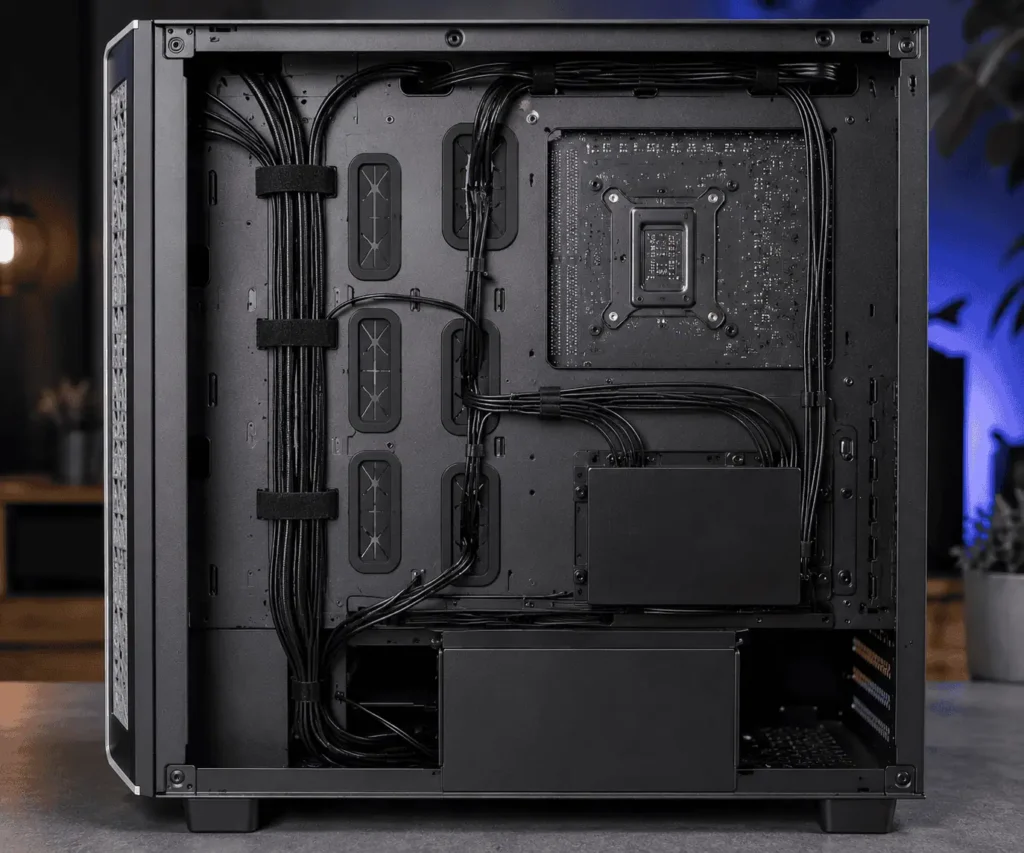
Most modern PC cases include cable routing openings around the motherboard tray.
These openings allow cables to travel behind the motherboard tray before returning near the front panel header.
This helps hide wires and keeps the main compartment looking cleaner.
Look for:
- Bottom routing openings
- Side cable channels
- Rubber grommets
- PSU shroud openings
Using these features can greatly reduce visible cable clutter.
Whenever possible, avoid running front panel cables directly across the motherboard.
Keep the Route Short and Clean
A simple route is usually the best route.
Try to guide the cables from the front of the case to the nearest cable opening, then route them behind the motherboard tray until they reach the area closest to the front panel header.
This method helps:
- Reduce visible wires
- Improve organization
- Simplify future maintenance
- Keep the motherboard area cleaner
Avoid unnecessary loops or complicated cable paths that make the build harder to work on later.
Separate Small Cables From Larger Cables
Front panel header wires are much smaller than power supply cables and GPU power cables.
If possible, keep these cable groups separate.
This makes it easier to identify front panel connectors when:
- Troubleshooting problems
- Upgrading components
- Disconnecting cables
- Performing maintenance
A clear cable layout is usually easier to manage than a large mixed bundle of wires.
Routing Tips for Different Cases and Motherboards
Cable routing space varies between PC builds.
Full tower and ATX systems usually provide more room behind the motherboard tray, while Micro ATX and Mini ITX cases require shorter and more careful cable routing.
If your motherboard uses a back-connect design, most cables will already be hidden.
Regardless of your hardware, keep front panel header cables secure, easy to access, and away from fans or other moving components.
Avoid Fan Areas
Before finalizing the route, check the location of nearby fans.
Front panel cables should not hang near:
- Front intake fans
- Bottom intake fans
- Graphics card fans
- CPU cooler fans
Even lightweight cables can shift over time if they are not secured properly.
Keeping wires away from moving components helps protect both the cables and the hardware.
Create a Routing Plan Before Securing Anything
Before using Velcro straps or zip ties, perform one final check.
Make sure:
- The route is clean
- The cables reach comfortably
- The wires stay clear of fans
- Important components remain accessible
Once the route looks good, you are ready to connect and organize the cables properly.
The next step is learning the exact process for organizing front panel header cables so they remain secure, tidy, and easy to maintain.
Step-by-Step Front Panel Header Cable Organization
Once you have planned the cable route, organizing the cables is straightforward.
The goal is to connect the cables correctly, route them neatly, and secure them without creating strain on the connectors.
Connect the Front Panel Cables
Connect the power switch, reset switch, power LED, HDD LED, audio, and USB cables to the correct motherboard headers.
If needed, check the motherboard manual before continuing.
Group and Route the Cables
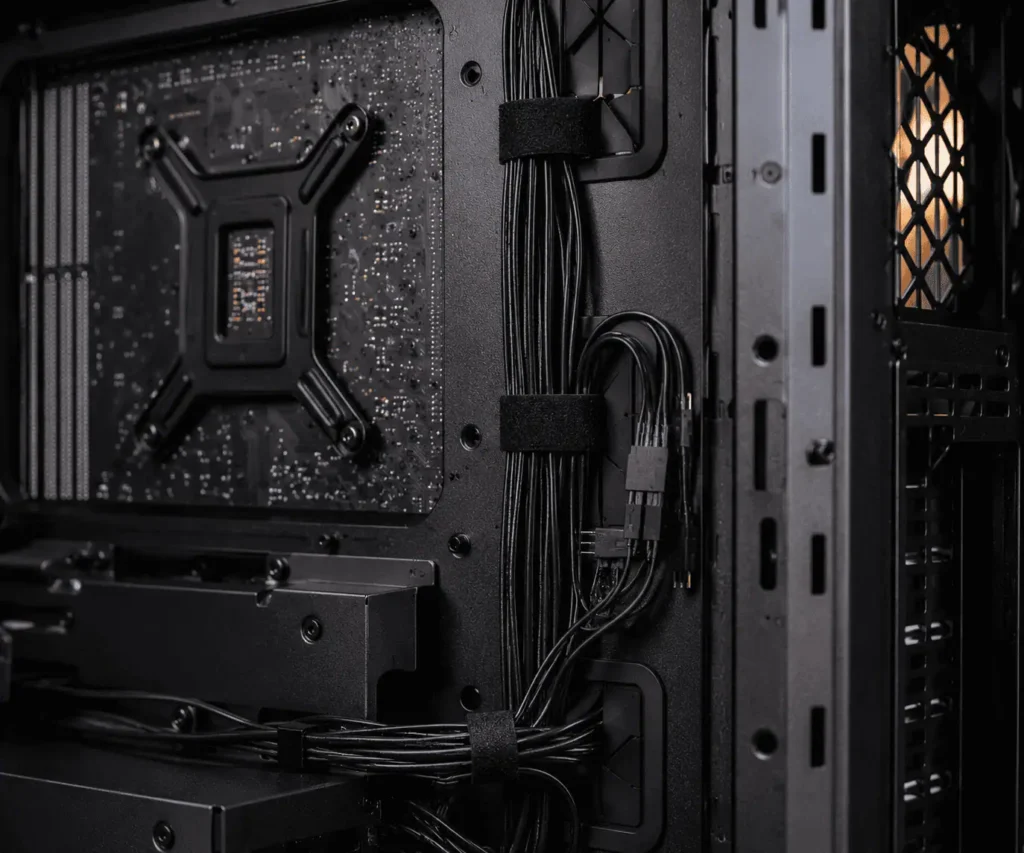
Bundle related cables together and route them behind the motherboard tray whenever possible.
This reduces visible clutter and keeps the motherboard area cleaner.
Secure Excess Cable Length
If there is extra cable length, secure it behind the motherboard tray using Velcro straps or zip ties. Avoid creating large cable loops or forcing wires into tight spaces.
Leave a Small Service Loop
Leave a small amount of slack near the connector to reduce strain and make future maintenance easier. Avoid pulling cables tightly against the header pins.
Test the System
Before closing the case, confirm that the power button, reset button, LEDs, front USB ports, and audio ports work correctly.
A clean cable layout should keep cables secure, easy to access, and free from unnecessary clutter.
Common Front Panel Header Cable Management Mistakes
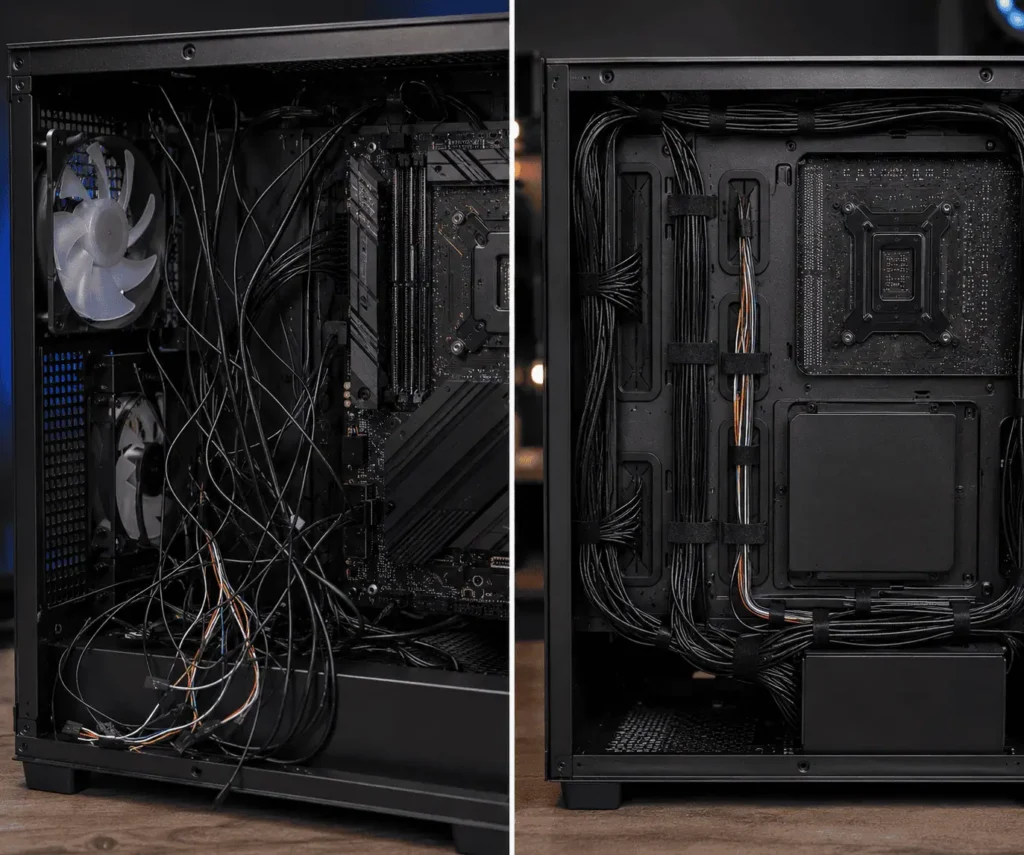
Even simple cable management mistakes can create clutter or make future maintenance more difficult.
Pulling Cables Too Tight
Tight cables can place strain on connectors and make them harder to remove later.
Leave a small service loop near the header to reduce tension.
Leaving Excess Cable Loose
Large cable loops can create clutter and make troubleshooting harder.
Secure extra cable length behind the motherboard tray whenever possible.
Running Cables Across the Motherboard
Instead of routing cables across the motherboard surface, use nearby cable openings and route them behind the motherboard tray for a cleaner appearance.
Overtightening Zip Ties
Zip ties should hold cables securely without squeezing them.
Overtightening can increase cable strain and make adjustments more difficult.
Forgetting to Test Connections
Always test the power button, reset button, LEDs, USB ports, and audio ports before finishing your cable management.
Mixing Small and Large Cable Bundles
Keep front panel header cables separate from larger power cables whenever possible.
This makes maintenance and troubleshooting easier.
Avoiding these mistakes will help create a cleaner, more reliable cable layout that is easier to manage over time.
Troubleshooting Front Panel Header Cables After Cable Management
Even with careful cable management, you may occasionally encounter a problem after organizing your front panel header cables.
A connector might become loose during routing, an LED may stop working, or a button may fail to respond.
The good news is that most front panel header issues are easy to diagnose and fix.
In many cases, the problem is simply a loose connector or an incorrect connection.
Before assuming a component has failed, inspect the cable routing and verify that all connectors are attached correctly.
Power Button Not Working
If the PC does not turn on when you press the power button, start by checking the power switch connector.
During cable management, the connector may have:
- Become loose
- Shifted slightly on the header
- Been connected to the wrong pins
Compare the connector placement with the motherboard manual and make sure it is fully seated on the correct header pins.
A loose power switch connector is one of the most common front panel header problems.
Reset Button Not Working
If the reset button no longer responds, inspect the reset switch connector.
Check that:
- The connector is attached to the correct pins
- The cable was not pulled during routing
- The connector is fully seated
Unlike LED cables, reset switch cables do not rely on polarity, so orientation is usually not the issue.
Most reset button problems are caused by a loose or misplaced connector.
Power LED Not Lighting Up
The power LED cable requires correct polarity.
If the power LED does not turn on:
- Verify the connector placement
- Check the positive and negative orientation
- Confirm the connector is fully inserted
If the connector is installed backward, simply reverse it and test again.
Incorrect LED polarity will not damage the motherboard or the LED.
HDD LED Not Flashing
The HDD LED works the same way as the power LED.
If it does not flash during storage activity:
- Check connector orientation
- Verify correct pin placement
- Confirm the connector is secure
A reversed connector is often the cause when an HDD LED stops working after cable management.
Front Audio Ports Not Working
If the front headphone or microphone jack stops working, inspect the HD Audio cable.
Make sure:
- The connector is fully seated
- The cable was not stretched during routing
- The correct motherboard header is being used
Some motherboards include multiple audio-related headers, so checking the motherboard manual can help avoid mistakes.
Front USB Ports Not Working
If front USB ports stop working after organizing cables, inspect the USB header connection.
Check for:
- Loose connectors
- Incorrect installation
- Bent header pins
- Excessive cable tension
USB header connectors are larger than standard front panel connectors, but they can still loosen if the cable route places too much strain on them.
Most Front Panel Header Problems Are Easy to Fix
Front panel header connectors may look intimidating because they are small, but troubleshooting them is usually straightforward.
Most issues are caused by:
- Loose connections
- Incorrect LED polarity
- Cable strain
- Connector placement errors
By checking these areas first, you can solve most front panel header problems within a few minutes.
Once everything is working correctly, perform a final cable management review using a simple checklist to ensure the setup is clean, secure, and ready for long-term use.
Front Panel Header Cable Organization Checklist
Before closing your PC case and calling the build complete, take a few minutes to review your cable management.
A simple final check can help you catch small issues before they become frustrating problems later.
Use this checklist to confirm that your front panel header cables are organized correctly.
Connection Checklist
Make sure all front panel connectors are attached properly:
- Power switch cable is connected correctly
- Reset switch cable is connected correctly
- Power LED cable is connected correctly
- HDD LED cable is connected correctly
- Front audio cable is connected correctly
- Front USB cables are connected correctly
If you are unsure about a connection, compare it with the motherboard manual.
Cable Routing Checklist
Inspect the cable path from the front of the case to the motherboard header.
Confirm that:
- Cables follow a clean route
- Most wires are hidden behind the motherboard tray
- No unnecessary cable loops are visible
- Similar cables are grouped together
- Excess cable length is secured
A clean route should be easy to follow and easy to maintain.
Cable Safety Checklist
Check for anything that could cause problems later.
Verify that:
- No cables are stretched tightly
- No wires are pinched between components
- Zip ties are not overtightened
- Connectors sit naturally on the header
Proper cable support helps reduce strain on both the wires and the motherboard pins.
Accessibility Checklist
Think about future upgrades and maintenance.
Confirm that you can still access:
- Front panel header connectors
- Graphics card mounting area
- Storage drives
- Fan headers
- Other important motherboard connections
Good cable management should improve accessibility, not reduce it.
Function Test Checklist
Before closing the side panels, test all front panel functions.
Verify that:
- The power button works
- The reset button works
- The power LED works
- The HDD LED works
- Front USB ports work
- Front audio ports work
Testing now is much easier than reopening the case later.
Final Review
Your front panel header cable organization is in good shape if the cables are:
- Secure
- Neatly routed
- Easy to access
- Free from strain
- Clear of fans
You do not need a perfect showcase build. A practical and organized cable layout is more important than hiding every wire.
Once you complete this checklist, you can be confident that your front panel header cables are properly managed and ready for long-term use.
Conclusion
Front panel header cable organization is a simple step that can make your PC build cleaner and easier to maintain. By routing cables properly, securing excess wire, and avoiding common mistakes, you can reduce clutter and protect delicate connectors from unnecessary strain. The goal is not to hide every wire but to create a practical layout that keeps cables secure, clear of fans, and easy to access. Spending a few extra minutes organizing these small cables can make future upgrades, cleaning, and troubleshooting much easier. They’re just one part of a well-organized PC, so it’s also worth exploring PC component cable management to keep every major cable organized throughout your build.
FAQs
Should front panel header cables be routed behind the motherboard tray?
Yes. Routing them behind the motherboard tray reduces clutter and creates a cleaner-looking build.
Can front panel header cables affect airflow?
Very little. However, keeping them organized helps prevent unnecessary clutter near fans.
How much slack should front panel header cables have?
Leave a small amount of slack near the connector to reduce strain and make future maintenance easier.
Can I bundle front panel header cables together?
Yes. Bundling related front panel cables helps keep the build neat and easier to manage.
Should I use zip ties or Velcro straps?
Both work well, but Velcro straps are easier to adjust and reuse during upgrades.
What happens if a front panel header connector becomes loose?
Buttons or LEDs may stop working. Simply reconnect the cable and make sure it is fully seated.