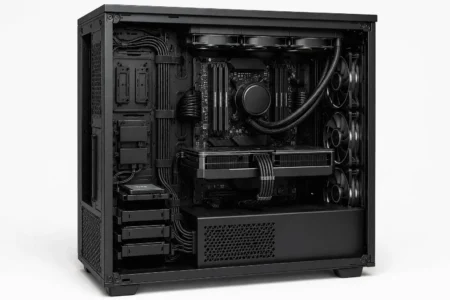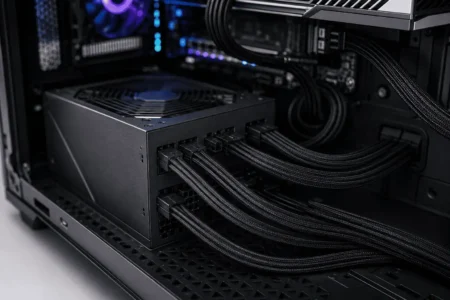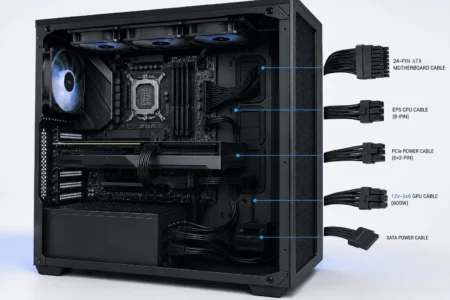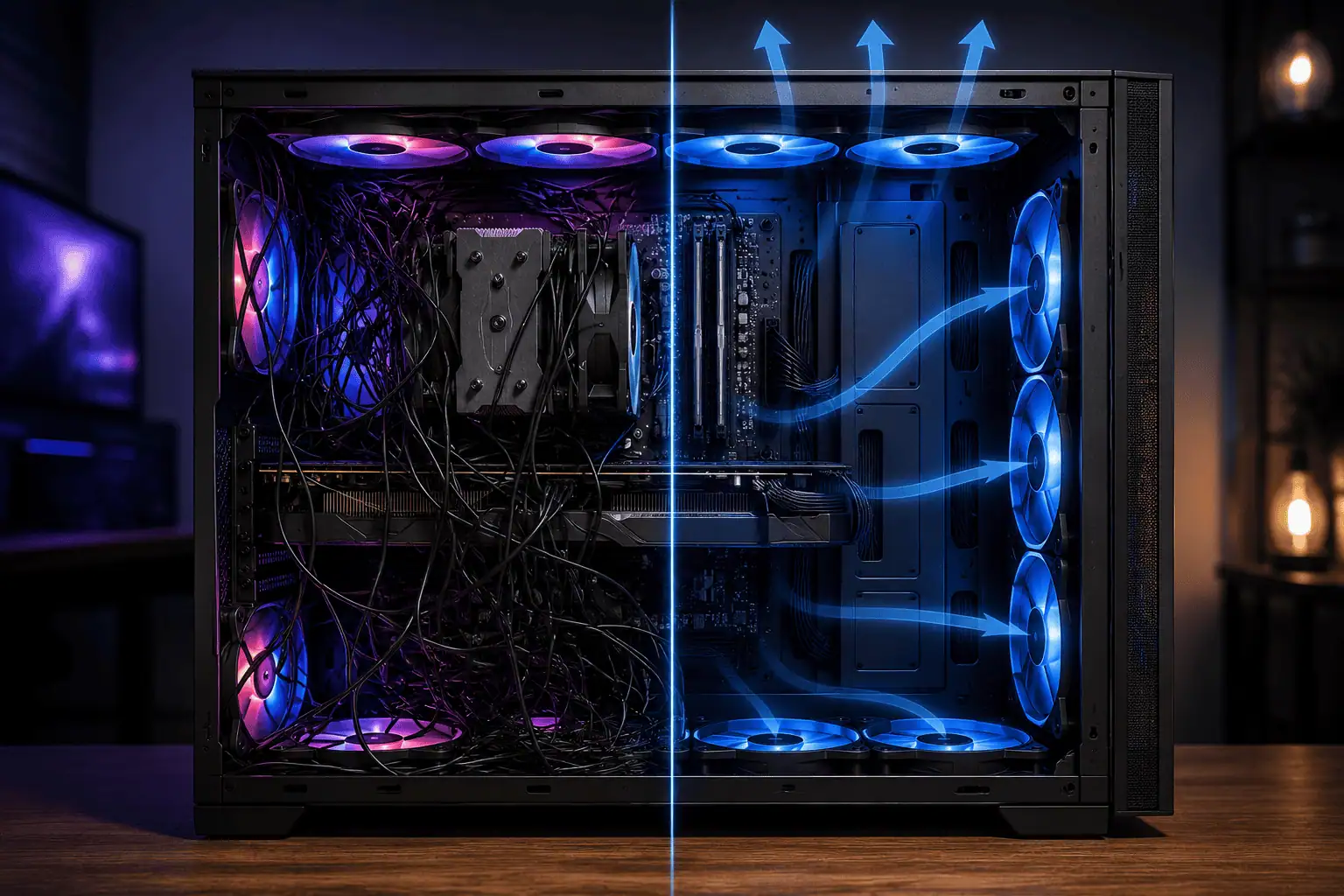
Many PC builders focus on choosing the right case, cooling fans, and RGB lighting, but fan cable routing is just as important. Loose cables can make a clean build look messy, sit near fan blades, or get in the way of the airflow path. Learning how to hide fan cables in a high airflow build helps keep your PC organized while making cleaning and future upgrades easier.
Most cable management guides give general tips but do not explain how to route cables for front intake, top exhaust, rear exhaust, and radiator fans. This guide shows simple, practical steps to organize fan cables, improve airflow, and keep the inside of your PC neat without making future maintenance harder.
Why You Should Hide Fan Cables in a High Airflow Build
High airflow cases move fresh air through the computer as easily as possible. Most use large mesh panels and several intake and exhaust fans.
The fans can only work well if nothing blocks the air path.
Loose fan cables rarely have a major effect on cooling, but they can interrupt smooth airflow, create clutter, and increase the chance of touching the fan blades.
Good fan cable management offers several benefits.
- Keeps the airflow path clear.
- Makes the inside of the PC look cleaner.
- Reduces the chance of cables touching fan blades.
- Makes dust cleaning easier.
- Simplifies future upgrades.
- Makes troubleshooting faster.
What Is a High Airflow Build?
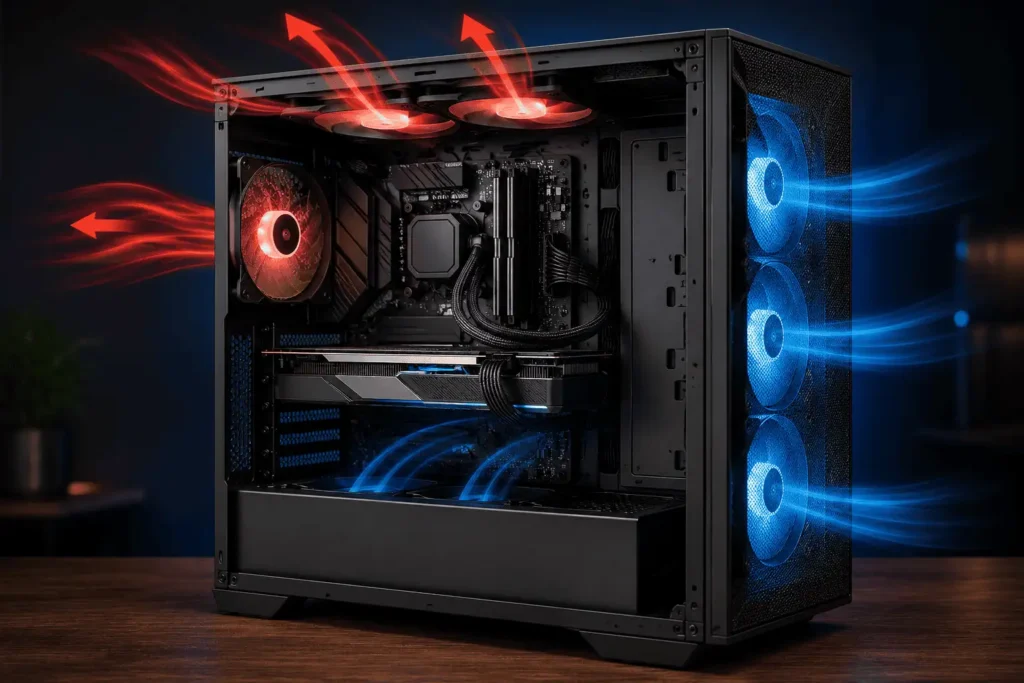
A high airflow build is a computer that moves cool air through the case with as few restrictions as possible.
Most high airflow PCs have these features:
- Mesh front panel
- Multiple intake fans
- Rear exhaust fan
- Top exhaust fans
- Open space around the graphics card
- Good cable management behind the motherboard tray
Fresh air usually enters through the front of the case. It then passes over the graphics card, CPU cooler, and motherboard before leaving through the rear and top fans.
Every cable that hangs in this path becomes another object the air must move around.
That is why cable routing is part of airflow planning.
Understand the Airflow Path Before You Hide Front Intake Fan Cables
Before you hide fan cables in a high airflow build, understand how air moves inside the case.
A typical airflow path starts at the front intake fans. These fans pull cool air into the case. The air then passes over the graphics card, CPU cooler, and motherboard before leaving through the rear and top exhaust fans.
Every cable that hangs in this path becomes another object the air must move around. While loose cables usually do not cause a large drop in cooling performance, they can interrupt smooth airflow, create clutter, and increase the chance of touching the fan blades.
When routing your fan cables, ask yourself one simple question:
Will this cable block the airflow if I place it here?
If the answer is yes, choose another route.
Hide Front Intake Fan Cables
Front intake fans are often the hardest to manage because they sit behind the front panel.
Guide each cable along the edge of the fan frame instead of letting it hang behind the fan.
Pass the cable through the nearest rubber grommet or cable opening as soon as possible. Then route it behind the motherboard tray.
If your case includes cable channels or built-in tie-down points, use them to keep the cables flat against the case.
Avoid storing extra cable behind the front mesh panel. Large cable bundles can collect dust and slightly reduce the amount of fresh air entering the case.
If your build has several front intake fans, connect them to a nearby PWM fan hub or use daisy-chain cables if your fans support them.
This reduces visible wiring and keeps the main airflow path clear.
Plan Your Cable Routing Before Installing the Fans
Many people install every fan first and think about the cables later.
This usually creates extra work.
Instead, make a simple routing plan before installing anything.
Start by checking where each fan header is located on the motherboard.
Next, find the cable openings near those headers.
Then look for tie-down points behind the motherboard tray.
Finally, decide where your fan hub or PWM splitter will go if you plan to use one.
This small amount of planning helps you avoid long visible cable runs.
It also reduces the amount of extra cable you must hide later.
Follow This Fan Cable Routing Order
A simple routing order helps you avoid tangled wires and saves time later.
Follow these steps.
- Install all the case fans.
- Check that every fan cable can reach its header or fan hub.
- Mount the PWM fan hub or ARGB controller.
- Route the fan power cables first.
- Route the RGB cables next.
- Secure extra cable behind the motherboard tray.
- Test that every fan spins correctly.
- Tighten the Velcro straps and close the side panel.
It is a good idea to test every fan before tightening the cable ties. This makes it easy to fix a missed connection without cutting every tie.
Tools That Make Fan Cable Management Easier
You do not need expensive accessories to organize fan cables. A few simple tools are enough.
Velcro Straps
Easy to reuse and ideal if you upgrade your PC often.
Zip Ties
Hold cables securely in place but are best for permanent cable routing.
Cable Clips
Keep individual fan wires close to the case frame and out of sight.
PWM Fan Hub
Connects multiple fans to one hub, reducing visible cables inside the case.
ARGB Controller
Organizes RGB lighting cables and helps keep the motherboard area tidy.
Choose the Best Place for a Fan Hub
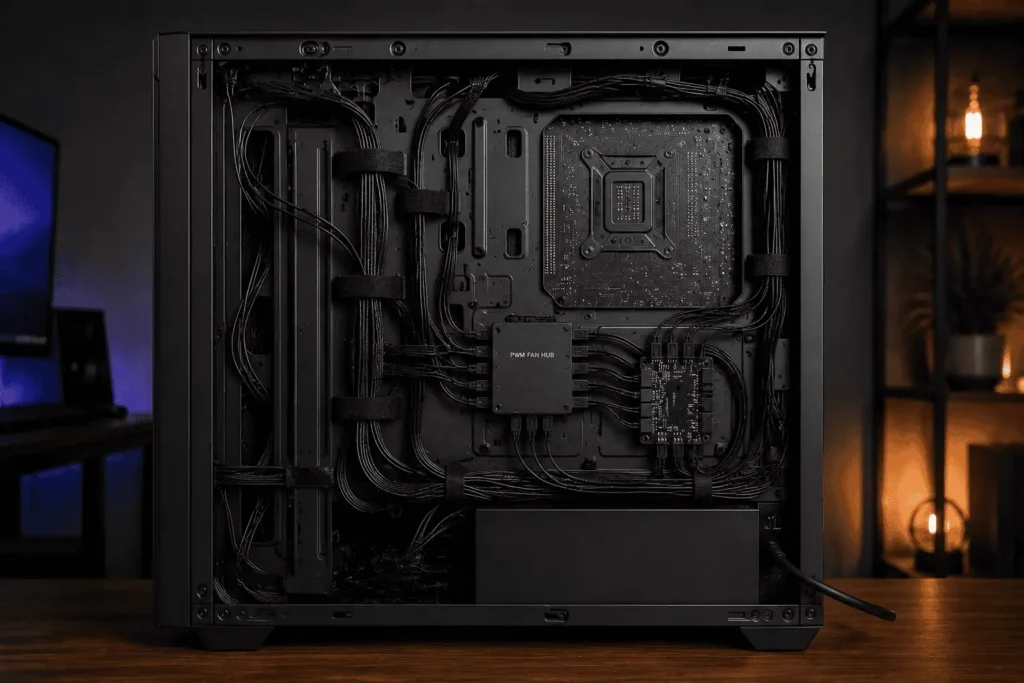
One topic that many cable management guides skip is fan hub placement.
The location of the hub changes how easy cable routing becomes.
A poor location creates long visible cable runs.
A good location keeps almost every cable hidden.
The best places include:
Behind the Motherboard Tray
This is usually the best option.
Most fan cables can reach the hub without crossing the main chamber.
It also keeps the hub hidden.
Near the Cable Routing Channels
Some modern cases include built-in cable channels.
Placing the fan hub nearby keeps cable routing simple.
Inside the PSU Shroud Area
Many full-size cases have extra room above or beside the power supply.
This is another good place for a fan hub if the cables can reach comfortably.
Avoid placing the hub where it blocks airflow or makes future maintenance difficult.
Make sure every fan cable can reach the hub without being stretched or crossing the center of the case.
Hide Top Exhaust Fan Cables
Top exhaust fans remove hot air from the case. They are easy to see through a tempered glass side panel, so messy cables can stand out.
The best way to hide fan cables in a high airflow build is to keep the wires close to the top edge of the case.
Guide each cable along the fan frame instead of letting it hang below the fan.
If your case has cable openings near the roof, pass the wires through them as soon as possible.
This keeps the center of the case open for warm air to leave.
If there is extra cable, secure it behind the motherboard tray instead of folding it above the motherboard.
A small amount of planning here creates a much cleaner finish.
Hide Rear Exhaust Fan Cables
The rear exhaust fan usually sits close to the CPU power connector and motherboard fan headers.
This makes cable routing much easier.
Keep the cable flat against the rear edge of the case.
Route it through the nearest cable opening behind the motherboard tray.
Avoid running the cable across the CPU cooler or memory modules.
Even though the rear fan cable is short, good routing makes the inside of the PC look much cleaner.
Hide Radiator Fan Cables
Radiator fans often create the most cable clutter.
A 240 mm or 360 mm radiator can have two or three fan cables.
RGB models also include lighting cables.
Instead of routing every cable separately, group the cables together.
Secure them neatly along the radiator frame.
Then route the bundle through the nearest cable opening.
Many builders try to hide these wires behind radiator tubes.
This usually looks messy.
Instead, keep the cables beside the radiator where they stay hidden but remain easy to reach later.
If you use an AIO cooler, connect the radiator fans to a PWM fan hub or splitter whenever possible.
This reduces visible wiring and makes future maintenance easier.
Daisy Chain Fans to Reduce Cable Clutter
Many newer fans support daisy chaining.
This means one fan connects directly to the next.
Instead of four separate cables running across the case, only one cable goes back to the motherboard or fan hub.
This is one of the easiest ways to reduce cable clutter.
Daisy chaining works especially well for:
- Front intake fans
- Top exhaust fans
- Side-mounted fans
- Reverse blade RGB fans
Before buying new fans, check whether they support PWM or ARGB daisy chaining.
Not every fan includes this feature.
Manage Extra Cable Length Without Creating Tension
Extra cable does not have to create clutter.
Instead of stuffing long cables into one corner, spread them neatly behind the motherboard tray. Use the built-in cable channels or tie-down points to keep the cables flat.
Leave a small service loop near each fan connector. This is a short amount of extra cable that allows you to remove or replace a fan later without cutting every cable tie.
The goal is to keep the cable secure without pulling it tight. This makes future upgrades much easier while keeping the inside of the case organized.
Keep RGB and PWM Cables Organized
RGB fans usually have two cables.
One cable powers the fan.
The other controls the lighting.
Many beginners mix these cables together.
Instead, organize them separately.
Group all PWM cables together.
Group all ARGB cables together.
Connect each group to the correct controller or hub.
This makes troubleshooting much easier if one fan stops spinning or one light stops working.
Route Fan Cables for Different Case Types
Every PC case is different.
The best cable route depends on the layout.
Mesh Front Cases
These cases focus on airflow.
Keep every intake fan cable behind the front frame.
Avoid leaving cable loops behind the mesh panel.
Dual Chamber Cases
Dual Chamber cases provide a separate rear chamber.
Use this extra space to hide fan hubs, splitters, and extra cable length.
This creates one of the cleanest cable management layouts.
Compact Cases
Small cases have limited room.
Plan every cable before installing the fans.
Short cable runs work best.
Avoid large cable bundles.
Full Tower Cases
Large cases offer more routing options.
However, longer cable runs may create extra slack.
Secure long cables with several Velcro straps to stop them from hanging.
Signs Your Fan Cables Are Blocking Airflow
Most fan cables will not cause a major temperature increase. However, poor cable routing can interrupt smooth airflow and make the inside of your PC look cluttered.
Check for these signs.
- A cable hangs in front of an intake fan.
- Loose wires move when the fans start spinning.
- Cable bundles sit behind the front mesh panel.
- Cables cross the center of the case.
- Dust collects around loose cable bundles.
If you notice any of these problems, reroute the cables before using the computer for long gaming sessions or heavy workloads.
Common Mistakes That Hurt Airflow
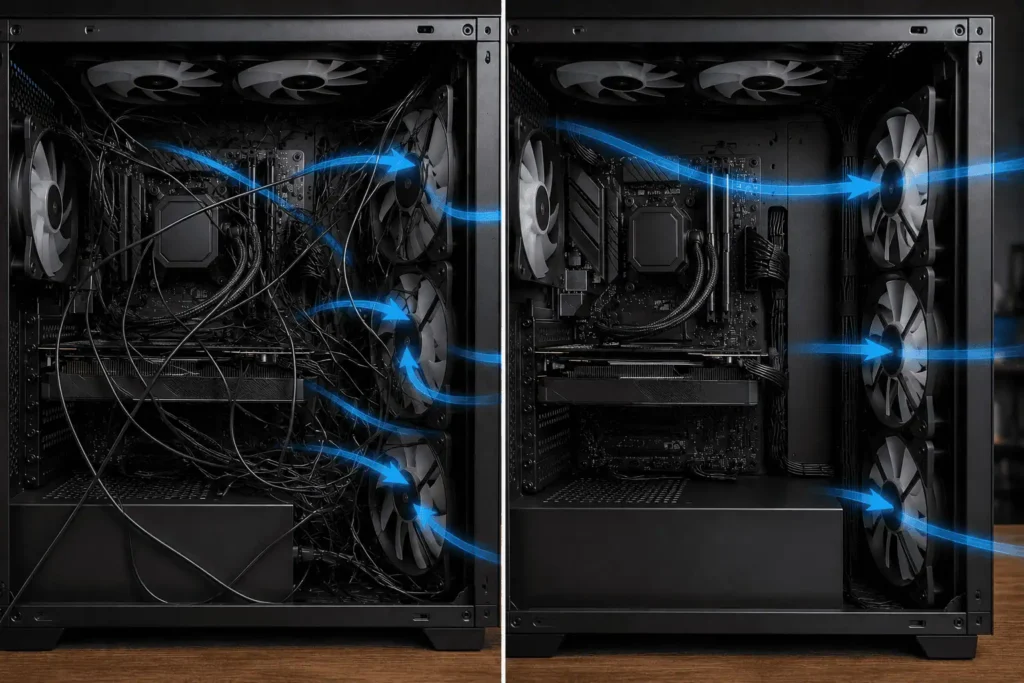
Even experienced builders make small cable management mistakes.
Try to avoid these problems.
- Let cables hang in front of intake fans.
- Route cables across the center of the motherboard.
- Store extra cable behind the front mesh panel.
- Pull cables too tight.
- Leave cables close to spinning fan blades.
- Install the fan hub where cables cannot reach comfortably.
- Mix RGB and PWM cables together.
- Use too many zip ties, making upgrades harder.
Every small improvement helps create a cleaner and cooler PC.
Check Your Work Before Closing the Case
Before installing the side panels, inspect your cable routing carefully.
Look through the glass panel.
Can you see loose fan cables?
Check behind the motherboard tray.
Are the cables secured?
Spin each fan gently with your finger while the PC is turned off.
Make sure no cable can touch the fan blades.
Finally, power on the computer.
Confirm that every fan spins correctly.
Check that all RGB lighting works if your fans include it.
A five-minute inspection now can save hours of troubleshooting later.
Keep Fan Cables Organized During Future Upgrades
Many builders think cable management is a one-time job.
It is not.
Every new fan, storage drive, or graphics card can change your cable layout.
Whenever you upgrade your PC, check the fan cables again.
Ask yourself these simple questions.
- Does any cable cross the airflow path?
- Can I shorten this cable route?
- Does the fan hub still make sense in this location?
- Is there too much extra cable behind the motherboard tray?
Making small changes after every upgrade keeps the PC clean for years.
Clean Your PC Without Ruining Cable Management
Dust builds up over time.
Cleaning your PC is the perfect time to inspect your fan cables.
Turn off the computer and disconnect the power cable.
Use compressed air to remove dust from the fans, radiator, and filters.
Check every cable tie while cleaning.
Replace damaged zip ties or worn Velcro straps.
If you move a cable during cleaning, return it to its original position before closing the case.
Good cable management is easier to maintain than to rebuild.
Conclusion
Learning how to hide fan cables in a high airflow build helps you create a cleaner and more organized PC without getting in the way of cooling. Plan your cable routes before installing the fans, use the motherboard tray to hide most of the wiring, and keep cables away from the airflow path. A little extra time spent on cable management makes future cleaning, upgrades, and troubleshooting much easier while keeping your PC clean, organized, and easier to work on. For a complete approach to organizing cables across every major component, it’s also worth understanding PC component cable management.
FAQs
Can I hide fan cables without removing the motherboard?
Yes. Most fan cables can be routed through nearby cable openings or behind the motherboard tray without removing the motherboard, especially in modern PC cases.
Should I connect fan cables before installing the motherboard?
If space is limited, connecting hard-to-reach fan cables before installing the motherboard can make cable routing much easier.
How often should I check my fan cable management?
Inspect your fan cables whenever you clean your PC or install new hardware to make sure nothing has come loose.
Do all PC cases have enough space to hide fan cables?
No. Larger and newer cases usually offer better cable routing channels and more space behind the motherboard tray than compact cases.
Can loose fan cables cause noise?
Yes. If a cable touches a spinning fan blade, it can create clicking or rattling sounds and may damage the cable over time.