If you are building a PC with a non-modular power supply, extra SATA, Molex, PCIe, and 24-pin ATX cables can quickly create clutter inside your case. Finding room behind the motherboard tray or inside the PSU shroud is often challenging, especially in compact builds. Loose cables can also make upgrades, cleaning, and troubleshooting more difficult while reducing the clean look many builders want.
Fortunately, good cable routing does not require a modular PSU. With simple tools like Velcro straps and smart planning, you can organize unused cables, maintain better airflow, and create a cleaner PC build. This guide explains practical tips to make cable management easier.
What Makes Non-Modular PSU Cables Difficult to Manage?
A non-modular power supply comes with every cable permanently connected to the PSU. You cannot remove unused cables like you can with a fully modular power supply.
This creates extra cable bundles inside your case. For example, you may have unused SATA power cables, Molex connectors, or extra PCIe cables that have nowhere to connect.
The amount of free space inside your PC case also affects how easy cable management will be. A full-tower case usually has more room behind the motherboard tray and inside the PSU shroud. However, smaller micro-ATX and Mini-ITX cases require more careful planning.
Another challenge is cable length. Many PSU cables are made long enough to fit larger computer cases. In a small case, extra cable length can quickly become messy.
Understanding these challenges before starting will help you create a cleaner and safer PC build.
Tools You Need for Better Non-Modular PSU Cable Management
You do not need many tools to organize your PSU cables. A few simple accessories can make the process much easier.
Velcro Straps
Velcro straps are one of the best options for PC cable management. You can open and reuse them whenever you upgrade your hardware or change your cable layout.
Zip Ties
Zip ties hold cable bundles together and prevent cables from moving around. Avoid tightening them too much because they can place unnecessary pressure on the cable insulation.
Cable Combs
Cable combs keep visible cables, such as the 24-pin ATX cable or PCIe GPU cables, straight and evenly spaced. They are useful for gaming PCs with glass side panels.
Cable Sleeves
Cable sleeves group multiple wires together into one clean bundle. They can also improve the appearance of visible cables.
Adhesive Cable Clips
These small clips attach to flat areas inside the case and help guide smaller cables, such as fan or RGB cables.
Understand Your PC Case Before Routing PSU Cables
Before connecting any power cable, take a few minutes to study your PC case layout.
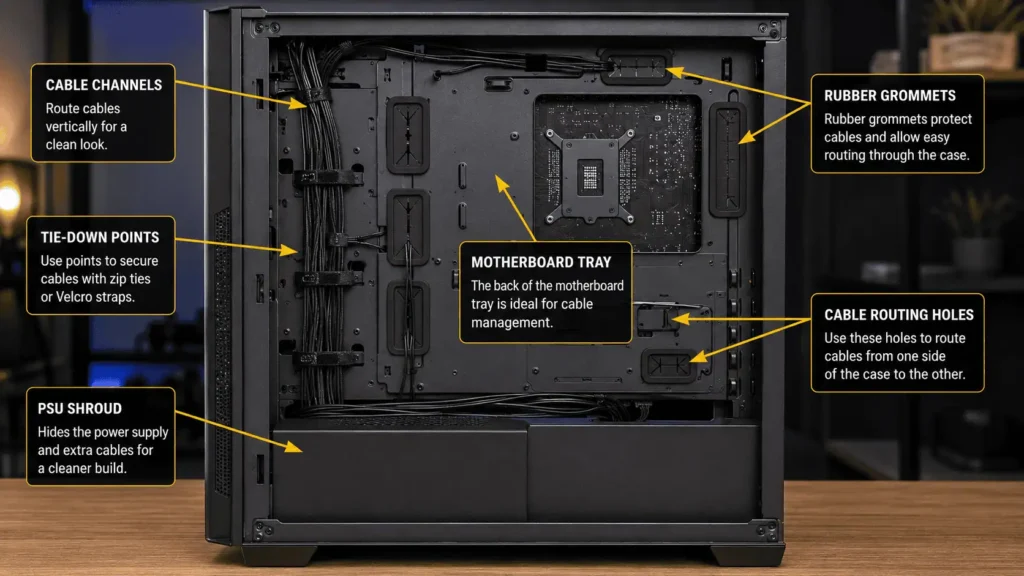
Look for cable routing holes, rubber grommets, cable channels, and space behind the motherboard tray. These areas are designed to hide cables and keep the main chamber clean.
If your case has a PSU shroud, use it to hide extra non-modular PSU cables. The shroud covers the power supply area and gives you a good place to store unused wires.
Cases without a PSU shroud require more planning. You may need to use empty hard drive bays or unused spaces behind the front panel to hide cable bundles.
Planning your cable paths before installing everything will save time and prevent a messy build.
Step-by-Step Guide to Managing Non-Modular Power Supply Cables
Good cable management starts with a clear plan. Do not connect every cable at once. Work with one cable at a time.
Check PSU Orientation and Cable Exit Direction
Before you start routing cables, confirm that your power supply is installed in the correct direction according to your PC case design.
The position of the PSU and the direction of its cable bundle affect how easily you can route cables through the motherboard tray and cable cutouts.
Most modern cases place the PSU with the fan facing a ventilated panel, but always follow your case and power supply manual for the correct installation direction.
Plan Your Cable Routes Before Installation
Check where each component receives power. Find the shortest and cleanest path from the PSU to the motherboard, graphics card, storage devices, and other components.
Keep cables close to the edges of the case whenever possible. Avoid running large cables through the middle of the PC because they can block airflow and make the build look messy.
Test Your Cable Paths Before Securing Them
Before tightening zip ties or closing your PC case, check every cable route carefully.
Make sure each cable reaches its connector without being stretched. Check that the side panel can close properly and confirm that no cables are blocking case fans or airflow paths.
It is also a good idea to think about future upgrades. Leaving some flexibility makes it easier to add a new SSD, fan, graphics card, or other hardware later.
Organize Front Panel and Fan Cables First
Before connecting large PSU cables, organize the smaller cables inside your case first. These cables may also include USB 3.0 and USB Type-C front panel connectors, which are usually thicker than other front I/O wires and may require more careful routing.
Small cables are easier to hide when the main power cables are not installed yet. Route them through cable cutouts, rubber grommets, or cable routing channels whenever possible.
Use tie-down points, Velcro straps, or cable clips to keep these wires flat against the motherboard tray. This creates more room for larger 24-pin, CPU, and PCIe cables later.
Route the 24-Pin Motherboard Cable
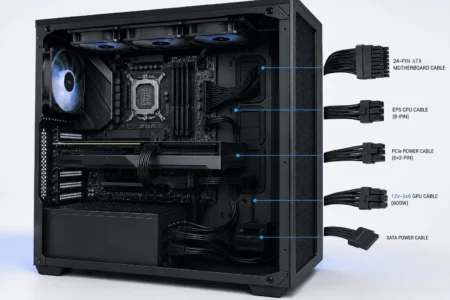
The 24-pin ATX cable is usually the largest and most visible cable inside a PC. Because of its size, it can easily make your build look messy if it is not routed correctly.
The best method is to pass the 24-pin cable through the nearest cable routing hole or rubber grommet beside the motherboard. Plug the connector into the motherboard and then pull the extra cable length back behind the motherboard tray.
If your case has cable channels or Velcro straps, use them to keep the 24-pin cable flat against the back panel. You can also use cable combs to make the visible part of the cable look straight and organized.
Manage CPU EPS Power Cables
The CPU power cable, also called the EPS cable, usually connects at the top of the motherboard. It can be difficult to route after all your components are installed.
For the easiest cable management, route the EPS cable before installing large CPU air coolers or other parts that block access to the top of the case.
Run the cable behind the motherboard tray and bring it out through the top cable cutout. This keeps the cable away from the center of the case and gives your PC a cleaner appearance.
Avoid stretching the cable tightly. Leave a small amount of slack so the connector does not experience unnecessary pressure.
Organize PCIe GPU Power Cables
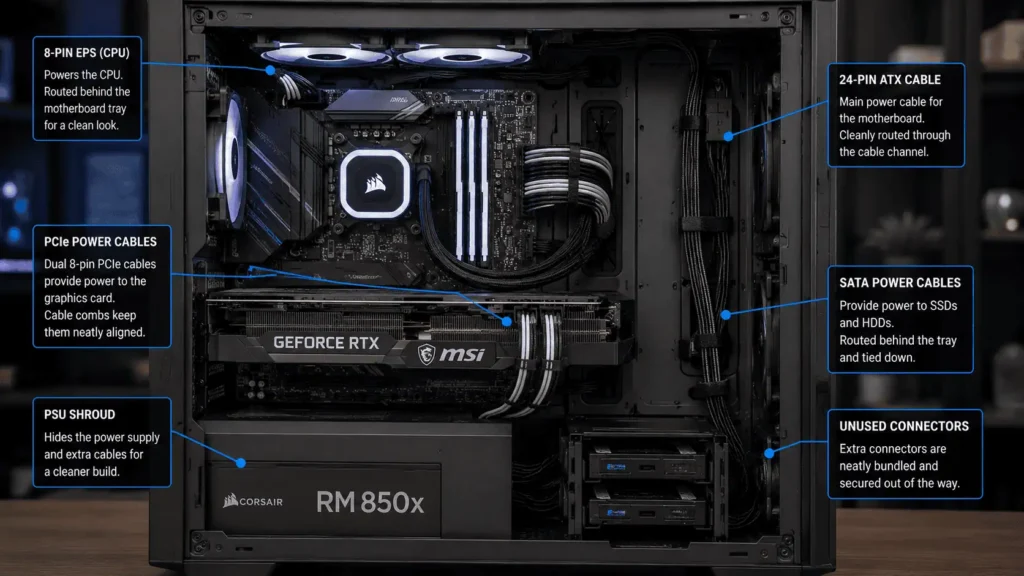
Graphics cards often need one or more PCIe power cables. These cables are usually very visible, especially in gaming PCs with a tempered glass side panel.
Route PCIe cables through the closest opening near your graphics card. Avoid letting the cables hang loosely because this can make the build look untidy.
If your PSU has extra unused PCIe connectors on the same cable, fold the additional connector carefully and store it behind the motherboard tray or inside the PSU shroud.
If you have a modern high-end graphics card, you may use a 12VHPWR or PCIe 5.0 power connector. Make sure the connector is fully inserted and avoid making sharp bends near the plug because this can place unnecessary stress on the cable.
Cable combs or cable sleeves can also improve the appearance of visible GPU power cables.
Tuck Away Unused SATA and Molex Cables
Unused SATA and Molex cables are one of the biggest problems with non-modular power supplies. Since they cannot be removed, they need to be hidden safely.
f your PSU has extra SATA power connectors or daisy-chain PCIe connectors that are not needed, fold them into loose loops and secure them with Velcro straps.
Avoid making sharp bends or forcing cables into tight spaces because this can create pressure on the side panel and make cable management harder.
Instead, make loose cable loops and secure them with Velcro straps or zip ties. Then place them in areas such as:
- Inside the PSU shroud
- Behind the motherboard tray
- Inside unused HDD or SSD bays
- Empty spaces near the front panel
Keeping all unused cables in one organized bundle makes future upgrades much easier.
Secure Your Cables Properly
After routing every cable, the final step is securing everything in place.
Use Velcro straps for cable bundles that you may need to access later. This includes SATA cables or wires connected to future upgrade areas.
Use zip ties for cables that are unlikely to move. However, do not pull zip ties too tightly because they can pinch the cables, place pressure on the insulation, and make future cable changes more difficult.
Try to keep thicker cables together and route smaller cables underneath them. This creates a flatter cable layout and helps the side panel close without force.
Check your cable placement before closing the case. Make sure no cable is touching case fans, CPU cooler fans, or GPU fans.
Best Places to Hide Extra Non-Modular PSU Cables
Knowing where to hide unused PSU cables can make a major difference in your PC’s appearance.
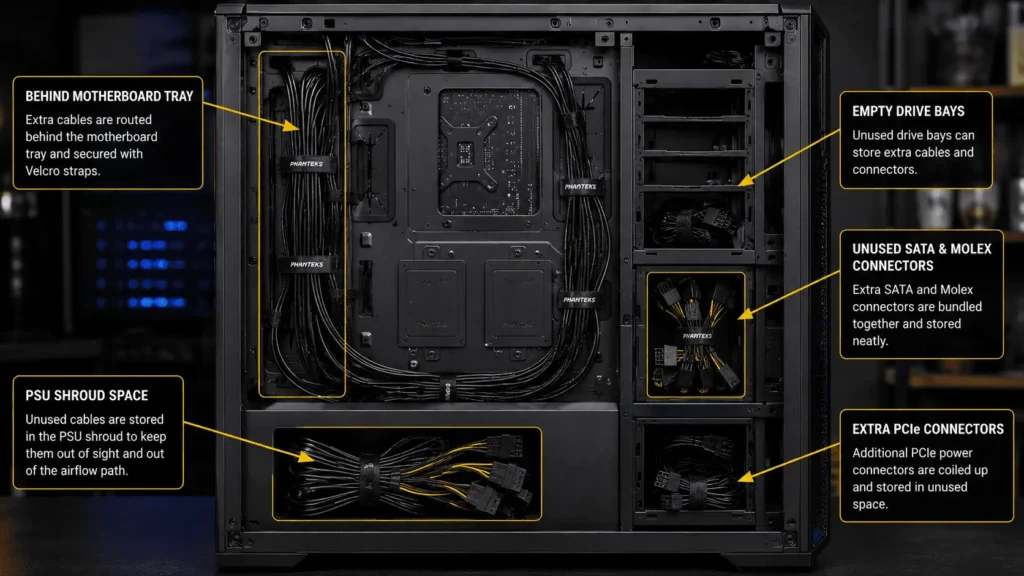
Inside the PSU Shroud
The PSU shroud is one of the best locations for storing unused cable bundles and keeping the main chamber clean.
Bundle unused SATA, Molex, or PCIe cables together and place them neatly beside the power supply.
Behind the Motherboard Tray
Many modern cases provide space behind the motherboard tray for cable management.
Use built-in channels, tie-down points, and Velcro straps to secure cables flat against the case. This prevents the side panel from bulging when you close it.
Empty Drive Bays
If you do not use all your HDD or SSD mounting locations, they can become useful storage areas for extra cables.
Fold the cables carefully and secure them before placing them in the empty bay. This keeps the cables organized and easy to access later.
Front Panel and Hidden Case Spaces
Some PC cases have small unused spaces near the front panel or along the edges of the chassis.
These areas are useful for hiding thin cables and extra connectors. However, always make sure the cables do not block intake fans or airflow paths.
How to Improve Airflow While Managing PSU Cables
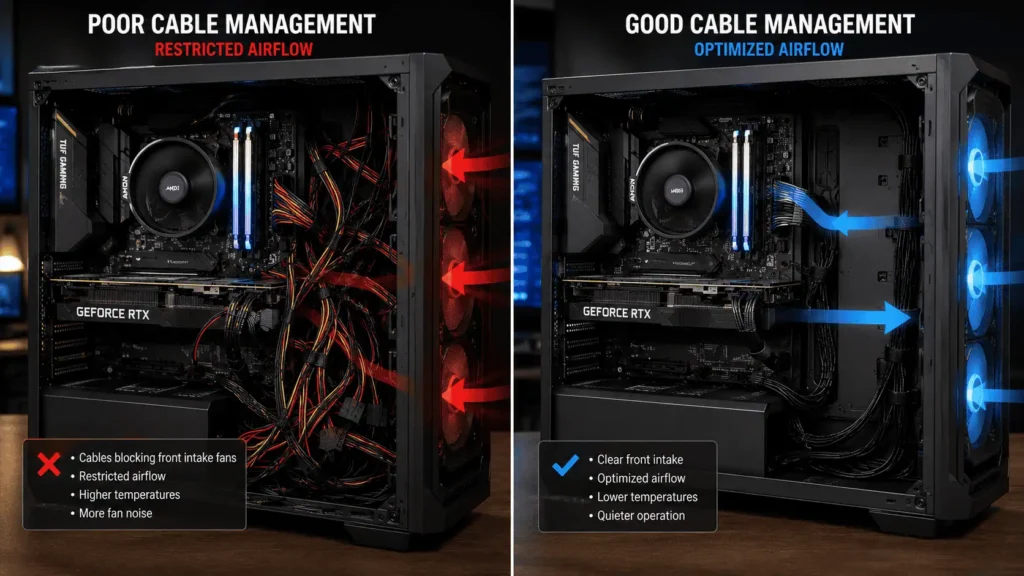
Good cable management can help maintain better airflow inside your computer case.
Large cable bundles can block intake fans and restrict airflow inside the case.
Keep the center area of the case as open as possible. Route cables along the edges and behind the motherboard tray whenever possible.
Also, avoid placing cable bundles directly against fans. A loose cable can move into a fan blade and cause noise or damage.
A clean cable layout also makes it easier to remove dust and perform future maintenance on your PC.
Common Non-Modular PSU Cable Management Mistakes
Even experienced PC builders can make mistakes while managing non-modular power supply cables. Avoiding these common problems will help you create a cleaner, safer, and easier-to-maintain PC.
Stuffing Too Many Cables Into One Small Space
Many people push all the unused PSU cables into a small corner of the case. This may help close the side panel, but it can create a large cable lump that puts pressure on the cables.
Instead, spread cables across available spaces such as the PSU shroud, behind the motherboard tray, or empty drive bays.
Pulling Zip Ties Too Tight
Zip ties are useful for keeping cables in place, but they should not squeeze the wires too much.
Leave a little space around the cable bundle. This prevents unnecessary stress on the cable insulation and makes future changes easier.
Blocking Case Fans and Airflow
Loose cables hanging in front of intake fans can reduce the amount of cool air reaching your CPU and GPU.
Always keep the center of your case open and route cables around the edges whenever possible.
Ignoring Future Upgrades
Some people make their cable management so tight that adding a new SSD, fan, or graphics card becomes difficult.
Use reusable Velcro straps in areas where you may add components later. This gives you more flexibility during upgrades.
Using the Wrong Modular PSU Cables
Never mix modular cables from different PSU brands or models. Although the connectors may look similar, the internal wiring can be different and may damage your hardware.
Always use the cables that come with your power supply or official replacements from the manufacturer.
Is It Safe to Cut Unused Cables From a Non-Modular Power Supply?
No, cutting unused cables from a non-modular power supply is not recommended.
Non-modular PSU cables are permanently attached to the power supply. Cutting them can damage the PSU, create electrical hazards, and usually void the manufacturer warranty.
Some users may think they can cut unused SATA, Molex, or PCIe connectors to create more space, but this is not a safe cable management method.
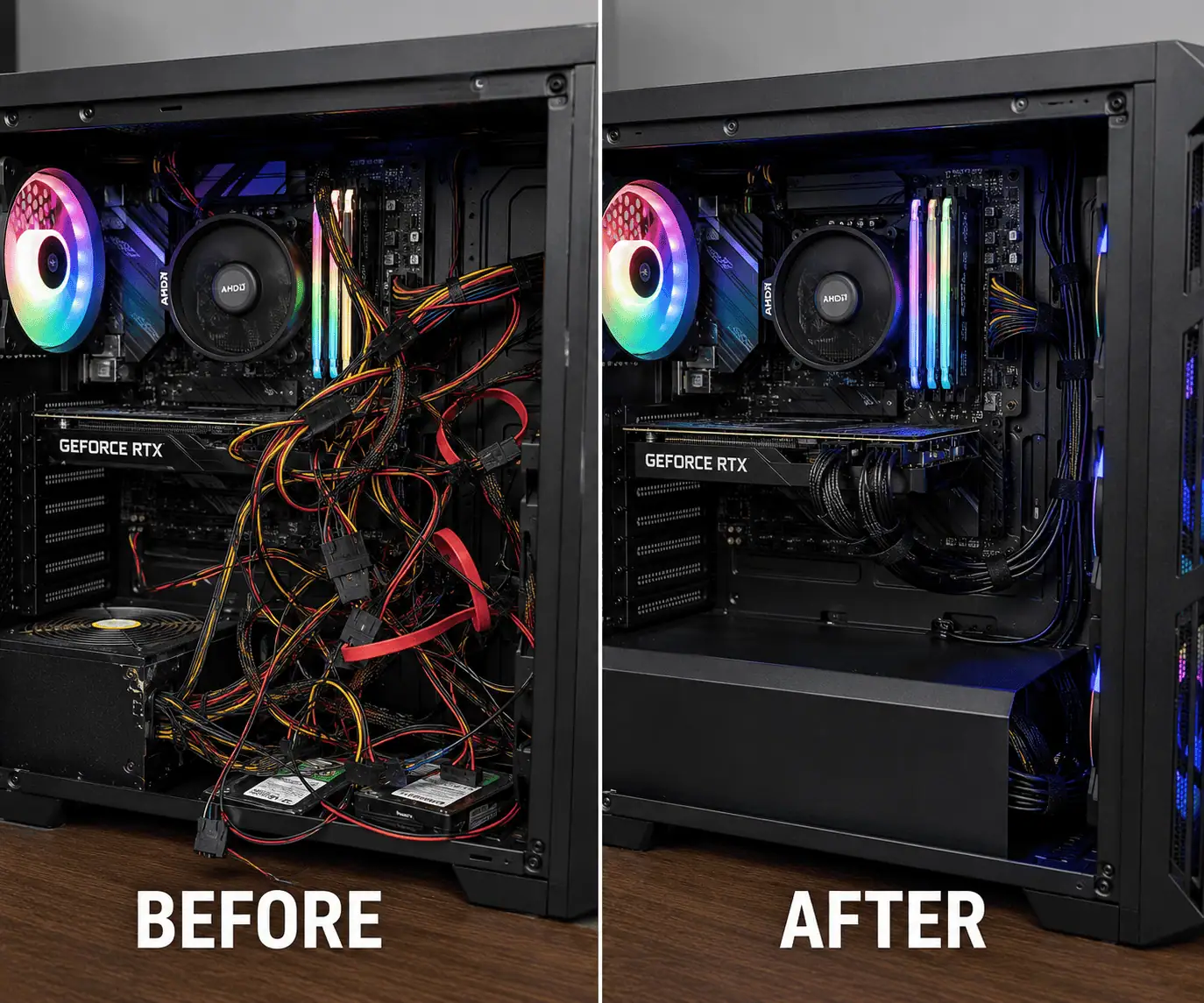
The better solution is to fold the unused cables into loose loops, secure them with Velcro straps, and hide them behind the motherboard tray, inside the PSU shroud, or in empty drive bays.
Non-Modular vs Semi-Modular vs Modular PSU: Which Is Easier to Manage?
All three power supply types can create a clean PC build, but they require different amounts of cable management effort.
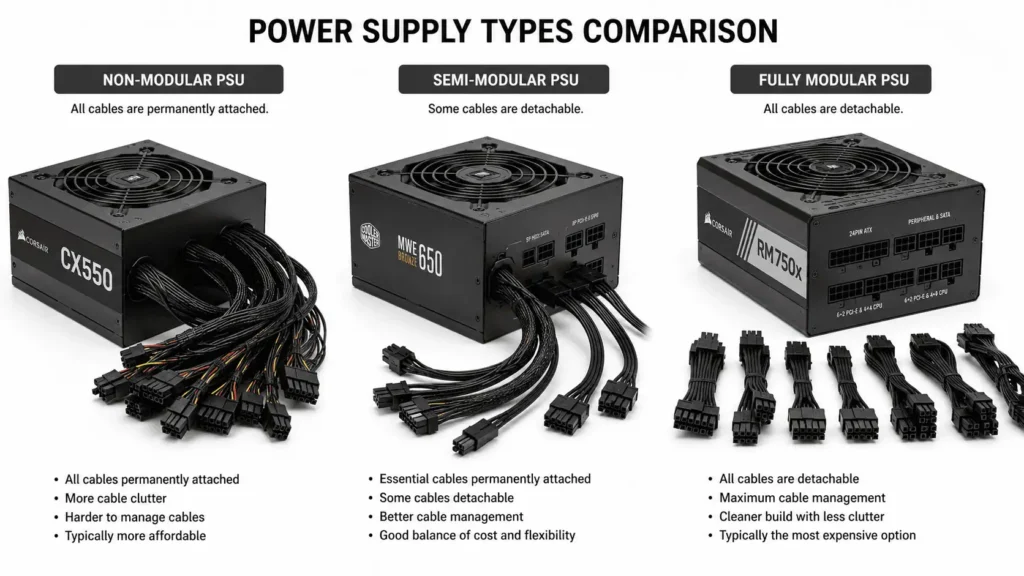
Non-Modular PSU
A non-modular PSU has every cable permanently attached. It is usually more affordable, but you must find a place to store unused cables.
It is a good choice for budget PC builds if your case has enough cable management space.
Semi-Modular PSU
A semi-modular PSU has some fixed cables, usually the 24-pin motherboard cable and CPU power cable. Other cables can be removed when they are not needed.
This gives you a balance between price and easier cable management.
Fully Modular PSU
A fully modular PSU allows you to connect only the cables your PC needs.
It offers the cleanest cable setup and is often preferred for premium gaming PCs, small cases, and showcase builds with glass side panels.
Cable Management Tips for Different PC Case Sizes
The size of your computer case changes how you should manage non-modular PSU cables.
Full-Tower Cases
Full-tower cases provide the most room for routing and hiding cables. You can easily use the space behind the motherboard tray, PSU shroud, and drive cages.
Mid-Tower Cases
Mid-tower cases are the most common option. Use cable routing holes, built-in channels, and tie-down points to keep cables flat and organized.
Micro-ATX Cases
Micro-ATX cases have less space, so planning becomes more important.
Route the largest cables first, such as the 24-pin and CPU EPS cables. Then organize smaller cables around them.
Mini-ITX Cases
Mini-ITX cases have very limited space. Avoid creating large cable bundles and use every available hidden area carefully.
Short cable extensions or custom-length cables can also help create a cleaner layout in compact builds.
Conclusion
From my experience working on different PC builds, good non-modular PSU cable management is less about buying expensive parts and more about taking time to plan your cable routes correctly. A clean build comes from organizing unused cables properly, keeping wires away from fans, and using the available space inside your PC case effectively. With the right techniques and a little patience, even a budget non-modular power supply can look neat, stay easy to maintain, and provide enough room for future upgrades. Managing your power supply cables is an important first step, but it’s also worth exploring PC component cable management to organize every major component in your build.
FAQs
1. How often should you check your PSU cable management?
You should inspect your PSU cables every few months or whenever you upgrade your PC. Check that cable ties are secure and make sure no cables have shifted near case fans.
2. Can cable extensions make non-modular PSU cable management easier?
Yes. Cable extensions can improve the appearance of visible cables, especially the 24-pin ATX and PCIe GPU cables. Just make sure your case has enough space to store the extra cable length.
3. Should PSU cables touch the side panel?
Light contact is usually fine, but the side panel should never press hard against cable bundles. Excessive pressure can make the panel difficult to close and strain the cables over time.
4. Is it worth upgrading from a non-modular PSU to a modular PSU just for cable management?
If your current power supply works well, upgrading only for cable management is usually unnecessary. Better cable routing and organization can produce a clean build without replacing the PSU.
5. Can poor cable management make PC troubleshooting harder?
Yes. Tangled cables can make it more difficult to identify connectors, replace components, or trace power issues. A well-organized layout makes maintenance and future upgrades much easier.